Workflow Task
The Workflow Task module in DocView Web provides a centralized view of all workflow-related activities.
It allows users to create, monitor, and analyze tasks associated with predefined workflows such as document validation, posting, approval, and automated email processes.
This module ensures that all ongoing workflow operations are tracked efficiently, giving users full visibility into task status, performance, and workflow execution paths.
Navigation
To access the Workflow Task module:
Login to DocView Web
Open your browser and go to the DocView Web login page.
Enter your registered email address and password to sign in.
After successful login, you’ll be redirected to the Dashboard.Open Sidebar Menu
On the top-left corner of the Dashboard, click the ☰ Sidebar Icon to expand the navigation panel.Select “Workflow”
From the expanded sidebar, click on Workflow to view available workflow options.Click “Workflow Task”
Under the Workflow section, select Workflow Task.
The system loads the Workflow Task Page, displaying all workflow instances and their associated tasks.
Workflow Task Overview
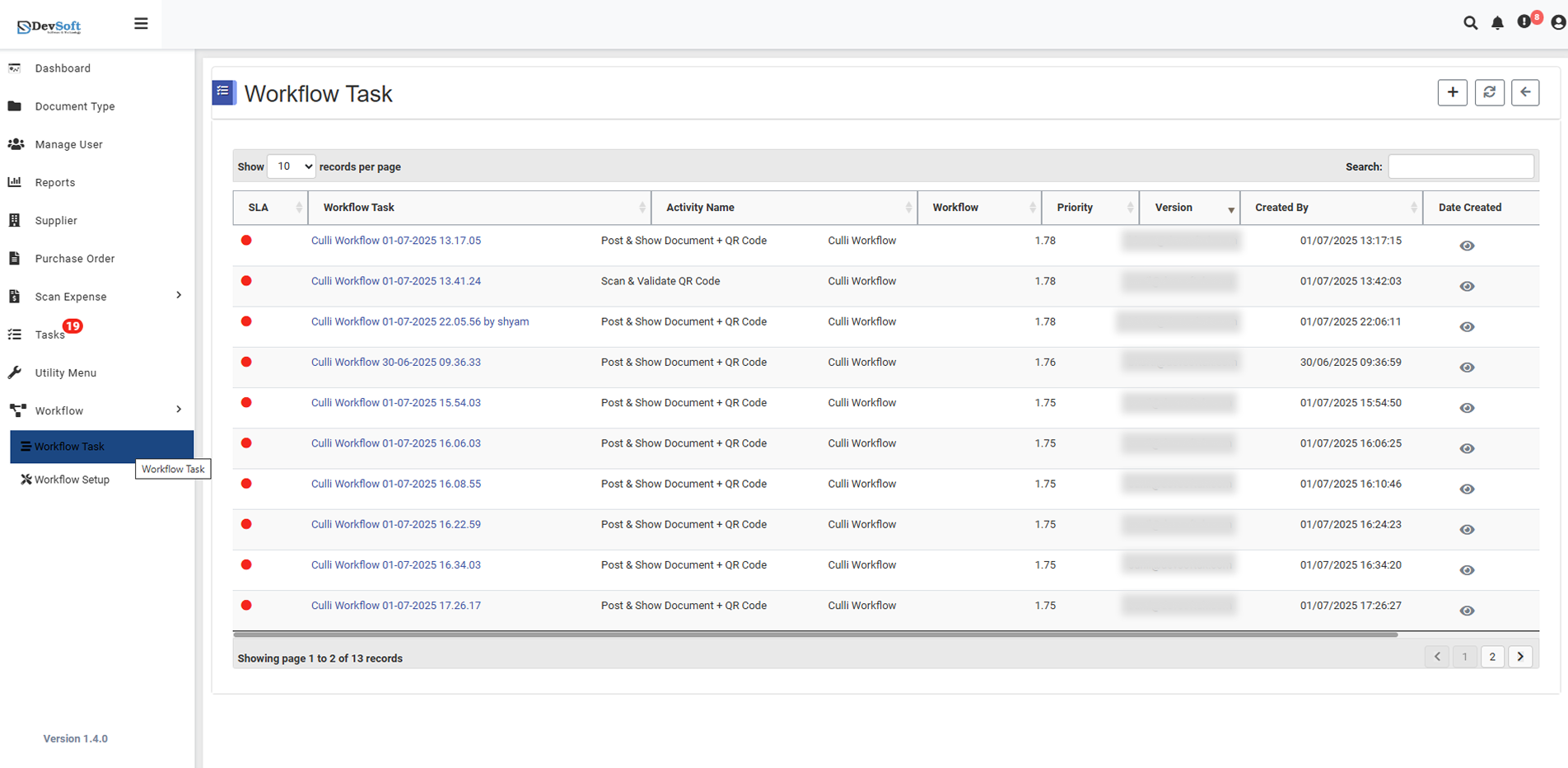
The Workflow Task page displays detailed information about all workflow activities, including:
- SLA Indicator: Shows the Service Level Agreement status for each task. A red dot indicates a pending or delayed task.
- Workflow Task: Displays the name of the task and the date/time it was created.
- Activity Name: Specifies the current activity or action performed by the workflow.
- Workflow: Indicates which workflow the task belongs to (e.g., Culli Workflow).
- Priority: Displays the numeric priority assigned to the task for execution order.
- Version: Indicates the workflow version under which the task is operating.
- Created By: Shows the name of the user who initiated or created the workflow task.
- Date Created: Displays the exact date and time the task was generated.
- View (👁): Opens the workflow process diagram to visualize its flow and activities.
Top Toolbar Actions
At the top-right corner of the Workflow Task page, you will find the following actions:
- Create New Task (➕): Opens the Create Workflow Activity Task popup to define a new workflow task.
- Refresh (🔄): Reloads the task list to reflect recent updates or newly added tasks.
- Back (↩): Returns to the previous module or dashboard page.
Search & Pagination
- Use the Search bar at the top-right to find specific tasks by name, activity, or user.
- Adjust the records per page dropdown (10, 25, 50, etc.) to control how many rows appear.
- At the bottom-right, use pagination controls to move between pages when there are multiple records.
This list shows all active or completed workflow tasks. Each row represents a unique workflow instance with its corresponding details.
Key Features
The Workflow Task module provides the following capabilities:
Centralized Task Management
View all workflow tasks in a single place to monitor progress and track pending actions.
SLA Tracking
Each task shows its Service Level Agreement status, helping users identify overdue or pending tasks.
Task Prioritization
Assign and view priority levels for workflow tasks to manage execution order effectively.
Workflow Monitoring
Track the current activity and execution path of each workflow instance for full visibility.
Task Creation
Users can create new workflow tasks directly from the module using the Create New Task option.
Visual Workflow Diagram
Open workflow diagrams to understand task flow and dependencies visually.
Search and Filter
Quickly locate tasks using search, filters, and pagination controls.
Refresh & Navigation
Update the task list instantly and navigate back to the dashboard easily.