Page Numbers
The Page Numbers utility in DocView Web allows you to add page numbers into PDFs with ease. Choose your positions, dimensions, and typography to create professional-looking documents with properly formatted page numbering.
Navigation
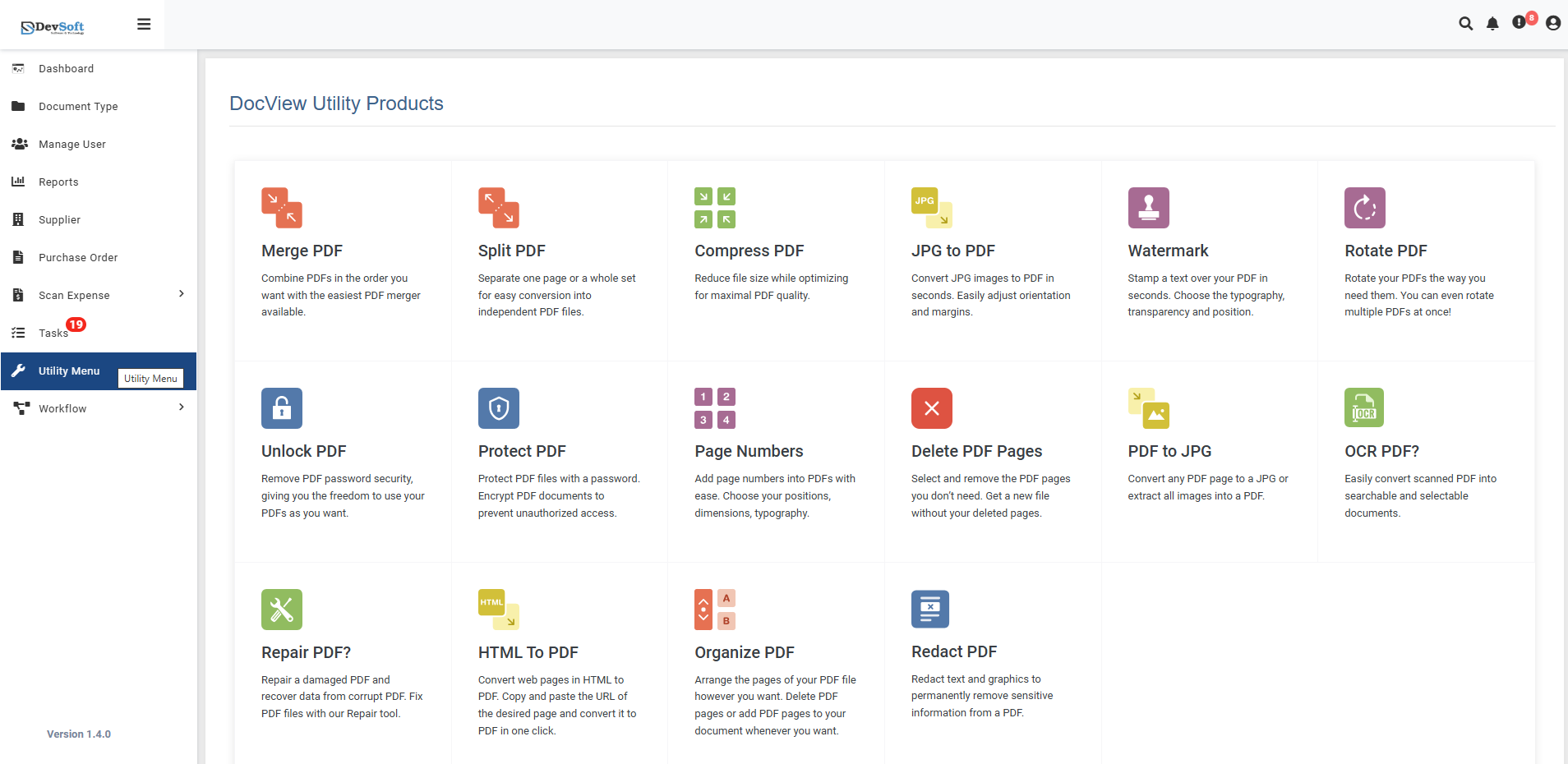
To access the Page Numbers utility:
Open the Sidebar Menu
Click on the ☰ Sidebar Icon at the top-left corner of the dashboard interface to expand the navigation panel.Select "Utility Menu"
From the sidebar, click on Utility Menu to view the complete list of document processing tools.Click on "Page Numbers"
Select the Page Numbers option from the utility products list to open the numbering interface
Page Numbers Overview
The Page Numbers screen provides a comprehensive interface for adding and customizing page numbers in your PDF documents with precise control over appearance and placement.
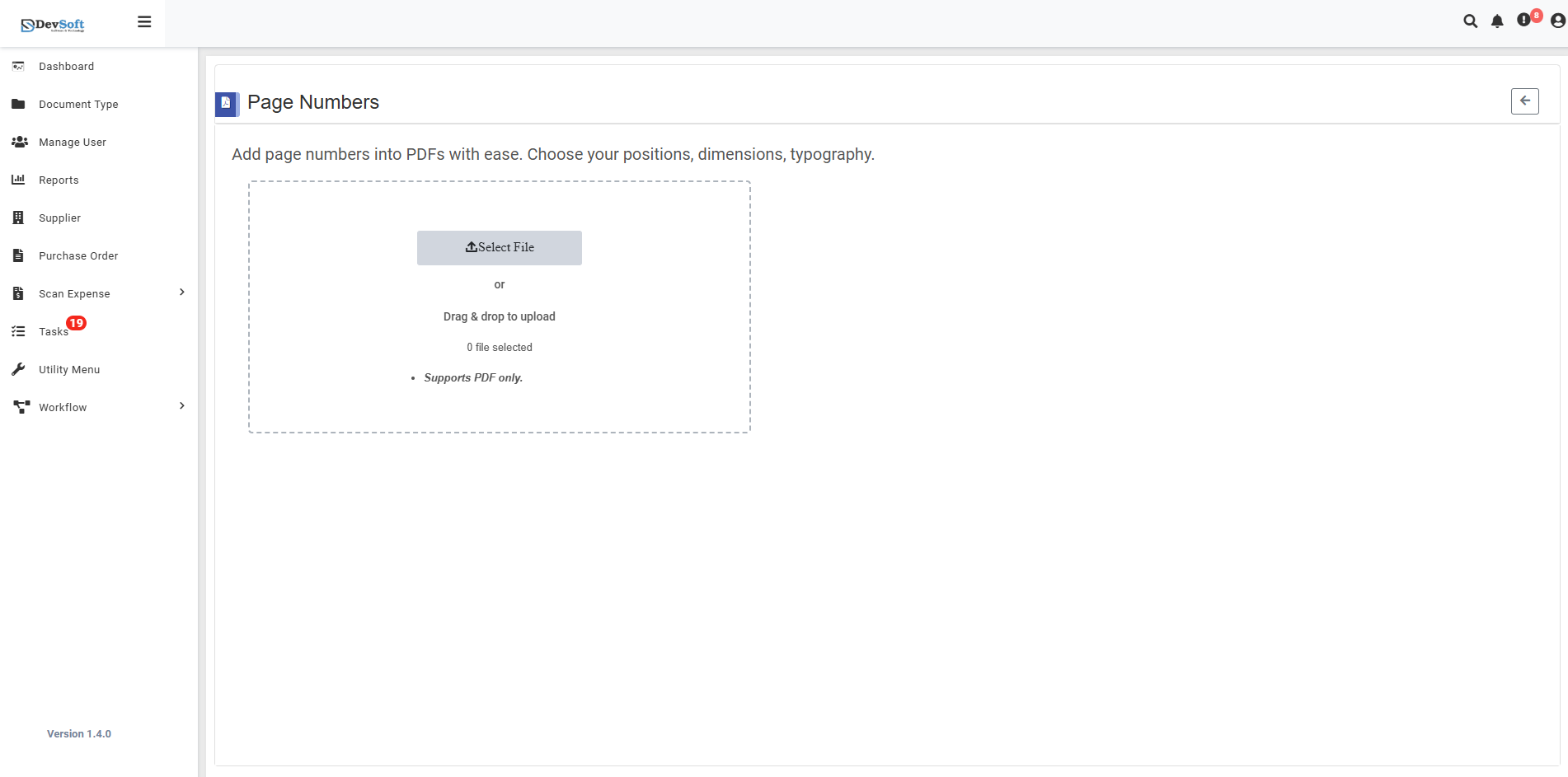
File Upload Section
- Backend File Upload Options
- File Counter - 0/ (shows current file count)
- Drag & Drop - Easy file upload method
- File Selection Status - 0 Bit: selected (shows selected file status)
- Format Restriction - Supports PDF only - Only PDF file formats are accepted
Action Controls
- ← Back Icon (Top-right) - Returns to Utility Products page
Page Numbers – Uploaded View
Once a PDF file is uploaded in the Page Numbers Utility, the interface updates to display page numbering options and layout configurations. This view allows users to choose between different page display modes and apply professional numbering to their documents.
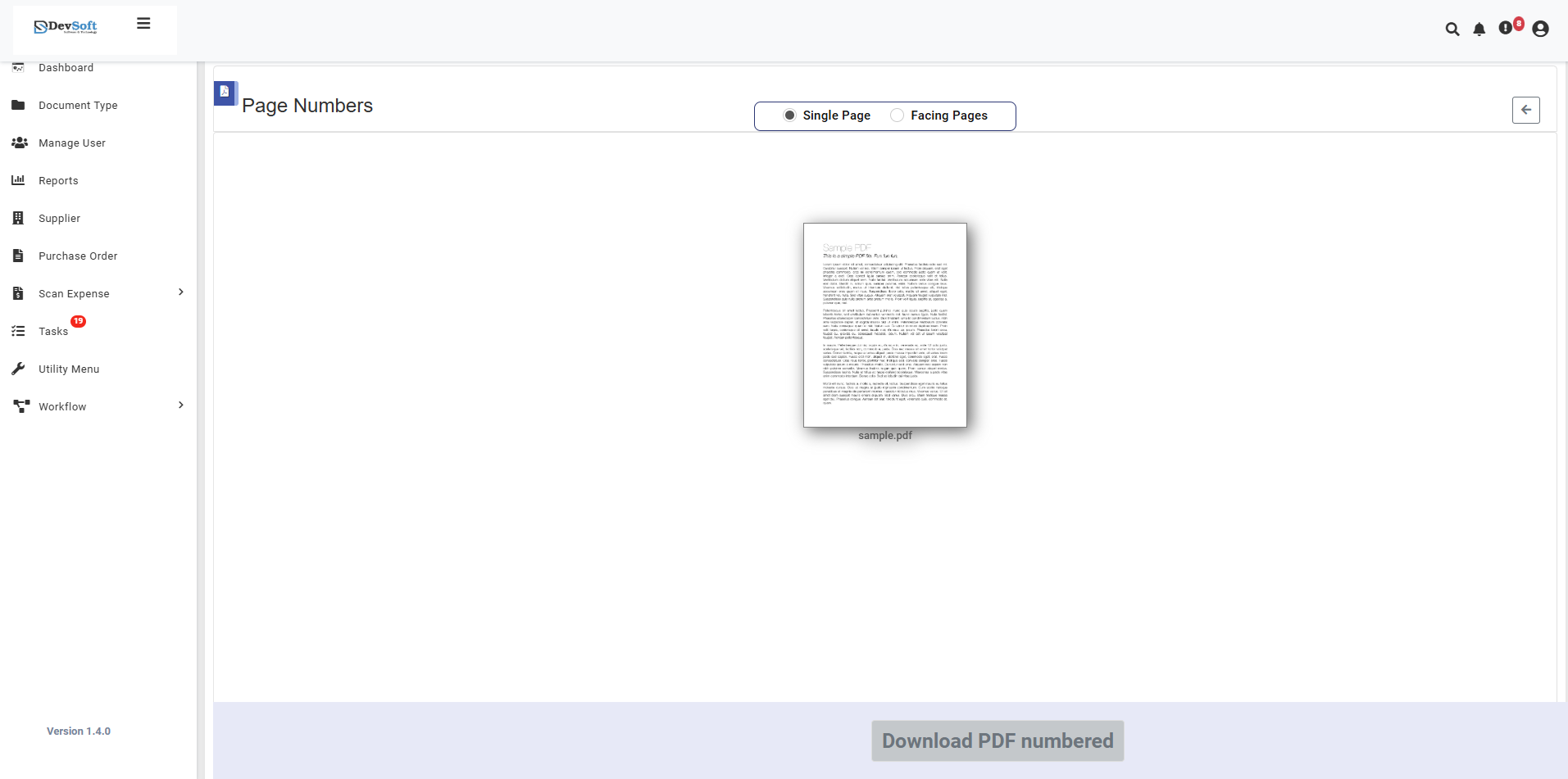
The uploaded view provides streamlined controls for configuring page numbering with focus on page layout and display options.
- Page Layout Selection
Display Mode Options
Single Page - Standard single page view numbering
- Numbers appear on individual pages
- Ideal for documents meant for single-page viewing
- Consistent positioning across all pages
Facing Pages - Book-style facing pages numbering
- Different positioning for left and right pages
- Perfect for documents intended for double-page spread
- Mirror positioning for professional book layout
- Download Section
- Download PDF numbered button (activates after processing)
- Processing status indicator
- File information display
How to Add Page Numbers
Step 1: Upload PDF File
- Use Drag & Drop to quickly add PDF files to the interface
- Or click the upload area to browse and select PDF files manually
- System validates file format (PDF only)
Select Display Mode
- Single Page
- Facing Pages
Step 2: Download Results
- Download PDF numbered button becomes active
- Download the processed PDF file
- Original file remains unchanged
- Verify numbering meets requirements
Layout-Specific Numbering
Single Page Numbering
- Consistent Positioning: Same location on every page
- Best For: Reports, contracts, academic papers
- Common Positions: Top-right, bottom-center, footer-left
- Advantages: Simple, predictable, professional
Facing Pages Numbering
- Mirror Positioning: Different positions for left/right pages
- Best For: Books, magazines, booklets, presentations
- Common Positions: Outer corners (left page-right, right page-left)
- Advantages: Professional book-style appearance
Supported Formats
Input Format
- PDF only (Portable Document Format)
- Various PDF types (text, image, form, scanned)
- Protected PDFs (with proper authorization)
Output Format
- Numbered PDF with embedded page numbers
- Maintains original document quality and properties
- Compatible with all PDF readers and viewers
Unsupported Formats
- JPG/JPEG images
- PNG images
- Word documents
- Excel files
- PowerPoint files
- All other non-PDF formats
Features
- Dual Layout Modes - Single Page and Facing Pages options
- Professional Formatting - Book-style numbering for facing pages
- Real-time Preview - Visual feedback before applying
- Quality Preservation - Maintains original PDF quality
- Non-Destructive - Original files remain unchanged
- Quick Processing - Fast numbering application
- User-Friendly Interface - Simple layout selection
Common Use Cases
Single Page Layout
- Business Reports - Professional numbering for corporate documents
- Academic Papers - Standard numbering for theses and research
- Legal Documents - Consistent numbering for contracts
- Technical Manuals - Sequential numbering for documentation
Facing Pages Layout
- Books & eBooks - Traditional book numbering style
- Magazines - Professional periodical formatting
- Presentation Materials - Booklet-style documents
- Photo Books - Luxury album numbering
- Catalogs - Professional product catalog presentation
Note: The uploaded view provides a streamlined interface focusing on the essential choice between single page and facing pages layout, making it quick and easy to apply professional page numbering tailored to your document's intended use and presentation style.