Watermark
The Watermark utility in DocView Web allows you to stamp text over your PDF in seconds. Choose the typography, transparency, and position to create professional watermarks for document protection, branding, or classification.
Navigation
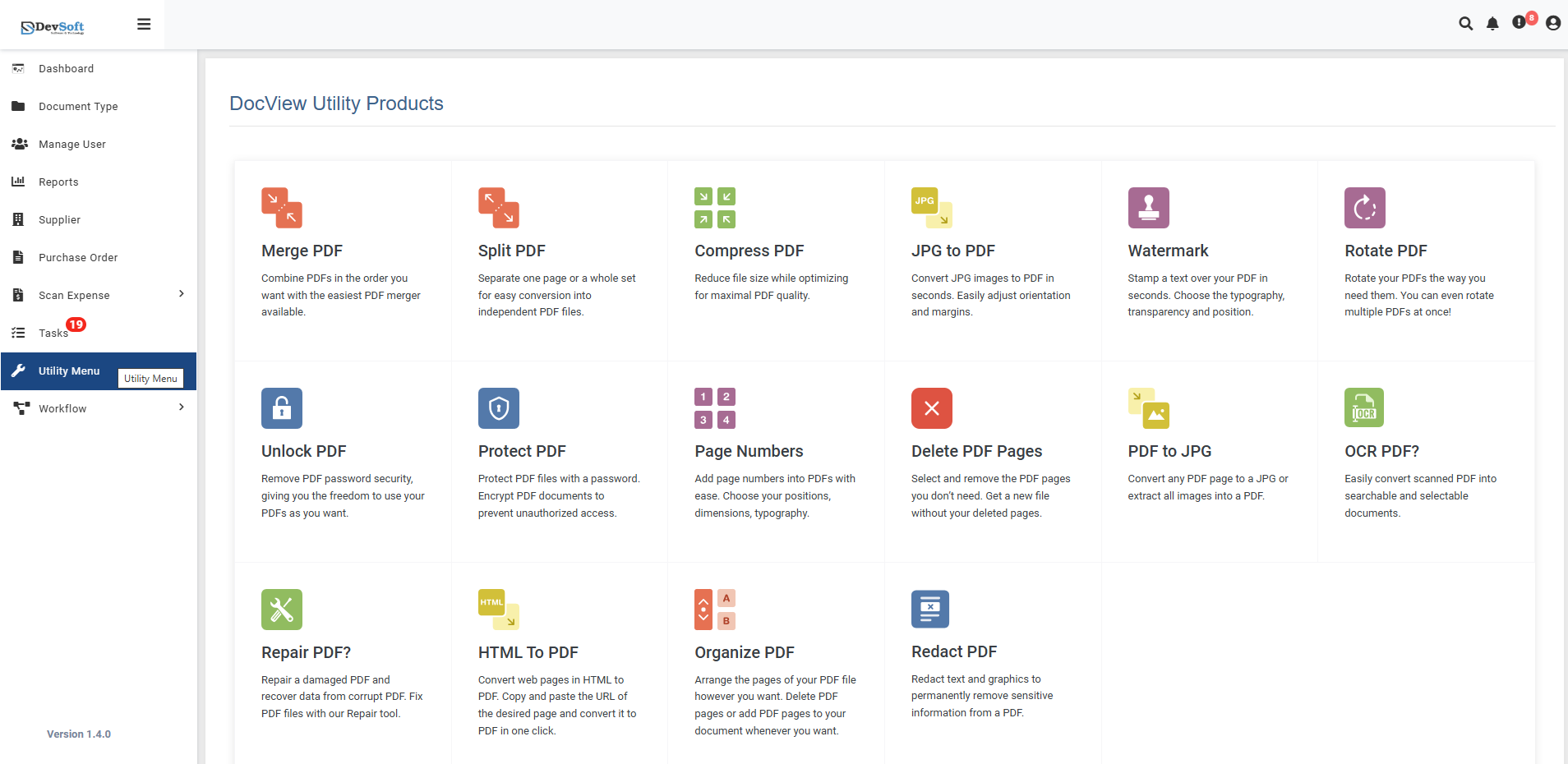
To access the Watermark utility:
Open the Sidebar Menu
Click on the ☰ Sidebar Icon at the top-left corner of the dashboard interface to expand the navigation panel.Select "Utility Menu"
From the sidebar, click on Utility Menu to view the complete list of document processing tools.Click on "Watermark"
Select the Watermark option from the utility products list to open the watermarking interface.
Watermark Overview
The Watermark screen provides a comprehensive interface for adding text-based watermarks to PDF documents with complete control over appearance and placement.
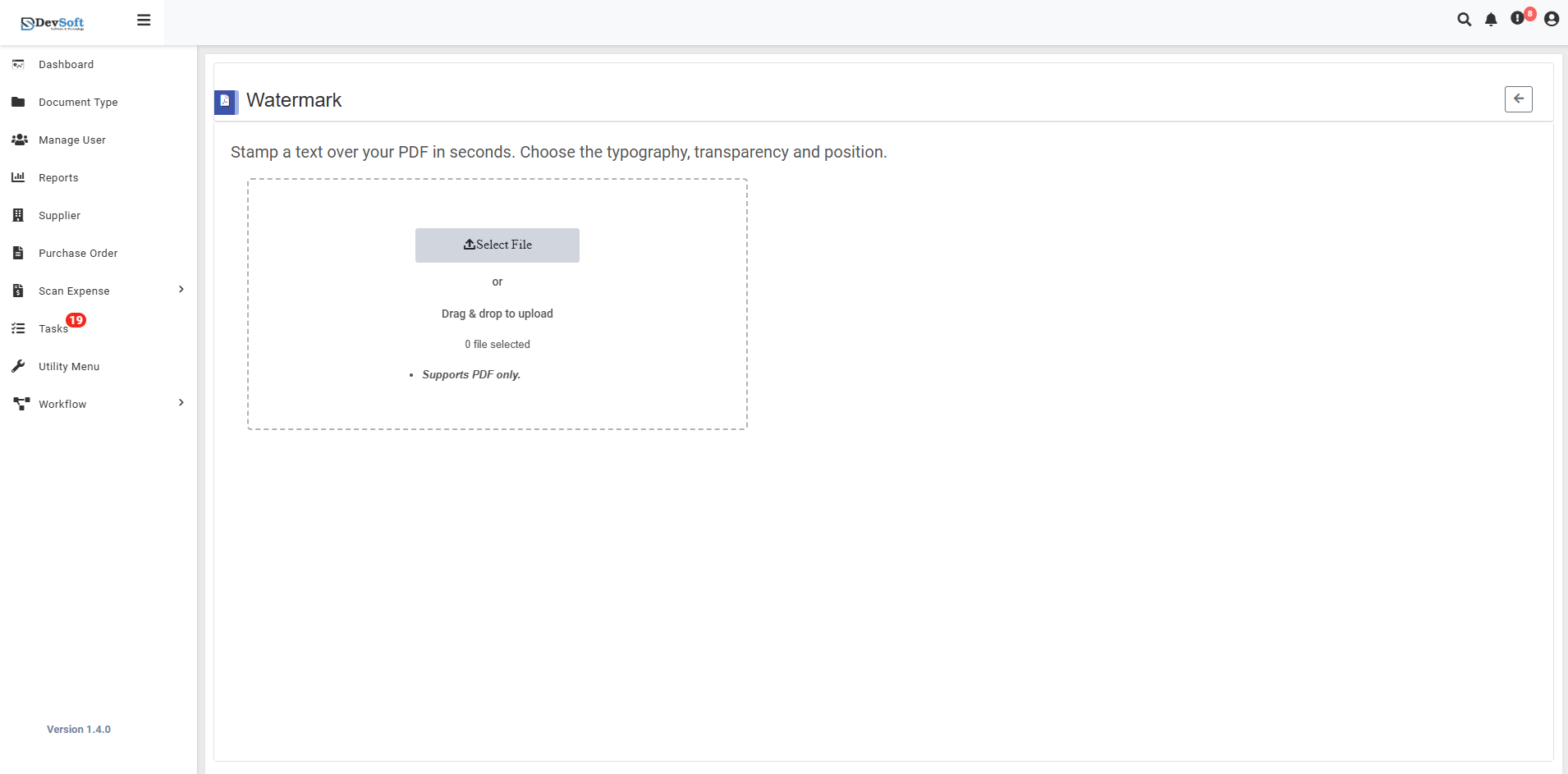
File Upload Section
- Backend File Upload Options
- Browse Option - Click to select PDF files from your device
- Drag & Drop - Alternative method for easy file upload ("Drug & drop to upload")
- File Selection Status - Shows currently selected files (0 file selected)
- Format Restriction - Segment PDF only - Only PDF file formats are accepted
Watermark Uploaded View
Once a PDF file is uploaded in the Watermark Utility, the interface updates to display comprehensive watermark customization options. This view allows users to configure text content, typography, positioning, and appearance before applying the watermark to their document.
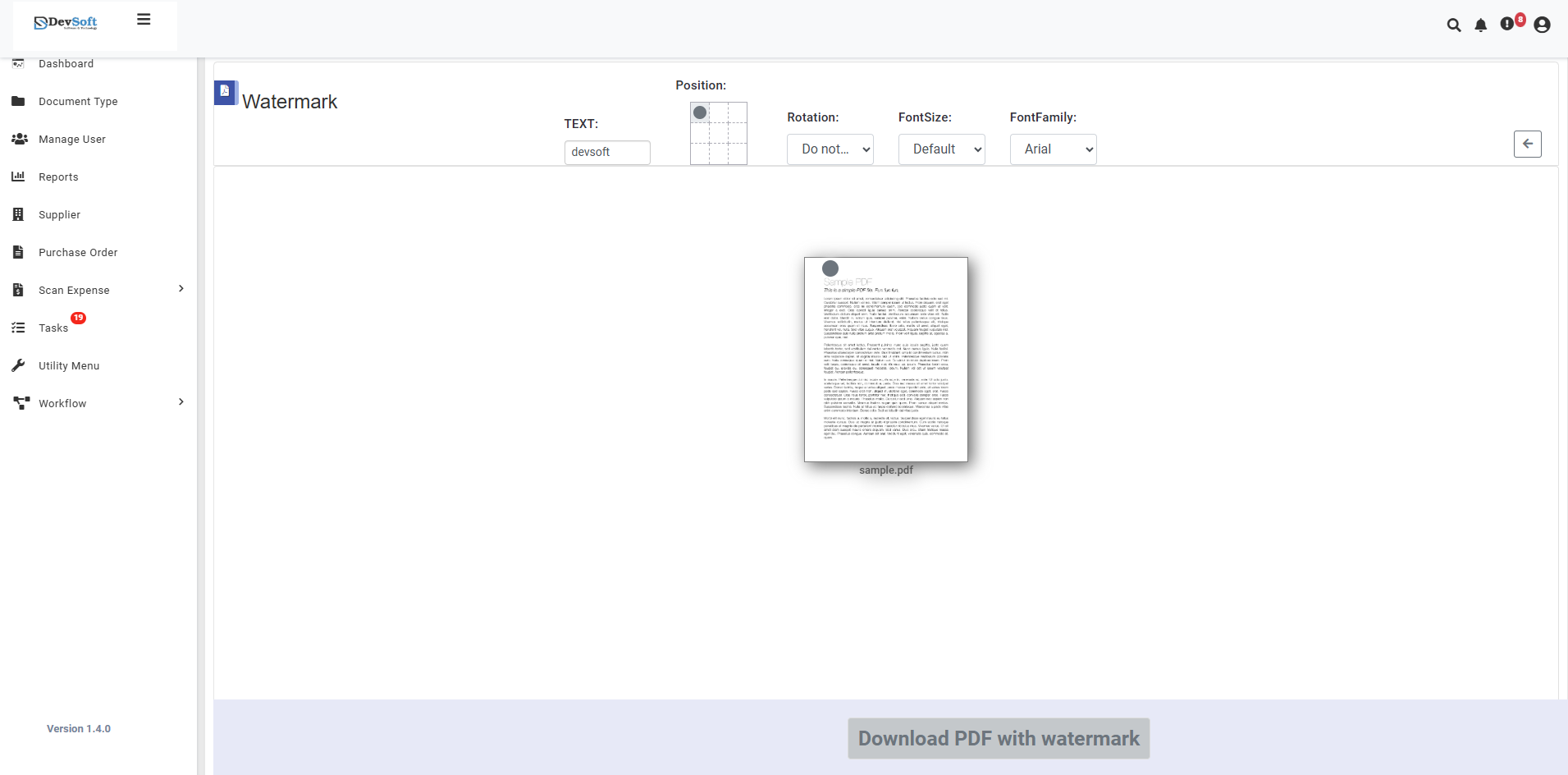
The uploaded view provides advanced controls for customizing every aspect of the watermark with real-time preview capabilities.
- Watermark Configuration Panel
TEXT Configuration Section
- Text Input Field - Enter custom watermark text (e.g., "CONFIDENTIAL", "DRAFT")
- Version - [ ] Checkbox for version control or numbering
- Rotation - [ ] Adjust rotation angle for diagonal or custom positioning
- FontSize - [ ] Set font size for watermark text
- FontFamily - [ ] Choose from available font families
- Navigation & Menu Panel
Diagram Section Right-side panel provides access to various utility features:
- Properties - Document properties and metadata
- Supplier - Vendor management options
- Purchase Order - PO document handling
- Scan Express - Quick scanning utilities
- Task - Task management features
- Utility Menu - Return to main utilities list
- Workflow - Document workflow management
- Download Section Bottom section features:
- Download PDF with watermark button (activates after processing)
- Processing status indicators
- File size and page count information
How to Add Watermark to PDF
Step 1: Upload PDF File
- Click the Browse button to select PDF files from your device
- Or use Drag & Drop functionality for quick upload
- System validates file format (PDF only)
Step 2: Configure Watermark Text (Uploaded View)
Text Content
- Enter the watermark text in the TEXT input field
- Special characters allowed
Typography Settings
- Font Family - Select from available font families
- Font Size - Adjust text size using FontSize control
- Rotation - Set text angle for diagonal or custom positioning
Step 3: Set Position and Layout
Position Options
- Center - Perfectly centered on each page
- Diagonal - Angled across the page (using Rotation setting)
- Header - Top of each page
- Footer - Bottom of each page
- Custom - Manual positioning with coordinates
Page Range
- All Pages - Apply watermark to entire document
- Specific Pages - Select page ranges or individual pages
- First Page Only - Watermark only on cover page
- Odd/Even Pages - Different watermarks for odd and even pages
Step 4: Download Results
- Download PDF with watermark button becomes active
- Download the watermarked PDF file
- Original file remains unchanged
- Verify watermark placement and appearance
Supported Formats
Input Format
- PDF only (Portable Document Format)
- All PDF versions supported
- Encrypted PDFs (with proper authorization)
Output Format
- Watermarked PDF with embedded watermark
- Maintains original document quality
- Compatible with all PDF readers
Unsupported Formats
- JPG/JPEG images
- PNG images
- Word documents
- Excel files
- PowerPoint files
- All other non-PDF formats
Features
- Quick Processing - Add watermarks in seconds
- Customizable Text - Full control over typography and appearance
- Precise Positioning - Multiple placement options with rotation control
- Real-time Preview - See changes instantly before applying
- Quality Preservation - Maintains original PDF quality
- Non-Destructive - Original files remain unchanged
- Secure Processing - Files processed securely with automatic cleanup
Common Use Cases
- Legal Documents - Add "CONFIDENTIAL" to legal papers
- Business Reports - Brand internal reports with company name
- Academic Papers - Mark drafts with "REVIEW COPY"
- Financial Documents - Add timestamps and approval status
- Creative Work - Copyright protection for portfolios
- Government Documents - Classification labels for official papers
Note: Uploaded view provides advanced customization options for users who want precise control over their watermark appearance and positioning across PDF documents.