Unlock PDF
The Unlock PDF utility in DocView Web allows you to remove PDF password security, giving you the freedom to use your PDFs as you want. This tool enables you to unlock protected PDF documents for editing, printing, copying, or other operations that were previously restricted.
Navigation
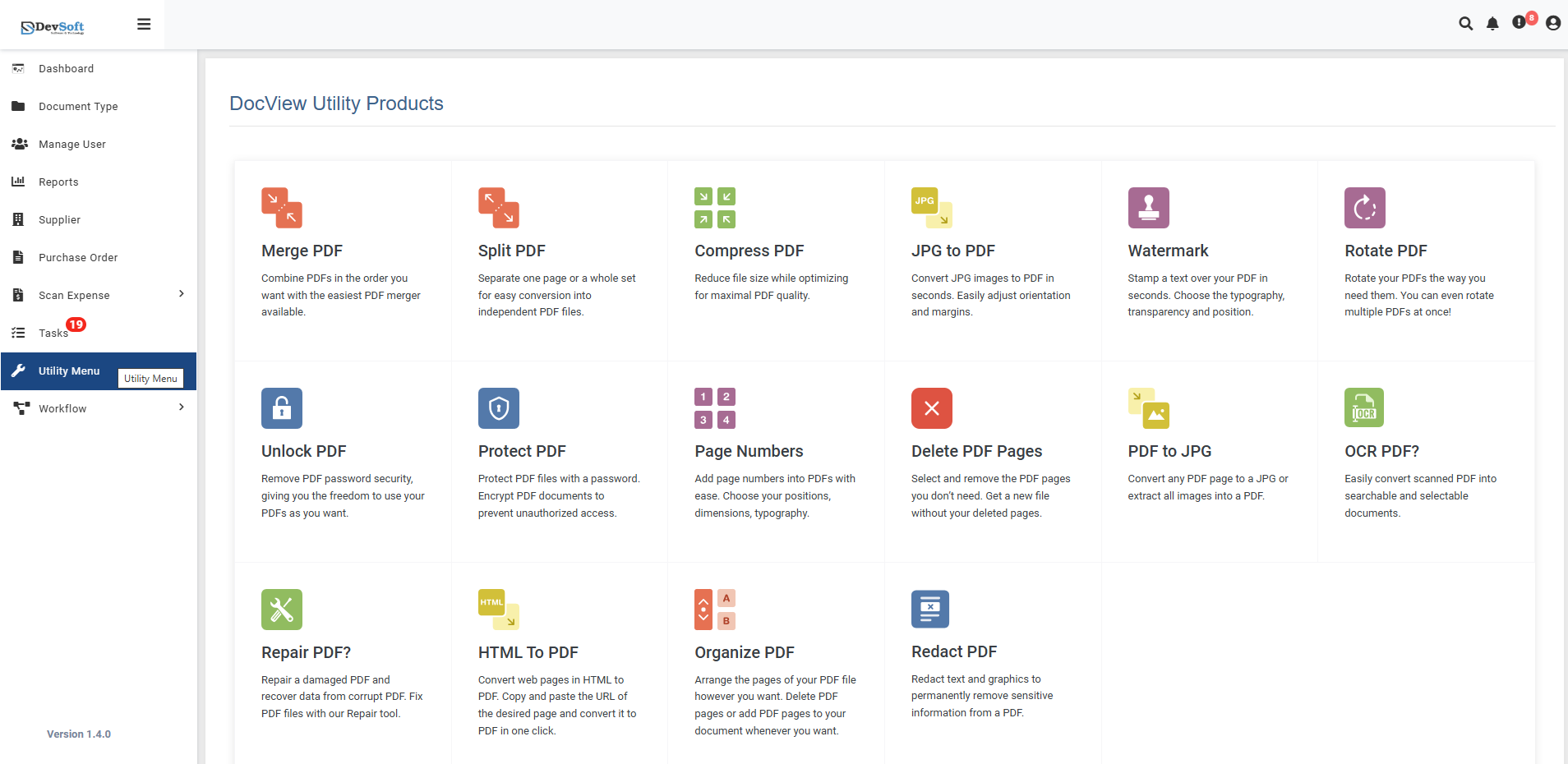
To access the Unlock PDF utility:
Open the Sidebar Menu
Click on the ☰ Sidebar Icon at the top-left corner of the dashboard interface to expand the navigation panel.Select "Utility Menu"
From the sidebar, click on Utility Menu to view the complete list of document processing tools.Click on "Unlock PDF"
Select the Unlock PDF option from the utility products list to open the unlocking interface.
Unlock PDF Overview
The Unlock PDF screen provides a secure interface for removing password protection from PDF documents while maintaining document integrity and security.
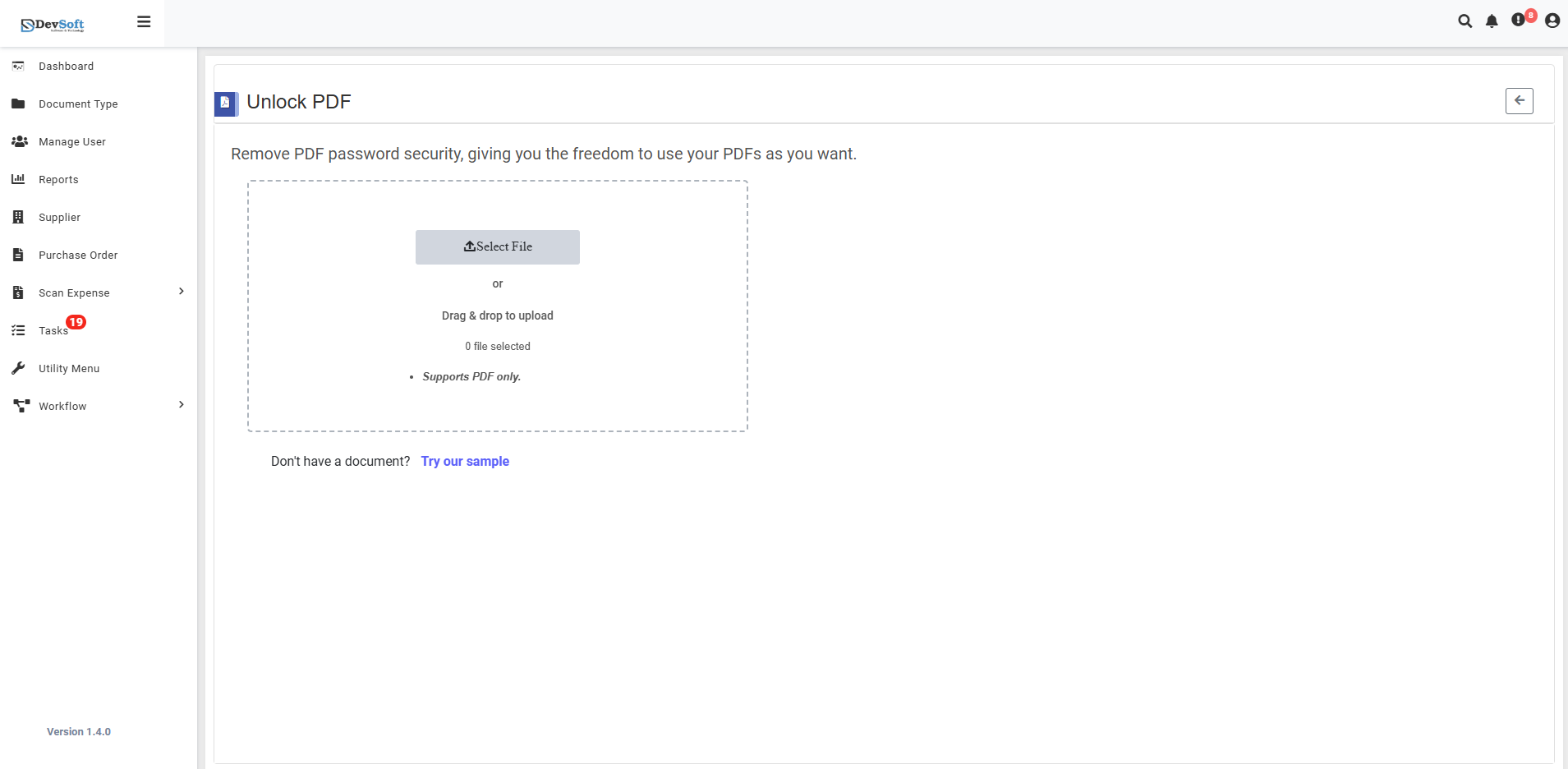
File Upload Section
- Select File Upload Options
- Browse Option - Click to select password-protected PDF files from your device
- Drag & Drop - Alternative method for easy file upload
- File Selection Status - Shows currently selected files (0 file selected)
- Format Restriction - Support PDF only - Only password-protected PDF formats are accepted
Sample Document Access
- "Don't have a document? Try our sample"
- Provides sample protected PDFs for testing functionality
- Allows users to experience the unlocking process without using personal documents
- Perfect for understanding the unlocking workflow
Unlock PDF – Uploaded View
Once a password-protected PDF file is uploaded in the Unlock PDF Utility, the interface updates to display password entry fields and unlocking options. This view allows users to provide the required security credentials and manage the unlocking process.
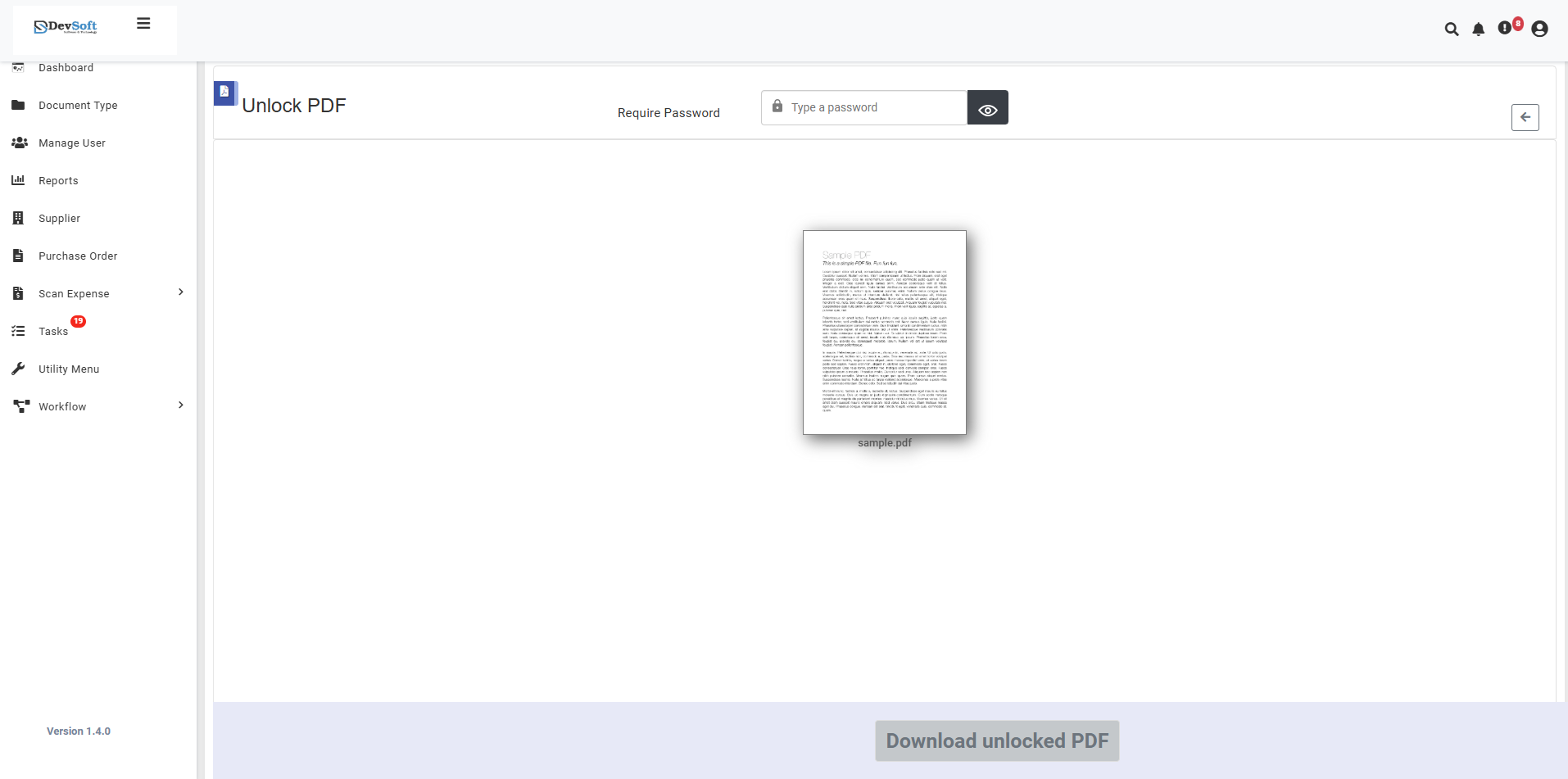
The uploaded view provides comprehensive controls for handling password-protected PDF documents with secure authentication and document management features.
- Password Authentication Section
Require Password Section
- Type a password - Input field for entering the PDF document password
- Secure password entry with masking (•••••) for privacy
- Validation checks for correct password format
- Error handling for incorrect password attempts
- User Authentication Panel
User Name Section
- Unlock PDF - Main action section header
- [ ] - Enter Password
- Download Section
Download unlocked PDF
- [ ] - Download confirmation checkbox (accept terms of use)
- [ ] - Additional security acknowledgment checkbox
- Download button - Activates after successful unlocking and confirmations
How to Unlock PDF Files
Step 1: Upload Protected PDF File
- Click the Browse button to select password-protected PDF files from your device
- Or use Drag & Drop functionality for quick upload
- System validates file format (PDF only) and detects password protection
Step 2: Enter Password (Uploaded View)
Password Authentication
- Type a password in the designated input field
- Enter the exact document open password (case-sensitive)
- For owner-protected files, provide the permissions password
- System validates password against document encryption
Step 3: Execute Unlocking Process
- System automatically processes the document after password validation
- Decryption occurs securely in the background
- Progress indicators show unlocking status
- Notification upon successful unlocking
Step 4: Final Download
- Click the download button to save unlocked PDF
- Original protected file remains unchanged
- Verify document permissions and functionality
Security and Privacy
Data Protection
- Secure Password Handling - Passwords encrypted during transmission
- Temporary Processing - Files processed in memory, not stored
- Automatic Cleanup - All data removed after download
- SSL Encryption - End-to-end security for all operations
Legal Compliance
- Authorization Required - Users must possess legitimate access rights
- Terms Acceptance - Legal confirmations required before processing
- Copyright Respect - Intellectual property rights protection
- Audit Trail - Security event logging for compliance
Features
- Secure Password Entry - Protected credential input
- Dual Verification - Multiple confirmation steps for security
- Comprehensive Document Management - Full DataBoard integration
- Multiple Security Support - Handles various PDF protection types
- Quality Preservation - Maintains original document integrity
- User-Friendly Workflow - Clear step-by-step process
- Legal Compliance - Built-in rights verification
Common Use Cases
Business Document Access
- Legacy Files - Access old protected business documents
- Shared Resources - Remove restrictions from collaborative files
- Archived Materials - Unlock historical corporate documents
Personal Document Recovery
- Forgotten Passwords - Regain access to personal files
- Inherited Documents - Access protected files from others
- Backup Restoration - Restore functionality to backup copies
Workflow Optimization
- Document Editing - Remove restrictions for content updates
- Printing Enablement - Restore printing capabilities
- Content Extraction - Allow copying for legitimate use
- Accessibility Improvement - Enhance access for assistive technologies
Note: The uploaded view provides a secure, step-by-step interface for handling password-protected PDFs with multiple verification steps to ensure legal and authorized usage while maintaining comprehensive document management capabilities through the DataBoard panel.