Purchase Order Overview
The Purchase Order Module in DocView Web enables users to efficiently create, manage, and track purchase orders within the organization.
It provides a centralized interface to view all purchase requests, approval statuses, and detailed order information — ensuring smooth procurement workflow.
This module helps users to:
- Create new purchase orders
- Manage approval stages (Draft, Awaiting Approval, Approved, Rejected)
- Track supplier-wise purchase data
- Review order amounts and tax details
Navigation
Login to DocView Web
- Enter your email and password on the login page.
- Click Login to access the dashboard.
Open the Sidebar Menu
- Click on the ☰ Sidebar Icon at the top-left corner of the screen.
Select “Purchase Order”
- From the sidebar menu, click Purchase Order to open the main Purchase Order page.
Purchase Order Overview
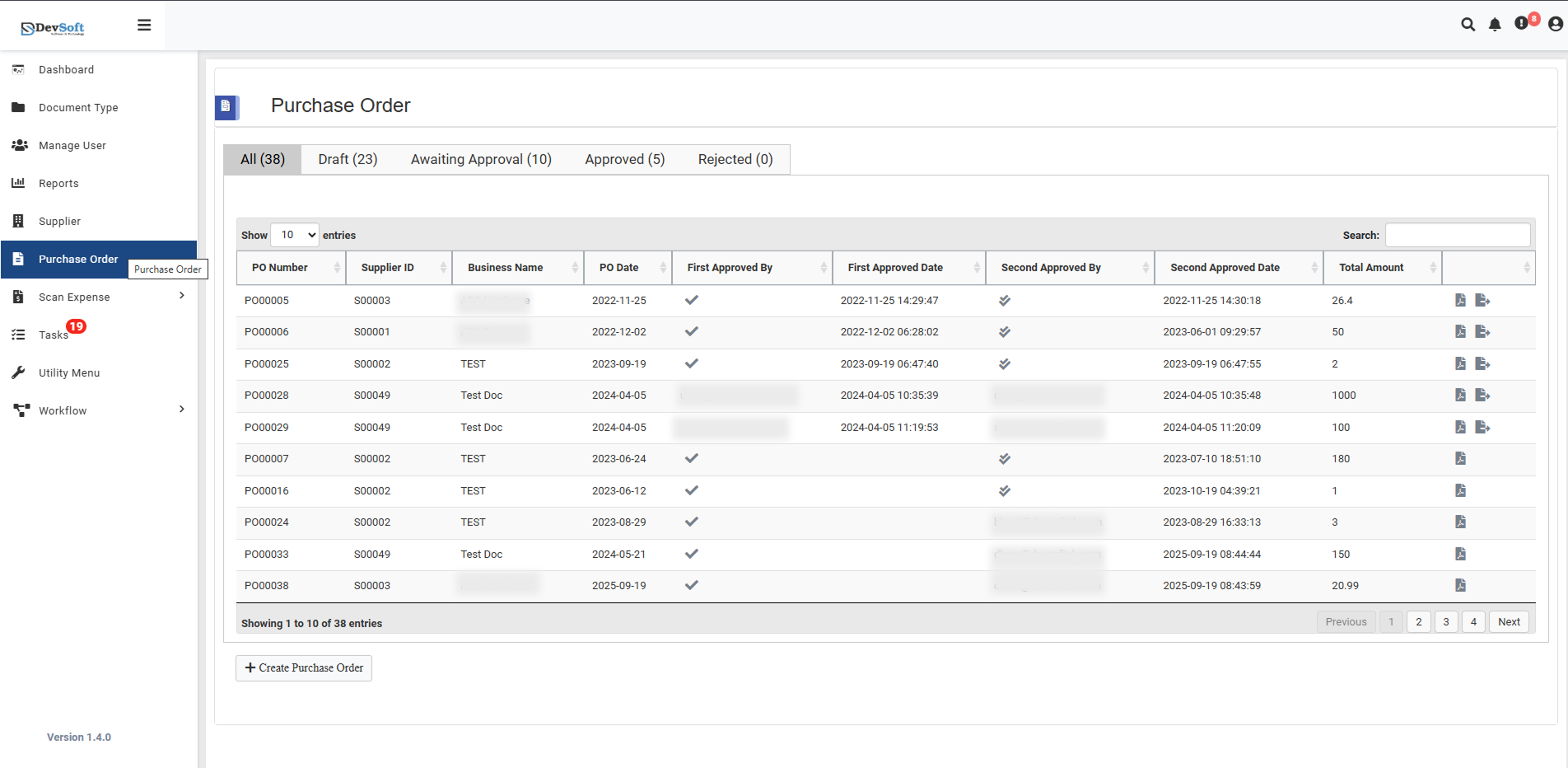
Once the module opens, the Purchase Order List Page displays all existing records categorized under different tabs:
- All: Displays all purchase orders in the system
- Draft: Orders saved but not yet submitted for approval
- Awaiting Approval: Orders pending managerial approval
- Approved: Orders successfully approved
- Rejected: Orders rejected during the approval workflow
Purchase Order Details
The list view provides key information about each purchase order such as:
- PO Number – System-generated unique identifier for each purchase order.
- Supplier ID – Reference code linked to the supplier.
- Business Name – Name of the supplier or business associated with the order.
- PO Date – The date on which the purchase order was created.
- First Approved By / Date – Shows who first approved the purchase order and the approval date.
- Second Approved By / Date – Displays second-level approval details if applicable.
- Total Amount – The total value of the purchase order including all line items.
- Options – Allows viewing or downloading of the purchase order document.
You can use the Search box to quickly find specific orders or navigate using the Pagination buttons at the bottom of the page.
Creating a New Purchase Order
At the bottom of the Purchase Order list, click the + Create Purchase Order button to open the creation page.
This will open the Create Purchase Order form (see Create Purchase Order).