Create New Workflow Task
INFO
The Create Workflow Task module allows users to define and configure a new activity within an existing workflow. This page is essential for building and customizing business processes by adding specific tasks that need to be completed.
Navigation
Users can access the Create Workflow Task page through the main workflow management section.
Open Sidebar Menu
From the DocView Web dashboard, click the Sidebar Icon (☰) on the left to open the navigation panel.Navigate to Workflow
From the sidebar menu, click on the Workflow option. This will expand to show its sub-items.Select Workflow Task
From the Workflow sub-menu, click on Workflow Task. This will open the main Workflow Task listing page.Create a New Task
On the Workflow Task page, locate and click the Create New Task button. This action will open the Create Workflow Activity Task form.
Overview
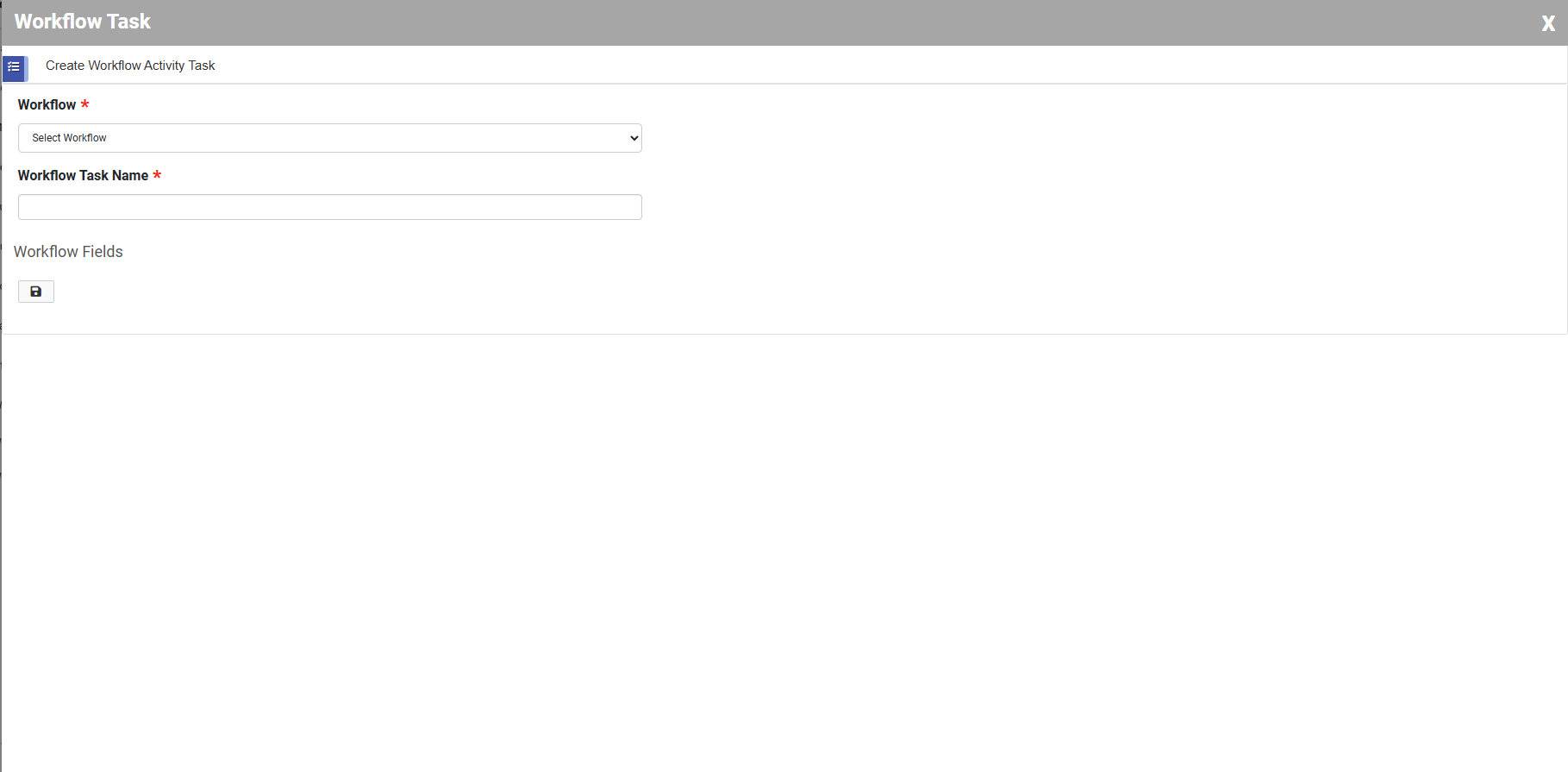
This form is used to set up a new task by specifying its parent workflow, giving it a name, and defining the data fields associated with it. It provides a structured way to add steps to an automated business process.
The "Create Workflow Activity Task" form consists of the following configurable sections:
1. Workflow
- Description: This is a mandatory dropdown field used to associate the new task with an existing workflow.
- Action: Click the dropdown to select the parent workflow from the list of all configured workflows in the system.
2. Workflow Task Name
- Description: This is a required text field where you assign a unique and descriptive name to the task. This name will be used to identify the task throughout the system.
- Action: Click into the text field and type the name for your new task (e.g., "Manager Approval", "Data Entry", "Quality Check").
3. Workflow Fields
- Description: This section allows you to define the specific data fields or attributes that are required to complete this task. These fields capture the necessary information as the task moves through the workflow.
- Action: Use the provided interface to add, remove, or configure fields. These could include text inputs, date pickers, dropdown selections, checkboxes, etc., depending on what information the task performer needs to provide or review.