All Documents
The All Documents module in DocView Web serves as a centralized dashboard that displays every document uploaded to the system — including Invoices, Credit Notes, Statements, Purchase Orders, and other document categories.
It provides a complete view of all records in one place, allowing users to review, manage, and track document data without switching between individual modules.
This unified view simplifies document control, improves traceability, and helps users maintain oversight of all activity within the DocView environment.
Navigation
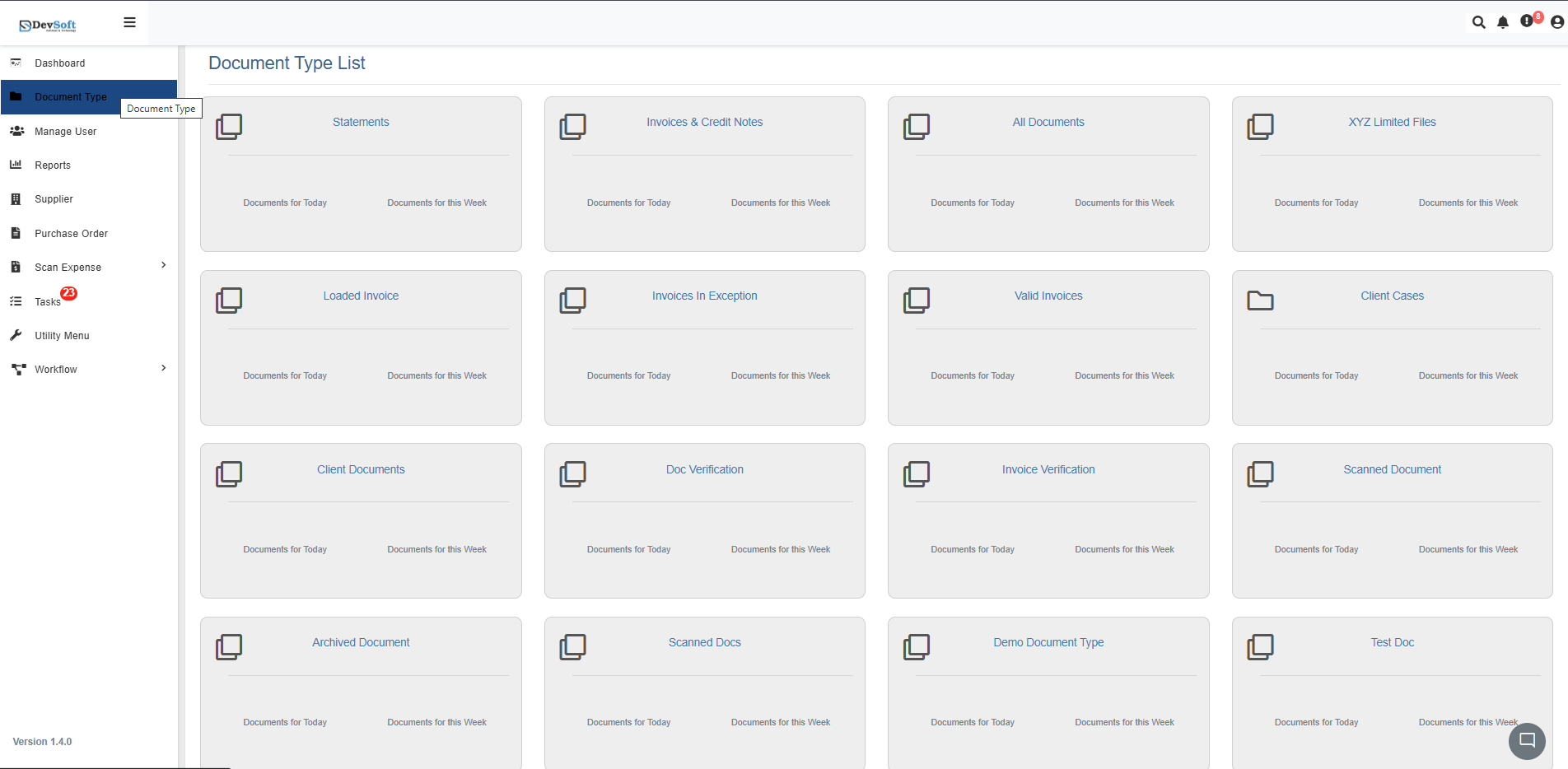
To access the All Documents module:
Open the Sidebar Menu
Click on the ☰ Sidebar Icon at the top-left corner of the interface to expand the navigation panel.Select “Document Type”
From the sidebar, click on Document Type to view the list of all configured categories.Click on “All Documents”
Within the Document Type list, select All Documents.
The system will display a complete list of every uploaded record across all document types.
All Documents Overview
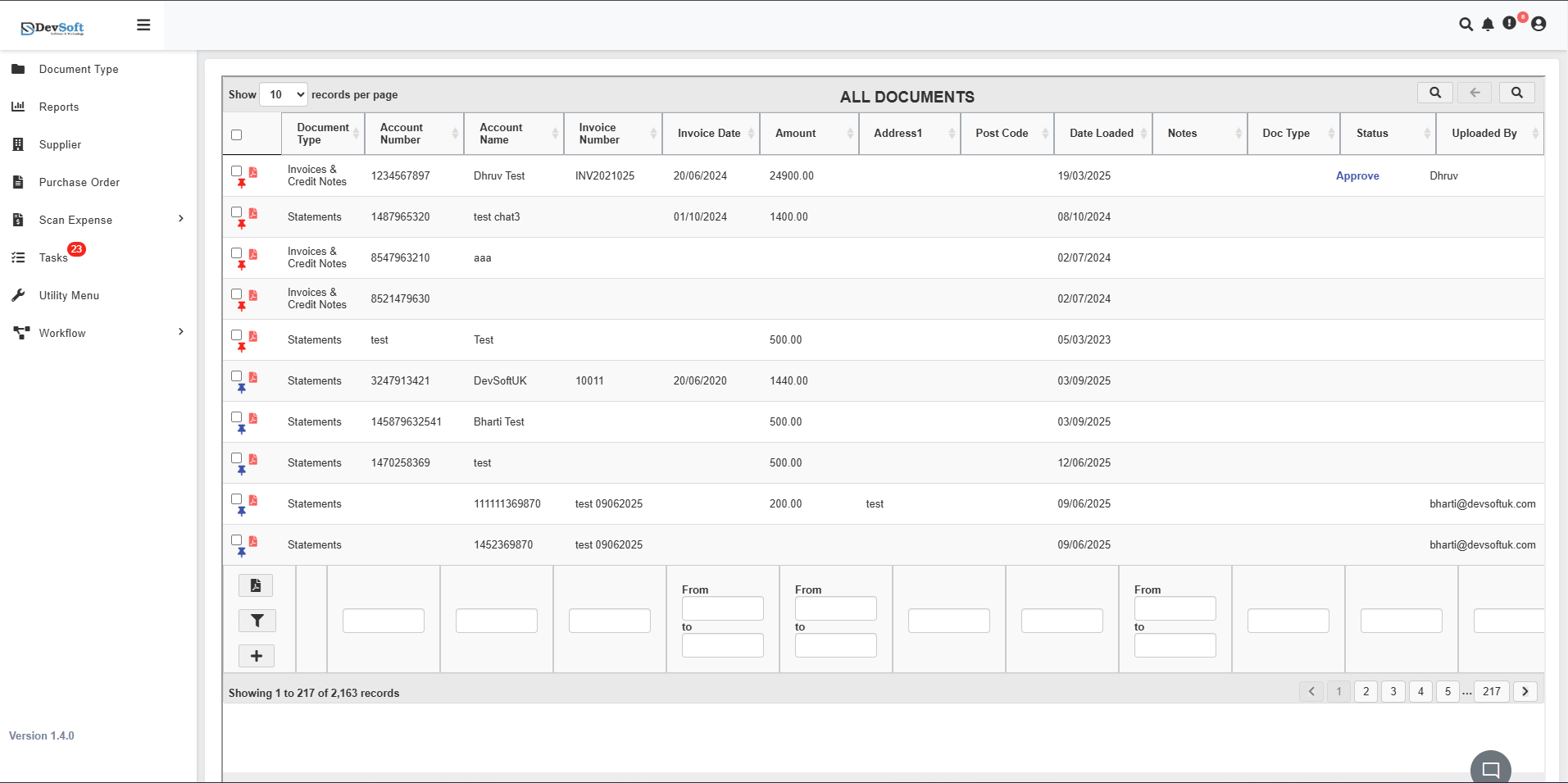
Once the All Documents screen is opened, users are presented with a detailed and interactive list of all files currently available in the system.
The layout is designed for efficiency, enabling users to search, filter, and perform quick actions directly within the grid.
Top Toolbar
At the top of the screen, the toolbar provides quick navigation and control tools:
- Records per Page Dropdown – Choose how many results to display (for example, 10, 25, or 50 records).
- Search Icon (🔍) – Instantly search for any record using keywords such as an account number, invoice number, or customer name.
- Back and Forward Arrows (⬅️ ➡️) – Move between previously viewed pages or document views.
- Search Panel – Opens a dedicated panel that allows filtering by account, invoice, date, amount, document type, and other criteria for precise results. These features help users manage large data volumes smoothly and keep the list updated in real time.
Search Panel
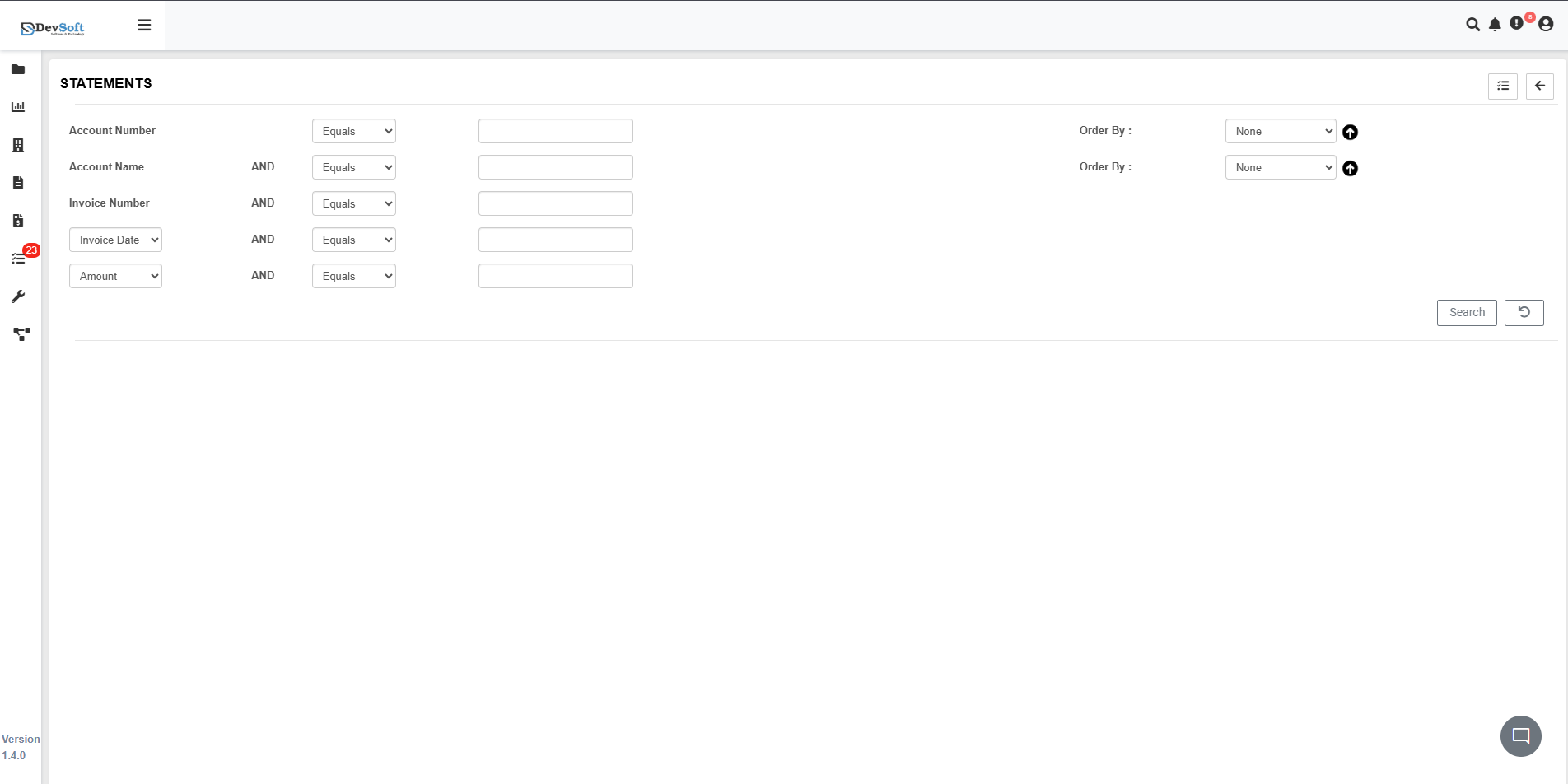
Clicking the Search Icon (🔍) in the Top Toolbar opens a dedicated panel that lets users quickly locate documents across all categories using multiple criteria.
Layout and Fields
The Search Panel provides a clean form for precise filtering:
Account Number
Choose a condition (Equals, Contains, Starts With, etc.) and type the account number to find matching files.Account Name
Filter by customer or account holder name. Can be combined with the account number for more accurate results.Invoice Number
Enter the invoice or credit note number to quickly pinpoint related documents.Document Type
Select the type of document — Invoice, Credit Note, Statement, Purchase Order — to narrow results.Invoice / Upload Date
Pick a date or range to filter documents by creation or upload date.Amount
Limit search to documents above, below, or equal to a specific amount.
Sorting & Actions
- Sort By – Arrange results by any column, ascending or descending.
- Search / Apply – Runs the query and displays matching documents in the grid.
- Clear / Reset – Empties all fields to start a new search.
This panel makes it easy to quickly retrieve any document, without navigating away from the main All Documents page.
Document Grid View
The main body of the page displays the document list, where each row represents one uploaded file.
For each document, key details such as Account Number, Account Name, Invoice Number, Invoice Date, Amount, Address, Post Code, Date Loaded, Status, and Uploaded By are clearly visible.
Each document type is visually identified with a small icon (e.g., 📄 or ⭐), helping users quickly distinguish between invoices, credit notes, and statements.
The layout allows you to:
- Instantly see all document types in one view.
- Sort records by clicking on any column header.
- Review important details such as who uploaded a document and when it was added.
- Check document status, such as “Approve” or “Pending”.
This makes it easy to monitor the document lifecycle at a glance.
Filtering and Data Search
Below each column, there are inline filter boxes that help users refine results.
You can type a name, invoice number, or specific keyword to instantly narrow down the list.
For date-based columns, “From” and “To” fields allow filtering records by upload or invoice date range.
This powerful filtering makes it possible to focus only on relevant records without reloading the page.
Bottom Controls and Pagination
At the bottom of the screen, the pagination controls display the number of records and navigation buttons.
For example, you might see “Showing 1 to 217 of 2,163 records”.
Users can easily move between pages using Next (›) or Previous (‹) controls, ensuring smooth browsing through large data volumes.
Quick Action Panel
On the left side of the grid, users can find small utility buttons that enhance document handling:
- Filter Icon – Opens advanced search or filtering options.
- Clear Filter Icon – Resets any applied search filters to show all documents again.
- Add (+) Button – Allows users (with permission) to upload a new document or add a new record directly from this screen.
These quick-access tools streamline document management and reduce time spent navigating between pages.