Company Files
The Company Files module in DocView Web provides a centralized interface to manage all documents for individual companies.
For example, files for XYZ Limited—including invoices, statements, purchase orders, and other company documents—can be uploaded, accessed, reviewed, and managed efficiently from a single location.
This module ensures all company-related documents are organized, searchable, and trackable, providing full control over document lifecycle and metadata.
Navigation
To access company-specific files:
Open the Sidebar Menu
Click the ☰ Sidebar Icon at the top-left corner of the interface to expand the navigation panel.Select “Document Type”
From the sidebar, click Document Type to open the full list of available categories.Choose a Company
Scroll through the list and select the desired company (e.g., XYZ Limited).
The system displays all documents uploaded under this company in a grid layout.
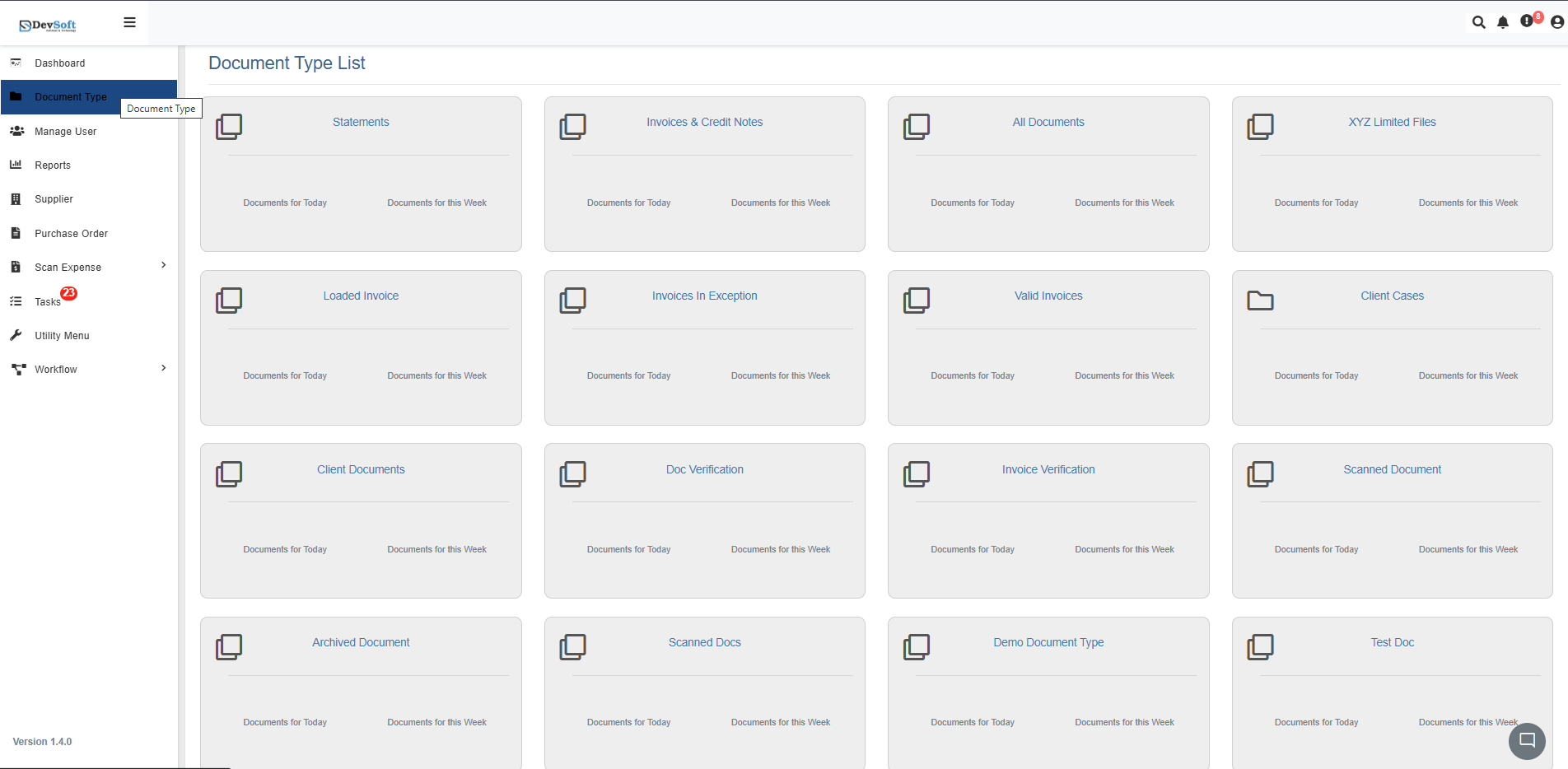
Each company folder acts as a container for all related documents, ensuring organization and easy retrieval.
Company Files Overview
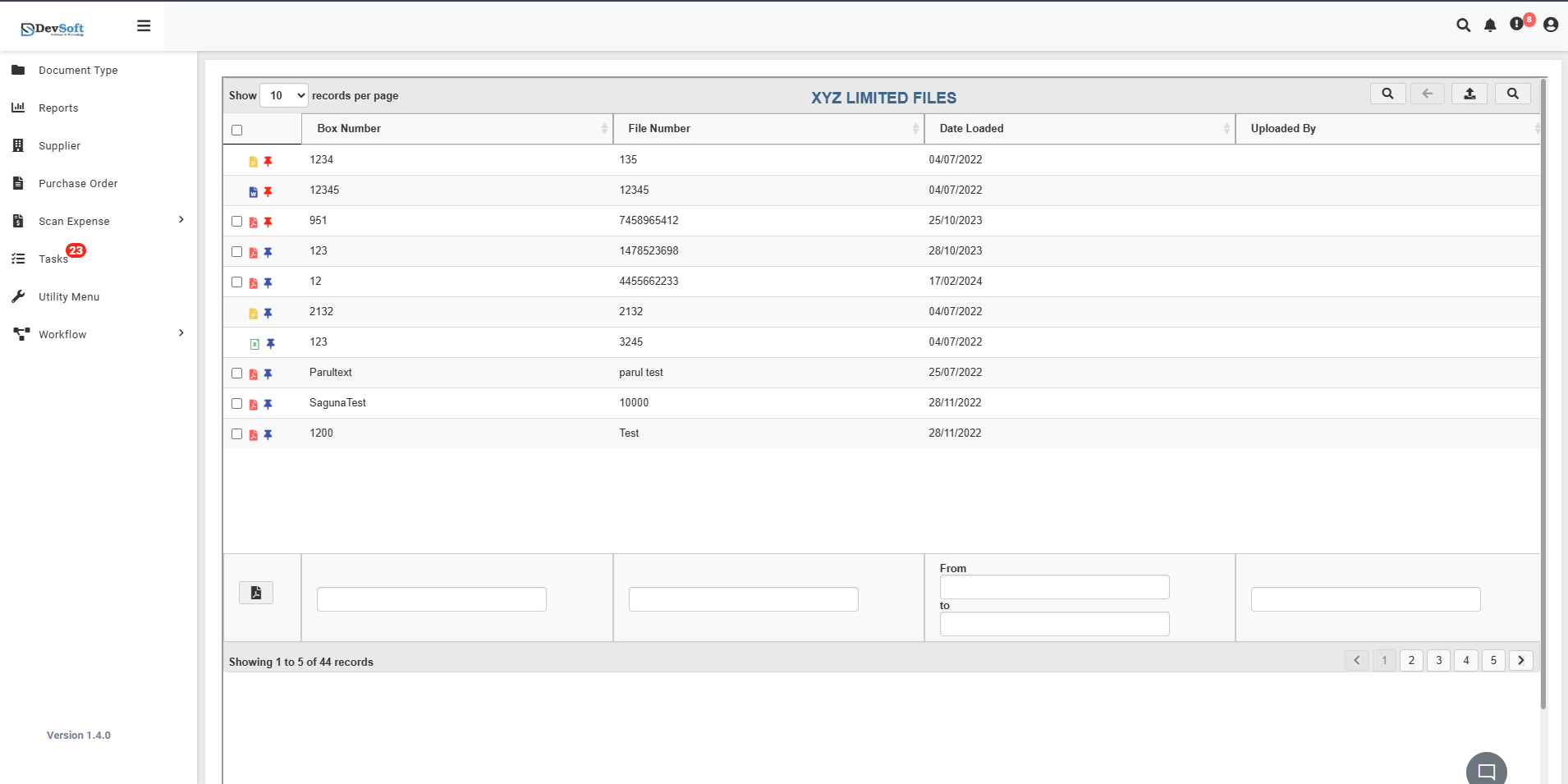
The Company Files grid shows all documents for the selected company with the following columns:
- Box Number – Shows the box or folder number where the file is stored.
- File Name – The name of the uploaded file.
- Date Loaded – Date when the document was uploaded to the system.
- Uploaded By – User who added the document.
Document Type Icons may also visually differentiate files for quick identification.
Top Toolbar
At the top of the screen, the toolbar provides quick navigation and control tools:
- Records per Page Dropdown – Set how many documents to display per page (e.g., 10, 25, 50).
- Search Icon (🔍) – Locate a file using keywords, file name, or box number.
- Back and Forward Arrows (⬅️ ➡️) – Navigate between previously viewed pages.
- Upload Icon (⬆️) – Click this icon to upload a new document to the selected company folder.
- Search Panel – Opens a dedicated panel to filter documents by account, invoice, date, amount, document type, and other fields for precise results.
Search Panel
Clicking the Search Panel icon opens a dedicated search interface that allows users to locate documents more precisely using multiple criteria.
Search Panel Layout
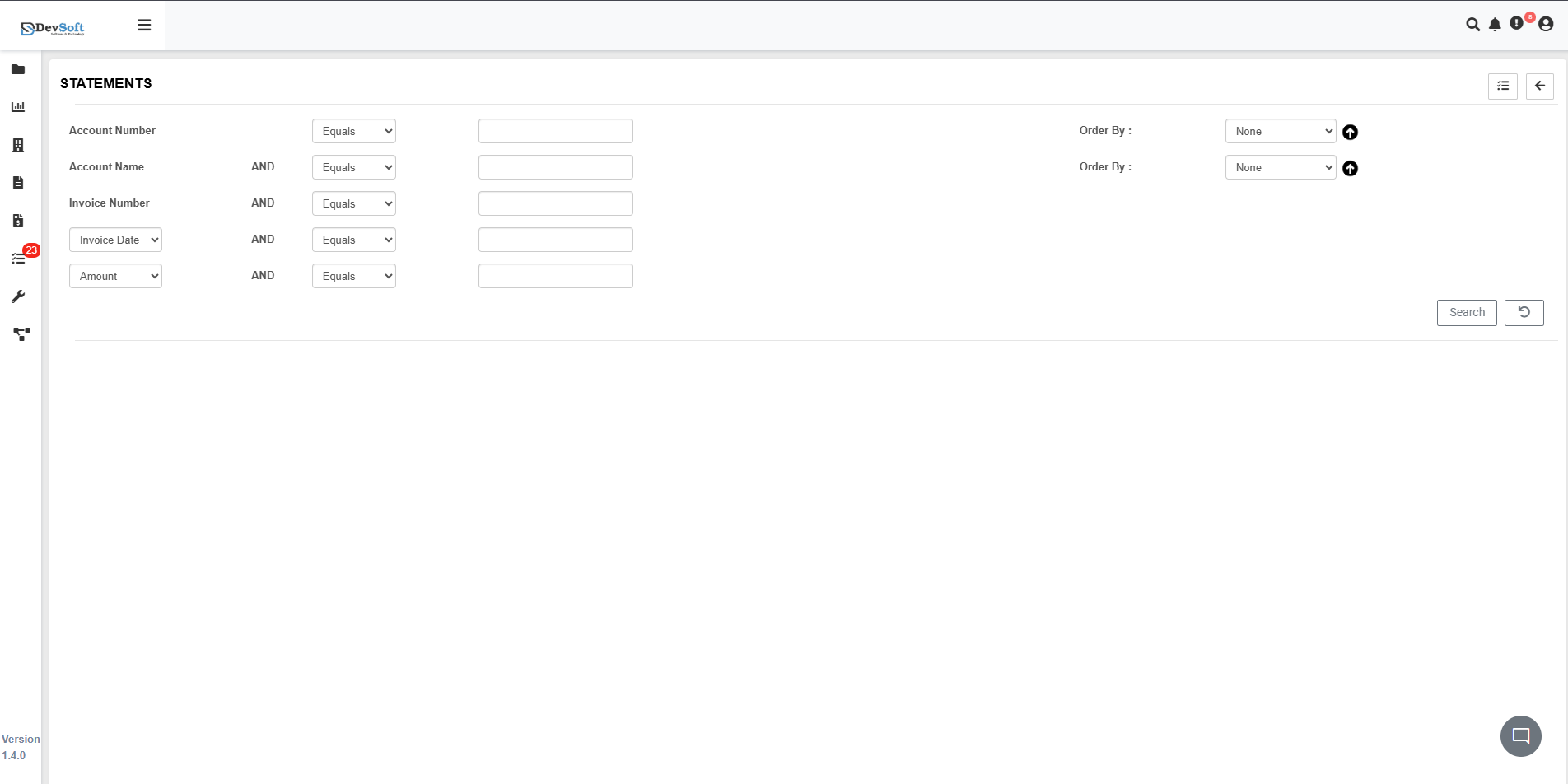
The panel is organized with several input fields for detailed queries:
- Account Number – Enter the account number and select a filter type (Equals, Contains, Starts With) to locate documents linked to a specific client.
- Account Name – Filter by client or company name. Can be combined with Account Number for more precise results.
- Invoice / Document Number – Search for documents using their reference numbers.
- Invoice / Document Date – Select a date or date range to find documents within a specific period.
- Amount – Filter documents based on monetary values (greater than, less than, or equal to a specified amount).
- Document Type – Choose the type of document, e.g., Invoice, Credit Note, Statement, or Purchase Order.
Actions in Search Panel
- Search Button – Executes the query and displays matching records in the main document grid.
- Reset / Clear Button – Clears all fields to start a new search.
This panel ensures fast, accurate retrieval of documents without scrolling through the full list.
Document Grid Actions
Each document in the grid includes action icons:
- View (PDF Icon) – Opens the document in the integrated DocView PDF Viewer.
- Pin – Mark the document as important for quick access.
Viewing Company Documents in PDF Viewer
Step-by-step for viewing a PDF document:
- Locate the document you want to view in the File Name column.
- Click the View icon (PDF) next to the file.
- The DocView PDF Viewer opens in a new pane or modal.
- Use the Left Panel to scroll, zoom, or navigate pages via thumbnails.
- Use the Right Panel to view properties, notes, forwarding options, revisions, eSignatures, and history.
- Close the viewer when finished to return to the grid.
The PDF Viewer provides a two-pane interface:
Left Panel – Document View
- Scroll through pages smoothly.
- Zoom in/out for detailed inspection.
- Navigate via page thumbnails if multi-page.
Right Panel – Document Details and Actions
The right panel shows document properties and management options, including:
- Properties – Title, owner, tags.
- Ownership – Current assigned user or department.
- Forwarding – Send to another user, team, or workflow stage.
- Share – Share internally or externally.
- Revisions – Track versions and upload new ones.
- eSignatures – Apply or verify signatures.
- Notes – Add internal comments or collaboration notes.
- History – View full activity logs.
- Export – Download for offline reference.
All actions are performed without leaving the viewer, ensuring seamless workflow.
Filtering and Data Search
- Inline filters under each column (Box Number, File Name, Date Loaded, Uploaded By).
- Date range filters to narrow by upload date.
- Combine filters to focus on specific documents efficiently.
Bottom Controls and Pagination
- Shows total records and current page (e.g., “Showing 1 to 50 of 2,163 records”).
- Next (›) / Previous (‹) buttons for smooth navigation.