Create Purchase Order
The Create Purchase Order page in DocView Web allows users to input detailed purchase information, add multiple items, and calculate total amounts including discounts and taxes.
This page is used to generate new purchase orders that can later go through the approval process.
Navigation
From the Purchase Order Overview page, click the + Create Purchase Order button located at the bottom of the list.
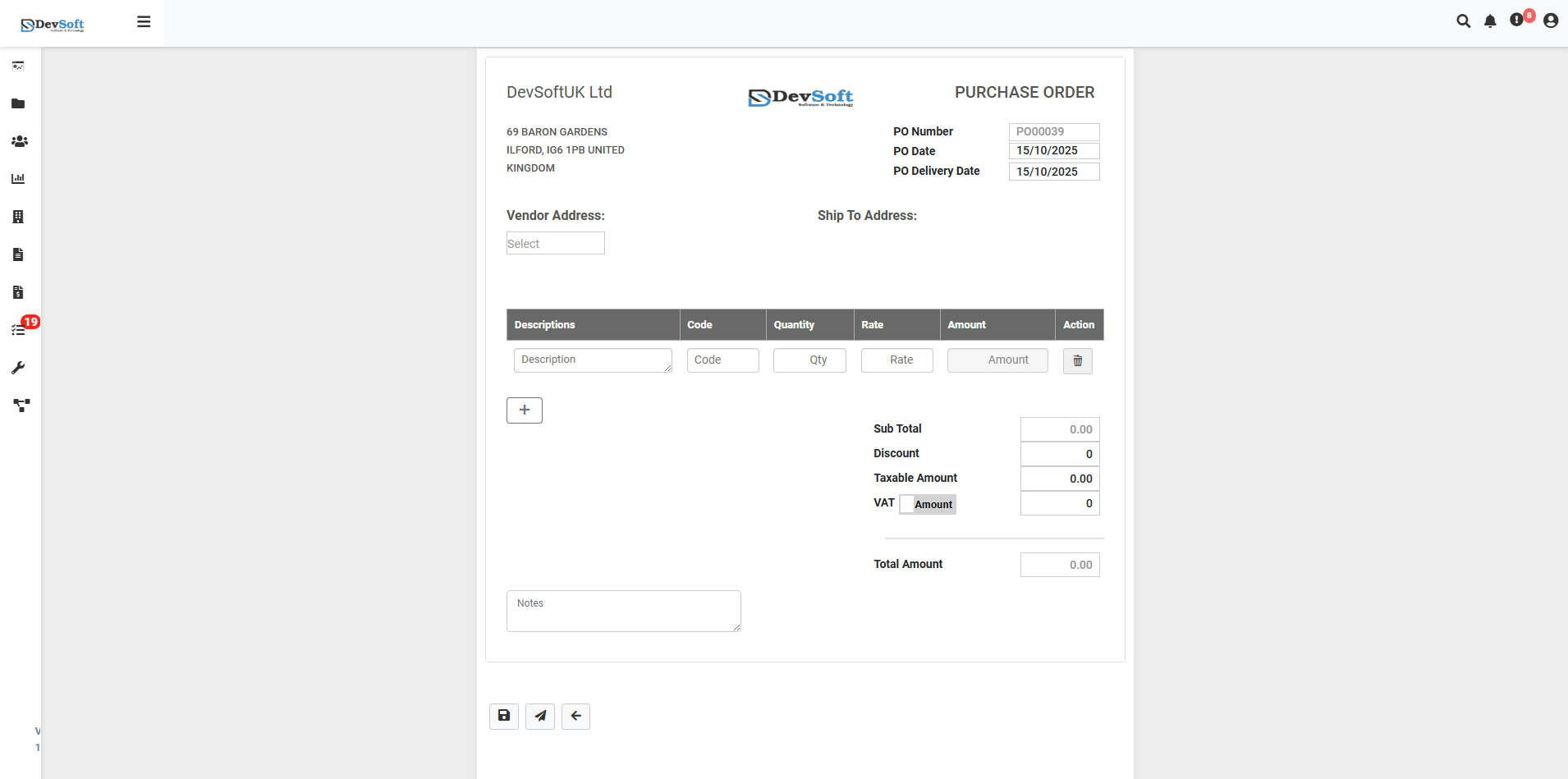
Purchase Order Form Details
The form displays company details (name, address, and logo) along with key order information such as:
- PO Number: Automatically generated by the system.
- PO Date: Date when the purchase order is created.
- PO Delivery Date: Expected delivery date for the order.
- Vendor Address: Dropdown selection for the supplier’s registered address.
- Ship To Address: Field for specifying the delivery destination.
Item Entry Section
Users can add one or more items to the purchase order. Each row includes:
- Description: Details of the item or service.
- Code: The item or product code.
- Quantity: Number of units ordered.
- Rate: Price per unit.
- Amount: Automatically calculated based on quantity and rate.
Use the + icon to add new rows for additional items, or click the 🗑️ (Delete) icon to remove a line.
Amount Summary
On the right-hand side, the system automatically calculates financial totals:
- Sub Total: Sum of all entered items.
- Discount: Optional discount amount, if applicable.
- Taxable Amount: Order total before VAT.
- VAT Amount: Tax amount applied based on the taxable total.
- Total Amount: Final payable amount for the purchase order.
Actions
At the bottom of the form, users can add Notes related to the purchase order for internal or supplier communication.
Action buttons available at the bottom include:
- 💾 Save: Save the order without submitting it for approval.
- 📤 Submit: Submit the order for the approval process.
- ↩ Back: Return to the Purchase Order Overview page.
⚠ Note: Only authorized users with the necessary permissions can create, edit, or approve purchase orders within the system.
Features
The Create Purchase Order page provides the following key features:
- Simple and structured layout for quick PO creation.
- Auto-generation of unique PO Numbers.
- Dropdown selections for Vendor and Shipping Address.
- Add, edit, or remove multiple line items dynamically.
- Automatic tax, discount, and total calculations.
- Option to include internal notes or messages for suppliers.
- Control buttons for Save, Submit, and Back operations.
- Seamless integration with the approval workflow.
- Ensures accuracy, traceability, and compliance in every purchase order.