Split PDF
The Split PDF utility in DocView Web allows you to separate one page or a whole set of pages for easy conversion into independent PDF files. This tool provides flexible options for extracting specific pages or ranges from your PDF documents while maintaining original quality and formatting.
Navigation
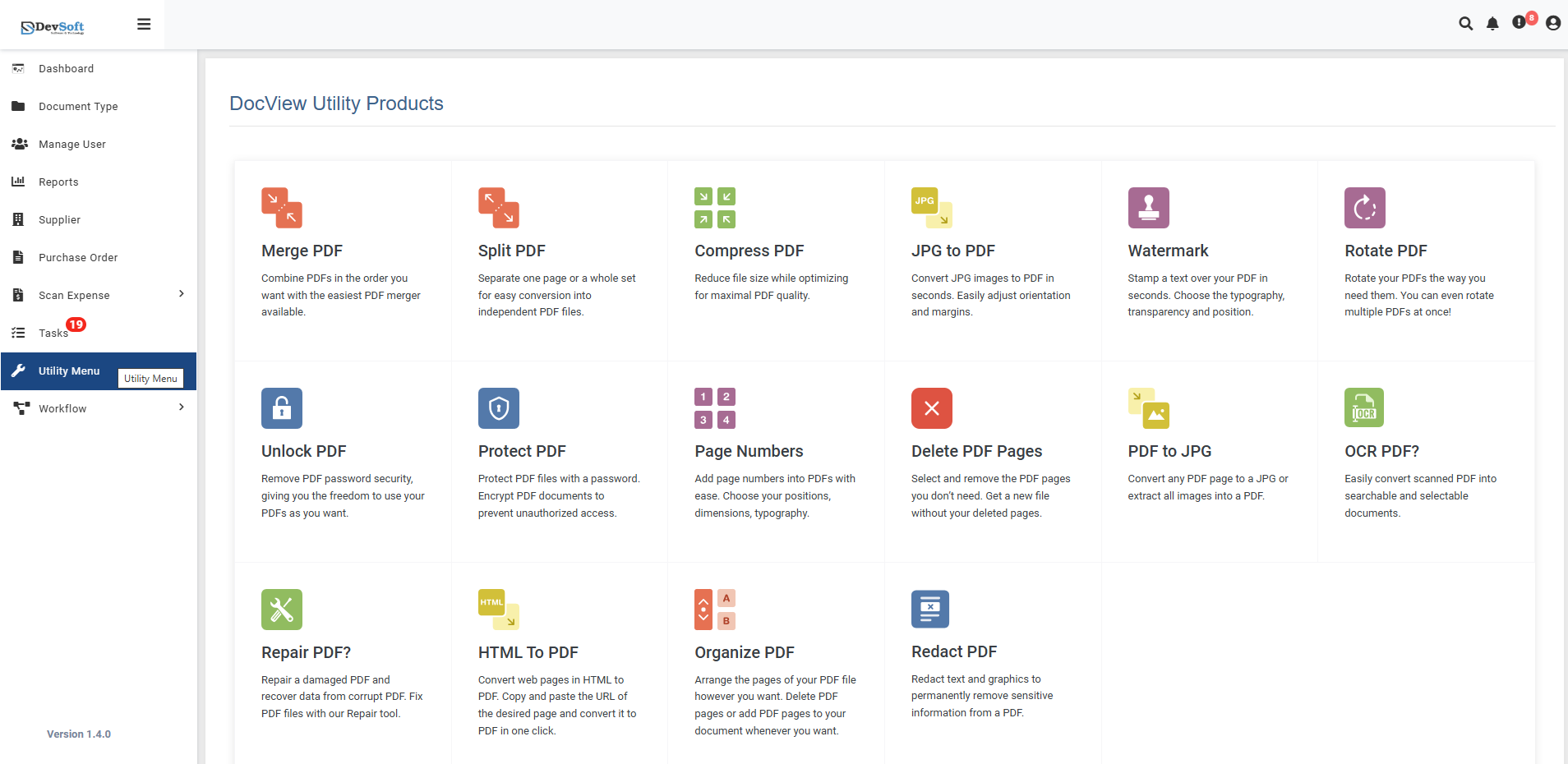
To access the Split PDF utility:
Open the Sidebar Menu
Click on the ☰ Sidebar Icon at the top-left corner of the dashboard interface to expand the navigation panel.Select "Utility Menu"
From the sidebar, click on Utility Menu to view the complete list of document processing tools.Click on "Split PDF"
Select the Split PDF option from the utility products list to open the splitting interface.
Split PDF Overview
The Split PDF screen provides an intuitive interface for separating PDF files into multiple documents with precise control over page selection and output configuration.
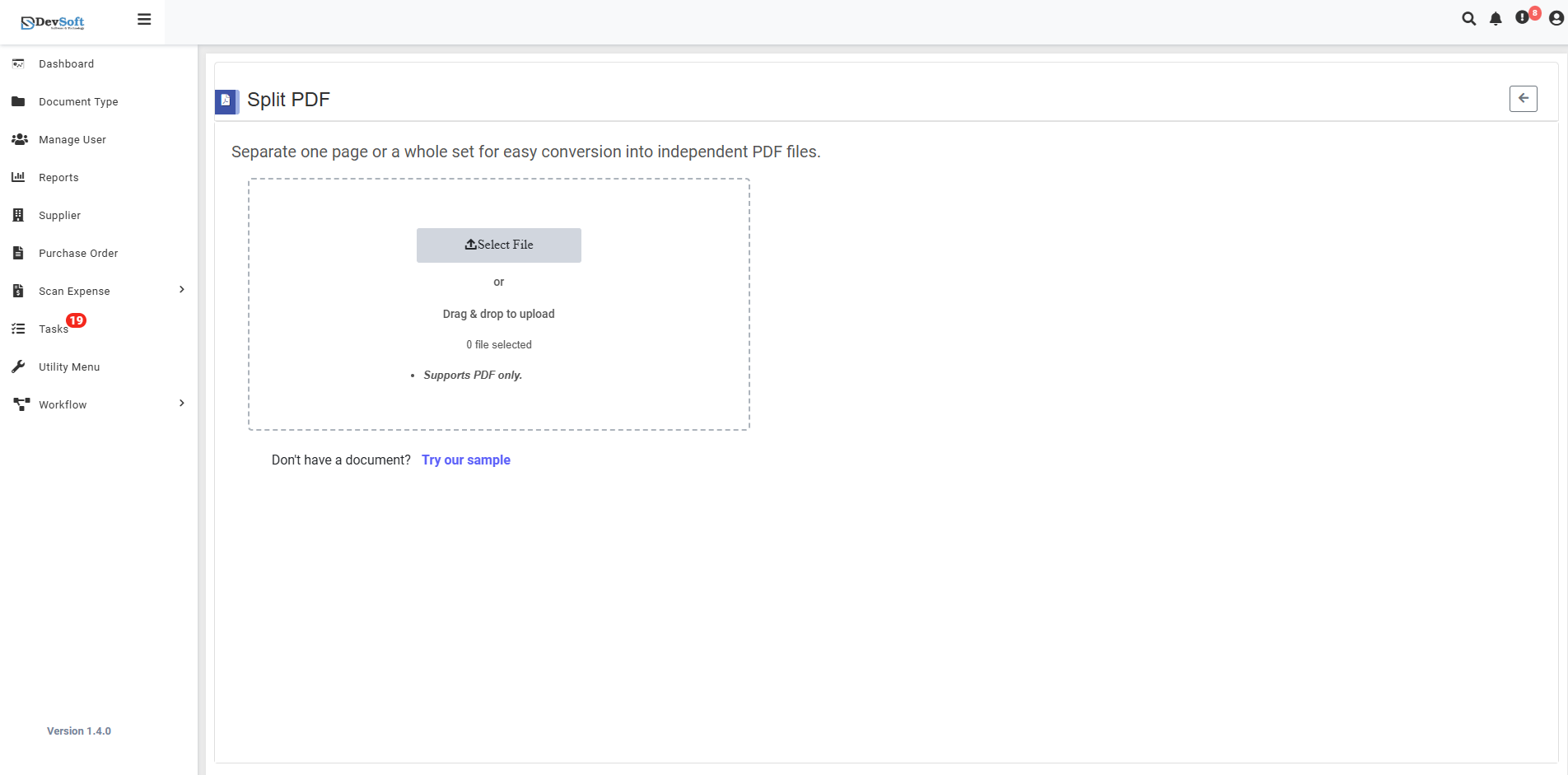
File Upload Section
- Backset File Upload Options
- Browse Option - Click to select files from your device
- Drag & Drop - Alternative method for easy file upload
- File Selection Status - Shows currently selected files
- Format Restriction - Supports PDF only for input files
Sample Document Access
- "Don't have a document? Try our sample"
- Provides sample PDFs for testing functionality
- Allows users to explore features without their own documents
- Perfect for learning the tool's capabilities
How to Split PDF Files
Step 1: Upload PDF File
- Click the Browse button to select a PDF file from your device
- Or use Drag & Drop functionality for quick upload
- System validates file format (PDF only)
Step 2: Select Splitting Method Choose from multiple splitting options:
Extract Single Pages
- Select individual pages to create separate files
- Perfect for extracting specific content
Split by Page Ranges
- Define custom ranges (e.g., 1-5, 6-10)
- Create multiple documents from specified ranges
Split All Pages
- Separate every page into individual PDF files
- Ideal for creating single-page documents
Step 3: Execute Split Operation
- Click the "Split PDF" button to initiate processing
- Monitor progress with real-time status updates
- Wait for completion notification
Step 4: Download Results
- Download individual split files
- Or download as a ZIP archive for multiple files
- Verify output quality and content
Uploaded Split PDF View
Once a file is uploaded, the Split PDF interface updates to display a clear visual preview of the uploaded document along with the available split options.
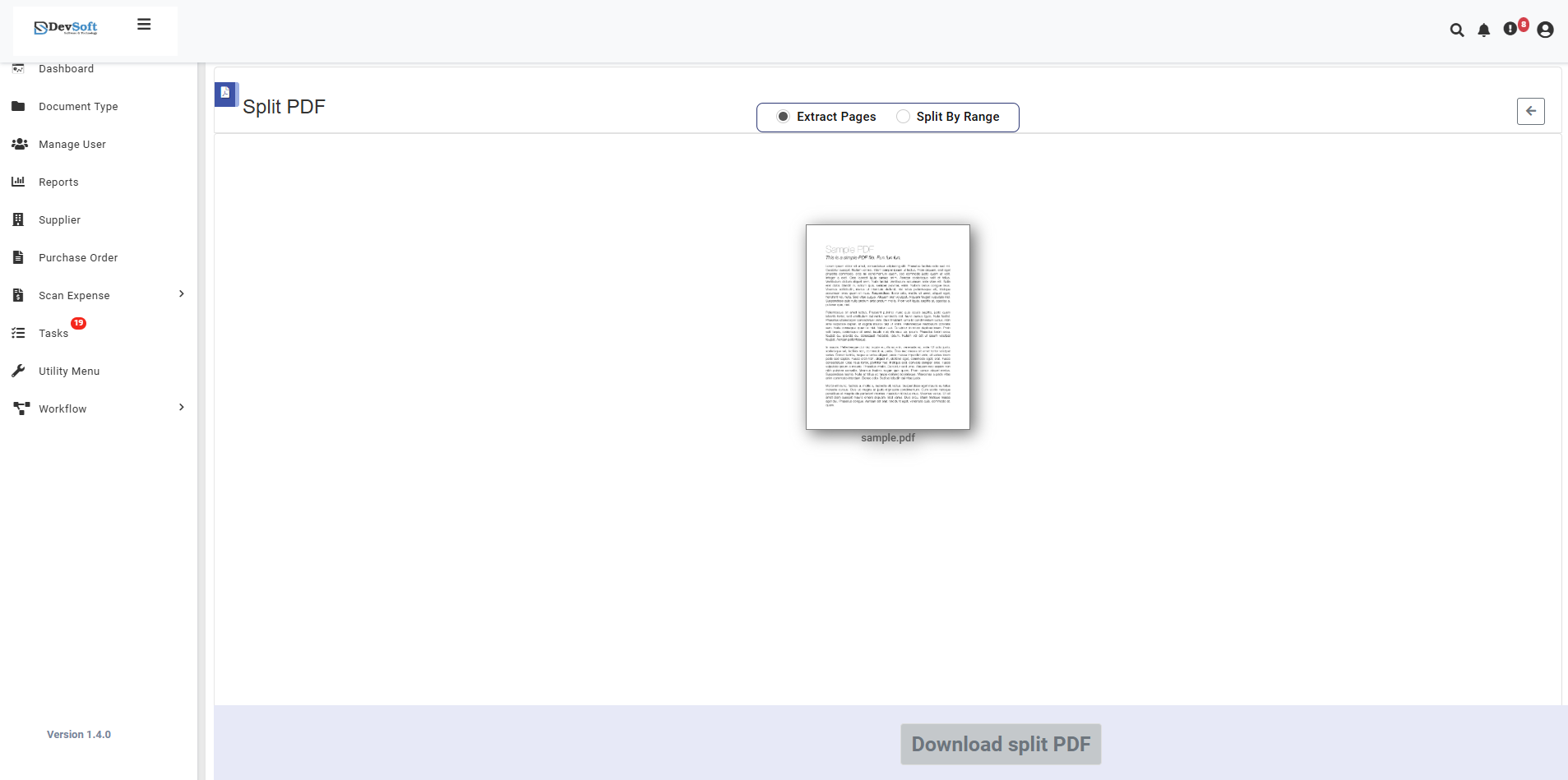
This screen helps users configure how they want to split their document. It provides options for extracting specific pages or splitting by range while previewing the uploaded file.
- Splitting Options (Top Panel) Located at the top of the interface:
- Extract Pages – Select this option to extract specific individual pages from the uploaded document.
- Split by Range – Choose this option to split the document into smaller files based on defined page ranges.
- Back Button (⬅) – Allows you to return to the previous screen or utility menu.
These radio button-style options ensure users can easily switch between splitting modes before execution. 2. Document Preview Section
- Displays a thumbnail preview of the uploaded PDF (e.g., sample.pdf).
- Shows the file name below the preview for identification.
- Provides visual confirmation of the uploaded file before starting the split.
- If multiple pages are available, users can navigate or select pages accordingly (depending on split mode).
- Action Area (Bottom Bar) At the bottom of the screen:
- Download Split PDF – Appears once the splitting operation is complete.
- Allows users to download the split file(s) directly from the interface.
- Output can include a single PDF or multiple files depending on the chosen method.
- Key Highlights
- Clear Mode Selection – Toggle between Extract and Split Range easily.
- Simple Navigation – Intuitive layout for all split operations.
- Secure and Fast Processing – Ensures file integrity and accurate output.
- Consistent Workflow – Upload → Select Split Mode → Split → Download.
Features
- Flexible Splitting Options - Single pages, ranges, or all pages
- Visual Page Selection - Thumbnail preview for accurate selection
- Batch Processing - Handle multiple splitting operations
- Quality Preservation - Maintains original PDF quality and formatting
- Secure Processing - Files processed securely with automatic cleanup
- Custom Naming - Automatic or custom file naming conventions
Supported Formats
- Input Format: PDF (Portable Document Format) only
Common Use Cases
- Document Organization - Separate multi-page documents into individual files
- Content Extraction - Extract specific pages from reports or manuals
- File Sharing - Split large documents for email attachment limits
- Workflow Management - Create individual documents for different departments
- Archiving - Separate documents by date ranges or categories