Rotate PDF
The Rotate PDF utility in DocView Web allows you to rotate your PDFs the way you need them. You can even rotate multiple PDFs at once, making it perfect for correcting document orientation or preparing files for specific viewing requirements.
Navigation
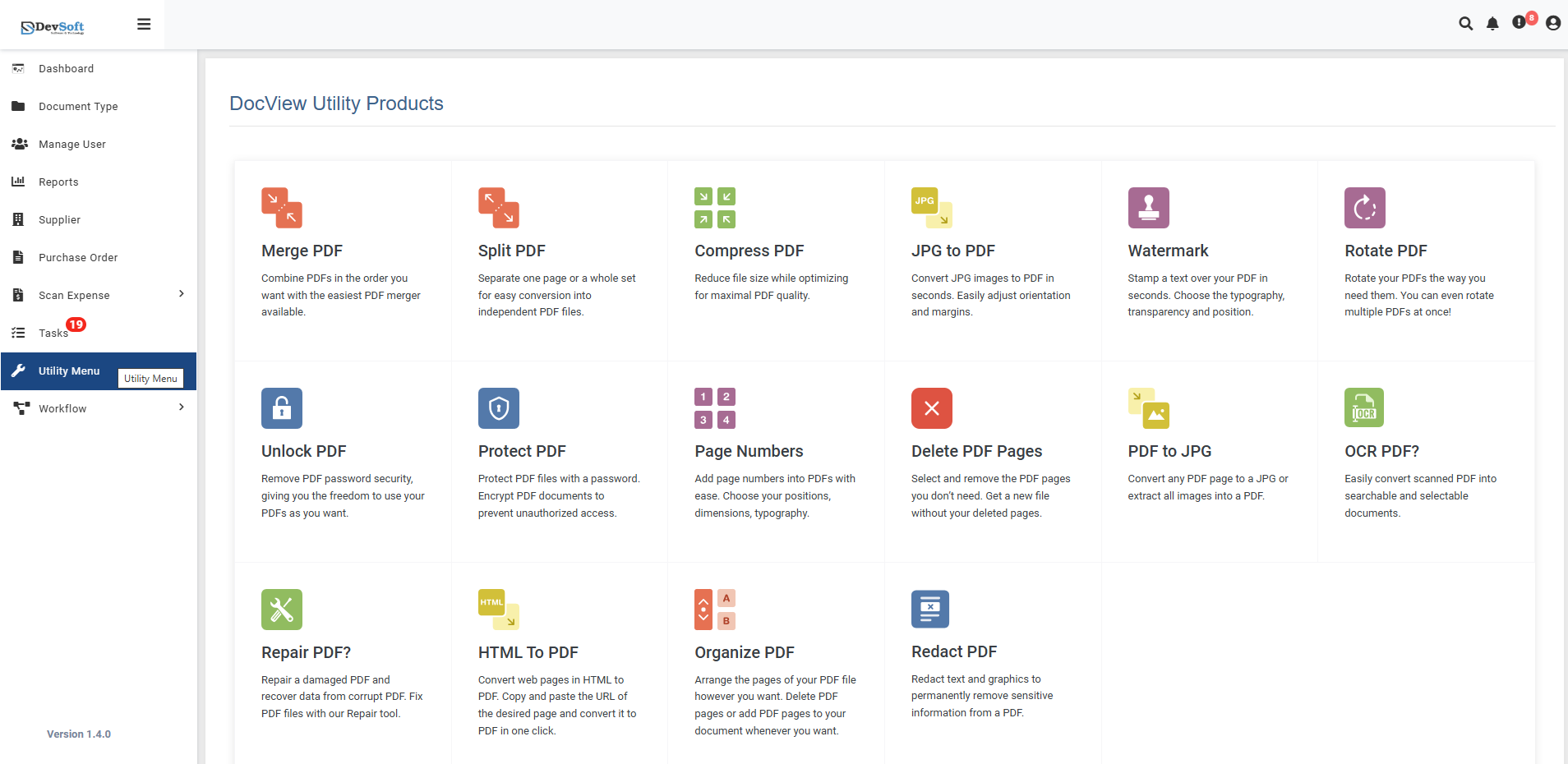
To access the Rotate PDF utility:
Open the Sidebar Menu
Click on the ☰ Sidebar Icon at the top-left corner of the dashboard interface to expand the navigation panel.Select "Utility Menu"
From the sidebar, click on Utility Menu to view the complete list of document processing tools.Click on "Rotate PDF"
Select the Rotate PDF option from the utility products list to open the rotation interface.
Return Navigation
- ← Back Icon (Top-right corner) - Click to return to the DocView Utility Products page
- Use the back icon at any time to navigate back to the main utility menu without losing your place
Rotate PDF Overview
The Rotate PDF screen provides an intuitive interface for rotating PDF documents with precise control over rotation angles and page selection.
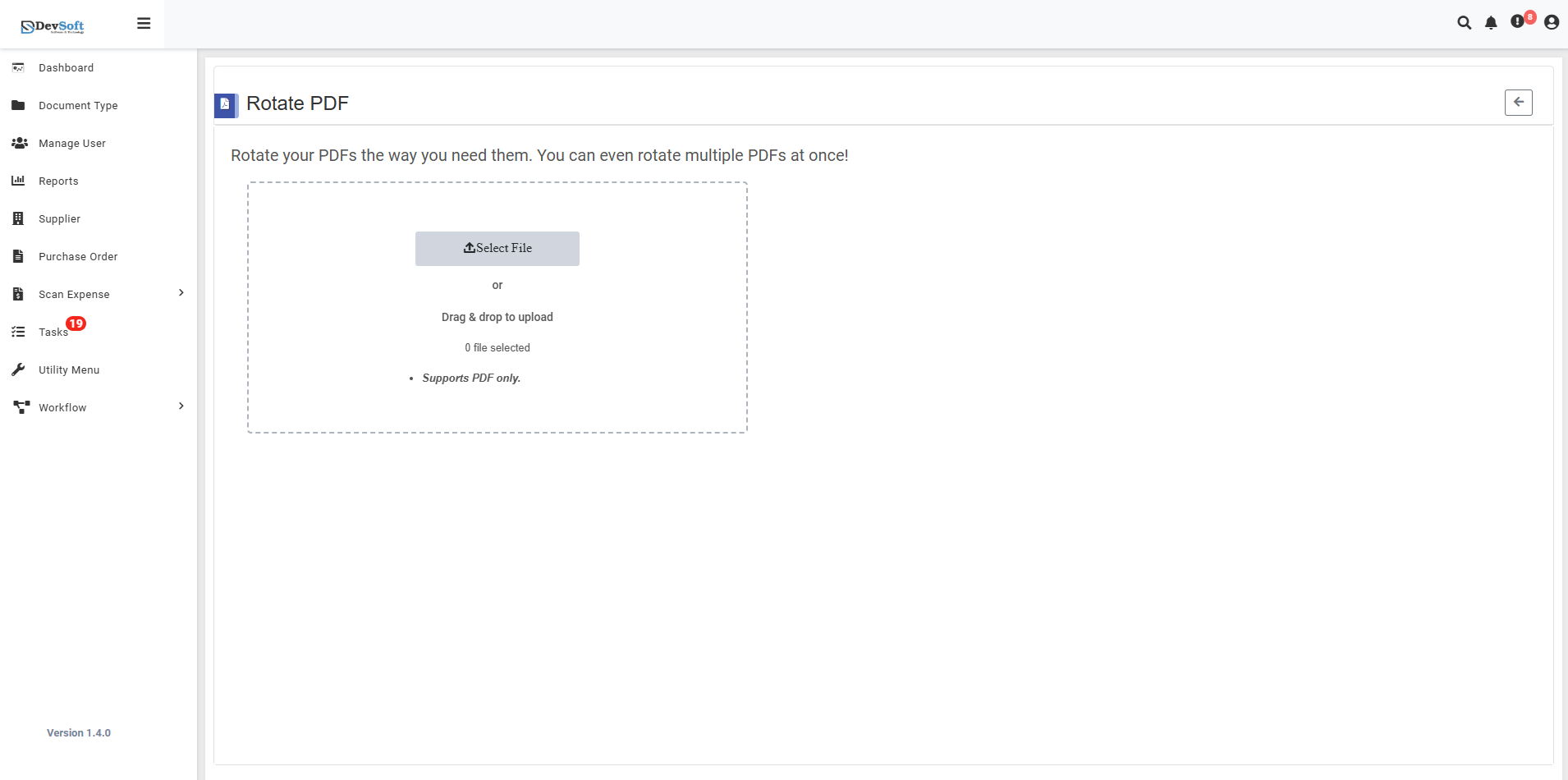
File Upload Section
- Backend File Upload Options
- Browse Option - Click to select PDF files from your device
- Drag & Drop - Alternative method for easy file upload ("Drop a drop to upload")
- File Selection Status - Shows currently selected files (0 file selected)
- Format Restriction - Segment PDF only - Only PDF file formats are accepted
Rotate PDF – Uploaded View
Once PDF files are uploaded in the Rotate PDF Utility, the interface updates to display comprehensive rotation options and document management features. This view allows users to select specific rotation directions and access additional utility tools.
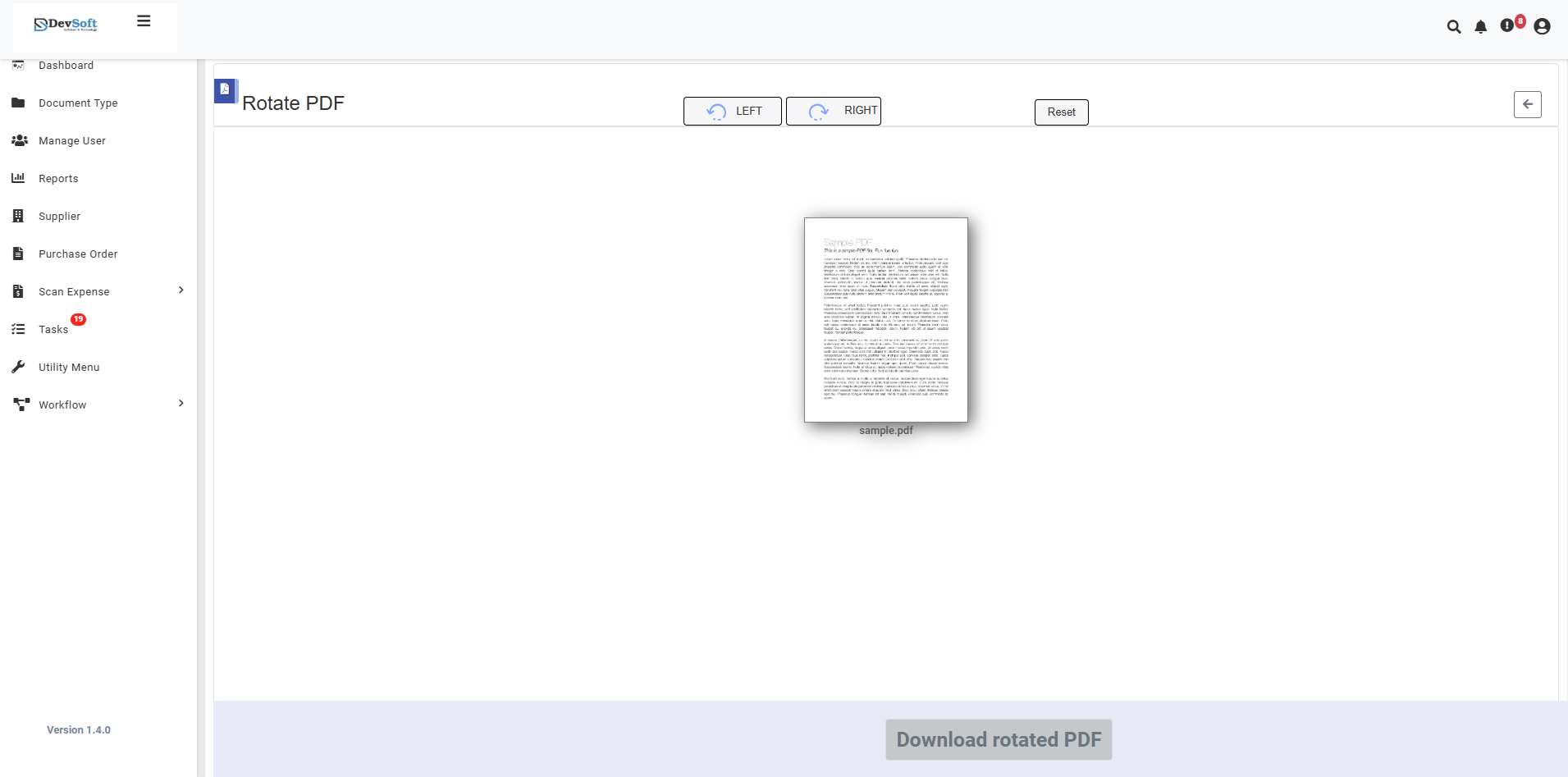
The uploaded view provides specialized controls for rotating PDF documents along with access to broader document management functionalities.
- Rotation Control Section
User Rotation Options
The main configuration panel offers three rotation methods:
[ ] LET - Likely represents "Left" rotation (counter-clockwise)
- Rotates pages 90 degrees to the left
- Ideal for correcting sideways-scanned documents
[ ] RIGHT - Right rotation (clockwise)
- Rotates pages 90 degrees to the right
- Perfect for adjusting document orientation
[ ] React - Possibly "Reset" or "Exact" rotation
- May reset to original orientation
- Or provide custom angle rotation options
- Action Controls
- Reset option to clear rotation selections
- Download Section Bottom section features:
- Download rotated PDF button (activates after processing)
- Processing status and progress indicators
- File information and rotation summary
How to Rotate PDF Files
Step 1: Upload PDF File(s)
- Click the Browse button to select PDF files from your device
- Or use Drag & Drop functionality for quick upload
- Multiple PDF files can be selected for batch rotation
- System validates file format (PDF only)
Step 2: Select Rotation Options (Uploaded View)
Rotation Direction Selection
LET (Left) - Select for counter-clockwise rotation
- 90 degrees left rotation
- Corrects right-leaning documents
RIGHT - Select for clockwise rotation
- 90 degrees right rotation
- Fixes left-leaning documents
React - Additional rotation control
- Reset to original orientation
- Or apply specific rotation angles
Step 3: Download Results
- Download rotated PDF button becomes active
- Download the processed PDF file
Supported Formats
Input Format
- PDF only (Portable Document Format)
- All PDF versions supported (PDF 1.0 - PDF 2.0)
- Encrypted PDFs (with proper authorization)
Output Format
- Rotated PDF with permanent orientation changes
- Maintains original document quality and properties
- Compatible with all PDF readers and viewers
Unsupported Formats
- JPG/JPEG images
- PNG images
- Word documents
- Excel files
- PowerPoint files
- All other non-PDF formats
Features
- Simple Rotation Controls - Easy LET/RIGHT selection
- Batch Processing - Rotate multiple PDFs simultaneously
- Quality Preservation - Maintains original PDF quality
- Non-Destructive - Original files remain unchanged
- Quick Processing - Fast rotation for all document sizes
- Integrated Navigation - Access to full document management suite
- Real-time Preview - Visual feedback before applying changes
Common Use Cases
Document Correction
- Scanned Documents - Correct improperly scanned pages
- Mobile Captures - Fix documents photographed at wrong angles
- Archived Files - Standardize orientation of historical documents
Presentation Preparation
- Reports & Charts - Rotate for better presentation layout
- Mixed Documents - Standardize pages from multiple sources
- Viewing Optimization - Prepare documents for specific displays
Workflow Efficiency
- Batch Correction - Fix orientation for multiple documents
- Quality Control - Ensure all documents meet orientation standards
- Quick Adjustments - Fast fixes for immediate use
Note: The uploaded view provides both simple rotation controls for quick adjustments and comprehensive access to the full DocView Web document management system through the DataBoard panel.