Create New Integration
The Create Integration page allows users to set up new integrations that connect DocView Web with external systems, services, and files.
This interface provides a streamlined process for configuring different types of integrations to extend system functionality and automate data exchange.
Navigation
To access the Create Integration page:
Navigate to Integration Management
Follow the steps in the Integration Overview to reach the main Integration screen.Click the + New Icon
Locate and click the plus (+) icon in the top right corner of the Integration Management grid.Create Integration Page Opens
The system will display the Create Integration form for configuring new integration settings.
Create Integration Overview
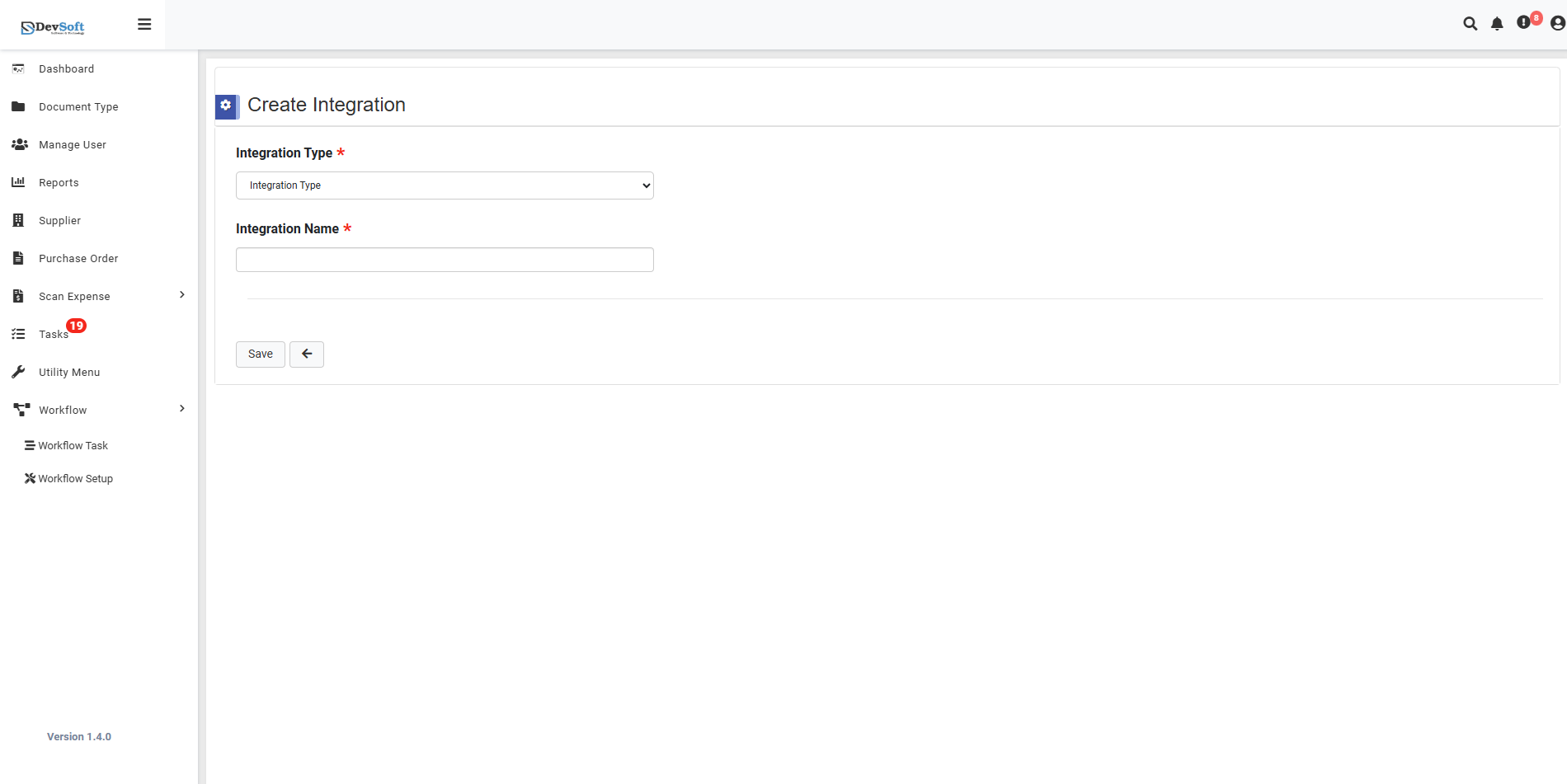
Required Fields
Integration Type *
- Purpose: Specifies the category of integration being created
- Options: Dropdown selection including DLL, SQL, Web Service URL, SMTP, and other integration types
- Importance: This selection determines the configuration fields that will be displayed
Integration Name *
- Purpose: Descriptive identifier for the integration
- Format: User-defined name that clearly describes the integration's purpose
- Example: "Workflow Function Git file", "SMTP config", "Text log Connection"
Form Layout
The create form features a clean, focused design with:
- Clearly marked required fields (denoted by asterisks *)
- Minimal fields to streamline the creation process
- Responsive layout that adapts to different integration types
Action Buttons
- Save - Primary button to create and save the new integration configuration
- Back - Secondary button to return to Integration Management without saving
Integration Type Specifics
Depending on the selected Integration Type, additional configuration screens may appear after the initial creation:
- DLL Integrations - File upload and path configuration
- SQL Connections - Database connection strings and parameters
- Web Service URLs - Endpoint URLs and authentication details
- SMTP Configurations - Server settings and credential management
This modular approach ensures users only see relevant configuration options for their chosen integration type, simplifying the setup process while maintaining flexibility for complex integrations