Create New Workflow Variable
The Create New Workflow Variable page allows users to define new variables for workflow processes, configuring data types, validation rules, and initialization values.
This interface provides a streamlined process for setting up variables that store and process data throughout workflow execution.
Navigation
To access the Create New Workflow Variable page:
Navigate to Workflow Variables Management
Access the main Variables screen through the Workflow Setup menu.Click the + New Icon
Locate and click the plus (+) icon in the top right corner of the Variables Management grid.Create Variable Page Opens
The system displays the variable creation form for configuration.
Variable Form Overview
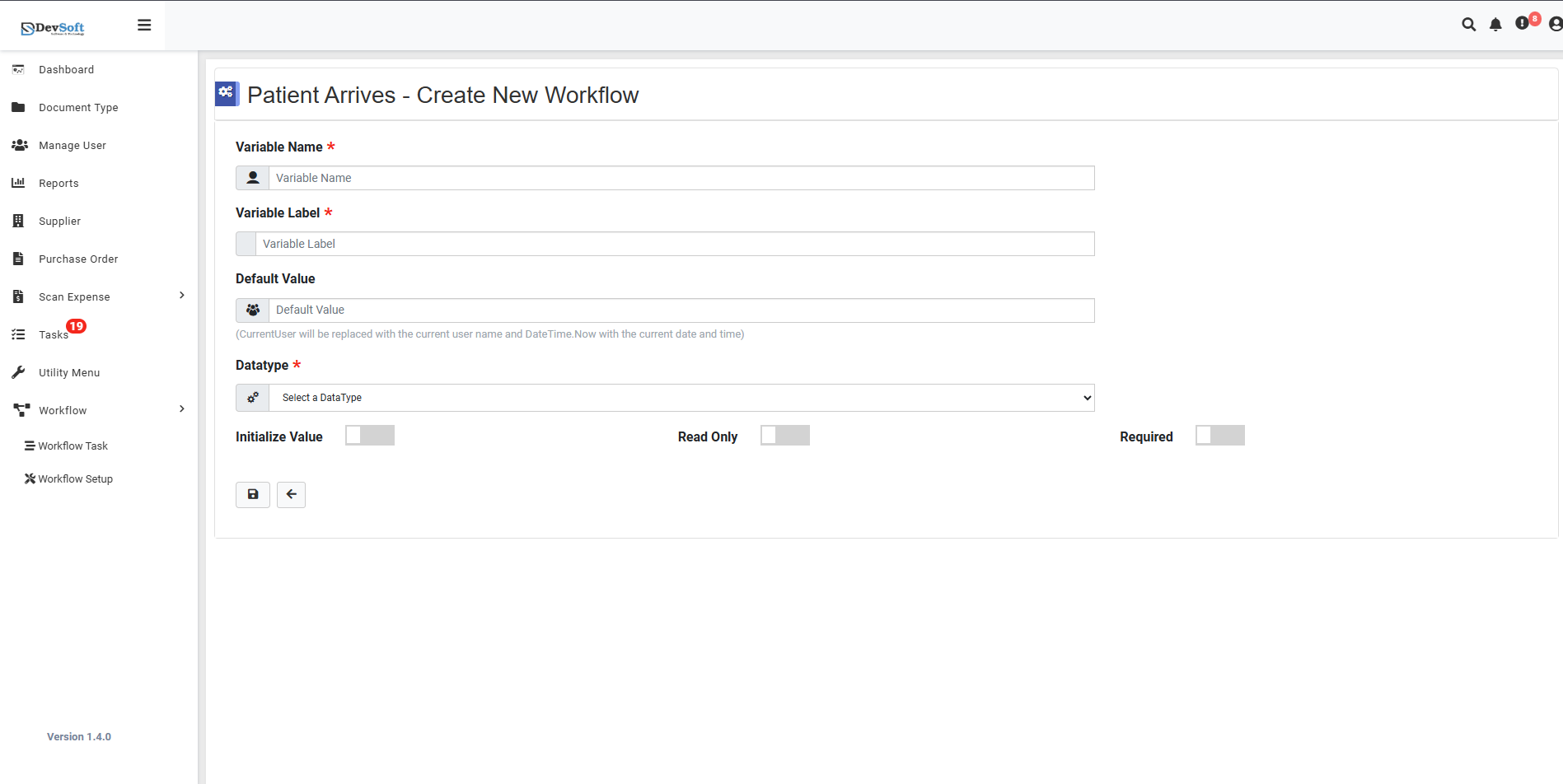
Required Fields
Variable Name *
- Purpose: Unique identifier for the variable in workflows
- Format: Alphanumeric characters, typically camelCase
- Examples:
patientAge,contactNumber,medicalHistory
Variable Label *
- Purpose: Display name shown to users in forms and interfaces
- Format: Human-readable description
- Examples: "Patient Age", "Contact Number", "Medical History"
Default Value
- Purpose: Pre-set value assigned when variable is created
- Dynamic Values:
CommitSize- Replaced with current usernameDateTime.New- Replaced with current date and time
- Usage: Automatically populate common values
DataType *
- Purpose: Defines the type of data the variable can store
- Selection: Dropdown with supported data types
- Options: NUMERIC, NUMICHAIR, BIT, and other system types
Initialize Value
- Function: Automatic value initialization when workflow starts
- Usage: Pre-populate variables with default or calculated values
Read Only
- Purpose: Restricts variable modification during workflow execution
- Use Case: For calculated fields or system-generated values
Required
- Purpose: Makes the variable mandatory for workflow completion
- Validation: Prevents workflow progression if required variable is empty
Action Buttons
Save Button
- Creates the new variable with all configurations
Back Button
- Returns to Variables Management screen