View Workflow Setup
The View Workflow interface in DocView Web provides comprehensive details and configuration options for individual workflows. This detailed view allows administrators to examine workflow properties, execution parameters, and process definitions for complete oversight of automated business processes.
Navigation
To view workflow details:
Access Workflow Setup
Navigate to the main Workflow Setup dashboard.Locate Target Workflow
Find the specific workflow you want to examine in the workflow management grid.Click Cog Icon
Click the cogs icon (⚙️) in the Options column for the desired workflow to open the detailed view.
View Workflow Setup Overview
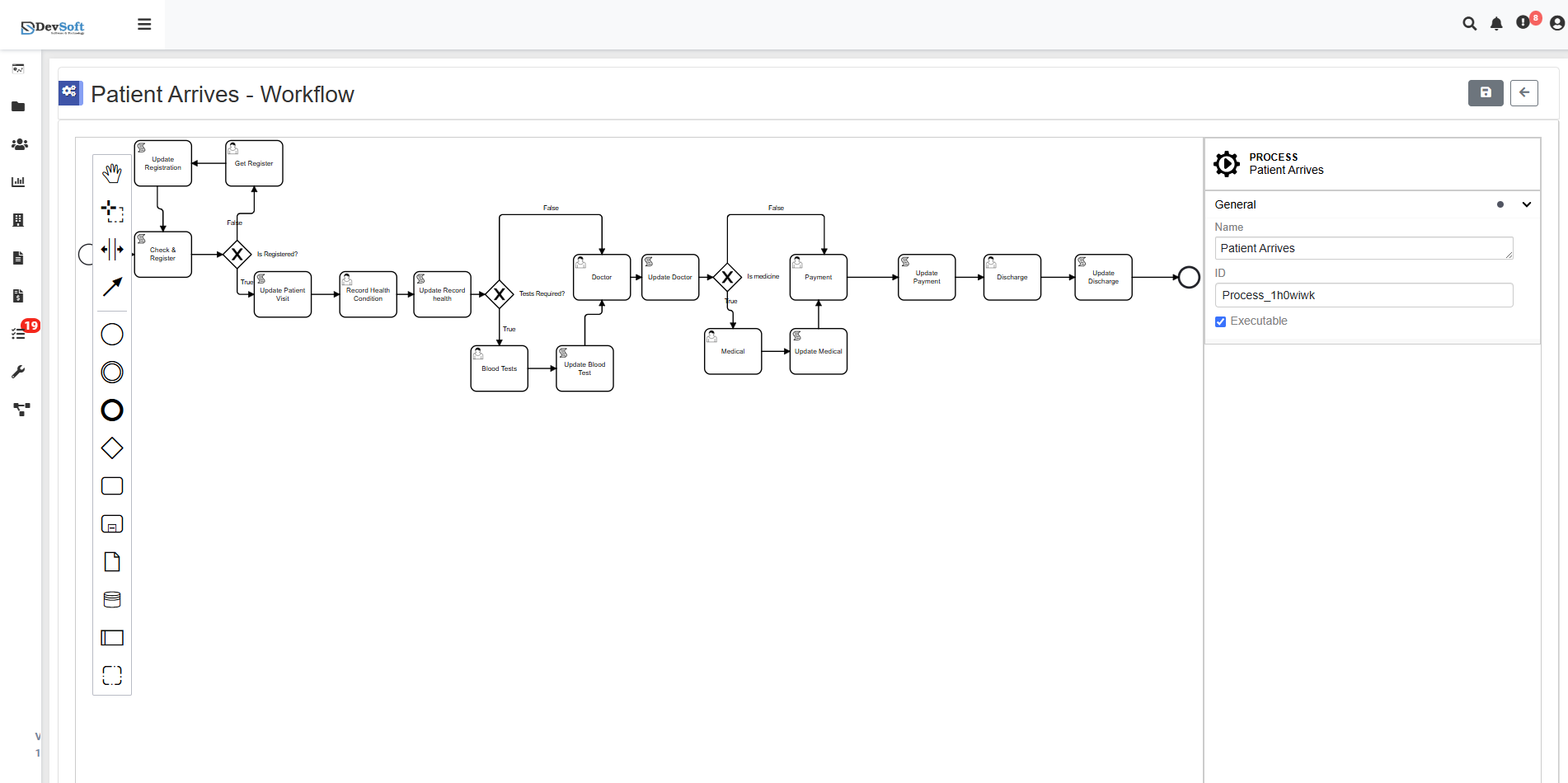
Process Information
The top section displays core workflow identification and categorization:
PROCESS
Shows the main process category or type - in this example: "Patient Arrives"General → Name
Displays the specific workflow name: "Patient Arrives"ID
Shows the unique system identifier for the workflow: "Process_Thomex"Executable
Indicates whether the workflow is configured as an executable process with defined triggers and automation rules.
Workflow Components
The interface typically includes additional sections for:
Process Steps
- Sequential actions that make up the workflow
- Task assignments and responsibilities
- Approval routing and decision points
Triggers and Conditions
- Events that initiate the workflow
- Conditional logic for process branching
- Time-based or data-driven triggers
Participant Management
- User roles and permissions
- Assignment rules and escalation procedures
- Notification settings
Integration Points
- Connections to document types
- Data mapping and transformation rules
- External system integrations
Workflow Analysis Features
Process Visualization
- Graphical representation of workflow steps
- Flowchart-style process mapping
- Dependency and relationship indicators
Performance Metrics
- Execution time tracking
- Success/failure rate monitoring
- Bottleneck identification
- Resource utilization statistics
Audit Capabilities
- Complete execution history
- User action logging
- Modification tracking
- Compliance reporting
Management Actions
From the workflow details view, administrators can typically:
- Modify Configuration - Update workflow parameters and rules
- Test Execution - Run the workflow with test data
- View History - Examine past executions and outcomes
- Adjust Permissions - Modify user access and responsibilities
- Enable/Disable - Activate or deactivate the workflow
- Clone/Copy - Duplicate the workflow for similar processes