Redact PDF
The Redact PDF utility in DocView Web allows you to permanently remove sensitive information from PDF documents by redacting text, graphics, and other content. This tool ensures confidential data is completely removed and unrecoverable, providing secure document sanitization for privacy protection and compliance requirements.
Navigation
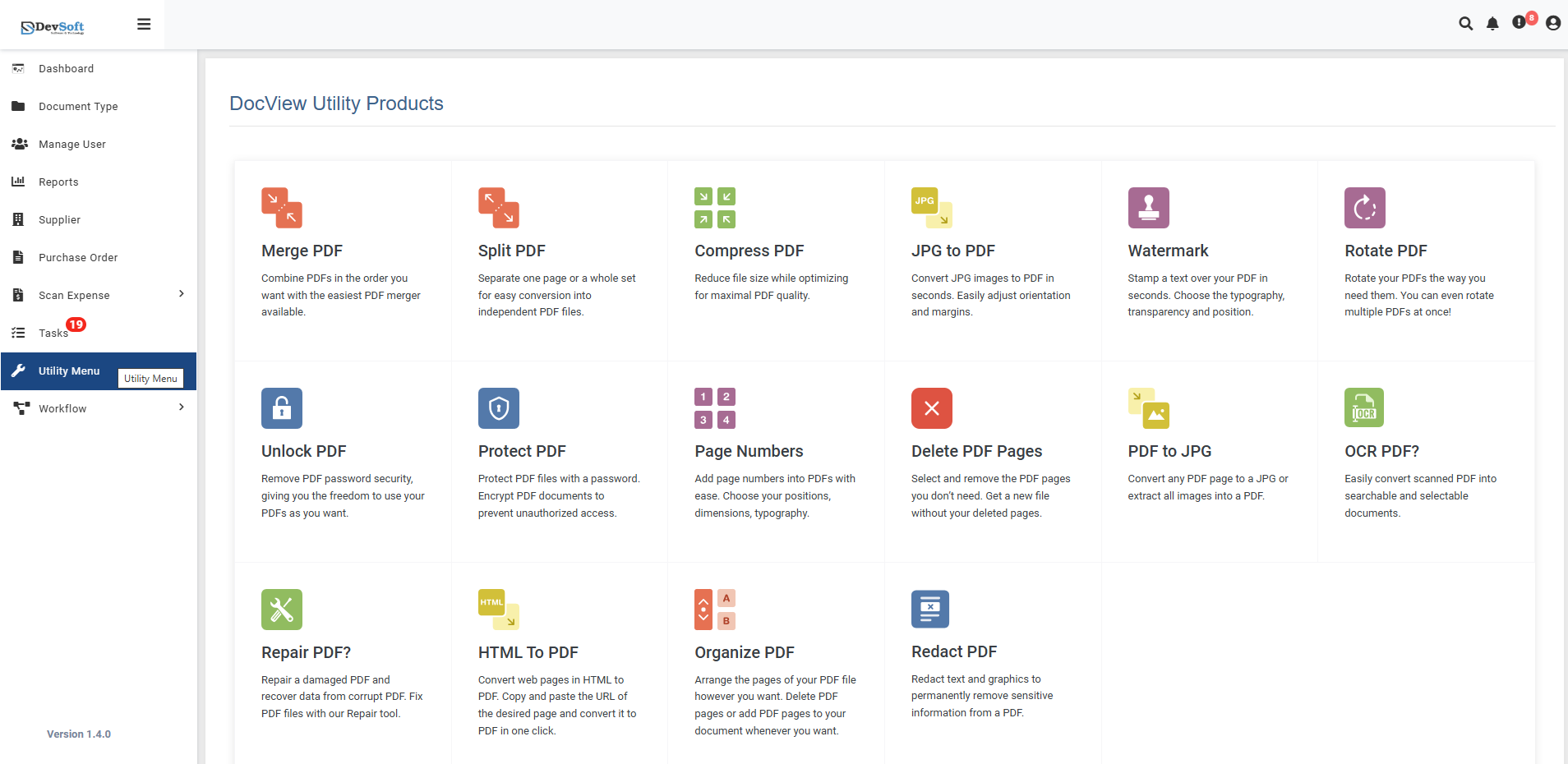
To access the Redact PDF utility:
Open the Sidebar Menu
Click on the ☰ Sidebar Icon at the top-left corner of the dashboard interface to expand the navigation panel.Select "Utility Menu"
From the sidebar, click on Utility Menu to view the complete list of document processing tools.Click on "Redact PDF"
Select the Redact PDF option from the utility products list to open the redaction interface.
Redact PDF Overview
The Redact PDF screen provides a secure interface for permanently removing sensitive information from PDF documents with precise selection tools and permanent content elimination.
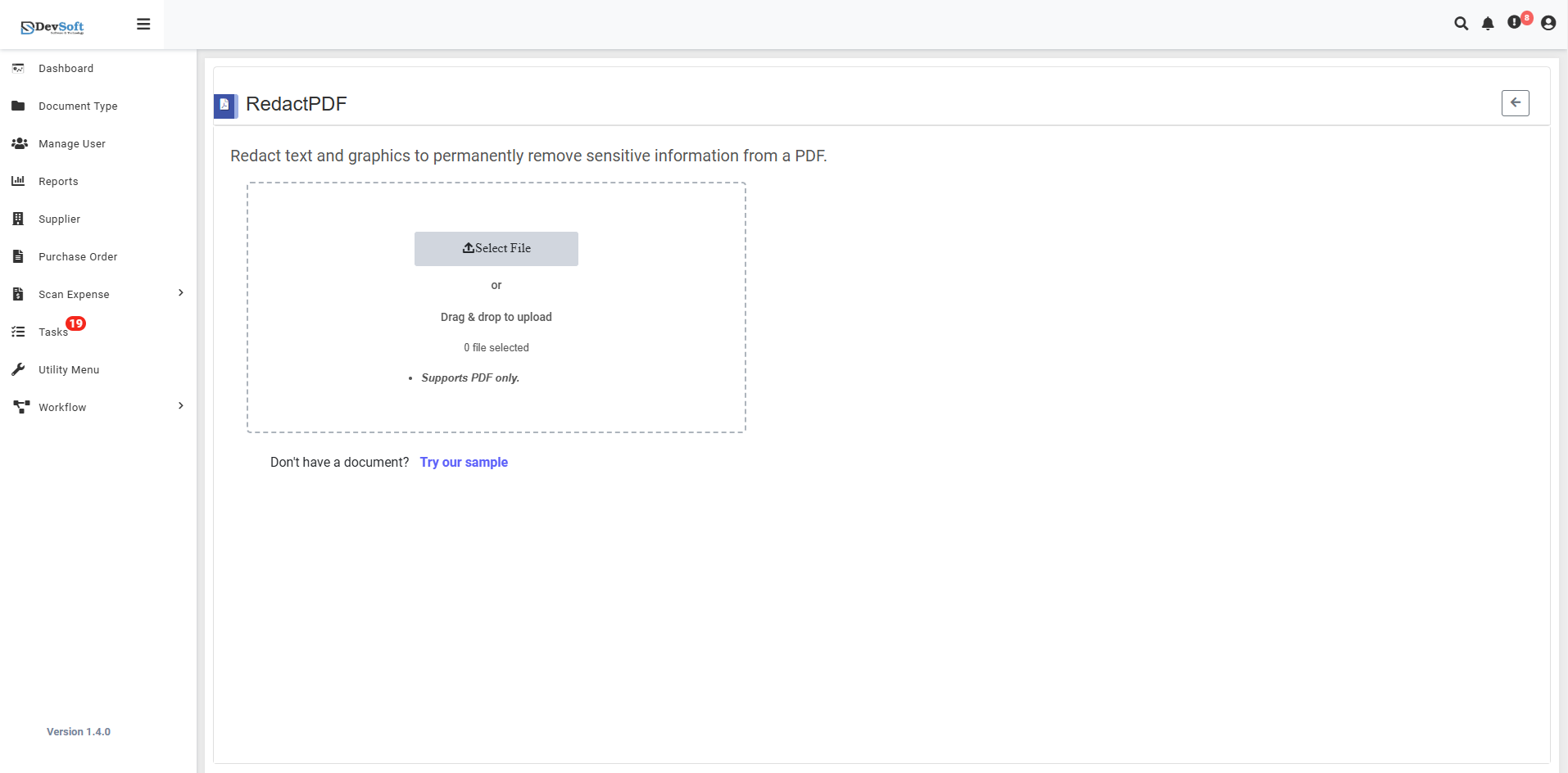
File Upload Section
- Backend File Upload Options
- File Counter - Shows current file count (initially "0 file selected")
- Drag & Drop - Easy file upload method
- File Selection Status - Displays selected file status
- Format Restriction - Supports PDF only - Only PDF file formats are accepted
Sample Document Access
- "Don't have a document? Try our sample"
- Provides sample PDFs for testing redaction functionality
- Allows users to experience the redaction tools without using personal documents
- Perfect for learning the redaction interface and security features
Action Controls
- ← Back Icon (Top-right) - Returns to Utility Products page
How to Redact PDF Files
Step 1: Upload PDF File
- Use Drag & Drop to quickly add PDF files to the interface
- Or click the upload area to browse and select PDF files manually
- System validates file format (PDF only) and loads document for redaction
Step 2: Access Redaction Interface
Document Display
- Full Document View - Complete PDF display for content review
- Zoom Controls - Adjust view for precise redaction placement
- Page Navigation - Move between pages to redact content throughout document
- Selection Tools - Various selection methods for different content types
Step 3: Select Content for Redaction
Text Redaction
- Word Selection - Select individual words or phrases
- Paragraph Selection - Redact entire paragraphs or sections
- Multiple Selection - Select text across different pages
- Auto-detection - Pattern recognition for sensitive data types
Graphic Redaction
- Image Selection - Redact photographs, logos, or graphics
- Area Selection - Define custom areas for redaction
- Shape-based Selection - Use geometric shapes for precise redaction
- Bulk Graphic Redaction - Remove multiple graphics simultaneously
Step 4: Apply Redactions
Redaction Tools
- Rectangle Tool - Standard rectangular redaction areas
- Freeform Tool - Custom shapes for irregular content
- Text-specific Tool - Automatic text boundary detection
- Bulk Application - Apply multiple redactions efficiently
Redaction Properties
- Permanent Removal - Content is completely eliminated
- Security Level - Military-grade content destruction
- Metadata Cleaning - Optional metadata removal
- Search Elimination - Redacted content removed from search indexes
Step 5: Download Results
- Download the redacted PDF file
- Original file remains unchanged and secure
- Verify all sensitive information has been permanently removed
- Check document usability after redaction
Unsupported Formats
- JPG/JPEG images
- PNG images
- Word documents
- Excel files
- PowerPoint files
- All other non-PDF formats
Content Types for Redaction
- Personal Information - Names, addresses, contact details
- Financial Data - Account numbers, transaction details
- Legal Information - Classified or privileged content
- Technical Data - Proprietary information, trade secrets
- Identifying Information - Social security numbers, ID numbers
- Confidential Content - Internal communications, strategic plans
Features
- Permanent Redaction - Complete and irreversible content removal
- Precision Tools - Accurate selection of text and graphics
- Multiple Redaction Methods - Various tools for different content types
- Security Assurance - Military-grade content elimination
- Non-Destructive Workflow - Original files remain unchanged
- Batch Processing - Redact multiple documents in single session
- Visual Verification - Clear indication of redacted areas
- Easy Navigation - Quick return to utility menu with back icon
Common Use Cases
Legal Document Redaction
- Court Documents - Remove sensitive case information
- Legal Contracts - Redact confidential terms and parties
- Discovery Materials - Sanitize evidence for distribution
- Attorney-Client Communications - Protect privileged information
Government and Public Sector
- FOIA Requests - Prepare documents for public release
- Classified Documents - Redact for lower classification levels
- Public Records - Remove personal information before publishing
- Internal Reports - Sanitize for inter-department sharing
Healthcare and Medical
- Patient Records - Redact personal health information (PHI)
- Medical Research - Remove patient identifiers from studies
- Insurance Claims - Protect sensitive medical and personal data
- Clinical Trials - Sanitize patient information in documentation
Business and Corporate
- Financial Reports - Redact proprietary financial data
- M&A Documents - Remove sensitive strategic information
- Employee Records - Protect personal employee information
- Client Documents - Sanitize before third-party sharing
Personal Privacy Protection
- Personal Documents - Redact sensitive information from IDs, certificates
- Financial Documents - Remove account numbers from statements
- Legal Papers - Protect personal information in various documents
- Academic Records - Redact personal identifiers from transcripts