OCR PDF
The OCR PDF utility in DocView Web allows you to convert non-selectable PDF files into selectable and searchable PDF documents with high accuracy. Using advanced Optical Character Recognition technology, this tool transforms scanned documents and image-based PDFs into fully editable and searchable text documents.
Navigation
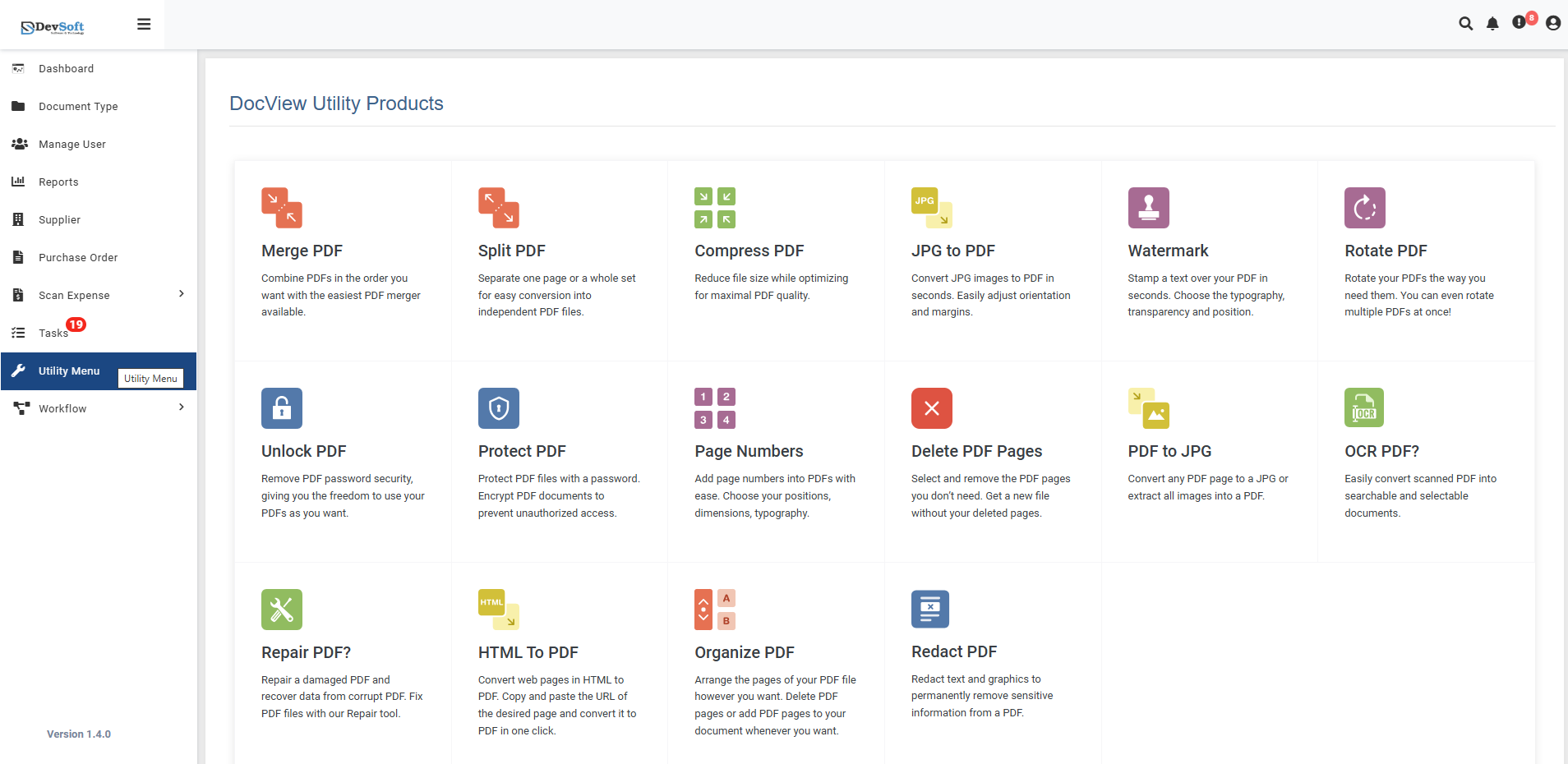
To access the OCR PDF utility:
Open the Sidebar Menu
Click on the ☰ Sidebar Icon at the top-left corner of the dashboard interface to expand the navigation panel.Select "Utility Menu"
From the sidebar, click on Utility Menu to view the complete list of document processing tools.Click on "OCR PDF"
Select the OCR PDF option from the utility products list to open the OCR interface.
Action Bar
- ← Back Icon (Top-right corner) - Click to return to the DocView Utility Products page
- Use the back icon at any time to navigate back to the main utility menu without losing your place
OCR PDF Overview
The OCR PDF screen provides a powerful interface for converting scanned documents and image-based PDFs into searchable, selectable text documents while preserving original layout and formatting.
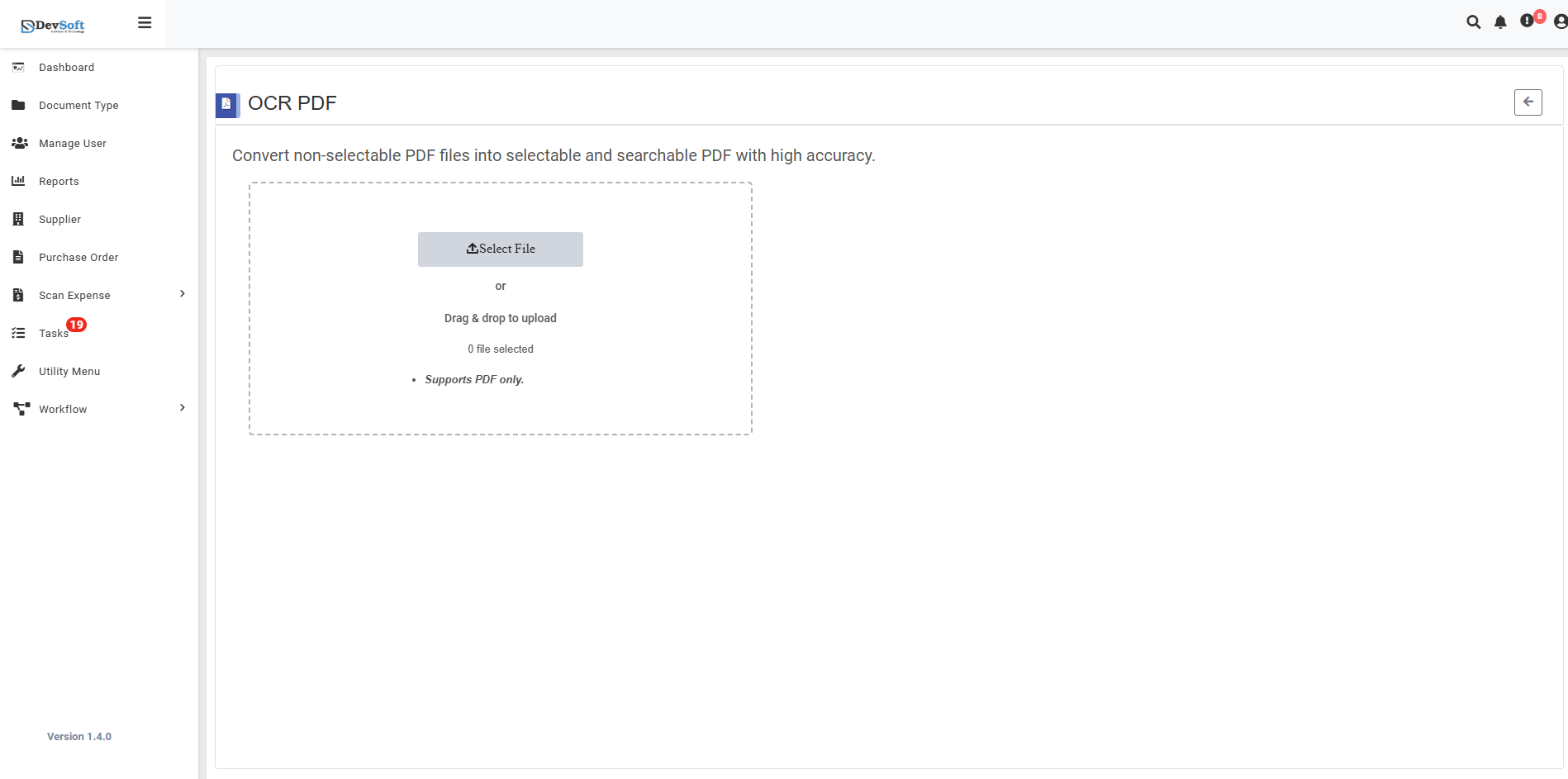
File Upload Section
- Backend File Upload Options
- File Counter - 0 (shows current file count)
- Drag & Drop - Easy file upload method
- File Selection Status - 0 file selected (shows selected file status)
- Format Restriction - Supports PDF only - Only PDF file formats are accepted
OCR PDF – Uploaded View
Once a PDF file is uploaded in the OCR PDF Utility, the interface updates to display a streamlined processing and download interface. This view provides immediate access to the OCR-processed document with minimal configuration required.
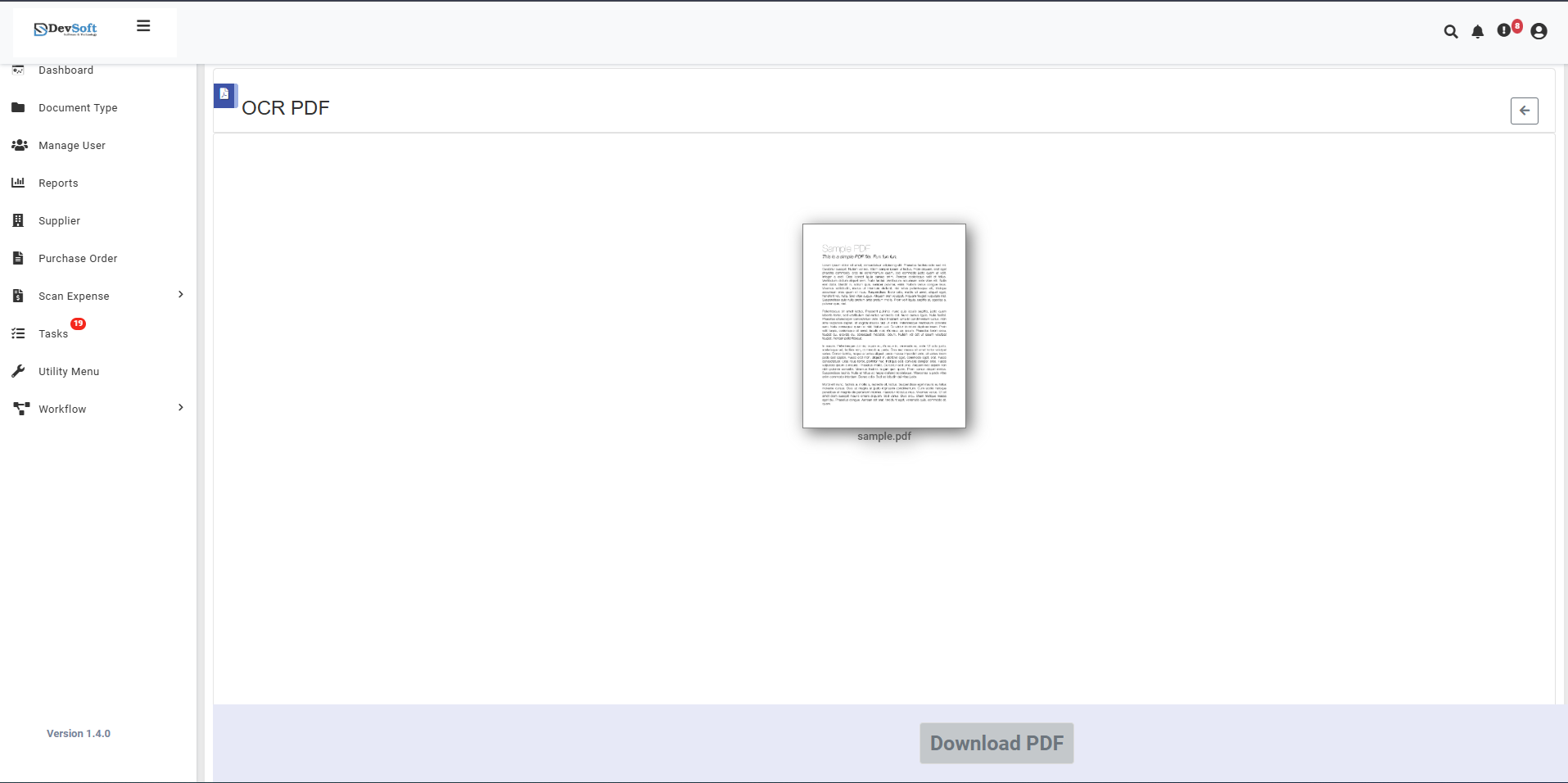
The uploaded view offers a clean, focused interface for downloading OCR-processed PDF documents with automatic text recognition applied.
- Document Processing Status
- Automatic OCR Processing - System immediately begins OCR processing upon file upload
- Real-time Progress - Shows processing status and estimated completion time
- Quality Analysis - Automatically detects document quality and applies optimal OCR settings
- Download Section
- Download PDF button - Primary action button for retrieving processed document
- Button activates immediately once OCR processing is complete
- Clear call-to-action for quick document retrieval
How to Perform OCR on PDF Files
Step 1: Upload PDF File
- Use Drag & Drop to quickly add PDF files to the interface
- Or click the upload area to browse and select PDF files manually
- System validates file format (PDF only) and analyzes document type
Step 2: Download OCR-Processed PDF
Download Options
- Download PDF - Primary download button for processed document
- Instant Access - No additional configuration required
- Automatic Naming - Processed file includes "_OCR" suffix for identification
Supported Document Types
- Scanned Documents - Physical documents converted to PDF via scanner
- Image-based PDFs - PDFs created from image files
- Photocopied Materials - Documents with varying quality levels
- Historical Documents - Older documents with potential quality issues
- Multi-page Documents - Books, reports, and lengthy materials
Supported Formats
Input Format
- PDF only (Portable Document Format)
Output Format
- Searchable PDF with embedded text layer
- Preserved Layout - Maintains original document appearance
- Selectable Text - All text becomes copyable and searchable
- Enhanced Accessibility - Compatible with screen readers
Unsupported Formats
- Already searchable PDFs (no OCR needed)
- JPG/JPEG images
- PNG images
- Word documents
- All other non-PDF formats
Features
- Automatic Processing - No manual configuration required
- High Accuracy OCR - Advanced character recognition technology
- Multi-language Support - Process documents in 100+ languages automatically
- Layout Preservation - Maintains original document formatting
- Batch Processing Ready - Handles multiple documents efficiently
- Quality Enhancement - Automatic image cleanup and optimization
- Non-Destructive - Original files remain completely unchanged
- Accessibility Compliance - Creates documents compatible with screen readers
- Streamlined Interface - Simple one-click download process
Common Use Cases
Business and Legal
- Scanned Contracts - Make legal documents searchable and editable
- Archived Records - Convert historical business documents
- Financial Reports - Transform scanned financial statements
- Meeting Minutes - Make handwritten or typed notes searchable Academic and Research
- Research Papers - Convert scanned academic publications
- Library Archives - Digitize historical texts and journals
- Thesis Documents - Make scanned theses searchable
- Textbook Conversion - Transform educational materials
Government and Public Sector
- Public Records - Make government documents accessible
- Historical Archives - Preserve and search historical documents
- Legal Documents - Convert court records and filings
- Administrative Files - Process scanned administrative documents
Personal and Professional
- Personal Scans - Convert personal documents and records
- Recipe Collections - Make handwritten recipes searchable
- Family Archives - Preserve and search family documents
- Professional Portfolios - Enhance scanned professional materials
Note: The uploaded view provides a completely automated OCR experience where users simply upload their document and download the processed version with embedded searchable text. The system handles all optimization and quality adjustments automatically, making it accessible for users of all technical levels.