Protect PDF
The Protect PDF utility in DocView Web allows you to encrypt your PDF with a password to keep sensitive data confidential. This tool provides robust security features to safeguard your documents from unauthorized access while maintaining ease of use for authorized recipients.
Navigation
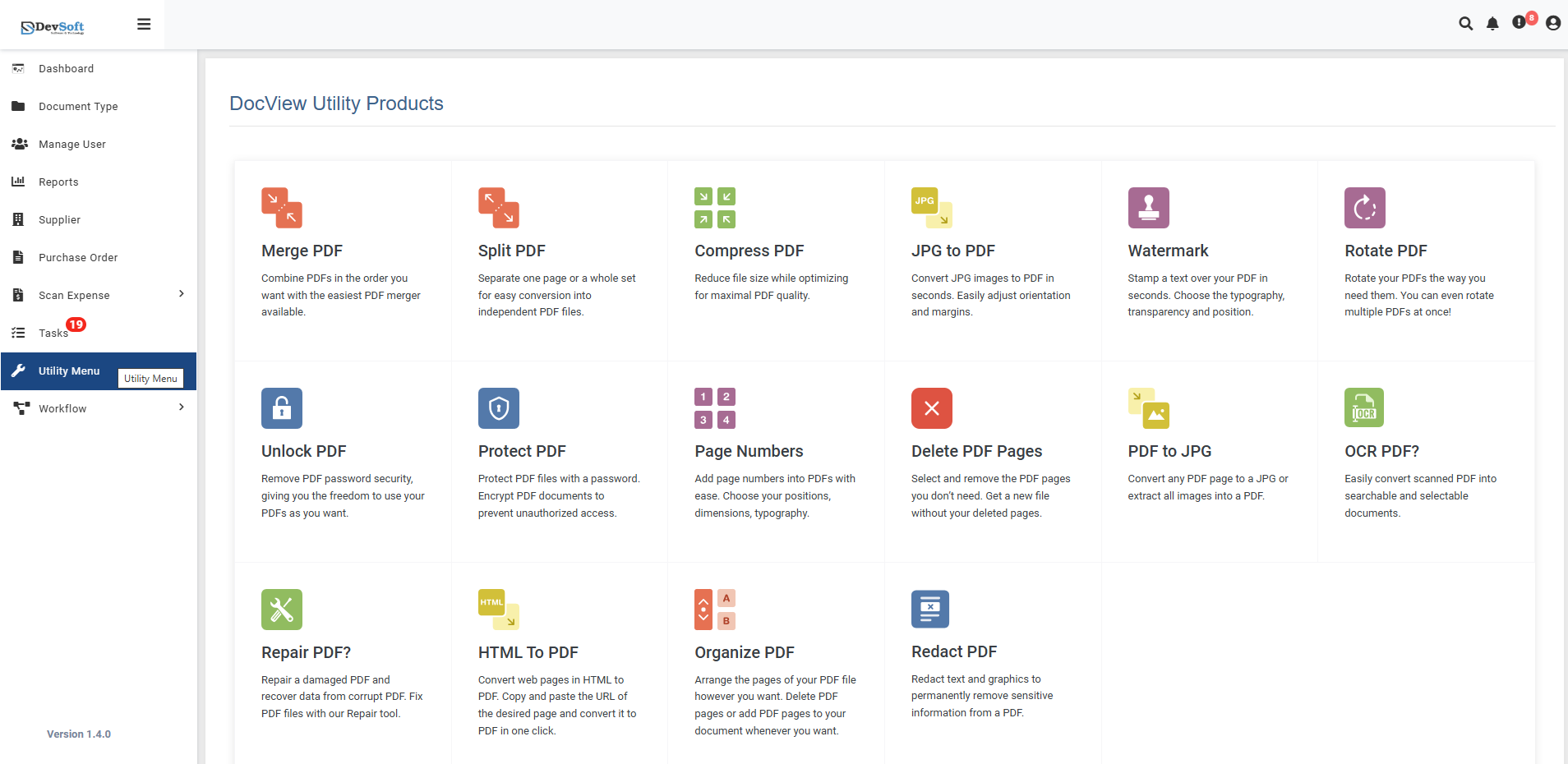
To access the Protect PDF utility:
Open the Sidebar Menu
Click on the ☰ Sidebar Icon at the top-left corner of the dashboard interface to expand the navigation panel.Select "Utility Menu"
From the sidebar, click on Utility Menu to view the complete list of document processing tools.Click on "Protect PDF"
Select the Protect PDF option from the utility products list to open the protection interface.
Protect PDF Overview
The Protect PDF screen provides a comprehensive interface for adding password protection and security restrictions to your PDF documents.
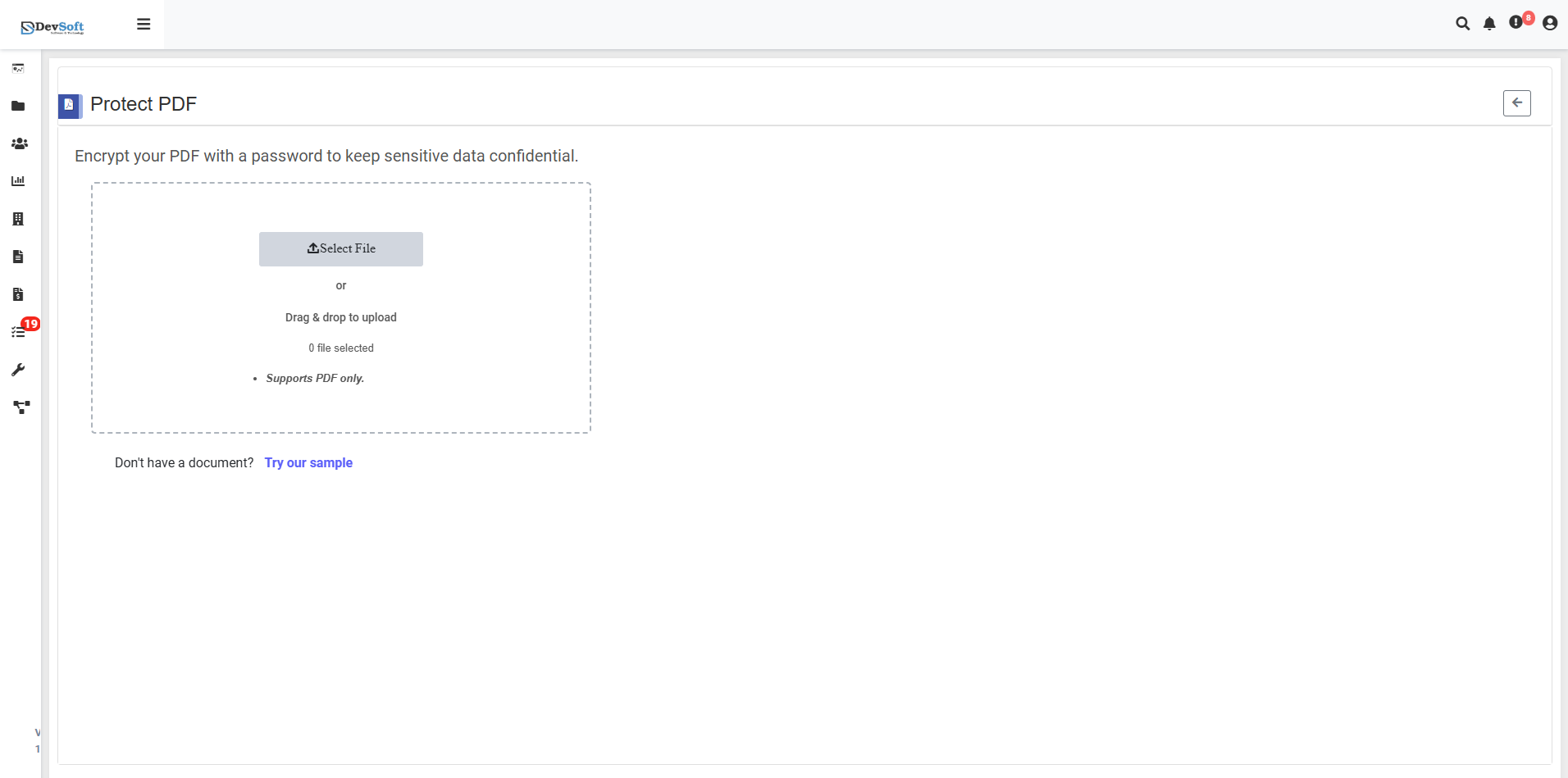
File Upload Section
- Select File Upload Options
- Browse Option - Click to select PDF files from your device
- Drag & Drop - Alternative method for easy file upload ("Drug & drop to upload")
- File Selection Status - Shows currently selected files (0 Bis selected)
- Format Restriction - Supports PDF only - Only PDF file formats are accepted
Sample Document Access
- "Don't have a document? Try our sample"
- Provides sample PDFs for testing protection functionality
- Allows users to experience the security features without using personal documents
- Perfect for understanding the protection workflow
Action Controls
- ← Back Icon (Top-right) - Returns to Utility Products page
Protect PDF – Uploaded View
Once PDF files are uploaded in the Protect PDF Utility, the interface updates to display password configuration options and security settings. This view allows users to set document passwords and apply various protection levels to secure their PDF files.
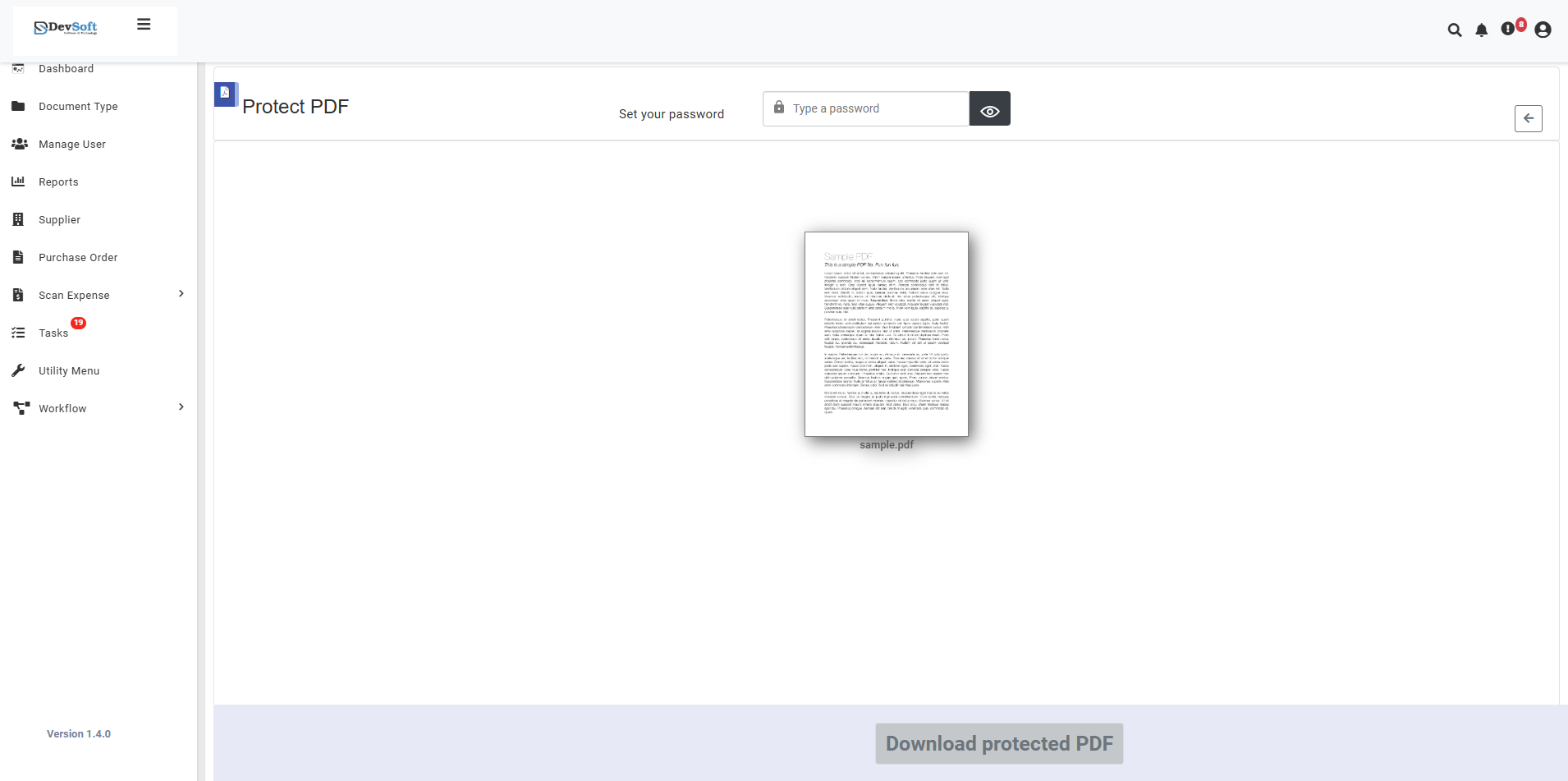
The uploaded view provides comprehensive controls for setting up PDF security with password protection and access management features.
- Password Configuration Section
Set your password
- Type a password - Primary input field for setting document open password
- Secure password entry with strength indicators
- Login/ pdf - Additional authentication field (possibly for owner password or secondary verification)
- Password confirmation and validation checks
- Download Section
- Download protected PDF button - Activates after successful protection process
- Processing status indicators
- File security summary before download
How to Protect PDF Files
Step 1: Upload PDF File(s)
- Click the Browse button to select PDF files from your device
- Or use Drag & Drop functionality for quick upload
- Multiple PDF files can be selected for batch protection
- System validates file format (PDF only)
Step 2: Configure Password Protection (Uploaded View)
Primary Password Setup
- Type a password - Enter strong password for document opening.
- Login/ pdf - Enter owner password for permissions control (if different from open password)
Step 3: Download Protected PDF
- Download protected PDF button becomes active
- Download the encrypted PDF file
- Original unprotected file remains unchanged
- Save password information securely
Features
- Strong Encryption - Industry-standard AES 256-bit encryption
- Dual Password Support - Separate open and permissions passwords
- Granular Permissions - Precise control over document operations
- Batch Processing - Protect multiple PDFs with same settings
- Quality Preservation - Maintains original PDF quality
- Version Tracking - Clear utility version display
- Comprehensive Management - Full DataBoard integration
- User-Friendly Interface - Simple password setup process
Common Use Cases
Business Document Security
- Confidential Reports - Protect sensitive business intelligence
- Financial Documents - Secure financial statements and projections
- Legal Contracts - Safeguard legal agreements and contracts
- HR Documents - Protect employee records and personal data
Personal Document Protection
- Tax Records - Secure personal financial information
- Identity Documents - Protect copies of IDs and certificates
- Medical Records - Safeguard health information and reports
- Academic Research - Protect theses and research papers
Secure Distribution
- Email Attachments - Add security to emailed documents
- Cloud Storage - Extra protection for cloud-based files
- Client Deliverables - Secure work delivered to clients
- Public Sharing - Control usage of publicly shared documents
Note: The uploaded view provides a streamlined interface for setting up comprehensive PDF security with password protection, encryption levels, and integrated document management through the DataBoard panel, all while maintaining clear version tracking for user awareness.