Load Reports
Load Reports provide detailed information about document loading activities, processing status, and system ingestion statistics.
Navigation
Login to DocView Web
Use your registered credentials to sign in and access the main dashboard.Open the Sidebar Menu
Click the ☰ Sidebar Icon located at the top-left corner to expand the main navigation panel.Select "Reports" from the Sidebar
From the expanded menu, click on Reports to open the Reports Dashboard, where all available report categories are displayed.Click "Load Reports"
Select Load Reports to open the detailed Load Reports interface.
This section displays all document loading and processing activities with filters and report options.
Load Report Overview
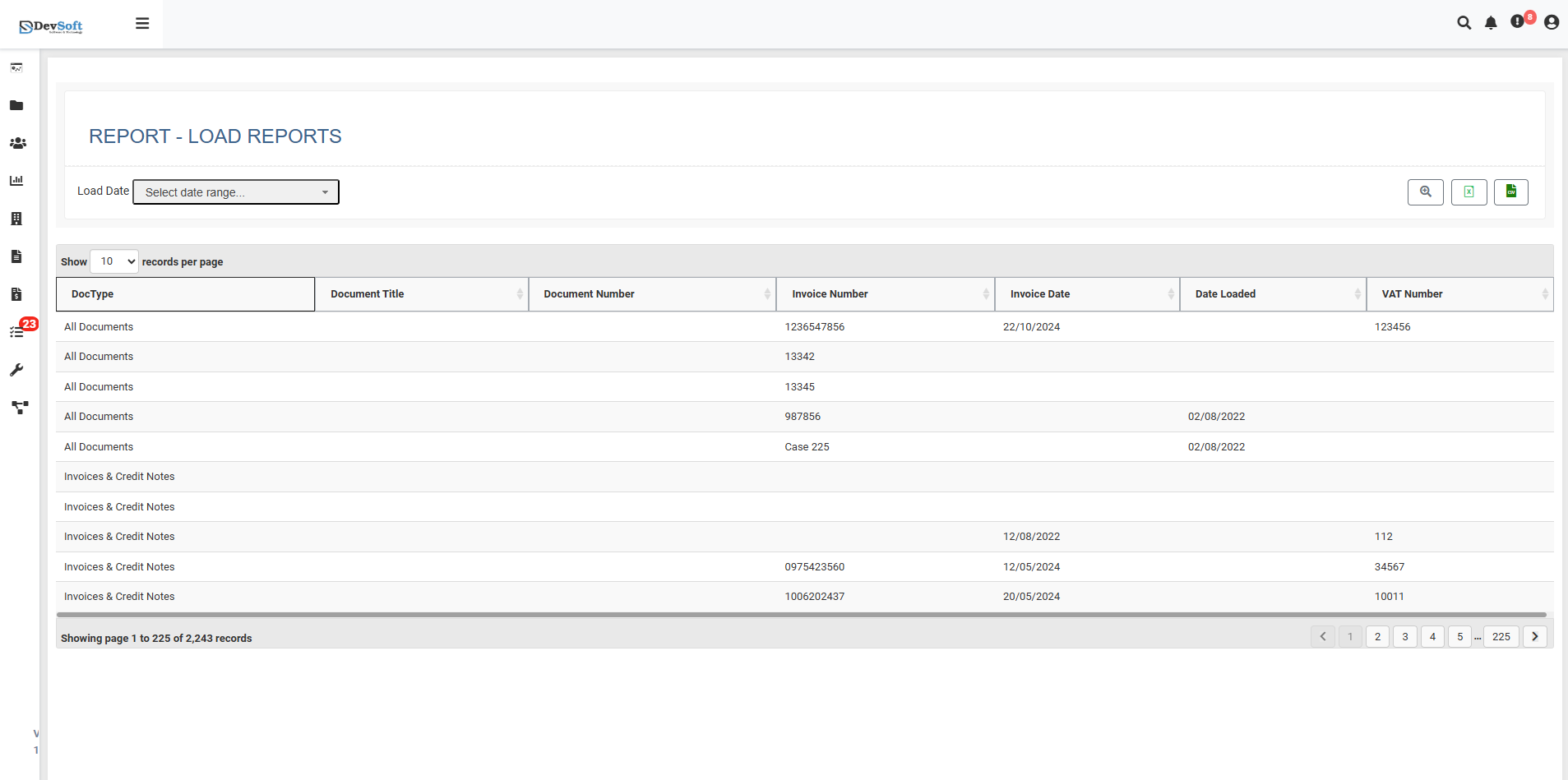
The Load Reports interface displays several key data columns providing detailed document information:
- Decrype: Shows the document type or category such as All Documents.
- Document Title: Displays the title or name of the document (may be blank in some cases).
- Document Number: A unique identifier assigned to each document.
- Imodes Number: The internal modes reference used for tracking within the system.
- Imodes Date: The date associated with the Imodes reference.
- Data Linked: Timestamp showing when the data was linked in the system.
- VAT Number: Displays the Value Added Tax (VAT) identification number.
Load Reports
The Load Reports Interface in DocView Web provides a complete overview of document loading and processing activities.
It includes key features, filters, and export options to help users analyze and manage data efficiently.
This section displays:
- The Report Header, showing “REPORT - LOAD REPORTS” at the top.
- A Load Date Filter to refine report data within a specific date range.
- Display Controls including records per page, pagination navigation, and a record counter (e.g., “Showing page 1 to 225 of 2.5G records”).
- A Main Data Table displaying detailed information on uploaded and processed documents, with sortable and searchable fields.
- An Invoices & Credit Notes Subsection focused on financial documents for easy tracking and review.
- On the right side of the page, you’ll find icons for quick actions:
- 🔍 Search: Instantly find records using keywords or index fields.
- 📊 Excel: Export selected or filtered report data into an Excel file.
- 📑 CSV: Download selected data in CSV format for spreadsheet applications.
These tools allow users to easily search, view, and export important document data directly from the report interface.