Organize PDF
The Organize PDF utility in DocView Web allows you to sort, add, and delete PDF pages. Drag and drop the pages and sort them in our PDF organizer to create perfectly arranged documents tailored to your specific needs. This tool provides complete control over page sequence and document structure.
Navigation
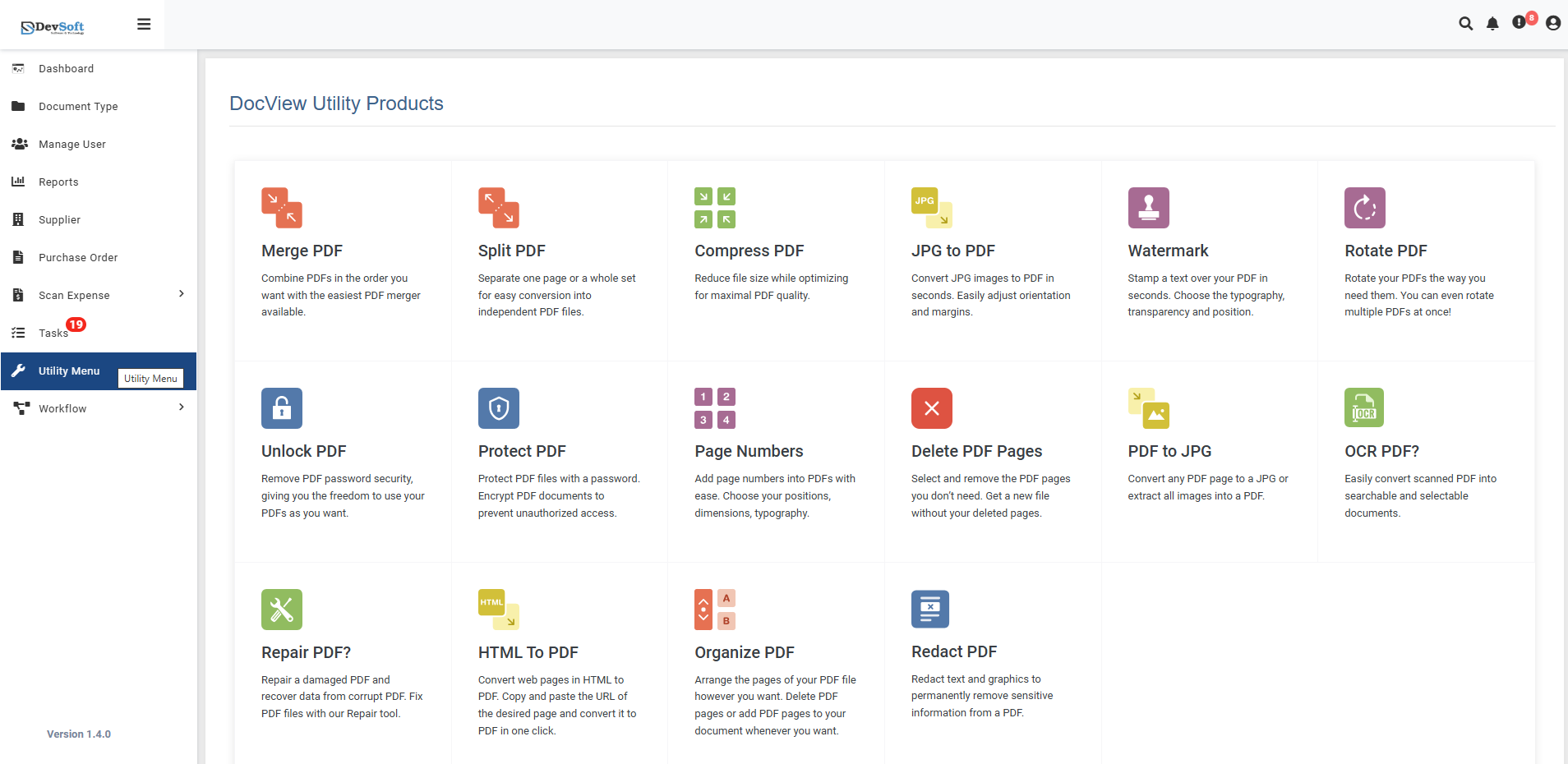
To access the Organize PDF utility:
Open the Sidebar Menu
Click on the ☰ Sidebar Icon at the top-left corner of the dashboard interface to expand the navigation panel.Select "Utility Menu"
From the sidebar, click on Utility Menu to view the complete list of document processing tools.Click on "Organize PDF"
Select the Organize PDF option from the utility products list to open the organization interface.
Organize PDF Overview
The Organize PDF screen provides an intuitive drag-and-drop interface for rearranging, adding, and removing pages from your PDF documents with visual page previews and flexible organization tools.
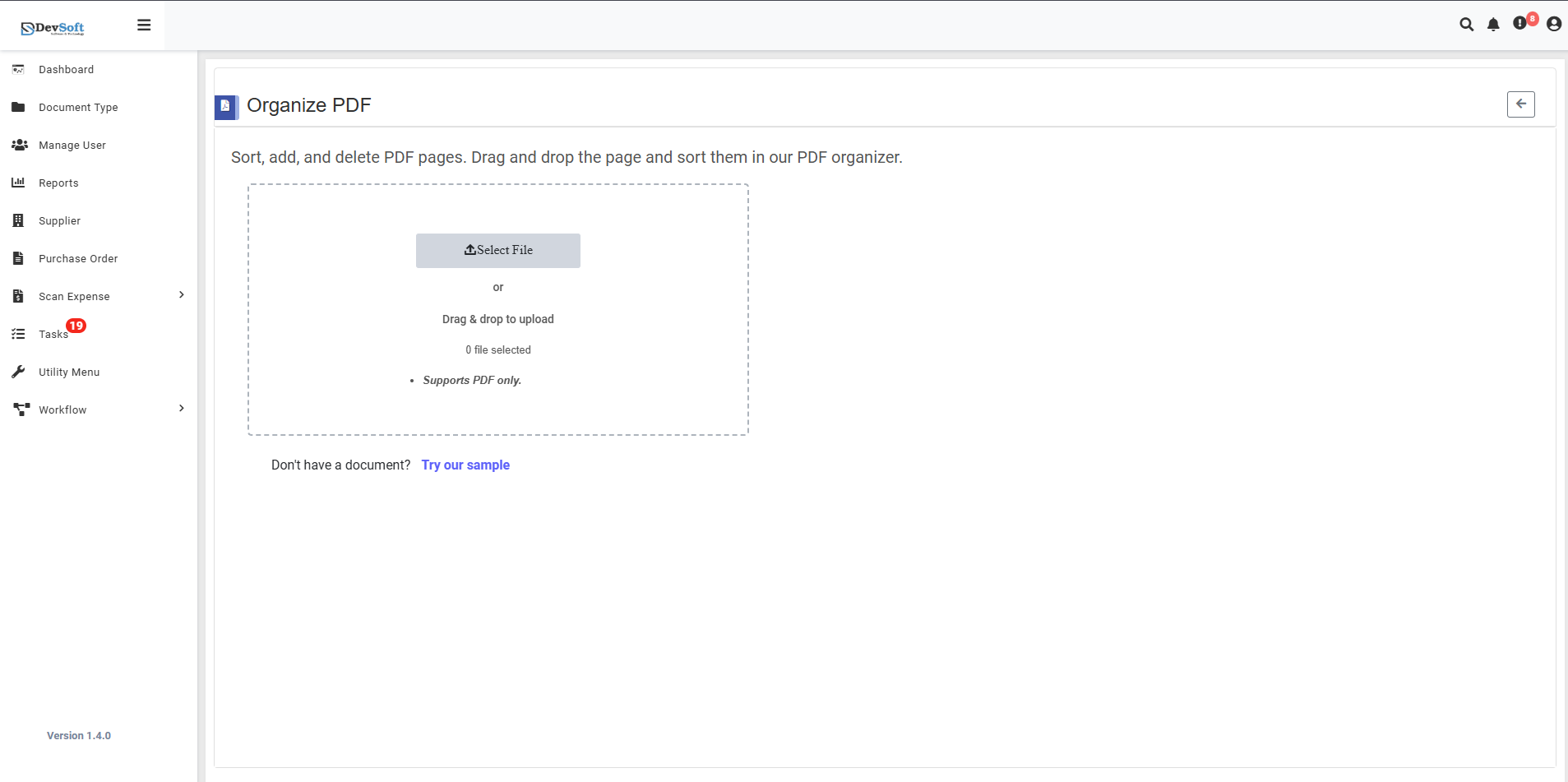
File Upload Section
- Backend File Upload Options
- File Counter - 0 (shows current file count)
- Drag & Drop - Easy file upload method
- File Selection Status - 0 file selected (shows selected file status)
- Format Restriction - Supports PDF only - Only PDF file formats are accepted
Sample Document Access
- "Don't have a document? Try our sample"
- Provides sample PDFs for testing organization functionality
- Allows users to experience the organization tools without using personal documents
- Perfect for learning the drag-and-drop interface and organization features
Action Controls
- ← Back Icon (Top-right) - Returns to Utility Products page
Organize PDF – Uploaded View
Once a PDF file is uploaded in the Organize PDF Utility, the interface updates to display a comprehensive page organization workspace with drag-and-drop functionality and immediate download access to the reorganized document.
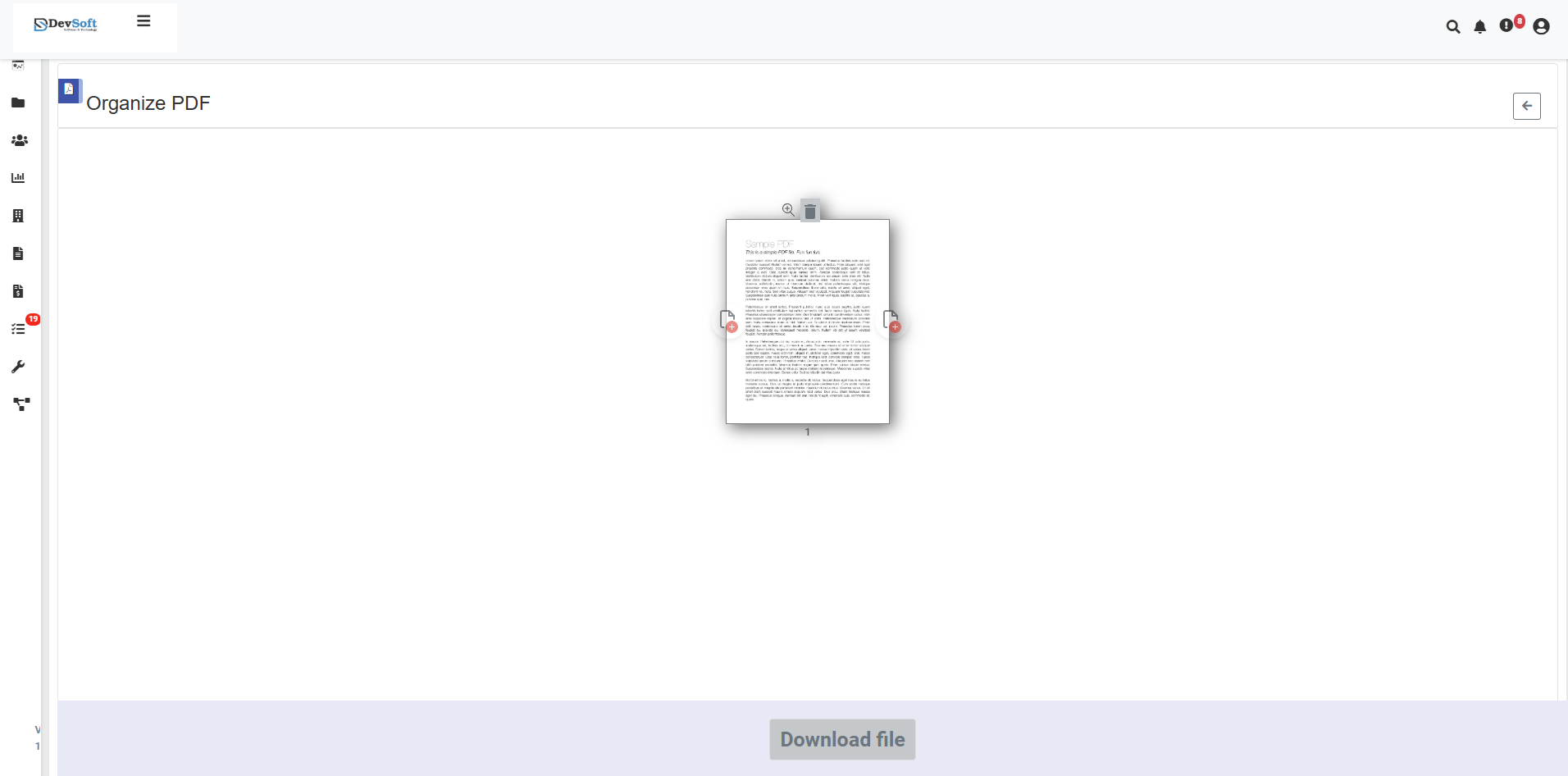
The uploaded view provides a complete PDF organization environment with visual page management and streamlined download functionality.
- Page Organization Workspace
Visual Page Gallery
- Thumbnail Display - Miniature previews of all PDF pages in current order
- Page Numbering - Clear numbering system for easy identification
- Drag Handles - Visual indicators showing pages are draggable
- Selection Highlights - Visual feedback when pages are selected
Drag and Drop Interface
- Direct Manipulation - Click and drag pages to rearrange sequence
- Position Indicators - Visual guides showing drop zones and insertion points
- Real-time Reordering - Immediate visual feedback during page movement
- Multi-page Selection - Ability to select and move multiple pages simultaneously
- Page Management Tools
Page Operations
- Delete Pages - Remove unwanted pages from the document
- Rotate Pages - Change orientation of selected pages
- Duplicate Pages - Create copies of specific pages
- Add Pages - Insert additional pages from other PDF files
- Action Controls
- Apply Changes button - Processes all organization modifications
- Reset Layout option - Reverts to original page order
- Undo/Redo functionality - Step-by-step action history
- Save Layout - Save current organization as template
- Download Section
- Download file button - Primary download action for organized PDF
- Button activates immediately once organization is applied
- Clear call-to-action for retrieving final document
How to Organize PDF Files
Step 1: Upload PDF File
- Use Drag & Drop to quickly add PDF files to the interface
- Or click the upload area to browse and select PDF files manually
- System validates file format (PDF only) and loads document with page thumbnails
Step 2: Organize Pages (Uploaded View)
Page Rearrangement
- Drag Individual Pages - Click and drag single pages to new positions
- Multi-page Selection - Select multiple pages using shift-click or ctrl-click
- Bulk Reordering - Move entire sections by dragging group selections
- Visual Feedback - Real-time position indicators during dragging operations
Page Management Operations
- Delete Pages - Select pages and use delete function to remove
- Rotate Pages - Change orientation of selected pages (90°, 180°, 270°)
- Duplicate Pages - Create copies of important pages for emphasis
- Add External Pages - Import pages from other PDF documents
Step 3: Download Organized PDF
- Download file button becomes active after processing
- Download the reorganized PDF with new page sequence
- Original file remains unchanged and secure
- Verify new document structure meets requirements
Organization Features
Drag and Drop Capabilities
- Intuitive Interface - Natural click-and-drag page movement
- Visual Feedback - Clear indicators during drag operations
- Precise Positioning - Pixel-perfect control over page placement
- Multi-touch Support - Touch-friendly for tablet and mobile devices
Supported Formats
Input Format
- PDF only (Portable Document Format)
- All PDF versions supported (PDF 1.0 - PDF 2.0)
- Various PDF types:
- Single Documents - Individual PDF files
- Multiple Documents - Combine and organize multiple PDFs
- Protected PDFs (with proper authorization)
- Complex Layouts - Documents with various page sizes and orientations
Output Format
- Reorganized PDF with new page sequence
- Preserved Quality - Maintains original document quality
- Updated Navigation - Automatic bookmark and link updates
- Enhanced Structure - Improved document organization
Unsupported Formats
- JPG/JPEG images
- PNG images
- Word documents
- Excel files
- PowerPoint files
- All other non-PDF formats
Features
- Visual Drag-and-Drop - Intuitive interface for page rearrangement
- Multi-page Management - Comprehensive tools for page operations
- Real-time Preview - Immediate visual feedback of changes
- Quality Preservation - Maintains original PDF quality throughout
- Non-Destructive - Original files remain completely unchanged
- Efficient Workflow - Streamlined process from upload to download
- User-Friendly Design - Accessible for users of all technical levels
Common Use Cases
Document Restructuring
- Report Reorganization - Rearrange business reports for different audiences
- Presentation Flow - Optimize page sequence for better storytelling
- Manual Organization - Create logical sections in technical manuals
- Proposal Customization - Tailor proposals for specific clients
Document Combination
- Multi-source Compilation - Combine pages from various source documents
- Chapter Assembly - Organize book chapters from multiple files
- Project Documentation - Assemble project materials from different teams
- Portfolio Creation - Build customized portfolios from various works
Content Management
- Version Control - Create different versions of the same document
- Content Extraction - Pull specific pages into new documents
- Template Application - Apply standard structures to various documents
- Archive Organization - Systematically organize historical documents
Technical Specifications
- Maximum File Size: 50 MB per PDF
- Page Limit: Up to 500 pages per document
- Processing Speed: Near-instantaneous page reorganization
- Thumbnail Quality: High-resolution page previews
- Browser Support: All modern browsers with drag-and-drop capability
Note: The uploaded view provides a comprehensive visual workspace for PDF page organization with intuitive drag-and-drop functionality, making it easy to rearrange, manage, and optimize document structure while maintaining a simple download process for the final organized PDF.