Valid Invoices
The Valid Invoices section in DocView Web provides a comprehensive view of all successfully processed and validated invoices within the system.
This interface enables finance teams to review, approve, and manage invoices that have passed initial validation checks and are ready for further processing.
Navigation
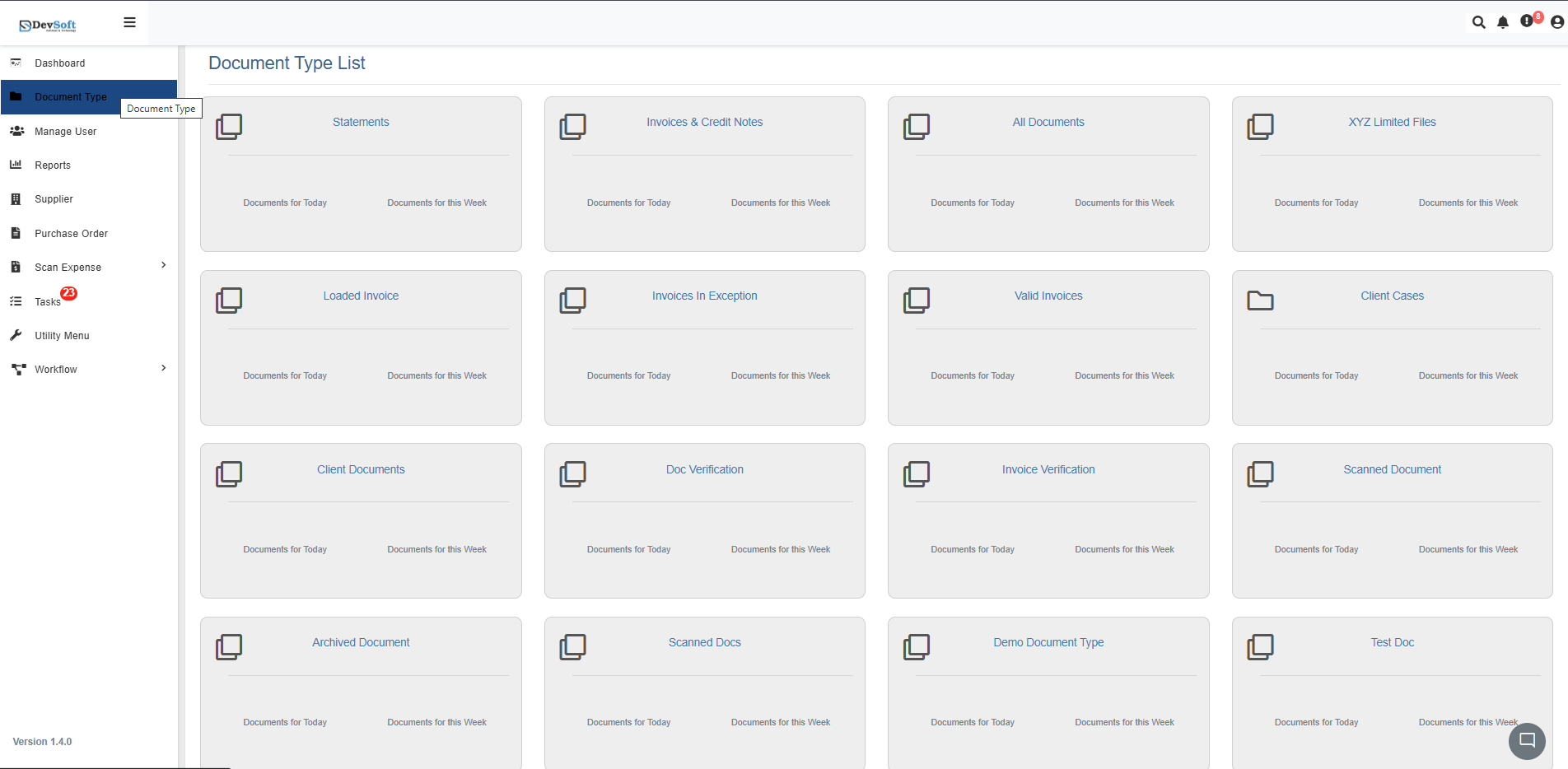
To access the Valid Invoices section:
Open the Sidebar Menu
Click the Sidebar Icon (☰) on the left-hand side to expand the navigation panel.Select "Document Type"
Click on Document Type from the sidebar menu to view all available document categories.Choose "Loaded Invoices"
Select Loaded Invoices from the document type list to access the main invoice management interface.Access Valid Invoices
The system displays all valid invoices in a structured grid format, ready for review and approval.
Top Bar Icons
The top toolbar in the Valid Invoices module provides quick access to key actions for managing invoices:
- 🔍 Find Invoice – Quickly locate a specific invoice using keywords or relevant metadata.
- ⬅️ Go Back – Navigate back to the previous screen or main invoice grid.
- ⬆️ Upload Invoice – Upload a new invoice directly from your device.
- 🗂️ Serach Panel – Opens a detailed panel to refine searches using multiple fields such as Supplier Name, PO Number, Invoice Number, Invoice Date, or Total Amount.
These icons help streamline navigation and improve workflow efficiency, making invoice management faster and more intuitive.
Search Panel
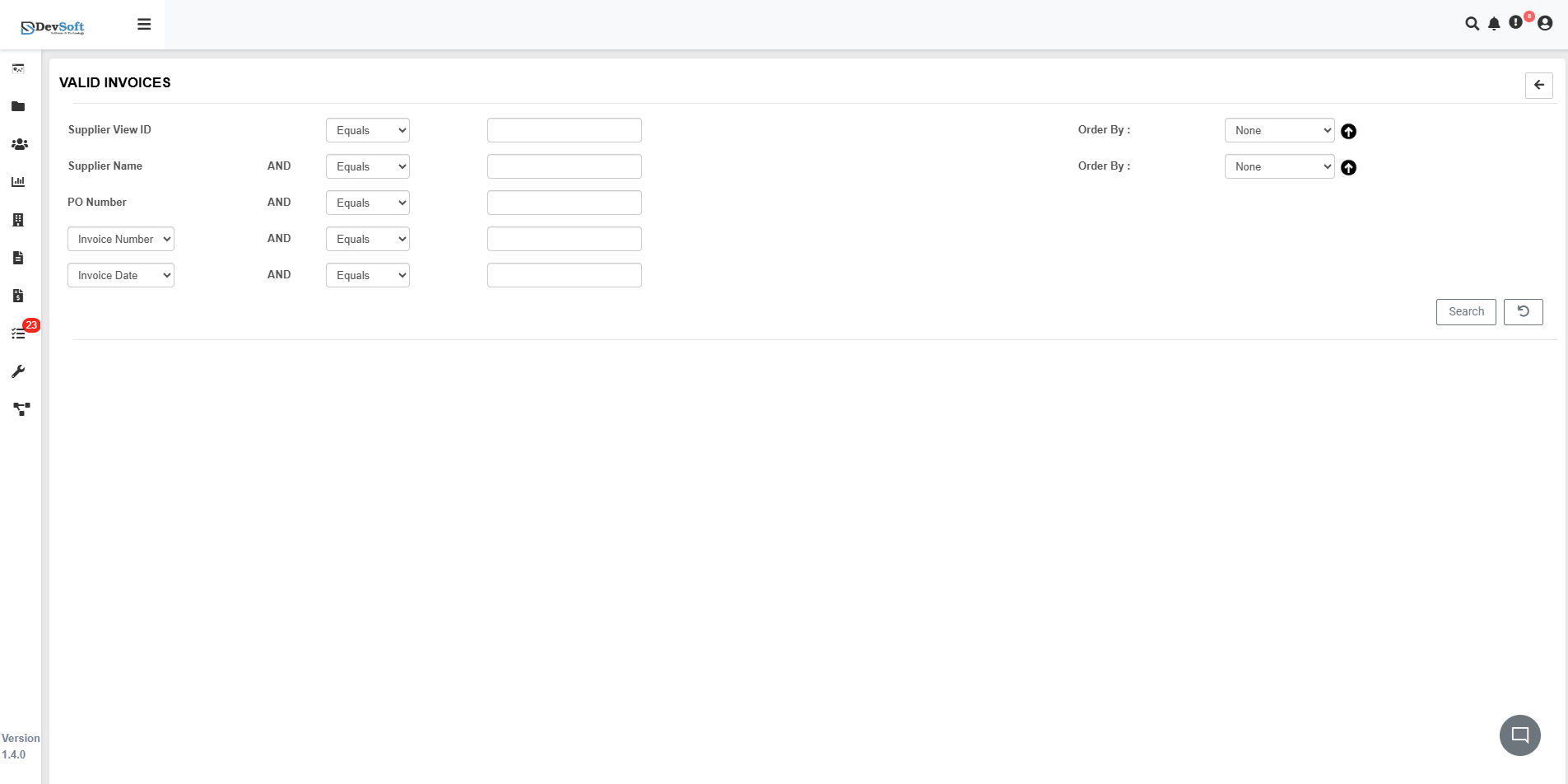
Clicking the Search Panel icon (🗂️) in the top toolbar opens the advanced search and filtering interface.
Search Criteria
Use the search panel to filter invoices precisely based on:
- Supplier Name – Filter by specific vendors (e.g., AMD, Epsilon)
- PO Number – Search by purchase order references
- Invoice Number – Locate specific invoice numbers
- Invoice Date – Filter by date ranges or specific dates
Search Interface
- Search Box – Input keywords for quick global searches
- Back Icon (←) – Click this icon to close the search panel and return to the main invoice grid view.
Valid Invoices Overview
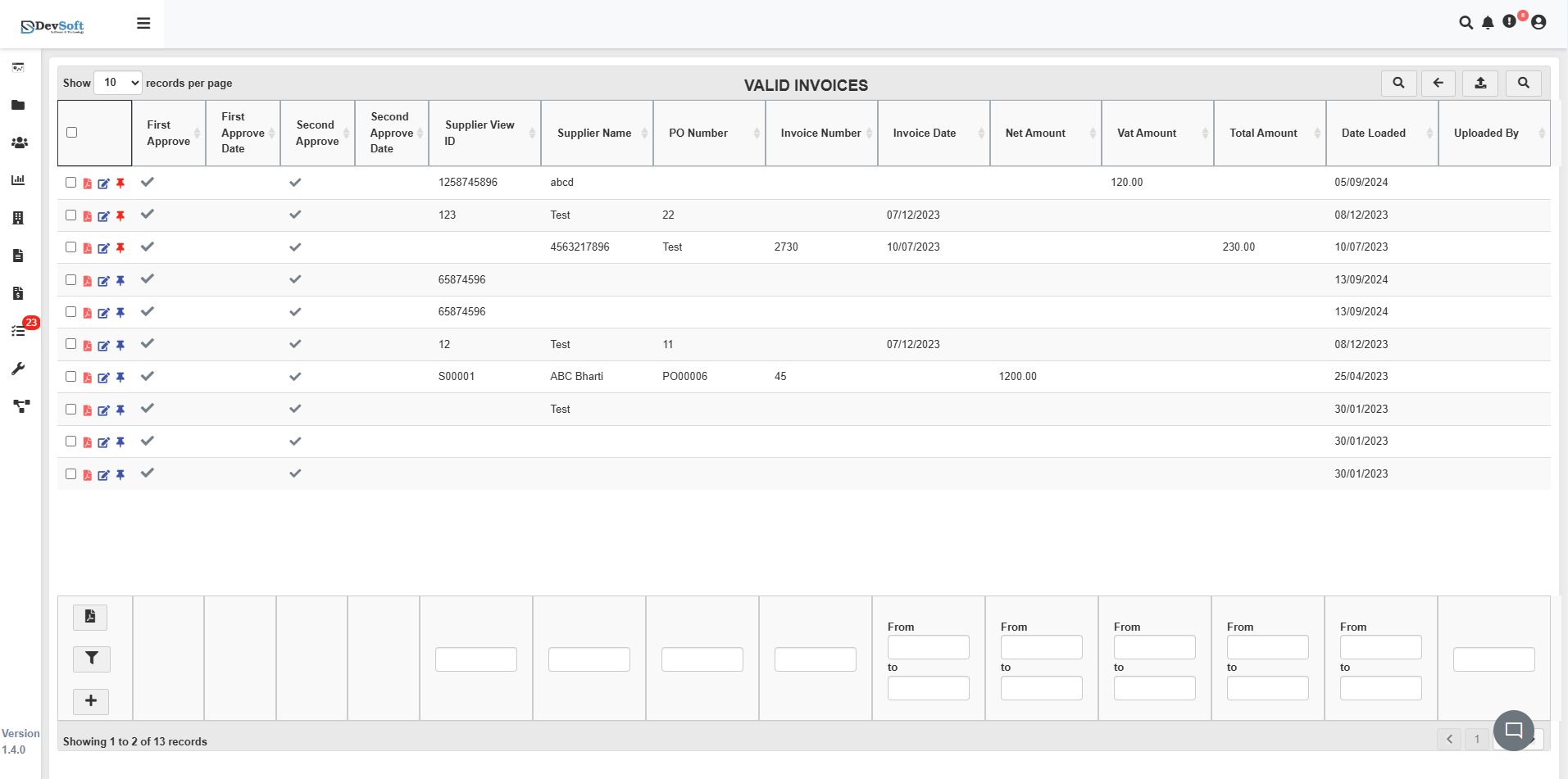
The Valid Invoices interface presents a detailed table with comprehensive invoice information.
Document Overview
The main grid displays all validated invoices with the following key columns:
- First Approve – Initial approval status and approver
- First Approve Date – Date of first approval
- Second Approve – Indicates the status of the secondary approval stage. This field confirms whether a second-level approver has verified the invoice.
- Second Approve Date – Date of secondary approval (if required)
- Supplier View ID – Unique supplier identifier
- Supplier Name – Name of the supplier or vendor
- PO Number – Purchase Order reference
- Invoice Number – Supplier's invoice number
- Invoice Date – Original invoice date
- Net Amount – Base amount before taxes
- Vat Amount – Key amount used in approval workflows
- Total Amount – Final invoice amount
- Date Loaded – Timestamp when the invoice was imported
- Updated By – User who last modified the record
Action Controls
Each invoice record includes interactive icons for document management:
- 📄 PDF View – Open and review the original invoice document
- ✏️ Edit – Modify invoice details or metadata
- 📌 Pin – Mark important invoices for quick access
Status Indicators
The system provides visual cues for invoices requiring attention:
- Warning indicators highlight invoices with validation issues or pending actions
- Color-coded statuses show approval progress and highlight any blockers
PDF Document View
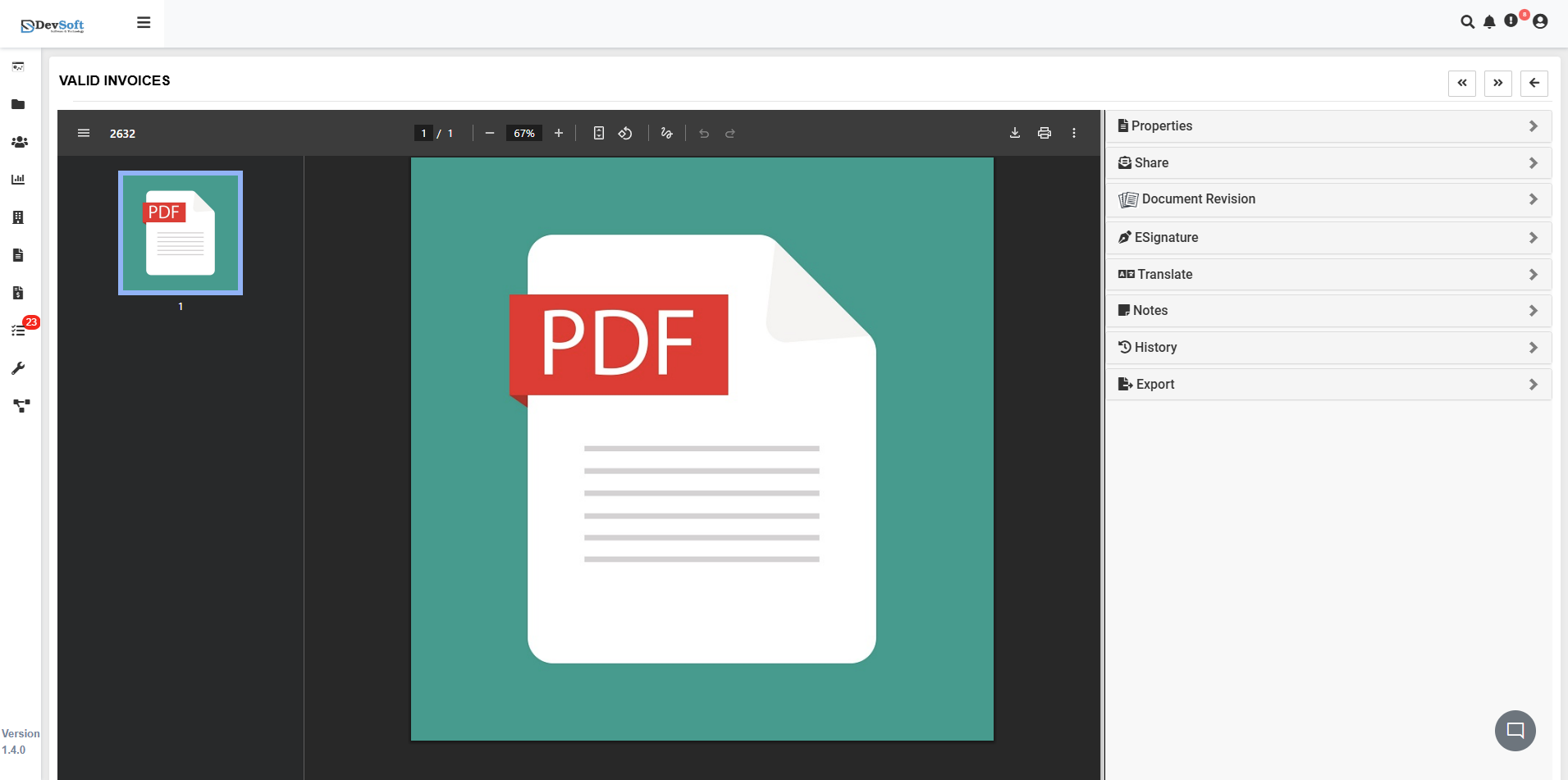
Clicking the PDF View icon opens the selected invoice document along with its detailed properties and tools.
Document Viewer Features
- Integrated PDF Viewer – Review original invoice documents without downloading
- Zoom & Navigation – Adjust view scale and move between multi-page documents
- Document Tools – Access various document management features
Right Panel – Document Properties
The left sidebar provides detailed management options:
- Properties – Displays basic document properties and metadata
- Share – Share documents internally or externally
- Document Revision – View version history and updates
- ESignature – Add or verify digital signatures
- Translate – Translate document text into other languages
- Notes – Add comments or annotations
- History – View a complete audit trail of actions
- Export – Download or export the document in multiple formats
Key Features
Multi-Level Approval Workflow
- First Approval – Initial validation and approval stage
- Second Approval – Secondary verification for higher-value invoices
- Approval Date Tracking – Maintains an audit record of approval timelines
Supplier Management
- Supplier View ID – Unique identifier for each vendor
- Supplier Categorization – Organized grouping of supplier data
- Vendor-Specific Views – Custom views for supplier-related invoices
Financial Controls
- Amount Validation – Separate tracking of Net, Vital, and Total amounts
- Approval Thresholds – Configurable approval limits based on policies
- Audit Compliance – Full edit and approval history for compliance checks
Bulk Operations
- Multi-Select Capabilities – Perform actions on multiple invoices at once
- Batch Approval – Approve several invoices simultaneously
- Export Functionality – Export invoice data in bulk for reporting or audit