Invoices & Credit Notes
The Invoices & Credit Notes Module in DocView Web provides a centralized, organized interface to manage all invoices and credit notes efficiently.
This module is designed to help finance and accounting teams maintain accurate records, track document history, and streamline their daily workflow.
By offering structured visibility and actionable controls, users can minimize manual tracking and ensure complete data accuracy.
Navigation
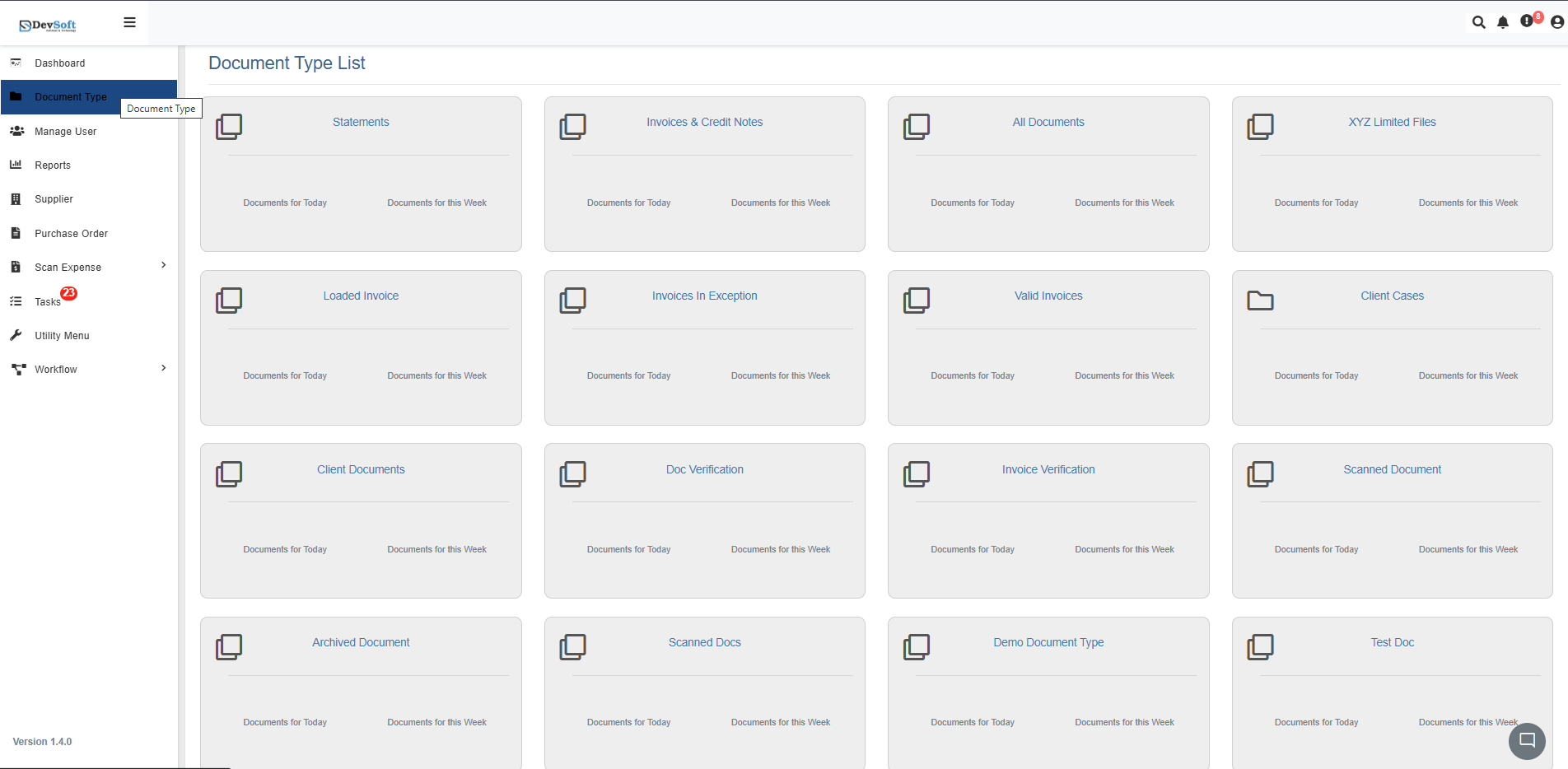
To access the Invoices & Credit Notes module in DocView Web:
Open the Sidebar Menu
Click the Sidebar Icon (☰) on the left-hand side to expand the navigation panel. This reveals all available modules and document types.Select “Document Type”
Within the sidebar, click on Document Type to open the list of all document categories, including invoices, credit notes, and statements.Choose “Invoices & Credit Notes”
From the list, click on Invoices & Credit Notes. The system will automatically load all relevant records in a clean, easy-to-navigate interface.
Invoices & Credit Notes Overview
Once inside the module, the interface is divided into three key sections for clarity and ease of use:
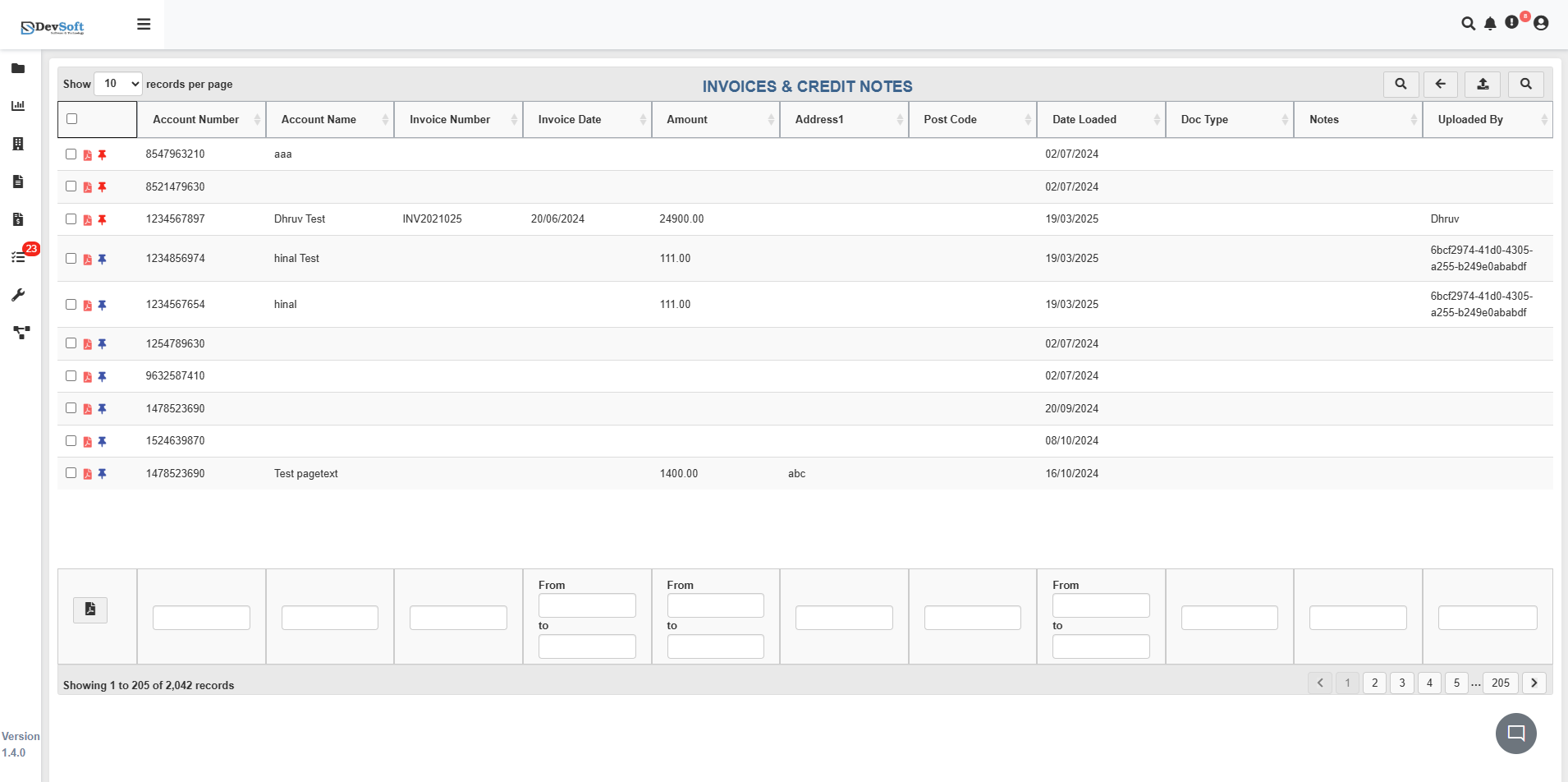
Document Grid Area
The Document Grid Area displays all invoice and credit note records in a structured list.
Each record shows key information such as:
- Account Number – Unique identifier for the client or account.
- Account Name – Name of the customer or account holder.
- Invoice Number – Reference number assigned to the invoice or credit note.
- Invoice Date – Issue date of the document.
- Amount – Total value of the invoice or credit note.
- Address / Post Code – Billing or client correspondence details.
- Date Loaded – Timestamp of when the file was uploaded into DocView.
- Doc Type – Indicates whether the document is an invoice or credit note.
- Notes – Optional comments or annotations added by users.
- Uploaded By – Identifies who uploaded the document for audit tracking.
Action Controls
Each document record provides interactive icons for quick actions and better accessibility:
- 📄 PDF View – Instantly open and review the document within the integrated PDF viewer. Users can scroll, zoom, or navigate pages directly without downloading the file.
- ✏️ Edit – Update document metadata, add notes, or make minor adjustments (restricted fields may apply based on role permissions).
- 📌 Pin – Mark important documents for faster access later. Pinned documents appear under your favorites view for quick retrieval.
These intuitive icons make managing documents faster and ensure users can act on files directly within the interface.
Filtering & Pagination
Users can apply filters below each column header to narrow results — for example, by account name, date range, or invoice amount.
Pagination controls appear at the bottom, allowing smooth navigation across large sets of invoices and credit notes with real-time record counts.
Top Bar Icons
At the top of the module, a few key icons simplify frequent actions:
- 🔍 Search – Instantly find a specific invoice or credit note using text or tags.
- ⬅️ Back – Navigate back to the previous screen or main document type list.
- ⬆️ Upload – Upload a new invoice or credit note directly in supported formats like PDF, Excel, or image files.
- 🗂️ Search Panel – Opens a dedicated panel where users can refine searches using multiple fields such as account number, invoice number, date, amount, and more.
These icons ensure quick navigation and smooth document operations for high-volume data handling.
Searching Invoices & Credit Notes
Clicking the Search Panel icon (🗂️) in the top toolbar opens a dedicated search interface, allowing users to filter and locate invoices or credit notes using multiple criteria.
Search Panel Layout
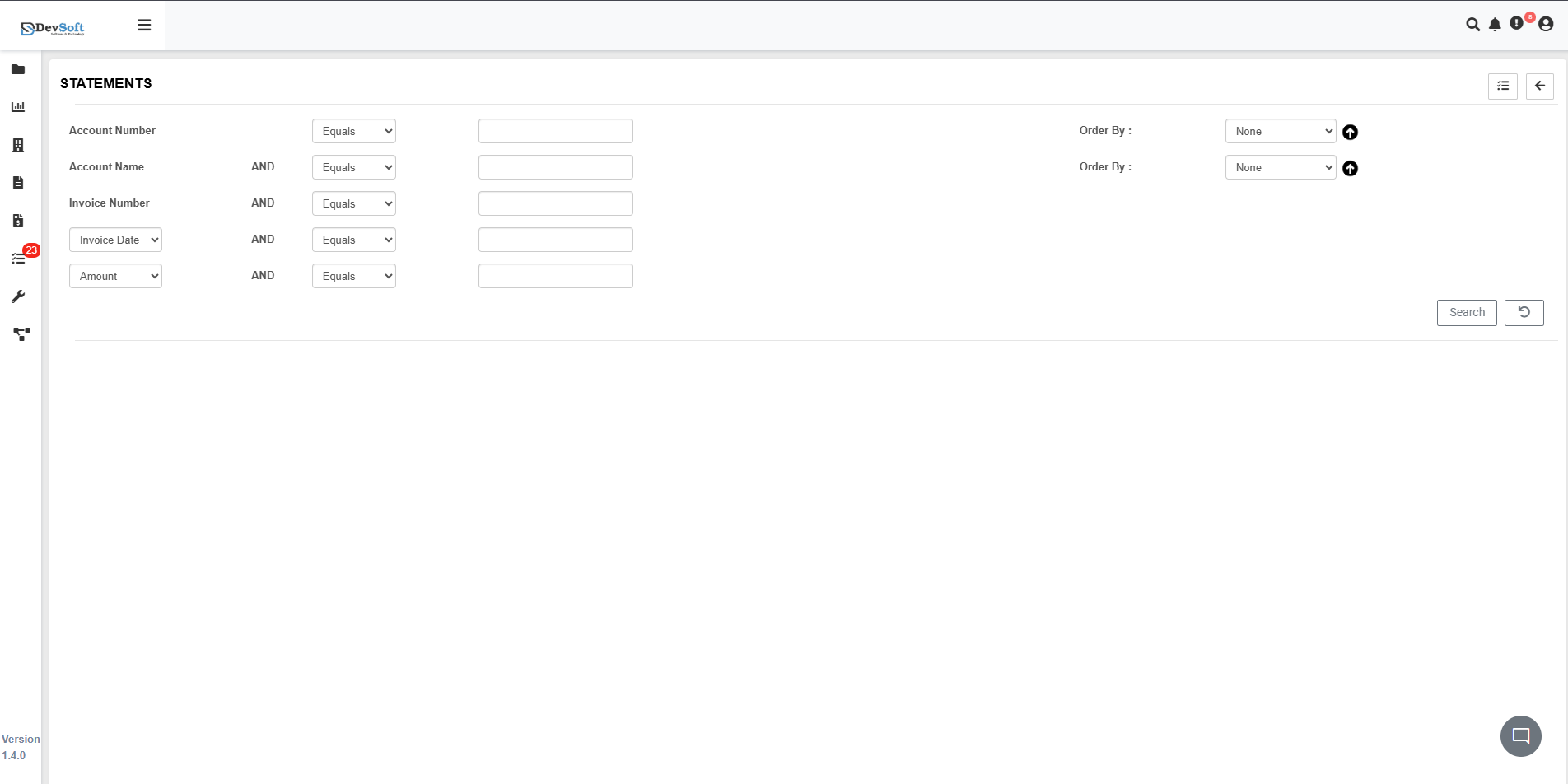
The Search Panel provides a structured form with several fields for precise queries:
Account Number
Select the filter type (Equals, Contains, Starts With, etc.) and enter the account number to locate matching records.Account Name
Filter by client or account holder name. Combine with Account Number using an AND condition for targeted results.Invoice Number
Search using the invoice reference number to quickly find a specific invoice or credit note.Invoice Date
Choose the filter type and specify the date to narrow down documents to a particular billing or issue period.Amount
Filter invoices or credit notes based on monetary value (above, below, or exactly equal to a specified amount).
Order & Actions
- Order By – Sort results by any field in ascending or descending order.
- Search Button – Executes the query and displays matching documents in the main grid.
- Reset / Clear Button – Clears all search fields to start a new query.
This search panel ensures fast, precise retrieval of invoices and credit notes without navigating away from the main interface.
Additional Functional Insights
Bulk Operations
Users can select multiple records to perform group actions such as export, delete, or metadata updates in one step.
Audit & Compliance Tracking
Each document upload or change is automatically logged with user and timestamp information, creating a full audit trail for compliance needs.
Integration Support
This module integrates easily with external accounting systems, syncing invoices and credit notes automatically for financial reconciliation.
Custom Views & Reports
Users can adjust column visibility and save frequently used filter views to improve productivity and focus on relevant data.