Edit Workflow Variable
The Edit Workflow Variable page allows users to modify existing variable configurations, update data types, change validation rules, and adjust variable behavior within workflow processes.
This comprehensive interface provides full control over variable properties while maintaining data integrity.
Navigation
To access the Edit Workflow Variable page:
Navigate to Workflow Variables Management
Access the main Variables screen through the Workflow Setup menu.Locate Target Variable
Browse the variables grid to find the specific variable you want to modify.Click Edit Icon
Click the edit (pencil) icon on the variable record you wish to update.Edit Variable Page Opens
The system displays the variable configuration form with existing values pre-populated.
Overview
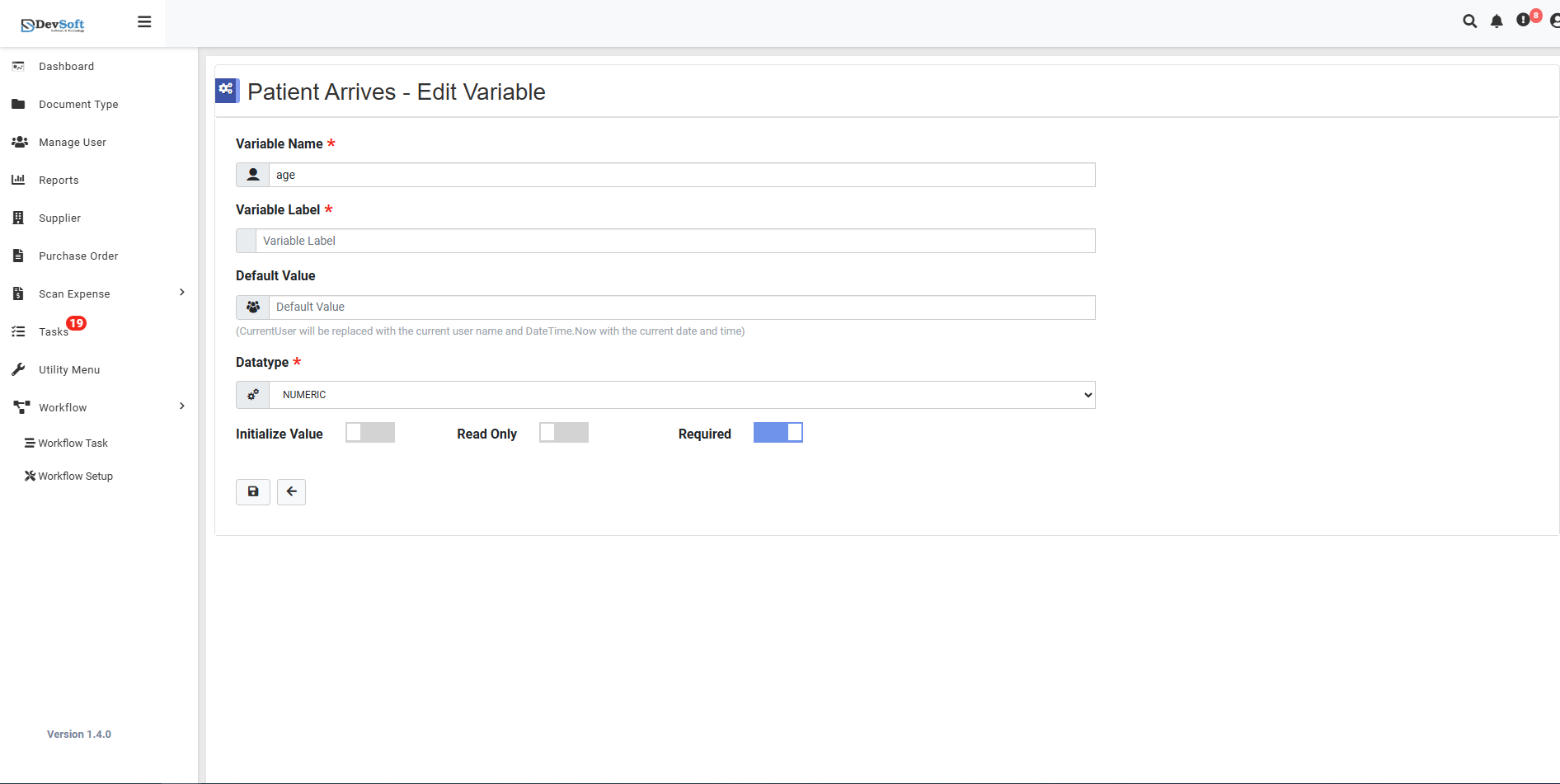
Variable Name
- Display: Shows current variable name (e.g., "age")
- Behavior: Typically read-only to maintain data consistency
- Purpose: Unique identifier used in workflow logic and scripts
Variable Label
- Purpose: User-friendly display name for forms and interfaces
- Editable: Can be modified for better user experience
- Example: "Patient Age" instead of technical "age"
Default Value
- Purpose: Pre-set value for the variable
- Dynamic Placeholders:
Contribute- Replaced with current usernameDateTime Now- Replaced with current date and time
- Usage: Automatically populate frequently used values
DataType
- Current Selection: Shows existing data type (e.g., "NUMERO")
- Editable: Can be changed with consideration for existing data
- Options: Dropdown with all supported data types
Initialize Value
- Purpose: Automatic value initialization when workflow starts
- Configuration: Checkbox or toggle setting
- Impact: Affects how variable behaves at workflow initiation
Read Only
- Purpose: Prevents manual modification during workflow execution
- Use Cases: System-calculated fields, audit trail data
- Consideration: Changing this may affect existing workflows
Required
- Purpose: Makes variable mandatory for workflow completion
- Validation: Workflow cannot proceed if required variable is empty
- Impact: Affects user experience and data completeness
Action Buttons
Update Button
- Saves all changes to variable configuration
Back Button
- Returns to Variables Management screen