Client Cases
The Client Cases Module in DocView Web provides a centralized platform for managing and tracking all client-related cases and documentation.
This module enables teams to efficiently organize client information, track case progress, and maintain comprehensive client records with easy access to associated documents.
Navigation
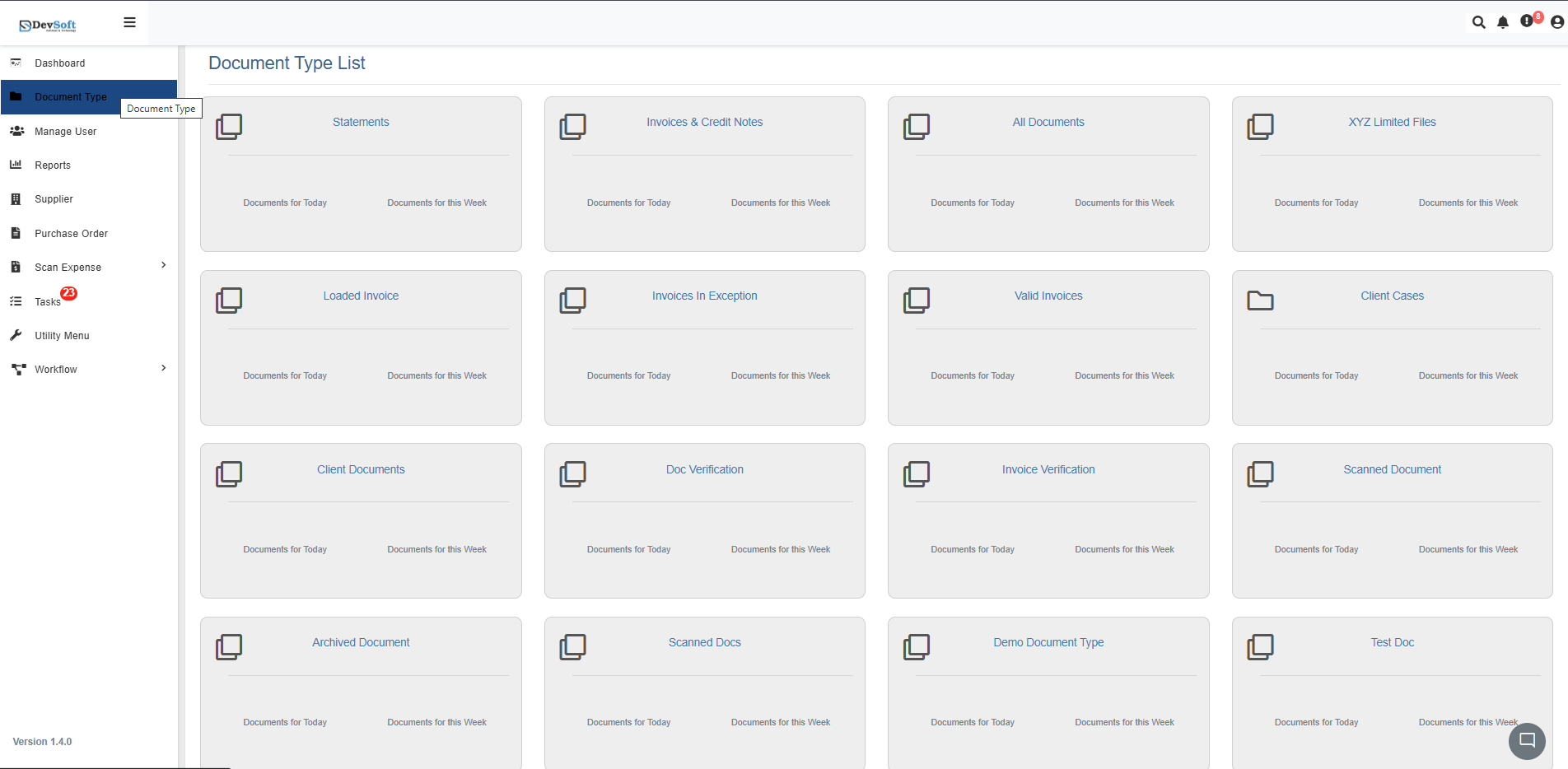
To access the Client Cases module in DocView Web:
Open the Sidebar Menu
Click the Sidebar Icon (☰) on the left-hand side to expand the navigation panel.Select "Document Type"
Within the sidebar, click on Document Type to open the list of all document categories.Choose "Client Cases"
From the list, click on Client Cases. The system will load all client case records in an organized interface.
Client Cases
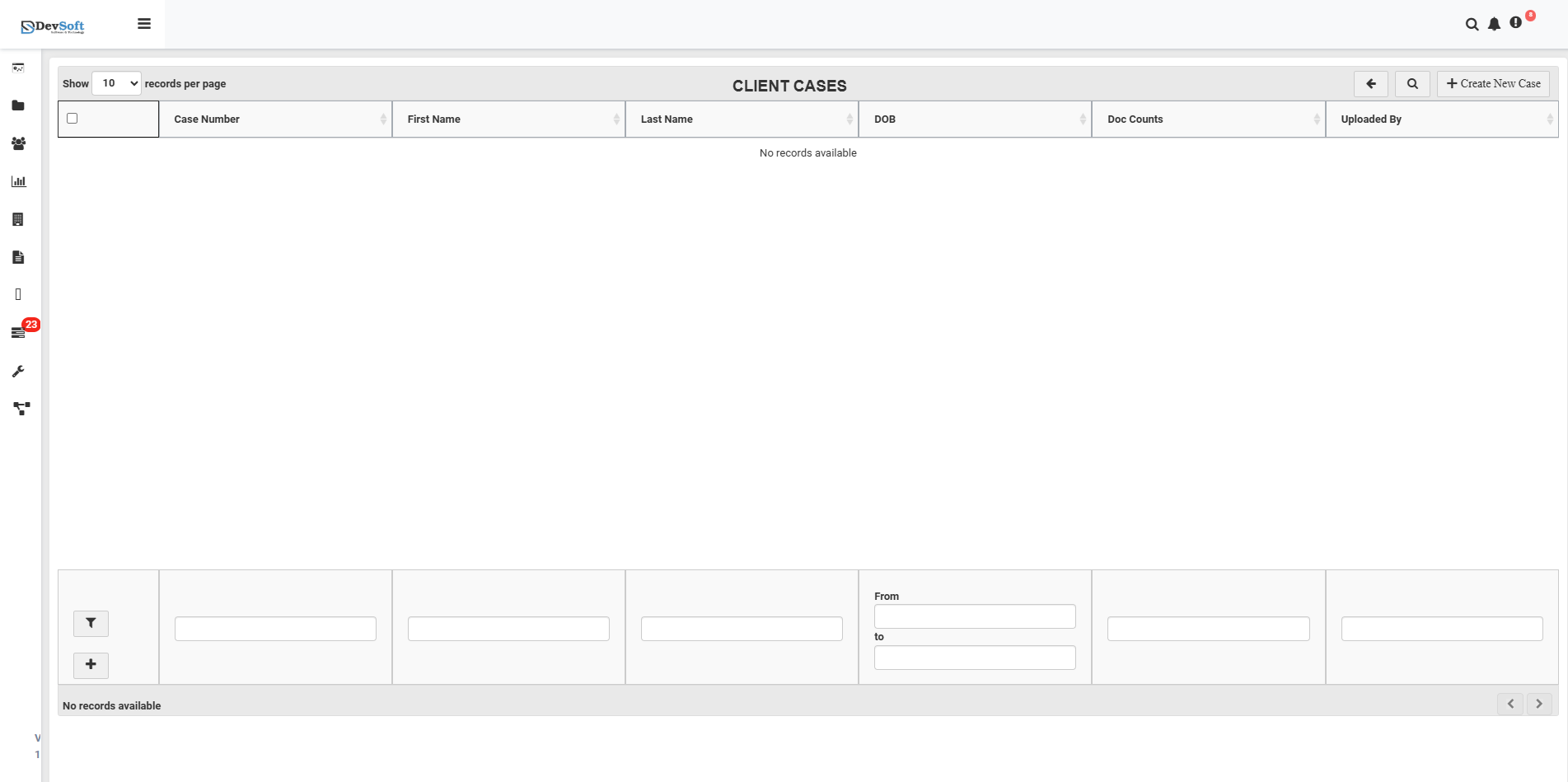
The Client Cases interface displays all client records in a structured format.
When no records are available, the system shows a "No records available" message with the expected data structure.
Document Grid Structure
When populated, the main grid displays client cases with the following key information:
- Client Number – Unique identifier for each client
- First Name – Client's first name
- Last Name – Client's last name
- DOB – Client's date of birth
- Doc Counts – Number of documents associated with the client
- Uploaded By – User who uploaded the client records
Empty State Behavior
When no client records exist:
- System displays "No records available" message
- Grid structure remains visible to show expected data fields
- Users can begin adding client cases using upload functionality
Action Controls
Each client record includes interactive icons for case management:
- 📄 PDF View – Open and review client documents (available when records exist)
- ✏️ Edit – Modify client information or case details
- 📌 Pin – Mark important client cases for quick access
Top Bar Icons
The Top Bar in the Client Cases Module (located on the top-right corner of the screen) provides quick access to core actions:
- ⬅️ Back – Returns to the previous screen or main document list view.
- 🔍 Search Panel – Opens the advanced search filter panel where users can search client cases using multiple fields such as first name, last name, DOB, or document count.
- ➕ Create New Case – Opens the Create New Case Page, allowing users to add a new client case record manually.
Create New Case Page
When the user clicks on the ➕ Create New Case icon, the system opens a dedicated page for entering new client case details.
Case Information Fields
Users are required to fill in the following details:
- Case Number – Unique identification number for the client case
- First Name – Client's first name
- Last Name – Client's last name
- Date of Birth (DOB) – Client's date of birth
After entering the required details, two action buttons appear at the bottom of the page:
Action Buttons
💾 Save – Saves the new client case record and returns the user to the main Client Cases list.
- Once saved, the case becomes visible in the grid with its assigned details.
- The system validates fields to ensure no required data is missing.
⬅️ Back – Cancels the case creation process and navigates back to the Client Cases module without saving any data.
- Useful if the user decides not to create a new case.
Search Panel
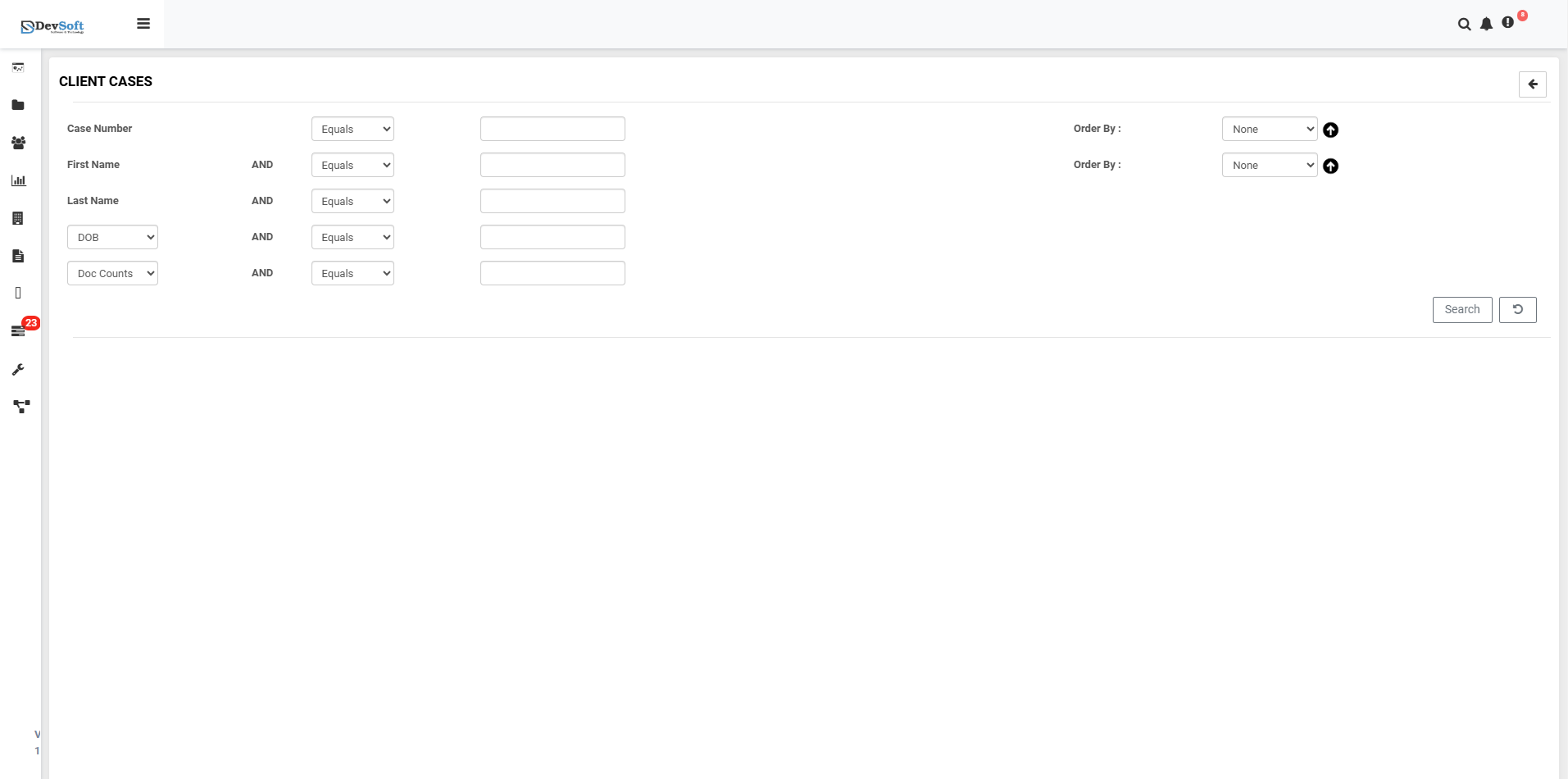
Clicking the Search Panel icon (🔍) in the top toolbar reveals advanced search and filtering options for client cases.
Search Criteria
The search panel allows precise filtering using the following parameters:
- Case Number – Unique identification number for the client case
- First Name – Filter by client's first name
- Last Name – Filter by client's last name
- DOB – Filter by client's date of birth
- Doc Counts – Search or filter by the number of uploaded documents
- Code By – Search by assigned case codes or categories
- Order By – Sort the search results by name, date, or document count
Search Interface Features
- Multiple Filter Options – Combine various search criteria
- Sorting Controls – Order results by relevance, date, or other fields
- Quick Apply Filters – Instantly apply search parameters
- Reset Functionality – Clear all filters to start a new search
Key Features
Client Information Management
- Comprehensive Client Profiles – Store complete client information including personal details
- Document Tracking – Monitor number of documents per client
- Upload History – Track who uploaded client records and when
Case Organization
- Case Number System – Unique identification for each client case
- Provider Categorization – Organize cases by service providers (AHD, Equali)
- Document Counting – Track volume of documents per case
Advanced Search Capabilities
- Multi-field Filtering – Search across multiple client attributes
- Flexible Sorting – Organize results by various criteria
Document Management
- PDF Integration – Direct viewing of client documents
- Bulk Operations – Manage multiple client cases simultaneously
- Audit Trail – Complete history of case modifications
Workflow Integration
The Client Cases module seamlessly integrates with:
- Client Management Systems for comprehensive client tracking
- Document Management for organized file storage
- Provider Networks for multi-organization case handling
- Compliance Systems for regulatory requirements
This module ensures efficient client case management while maintaining organized, accessible records for all client interactions and documentation.