View Workflow
INFO
The View Workflow feature in DocView Web allows users to visually understand the structure and flow of a workflow.
It provides a graphical representation of how tasks, decisions, and transitions are connected — helping users quickly interpret each step in the process.
Navigation
Follow these steps to access the View Workflow page:
Open Sidebar Menu
From the DocView Web Dashboard, click the ☰ Sidebar Icon on the top-left to open the navigation panel.Navigate to Workflow
In the sidebar menu, select Workflow to expand its sub-options.Select Workflow Task
Click on Workflow Task from the expanded list.
The system will open the Workflow Task Listing Page, showing all existing workflow activities.View the Workflow Diagram
Locate the desired workflow from the list and click the 👁 (Eye) Icon under the View column.
This opens the Workflow Visualization Page, displaying the process diagram for that workflow.
Overview
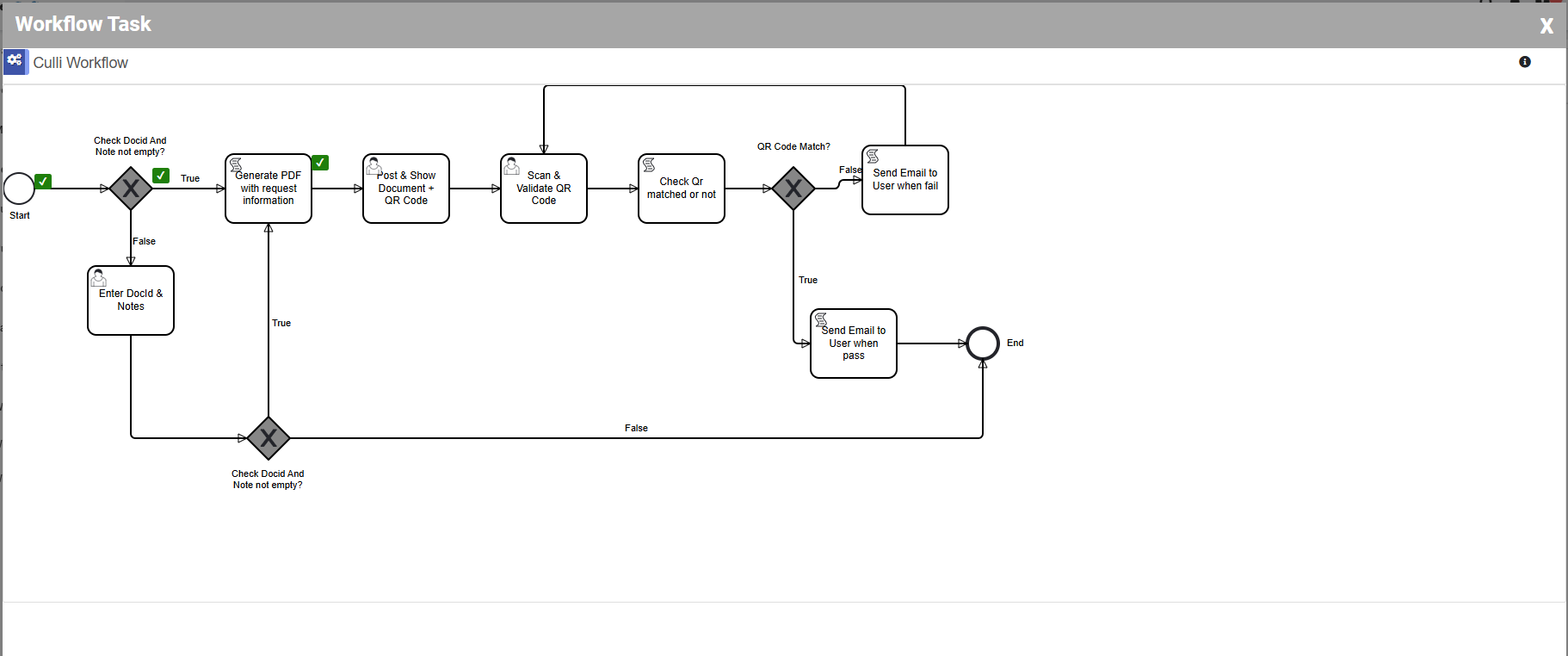
The Workflow View page provides a complete flowchart-style view of the workflow, including all connected activities, rules, and conditions.
Each block represents a task or decision point, while the arrows indicate the direction of workflow transitions.
Example Workflow: “Culli Workflow”
Below is an example of a workflow that executes multiple automated and manual tasks.
Step-by-Step Flow:
Start Node – Document & Note Validation
The workflow begins by verifying the Document ID and Notes to ensure all required data is present.Generate PDF
Once validated, the system automatically generates a PDF document for the record.Post & Show Document + QR Code
The generated document is then posted into the system and displayed with a QR Code embedded for tracking and validation.Scan & Validate QR Code
The QR Code is scanned to confirm the authenticity and linkage of the document.Condition Check – QR Code Match
A conditional node checks whether the scanned QR Code matches the original one stored in the system.If TRUE:
→ The system triggers an email notification (Passed) to inform that the document has been validated successfully.If FALSE:
→ The system triggers an email notification (Failed) to alert that the QR Code did not match or validation failed.
End Node
The workflow concludes automatically after the email is sent, marking the process as Completed.
Key Features of View Workflow
1. Visual Workflow Representation
Provides a clear, node-based diagram to view every task, decision, and connection.
2. Real-Time Status Tracking
Shows active, pending, or completed nodes with visual highlights (depending on system configuration).
3. Interactive Diagram
Users can zoom in/out, drag the canvas, or click on any node to view its properties or settings.
4. Conditional Flow Visualization
Displays logical branching (e.g., True / False paths) for automated decision-making tasks.
5. Quick Return Navigation
A Back button or icon is available to return directly to the Workflow Task List view without losing context.