Manage Expense
The Manage Expense page provides administrative oversight and management capabilities for all expense claims within the organization. This page is designed for managers and administrators to monitor, review, and process expense claims.
Navigation
Login to DocView Web
- Enter your email address and password on the login page
- Click the Login button to access the system
Access Main Dashboard
- After successful login, the DocView Web dashboard appears
- This is the central hub for all document management activities
Open Sidebar Menu
- Click the ☰ Sidebar Icon at the top-left corner of the dashboard
- The navigation panel expands to show all available modules
Navigate to Scan Expense
- From the sidebar menu, locate and click Scan Expense
- This reveals three sub-menu options:
- Claim Expense
- Manage Expense
- Pay Expense
Select Manage Expense
- Click Manage Expense from the sub-menu
- The system displays the Manage Expense administrative dashboard
Main Expense Overview
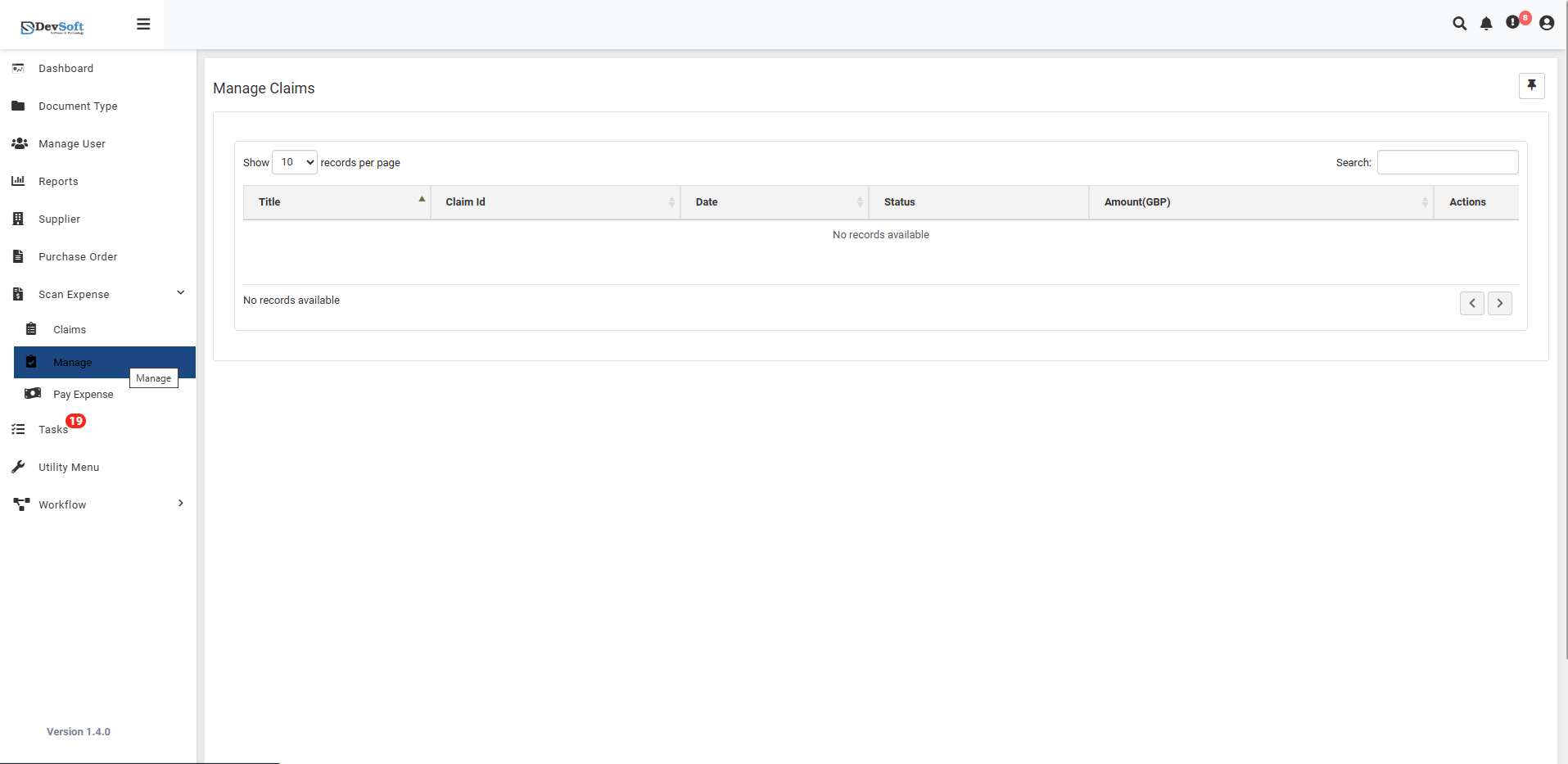
Claims Management Section
The Claims Management Section provides users with full control and visibility over all submitted and processed claims.
This area includes tools for displaying, searching, and managing claim records efficiently.
Display Controls
- Show Records – Allows users to choose how many claims are displayed per page (10, 25, 50, or 100 records).
- Search Functionality – A dynamic search box that filters claims instantly based on keywords like Claim ID, Date, Status, or Amount.
Claims Management Grid
The main grid displays all existing claims with the following column headers:
- Time – Displays timestamps of claim creation, submission, and processing activities for audit tracking.
- Claim ID – Unique system-generated identifier used to track and reference claims.
- Date – The creation and submission date of the claim.
- Status – Current processing state of the claim (e.g., Pending, Approved, Rejected), often displayed with color-coded indicators.
- Amount (95%) – Shows the approved amount, including the percentage of claim processed.
- Search – A quick inline search input field for instantly filtering specific records within the grid.
- Actions – Provides administrative options such as View, Edit, or Delete claim entries.
Empty State
When no claims are available, the system displays a clear message:
"No records available"
This indicates that there are currently no pending claims or all submitted claims have been processed successfully.
Administrative Features
Claims Monitoring
- Real-time Tracking - Monitor all claims across the organization
- Status Overview - View current state of each claim in the workflow
- Amount Control - Track approved amounts and percentages
- Timeline Management - Monitor submission and processing times
Search and Filtering
- Quick Search - Find specific claims by ID, date, or other criteria
- Advanced Filtering - Filter by status, amount range, or department
- Real-time Results - Instant filtering as you type in search fields
Bulk Operations
- Multiple Selection - Select several claims for batch processing
- Bulk Actions - Apply same action to multiple claims simultaneously
- Mass Updates - Update status or approvers for multiple claims
- Export Capabilities - Generate reports for selected claims
Management Capabilities
Claim Review
- Detailed Inspection - Access complete claim details and supporting documents
- Policy Compliance - Verify claims against company expense policies
- Approval Override - Managerial override capabilities when needed
- Exception Handling - Manage claims that require special attention
Workflow Management
- Approval Routing - Configure and modify approval workflows
- Escalation Handling - Manage claims that require escalation
- Status Updates - Update claim status throughout the process
- Notification Control - Manage system notifications and alerts
Reporting and Analytics
- Performance Metrics - Track claim processing times and efficiency
- Expense Analysis - Analyze spending patterns and trends
- Compliance Reporting - Generate reports for audit and compliance
- User Activity - Monitor user submission patterns and behaviors
User Permissions
Access Levels
- Administrative Access - Full system management capabilities
- Managerial Access - Department or team-specific claim management
- Reviewer Access - Read-only access for monitoring purposes
- Limited Access - Restricted view based on organizational role
Security Features
- Role-based Permissions - Different access levels based on user roles
- Audit Trail - Comprehensive logging of all management activities
- Data Protection - Secure handling of sensitive financial information
- Compliance adherence - Meets organizational security standards