Pay Expense
The Pay Expense page in DocView Web allows authorized finance users to review, manage, and execute payments for approved expense claims.
It provides a secure and streamlined process to ensure accurate and compliant disbursements within the organization.
Navigation
Login to DocView Web
- Enter your email and password.
- Click Login to access the main dashboard.
Open the Sidebar Menu
- Click the ☰ Sidebar Icon at the top-left corner to expand the navigation panel.
Select “Scan Expense”
- From the sidebar, click Scan Expense.
- The system displays three sub-menu items:
- Claim Expense
- Manage Expense
- Pay Expense
Open Pay Expense Page
Pay Expense Overview
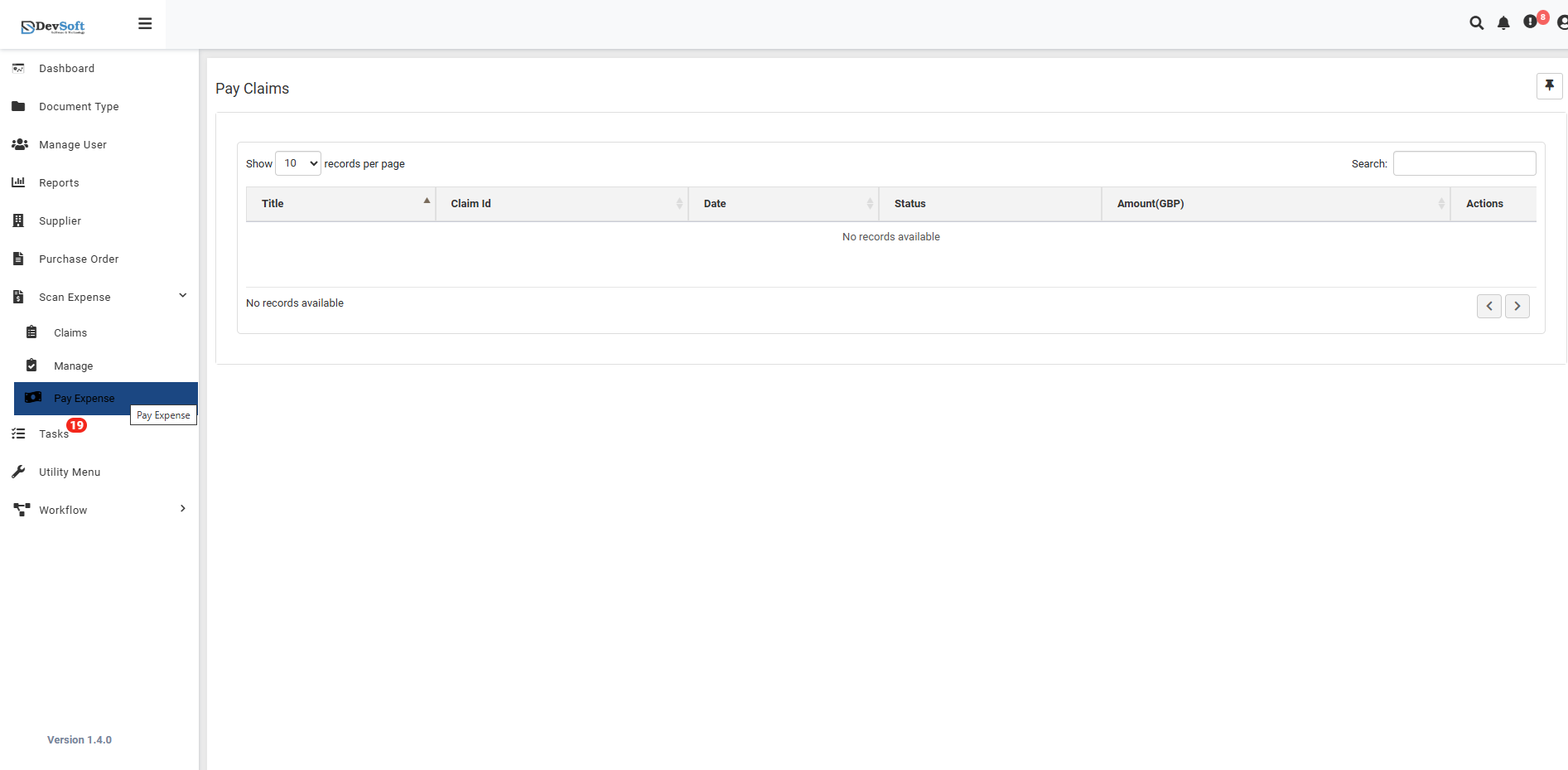
The Pay Expense page serves as the central hub for processing payments of approved claims.
It displays all claims that have completed the approval cycle and are ready to be paid.
At the top, users can find quick access to search and display controls for managing record visibility.
- Show Records – Select how many records are displayed per page (10, 25, 50, or 100).
- Search Functionality – Use the search bar to quickly locate claims by title, date, or claimant name.
Claims Ready for Payment
Each claim listed on the Pay Expense page includes detailed information such as:
- Title – A short description of the expense claim (e.g., “Conference Travel – London”).
- Claim ID – A unique identifier assigned to each claim for tracking and reference.
- Date – The date when the claim was approved and marked ready for payment.
- Status – Indicates the current payment stage such as Pending, Processing, Paid, or Failed.
- Amount (GBP) – The total approved value to be paid to the claimant.
- Actions – Provides access to available payment operations.
If no claims are currently available for payment, the system displays:
“No records available”
This means that either no claims have reached the payment stage, or all payments have already been processed.
Payment Processing Features
The Pay Expense module includes several key functions for managing claim disbursements:
- Individual Payment – Select and process a single claim at a time.
- Bulk Payment – Process multiple claims together in one payment batch.
- Filtering Options – Filter the list by date range, claimant, or amount to locate specific items.
- Process Payment – Initiate payment for the selected claim(s).
- Payment Methods – Choose an available payment method such as bank transfer or cheque.
- Schedule Payment – Set a specific future date for payment execution.
Status Management
The system tracks every payment through clear status indicators:
- Pending Payment – The claim is ready but has not yet been processed.
- Processing – The payment process has started but is not yet completed.
- Paid – The payment has been successfully completed.
- Failed – The payment attempt was unsuccessful due to an error or insufficient funds.
These statuses help finance teams maintain complete visibility of all transactions in progress.
Payment Workflow
The typical payment process follows these main stages:
- Verification – Confirm that the claim is fully approved and budgeted.
- Validation – Check that supporting receipts and documents are attached.
- Execution – Initiate payment through the chosen method.
- Confirmation – Review the payment confirmation from the financial system or bank.
- Status Update – The system automatically updates the claim status to “Paid.”
- Record Keeping – Generate a receipt and sync it with the accounting system.
Security and Compliance
The Pay Expense page includes strong security controls to protect financial data and ensure compliance:
- Dual Authorization – Requires two-level approval for large or sensitive payments.
- Role-Based Access – Only authorized finance or admin users can process payments.
- Audit Trail – Every transaction is logged for transparency and auditing.
- Fraud Detection – Automatic checks identify irregular or duplicate payments.
- Compliance Monitoring – Ensures all payments follow company policies and financial regulations.
Related Modules:
- Claim Expense – Create and submit expense claims.
- Manage Expense – Approve and track claim processing.