Create New Group
This module allows administrators to define custom permission sets for specific roles or departments.
Navigation (Admin Only)
Log in as Administrator
- Only admins can create or manage permission groups.
Open the Sidebar Menu
- Click the Sidebar Icon (☰) on the left to expand the menu.
Select "Manage Groups"
- Opens the list of all permission groups.
Click "Create New Group"
- Opens the form for creating a new permission group.
Regular users cannot see or access this page.
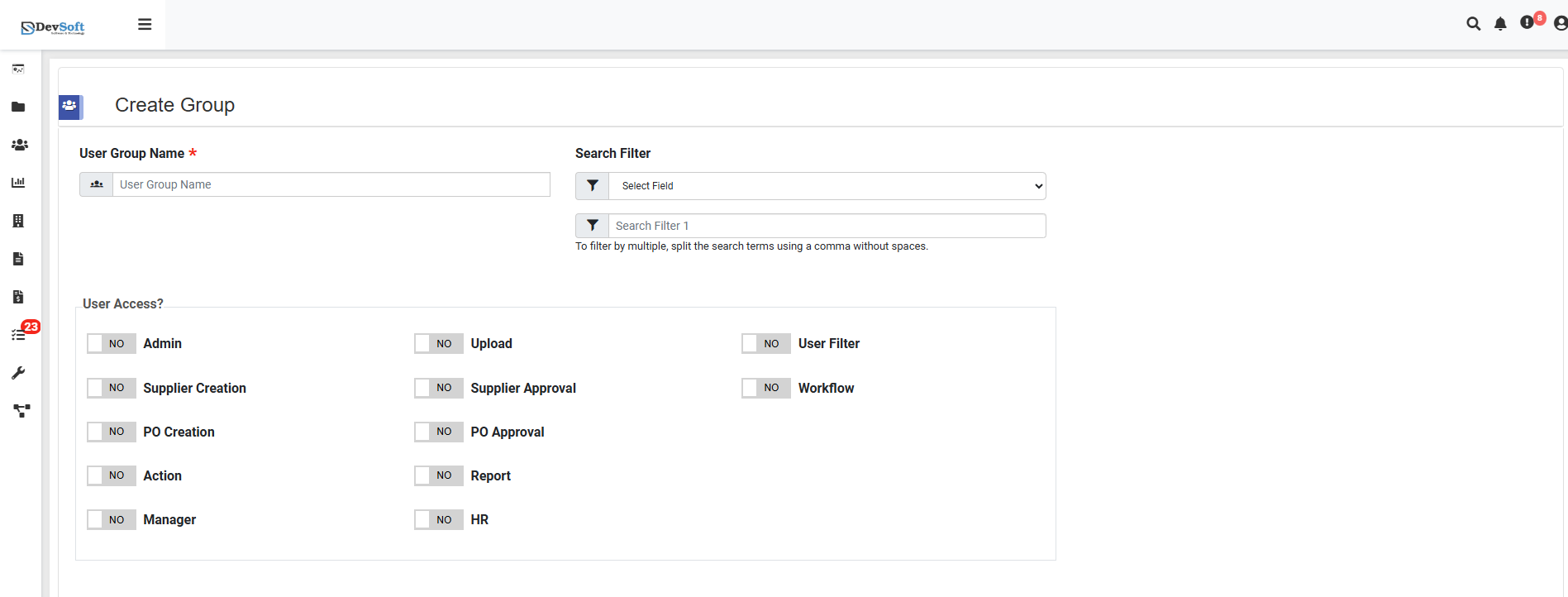
Step 1: Basic Information
- User Group Name: Unique name for the permission group.
- Search Filter: Define document search filters for group members.
Step 2: Access Permissions
- Admin: Full administrative access.
- Supplier Creation: Ability to create supplier records.
- PO Creation: Ability to create purchase orders.
- Action: Perform system actions.
- Manager: Management-level access.
Step 3: Upload Permissions
- Supplier Approval: Approve supplier submissions.
- PO Approval: Approve purchase orders.
Step 4: Report & HR Permissions
- Report: Generate and view reports.
- HR: Access human resources module.
Step 5: Additional Settings
- User Filter: Control filtering capability for users.
- Workflow: Permission to manage workflows and document processes.
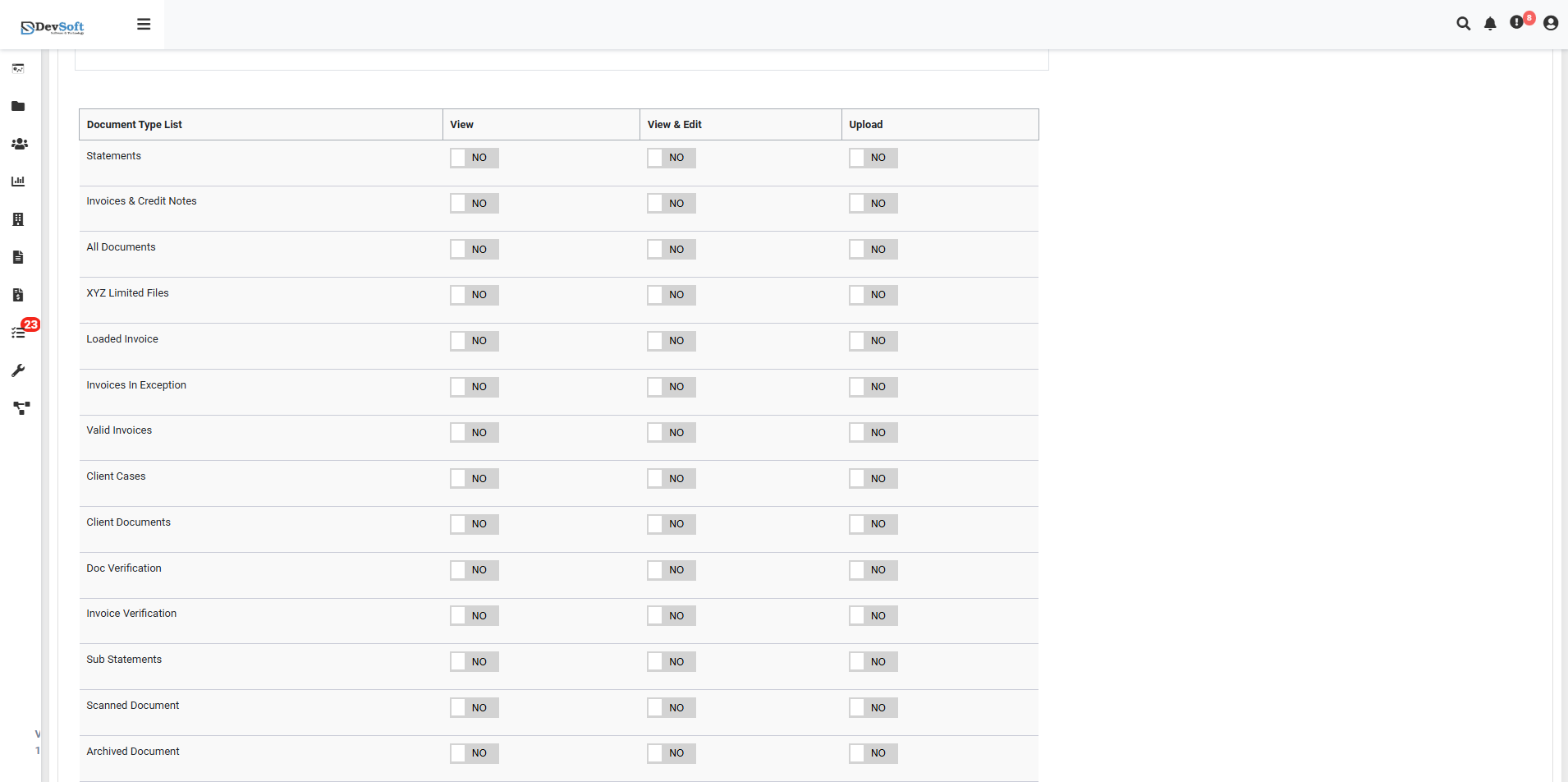
Step 6: Document Type Access Control
Configure which document types the group can access and the allowed actions:
- View: Can view documents only.
- View & Edit: Can view and edit documents.
- Updated: Can update document metadata/records.
Common Document Types
- Statements
- Invoices & Credit Notes
- Client Cases & Documents
- Invoice Verification
- Archived Documents
- All Documents (full access)
- Specialized document types as needed