Manage Groups
Groups are permission templates that control user access in DocView Web. Managing groups ensures consistent security and access control.
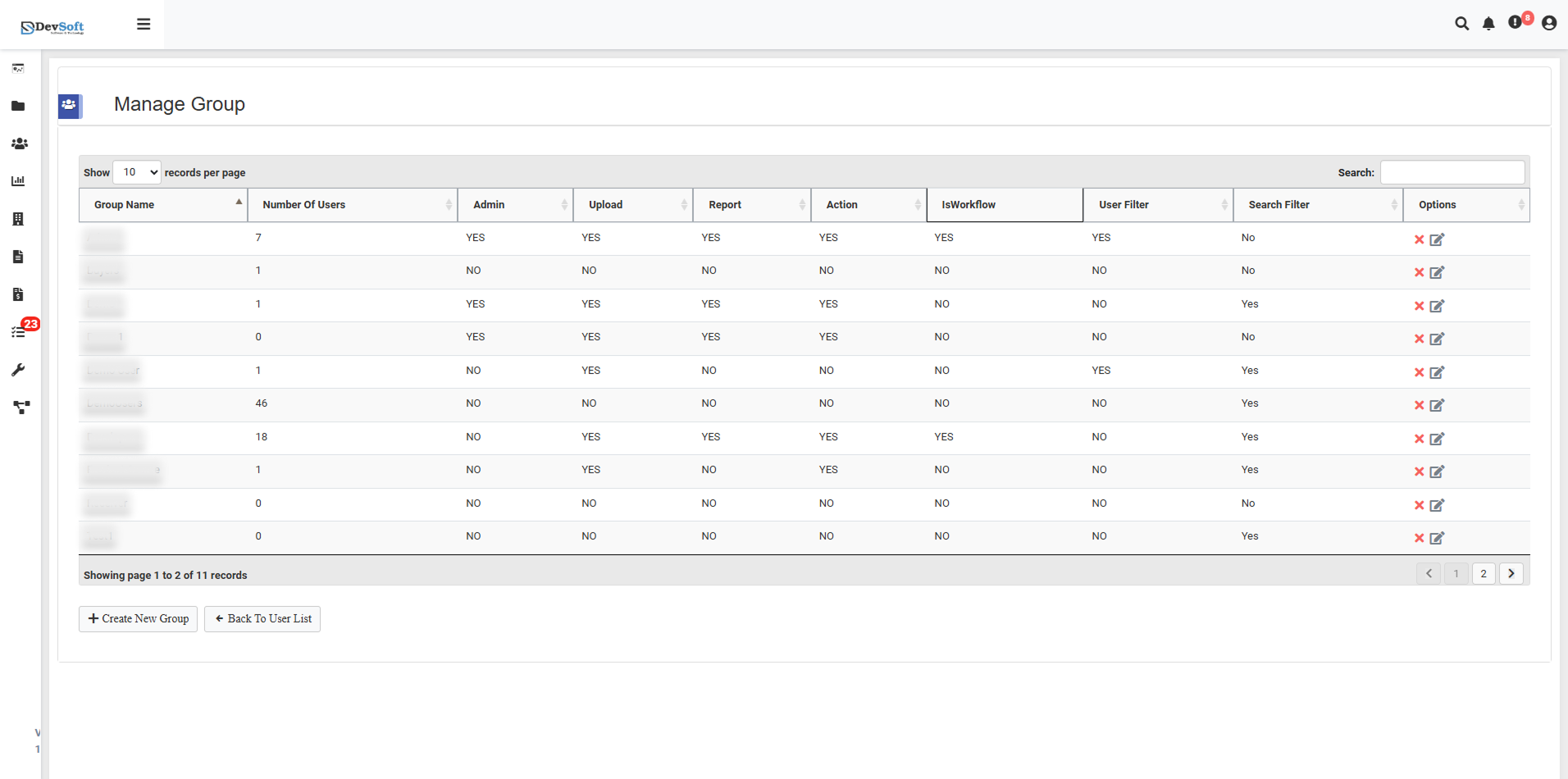
Navigation Example (Admin Only)
Open the Sidebar Menu
- Click the Sidebar Icon (☰) on the left to expand the menu.
Select "Manage Groups"
- Opens the list of permission groups.
Access Group Options
- Click Create New Group to add a new group.
- Click Edit/Delete (for an existing group) to modify permissions.
Only administrators can perform these actions. Regular users can see the list but cannot edit or delete groups.
Accessing Manage Groups
Log in as Administrator
- Only admins can access and manage groups.
Navigate to Manage Groups
- From the main navigation menu, click Manage Groups.
- The interface displays all existing groups, number of users in each group, and assigned permissions.
Groups List Overview
The Manage Groups page shows the following details for each group:
- Group Name: Name of the permission group.
- Number Of Users: Count of users assigned to this group.
- Admin: Full administrative privileges.
- Upload: Permission to upload documents.
- Report: Access to reports.
- Action: Access to perform system actions.
- Introduction: Access to system introduction/tutorial.
- User Filter: Ability to filter users.
- Search Filter: Ability to filter/search documents.
- Options: Edit or delete the group (admin only).
Tips
- Groups with many users should be edited carefully, as changes apply to all members.
- Avoid deleting a group unless it has no active users.
- Use descriptive group names to easily identify permissions for each role.
Group Management Controls
- Records per Page: Choose how many groups to display at once.
- Pagination: Navigate through multiple pages of groups.
- Create New Group: Open the interface to add a new permission group (admin only).
- Bulk User List: Modify multiple users’ group assignments at once.