Edit Integration
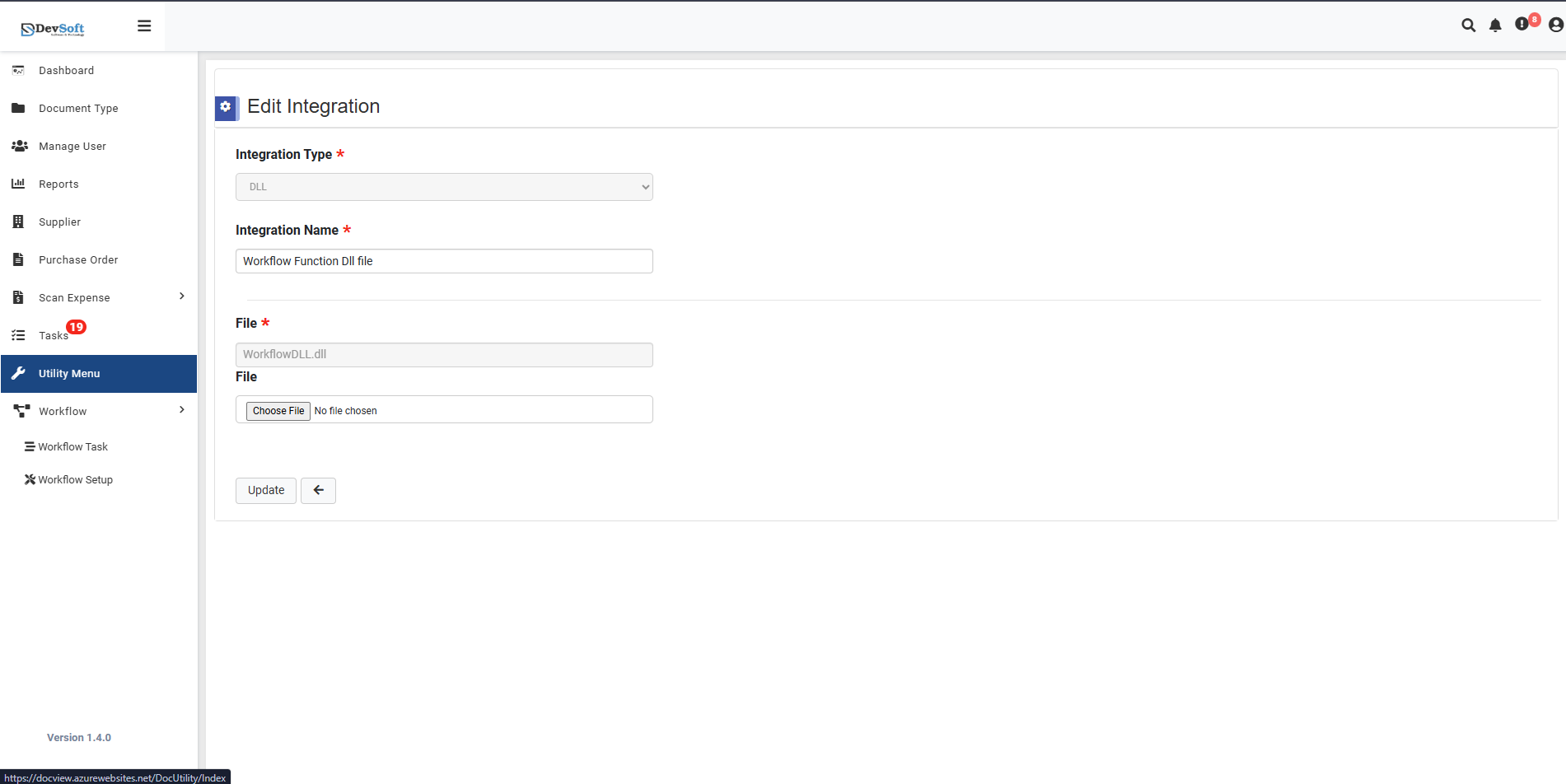
The Edit Integration page allows users to modify existing integration configurations, update file paths, change connection details, and adjust integration settings.
This interface provides comprehensive control over integration parameters to ensure optimal connectivity and functionality.
Navigation
To access the Edit Integration page:
Navigate to Integration Management
Access the main Integration screen through the Workflow Setup menu.Locate Target Integration
Browse or search the integration grid to find the specific integration you want to modify.Click Edit Icon
Click the edit (pencil) icon on the right side of the integration record you wish to update.Edit Integration Page Opens
The system displays the full integration configuration form with existing values pre-populated.
Edit Integration Overview
Integration Type *
- Display: Shows the current integration type (e.g., "DLL")
- Behavior: Typically read-only or dropdown for type modification
- Example: "DLL" integration type shown with specific configuration sections
Integration Name *
- Purpose: Descriptive identifier for the integration
- Field Type: Editable text field
- Example: "Workflow Function D1 file"
File *
- Purpose: Specifies the main integration file or component
- Display: Shows current file path/name (e.g., "WorkflowD-L.dil")
- Importance: Critical for DLL and file-based integrations
File Upload
- Purpose: Option to replace or update the integration file
- Control: "Choose File" button with "No file chosen" status indicator
- Functionality: Allows browsing and selecting new files from local system
Action Buttons
- Update - Primary button to save all changes to the integration configuration
- Back - Returns to the Integration Management screen without saving changes
Integration Type Variations
The edit form dynamically adjusts based on the integration type:
- DLL Integrations - Focus on file paths and version management
- SQL Connections - Database strings, query parameters, and connection testing
- Web Services - URL endpoints, authentication methods, and request formats
- SMTP Configurations - Server settings, port configurations, and security options
This adaptive interface ensures users have access to all relevant configuration options while maintaining a clean, focused editing experience regardless of integration complexity.