Compress PDF
The Compress PDF utility in DocView Web allows you to reduce file size while optimizing for maximal PDF quality. This tool uses advanced compression algorithms to minimize document size without compromising readability, making it ideal for sharing, storing, and emailing PDF files.
Navigation
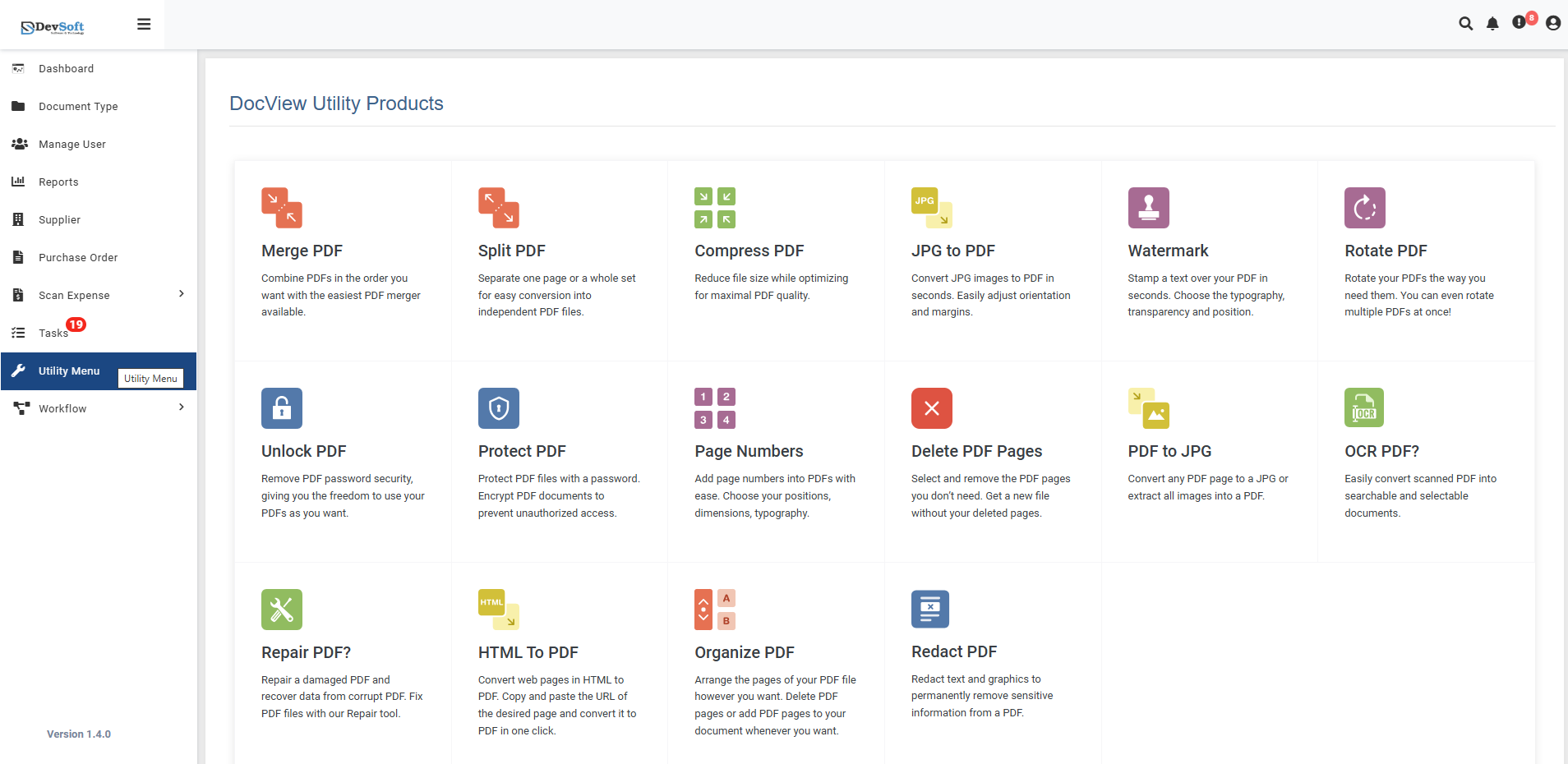
To access the Compress PDF utility:
Open the Sidebar Menu
Click on the ☰ Sidebar Icon at the top-left corner of the dashboard interface to expand the navigation panel.Select "Utility Menu"
From the sidebar, click on Utility Menu to view the complete list of document processing tools.Click on "Compress PDF"
Select the Compress PDF option from the utility products list to open the compression interface.
Compress PDF Overview
The Compress PDF screen provides a straightforward interface for reducing PDF file sizes while maintaining optimal quality through intelligent compression techniques.
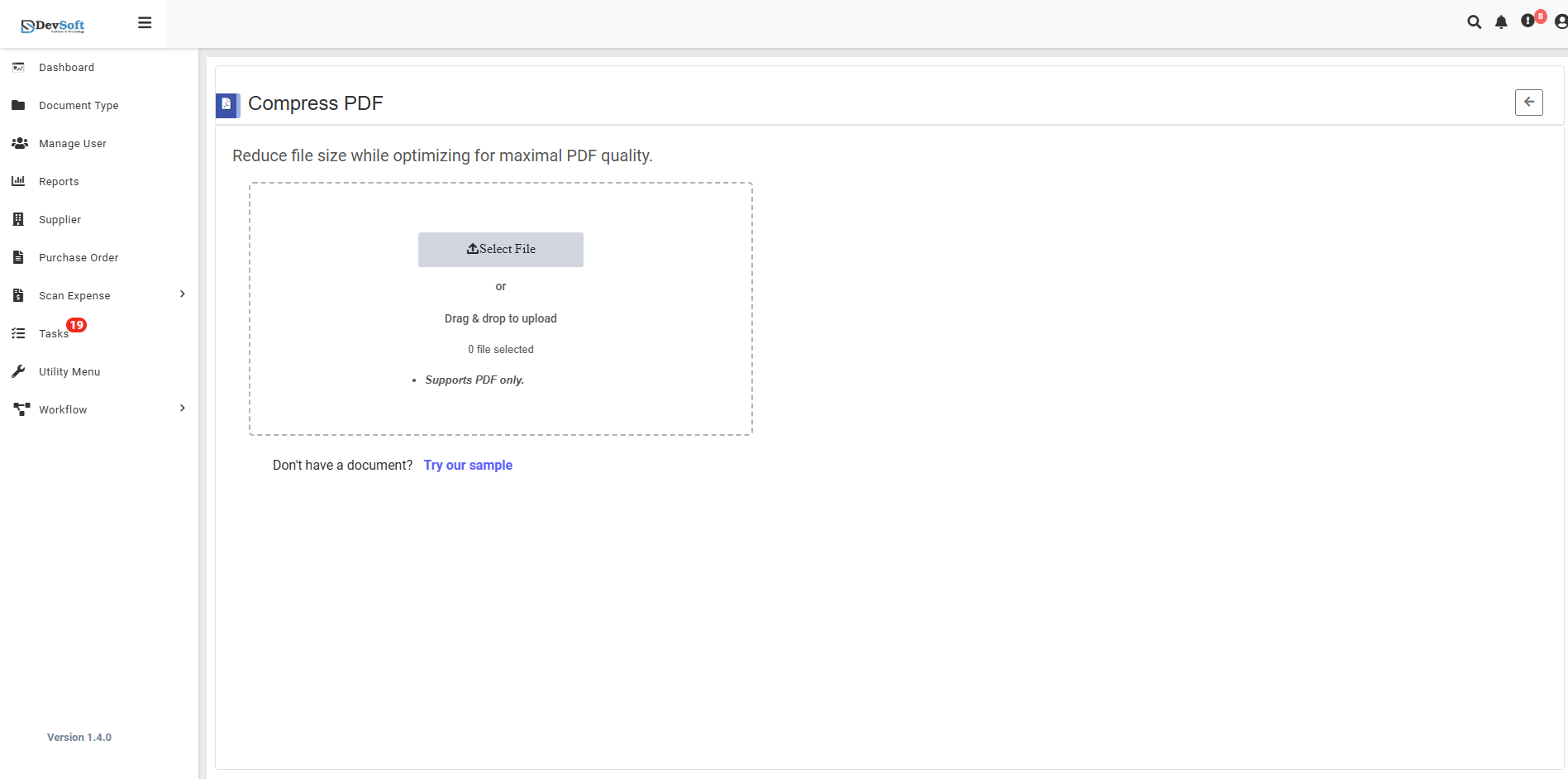
File Upload Section
- Backend File Status
- File Counter: 0 (displays current number of uploaded files)
- Upload Method: Drag & drop functionality for easy file addition
- Bin Selection: 0 Bin selected (trash/delete management)
- Format Restriction: Supports PDF only - Only PDF file formats are accepted
Sample Document Access
- "Don't have a document? Try our sample"
- Provides sample PDFs for testing compression functionality
- Allows users to experience compression results without using personal documents
- Perfect for understanding compression ratios and quality preservation
Supported Formats
Input Format
- PDF only (Portable Document Format)
- All PDF versions supported (PDF 1.0 - PDF 2.0)
- Encrypted and password-protected PDFs (with proper authorization)
Output Format
- Compressed PDF with optimized file structure
- Maintains original PDF format and compatibility
- Works with all standard PDF readers and viewers
How to Compress PDF Files
Step 1: Upload PDF File
- Use Drag & Drop to quickly add PDF files to the interface
- Or click the upload area to browse and select PDF files manually
- System automatically validates file format (PDF only)
Step 2: Select Compression Level Choose from multiple compression options based on your needs:
Step 3: Execute Compression
- Click the "Compress PDF" button to initiate processing
- Monitor real-time progress indicators
- Wait for completion notification with compression statistics
Step 4: Download Results
- Download the compressed PDF file
- View compression ratio and size savings
- Verify quality meets your requirements
File Validation
- Automatic format detection ensures only PDF files are processed
- Clear error messages for unsupported file types
- File integrity checks before compression
Common Use Cases
- Email Attachments - Reduce PDF sizes for email compatibility
- Web Publishing - Optimize PDFs for faster website loading
- Document Storage - Save storage space in document management systems
- Mobile Sharing - Create smaller PDF files for mobile device usage
- Cloud Storage - Reduce cloud storage costs and upload times
- Document Transfer - Faster PDF transfers over networks
Compress Uploaded View PDF
Once a PDF file is uploaded in the Compress PDF Utility, the interface updates to display the uploaded document preview along with compression options. This step allows users to choose between quality-focused or size-focused compression before downloading the optimized file.
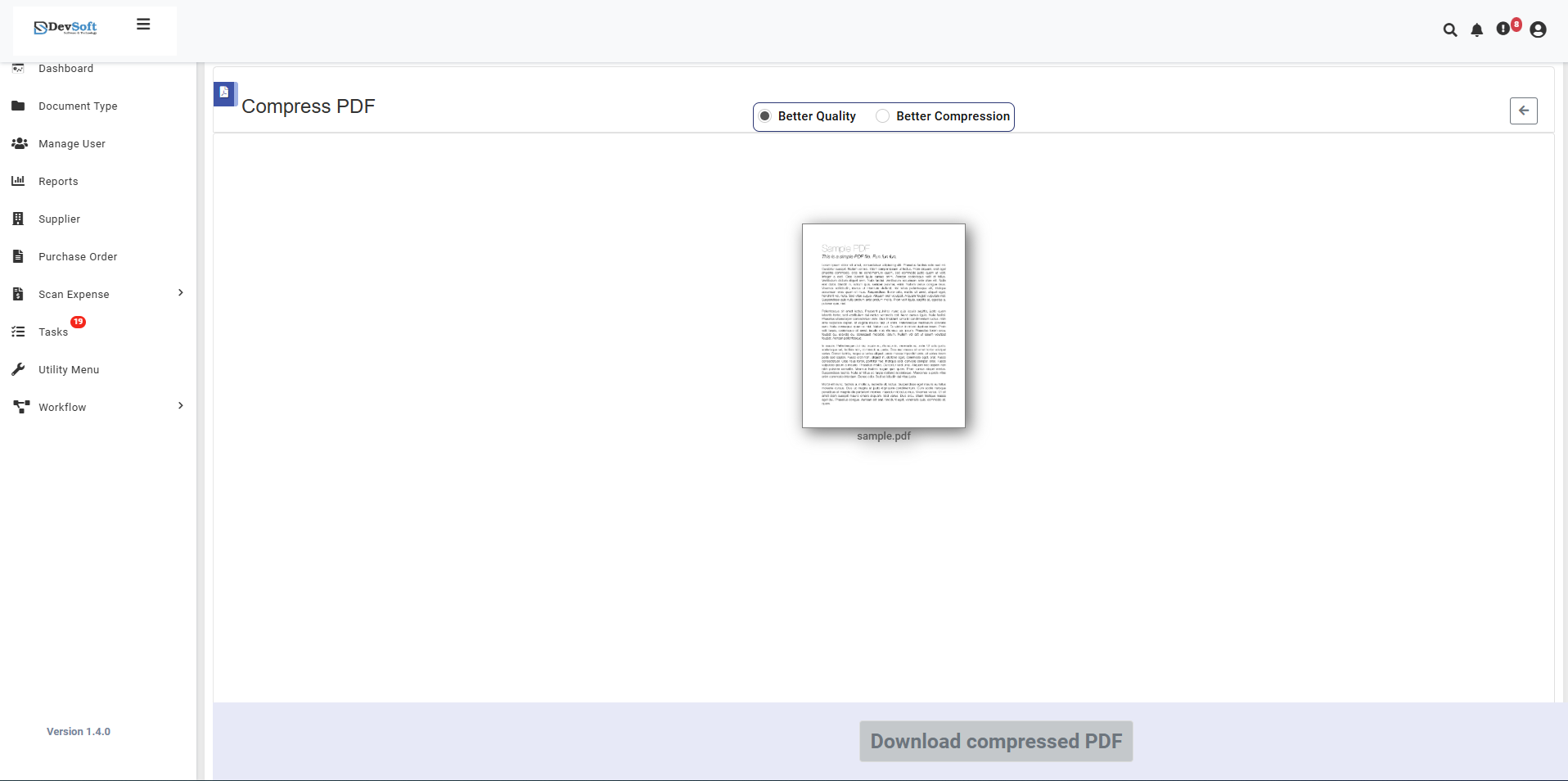
The uploaded view provides all tools required to customize and finalize the compression process with full visual confirmation of the selected file.
- Compression Mode Selection
At the top-right section of the interface, two options allow users to control compression output:
- Better Quality – Maintains higher visual fidelity (ideal for documents with images or fine details).
- Better Compression – Maximizes size reduction (recommended for faster sharing or email attachments).
The default selection is Better Quality, ensuring the best balance between clarity and file size.
- Download Section
At the bottom of the interface:
- Download Compressed PDF button becomes active after the compression process is completed.
- The button remains greyed out until the file is ready for download.
- Once active, users can download the optimized PDF instantly.
The compressed file retains all original content, metadata, and layout while reducing file size efficiently.
Key Highlights
- 🔹 Dual compression modes for flexibility.
- 🔹 Visual confirmation of uploaded documents.
- 🔹 One-click download after compression.
- 🔹 Maintains layout and content integrity.
- 🔹 Designed for quick, high-quality results.
Supported Files
- Input: PDF only
- Output: Compressed PDF
- Fully compatible with all major PDF viewers and document management systems.