Tasks
The Tasks Module in DocView Web provides a centralized dashboard for managing all pending action items, exceptions, and workflow tasks that require user attention.
This module ensures timely resolution of issues across invoice processing, supplier management, and expense claim workflows.
Navigation
Login to DocView Web
- Enter your email address and password on the login page.
- Click the Login button to access your account.
Access Main Dashboard
- Once logged in, you’ll see the DocView Web dashboard, your central hub for managing document workflows.
Open Sidebar Menu
- Click the ☰ Sidebar Icon on the top-left corner of the dashboard.
- The navigation panel expands to show all available modules.
Select Tasks Menu
- Click on Tasks in the sidebar menu.
- The system opens the Tasks Management Page displaying all pending or active tasks.
Tasks Overview
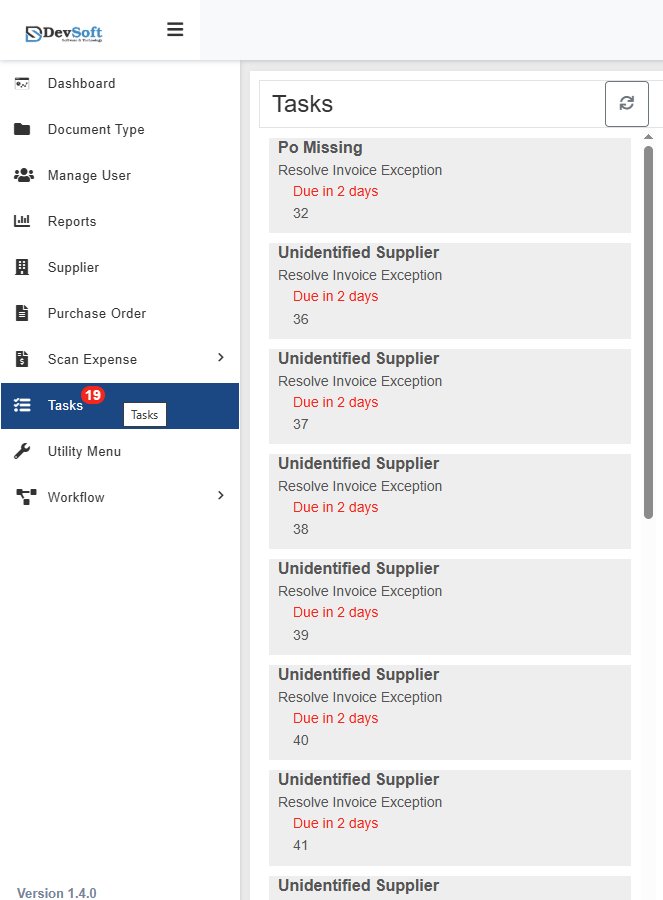
The Tasks Overview section provides a complete snapshot of all actionable items within the Tasks Module. It displays each task with key details such as category, description, due date, and reference number, allowing users to easily identify and manage their responsibilities.
Each listed task includes the following information:
Category – Defines the type of issue or action required.
- Example: PO Missing indicates that a purchase order reference is missing.
- Example: Unidentified Supplier highlights that supplier verification is pending.
Task Description – Explains what action needs to be performed to resolve the issue.
- Example: Resolve Invoice Exception specifies that the user must handle an exception within the invoice workflow.
- Descriptions use clear, action-oriented language to ensure users understand the required steps.
Due Date Information – Displays the remaining time before the task’s deadline.
- Example: Due in 2 days indicates urgency and helps users prioritize tasks accordingly.
- Tasks may be color-coded or highlighted based on urgency to draw immediate attention.
Reference Numbers – Each task is assigned a unique identifier for easy tracking.
- Example: Task IDs such as 32, 36–42 help in locating specific records, communication, and reporting.
- Reference numbers ensure traceability and support auditing or follow-up activities.
This overview helps users stay organized, manage priorities, and ensure all tasks are addressed in a timely and efficient manner.
Features
Priority Handling
- Urgent Tasks – Highlighted using due date indicators like “Due in 2 days.”
- Categorized Organization – Tasks are grouped by issue type for easier processing.
- Bulk Actions – Enables processing multiple related tasks at once.
Status Tracking
- Pending Resolution – Displays all tasks awaiting action.
- Progress Monitoring – Tracks completion and resolution updates.
- History Maintenance – Keeps records of resolved or closed tasks.
Notification System
- Due Date Alerts – Notifies users when deadlines approach.
- Category Grouping – Organizes similar task types together.
- Reference Linking – Directly links to related invoices, suppliers, or documents.
Workflow Integration
Exception Resolution Process
- Task Identification – The system automatically generates a task when an exception occurs.
- User Assignment – Tasks are assigned to responsible users or teams.
- Resolution Action – Users perform the required corrective steps.
- Completion Tracking – Once resolved, the system updates the task’s status.