PDF to JPG
The PDF to JPG utility in DocView Web allows you to convert any PDF page to a JPG or extract all images into a PDF. This tool provides flexible conversion options for transforming PDF documents into high-quality image files suitable for various applications and platforms.
Navigation
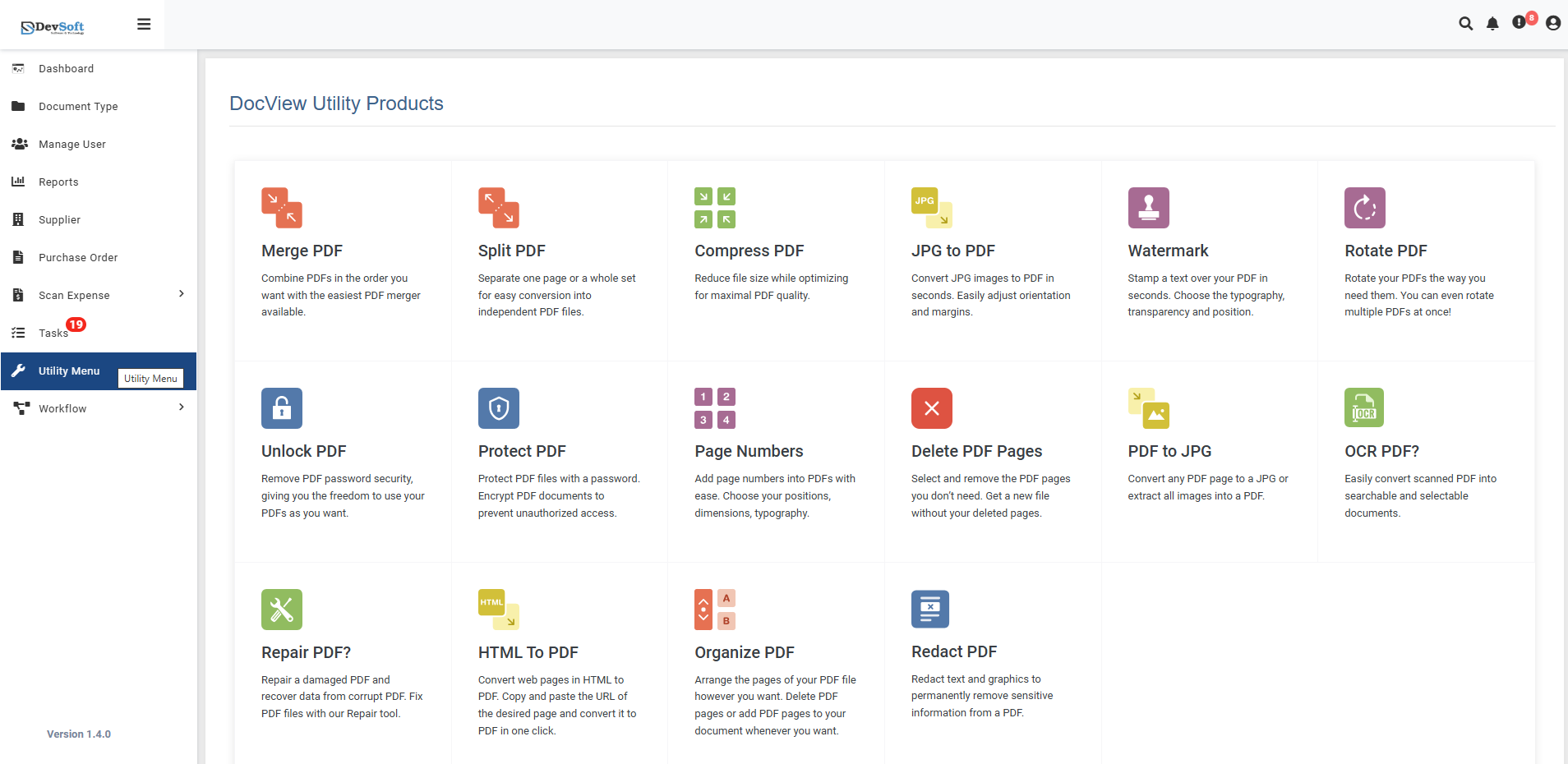
To access the PDF to JPG utility:
Open the Sidebar Menu
Click on the ☰ Sidebar Icon at the top-left corner of the dashboard interface to expand the navigation panel.Select "Utility Menu"
From the sidebar, click on Utility Menu to view the complete list of document processing tools.Click on "PDF to JPG"
Select the PDF to JPG option from the utility products list to open the conversion interface.
PDF to JPG Overview
The PDF to JPG screen provides a comprehensive interface for converting PDF pages to JPG images with precise control over quality, resolution, and output options.
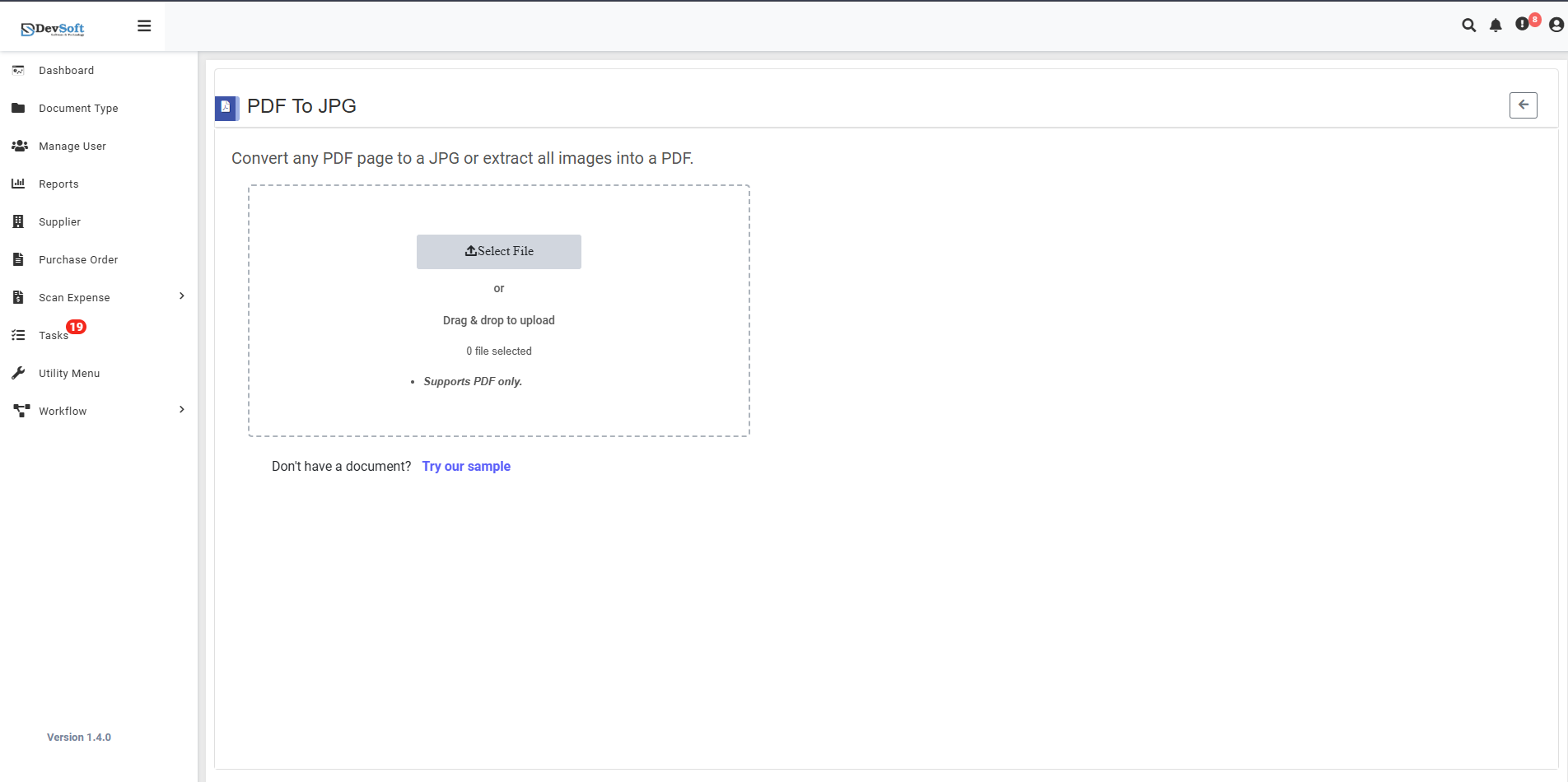
File Upload Section
- Backend File Upload Options
- Browse Option - Click to select PDF files from your device
- Drag & Drop - Alternative method for easy file upload
- File Selection Status - Shows currently selected files (O file selected)
- Format Restriction - Supports PDF only - Only PDF file formats are accepted
Sample Document Access
- "Don't have a document? Try our sample"
- Provides sample PDFs for testing conversion functionality
- Allows users to experience the conversion process without using personal documents
- Perfect for understanding the conversion workflow and output quality
Action Controls
- ← Back Icon (Top-right) - Returns to Utility Products page
- Conversion Settings - Quality, resolution, and format options
- Convert Button - Executes the conversion process
- Download Options - Access to converted image files
PDF to JPG – Uploaded View
Once a PDF file is uploaded in the PDF to JPG Utility, the interface updates to display conversion options and image extraction features. This view allows users to choose between converting PDF pages to JPG images or extracting embedded images from the PDF document.
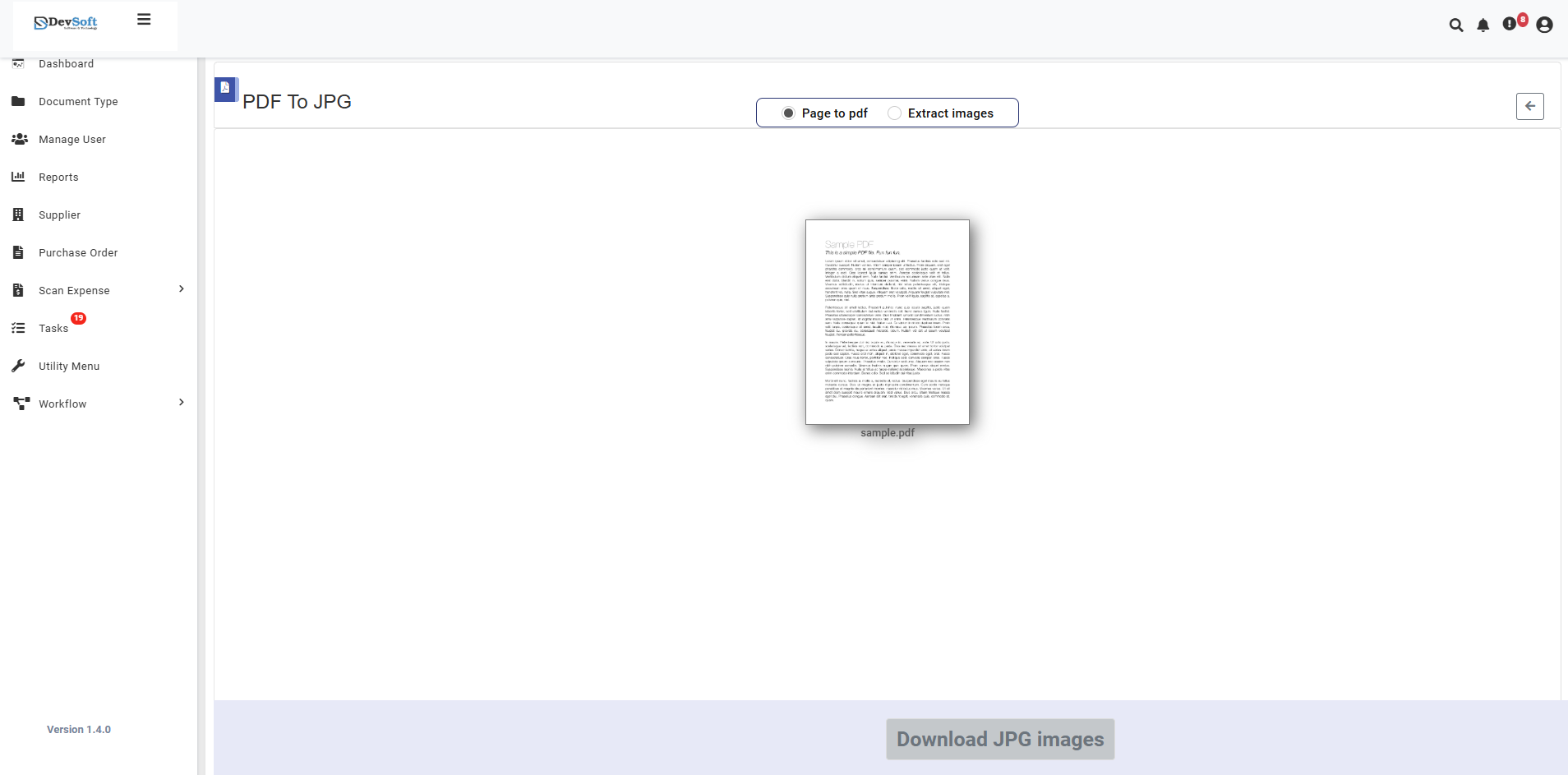
The uploaded view provides specialized controls for PDF to JPG conversion with integrated document management features.
- Conversion Options Section
Page to pdf
- Extract images - Primary conversion option
- Extracts all embedded images from the PDF document
- Converts each image to high-quality JPG format
- Preserves original image quality and resolution
- Generates separate JPG files for each extracted image
- Alternative Conversion Modes
- Convert pages to JPG - Option to convert entire PDF pages to images
- Select specific pages - Choose individual pages for conversion
- Batch conversion - Process multiple pages simultaneously
- Download Section
- Download JPG Images button (activates after conversion)
- Processing status and progress indicators
- File count and size information for extracted images
How to Convert PDF to JPG
Step 1: Upload PDF File
- Click the Browse button to select PDF files from your device
- Or use Drag & Drop functionality for quick upload
- Multiple PDF files can be selected for batch conversion
- System validates file format (PDF only)
Step 2: Choose Conversion Type (Uploaded View)
Image Extraction Option
- Select Extract images to convert embedded images to JPG
- System automatically detects all images within the PDF
- Preview available images before extraction
- Choose specific images or extract all
Step 3: Execute Conversion
- Click the Convert or Extract Images button
- Monitor conversion progress with visual indicators
- System processes images and creates JPG files
- Completion notification with summary
Step 4: Download Results
- Download JPG Images button becomes active
- Download individual JPG files or ZIP archive
- Original PDF file remains unchanged
- Verify image quality and completeness
Image Extraction Features
Supported Formats
Input Format
- PDF only (Portable Document Format)
Output Format
- JPG/JPEG - Standard JPEG image format
- High-quality raster images suitable for:
- Web use and social media
- Email attachments and sharing
- Printing and publication
- Digital archives and storage
Unsupported Formats
- Input formats other than PDF
- Output formats other than JPG/JPEG
- Direct conversion to PNG, GIF, or BMP
Features
- Smart Image Detection - Automatically finds all embedded images
- Quality Preservation - Maintains original image quality
- Batch Extraction - Extract multiple images simultaneously
- Selective Conversion - Choose specific images or pages
- Integrated Management - Full DataBoard access for document workflow
- Non-Destructive - Original PDF files remain unchanged
- User-Friendly Interface - Simple extraction process
- Quick Processing - Fast conversion even for large documents
Common Use Cases
Image Extraction from Documents
- Photo Documents - Extract photographs from PDF portfolios
- Scanned Images - Recover images from scanned documents
- Product Catalogs - Extract product images from PDF catalogs
- Presentation Decks - Get images from PowerPoint-converted PDFs
Business and Professional Use
- Marketing Materials - Extract logos and graphics from brand guidelines
- Report Graphics - Get charts and diagrams from business reports
- Document Assets - Extract images for reuse in other documents
- Archival Purposes - Preserve images from important documents
Creative and Personal Use
- Artwork Portfolios - Extract artwork from artist portfolios
- Photo Collections - Recover photos from PDF photo books
- Personal Scans - Get images from scanned personal documents
- Recipe Images - Extract food photos from recipe collections
Technical Applications
- Technical Manuals - Extract diagrams from technical documentation
- Architectural Plans - Get images from architectural PDFs
- Engineering Drawings - Extract schematics and blueprints
- Medical Imaging - Recover medical images from reports
Note: The uploaded view provides specialized image extraction capabilities alongside comprehensive document management through the DataBoard panel, making it easy to convert PDF-embedded images to usable JPG format while maintaining access to full document workflow tools.