Merge PDF
The Merge PDF utility in DocView Web allows you to combine multiple PDF documents into a single file with the easiest PDF merger available. This tool enables seamless consolidation of various PDF files while maintaining document quality and structure.
Navigation
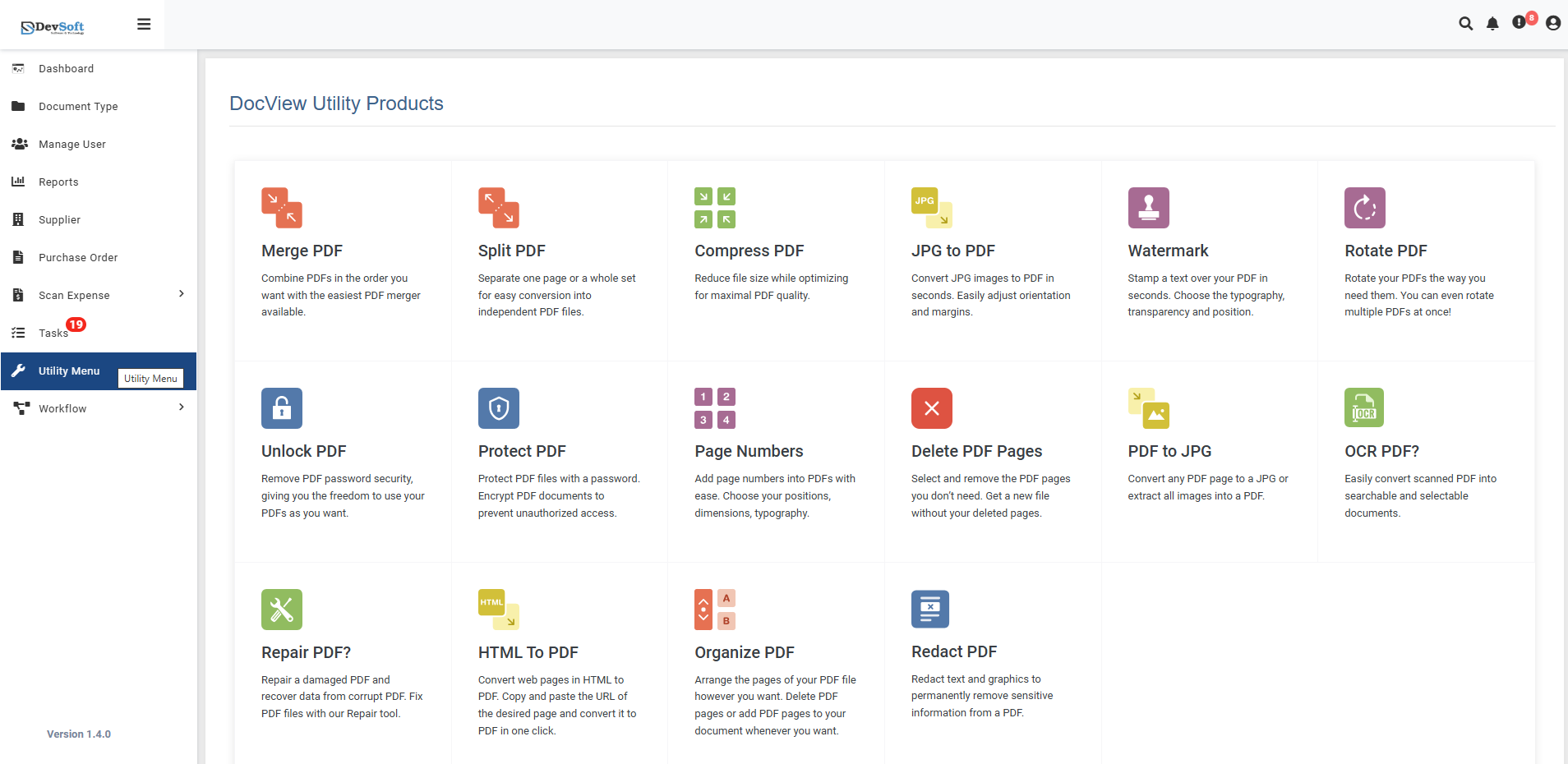
To access the Merge PDF utility:
Open the Sidebar Menu
Click on the ☰ Sidebar Icon at the top-left corner of the dashboard interface to expand the navigation menu.Select "Utility Menu"
From the sidebar, click on Utility Menu to view the complete list of document processing tools.Click on "Merge PDF"
Select the Merge PDF option from the utility products list to open the merging interface.
Merge PDF Overview
The Merge PDF screen provides an intuitive interface for combining multiple PDF files into a single document with precise control over the order and arrangement of pages.
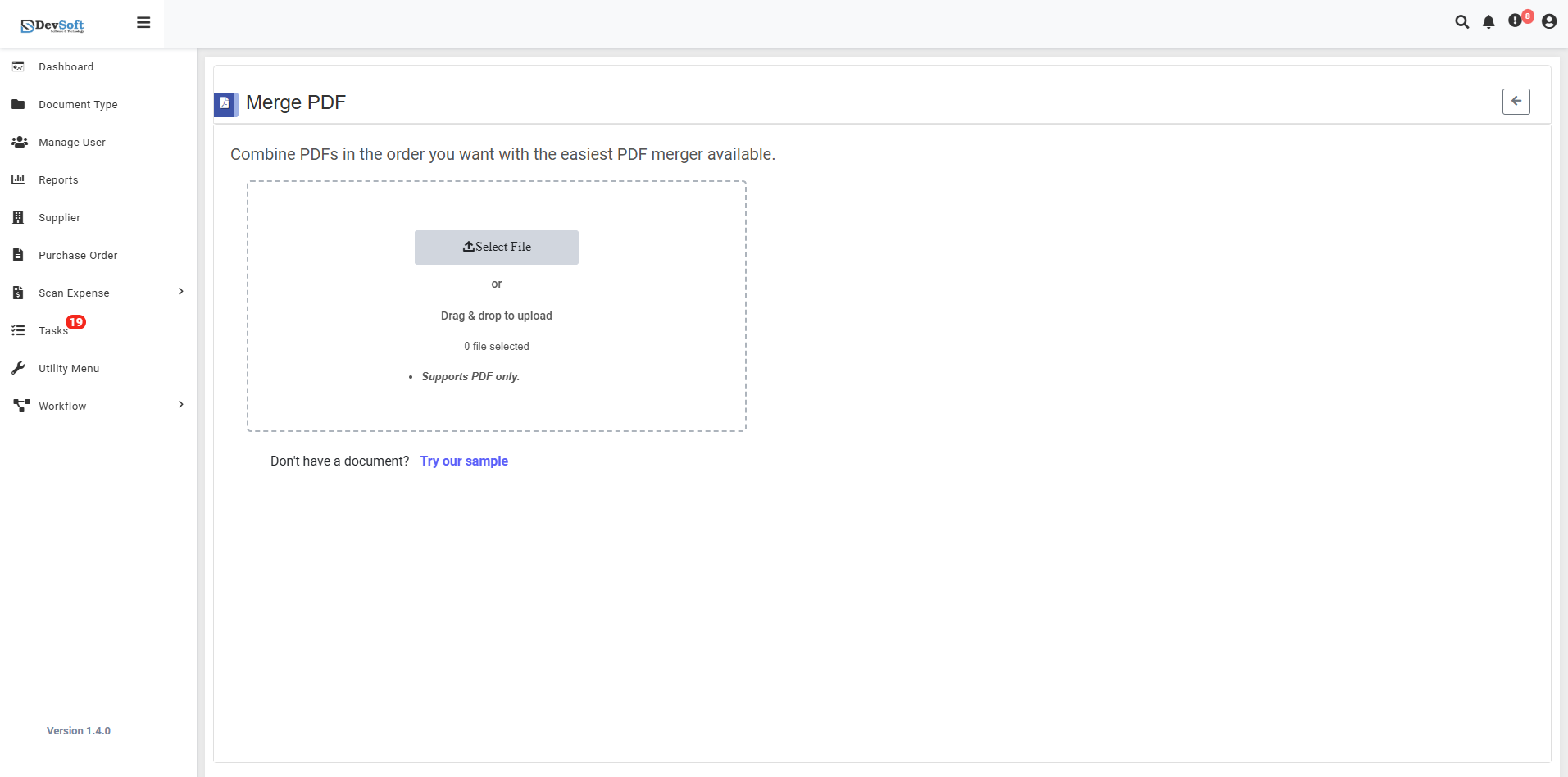
File Upload Section
Backend File Status
- Files Selected: 0 (displays current count of uploaded files)
- Real-time update as files are added or removed
File Requirements
- Support PDF only - Only PDF file formats are accepted
- Clear format restrictions to prevent upload errors
Sample Document Access
- "Don't have a document? Try our sample"
- Provides sample PDFs for testing functionality
- Allows users to explore features without their own documents
- Helpful for new users learning the tool
How to Merge PDF Files
Step 1 : Upload PDF Files
- Click the upload area or drag and drop PDF files
- Multiple files can be selected simultaneously
- File validation ensures only PDF formats are accepted
Step 2: Arrange Document Order
- Use drag-and-drop functionality to reorder files
- Preview thumbnails of each document
- Ensure proper sequence before merging
Step 3 : Review and Merge
- Verify all documents are correctly ordered
- Click the "Merge PDF" button to initiate processing
- Wait for the system to combine all files
Step 4: Download Result
- Download the merged PDF file
- File automatically includes all combined documents
- Original files remain unchanged
Uploaded Merge PDF View
Once the PDF files are successfully uploaded, the Merge PDF Interface displays a preview of the added documents. This screen provides a clear visual overview of all selected PDFs before merging.
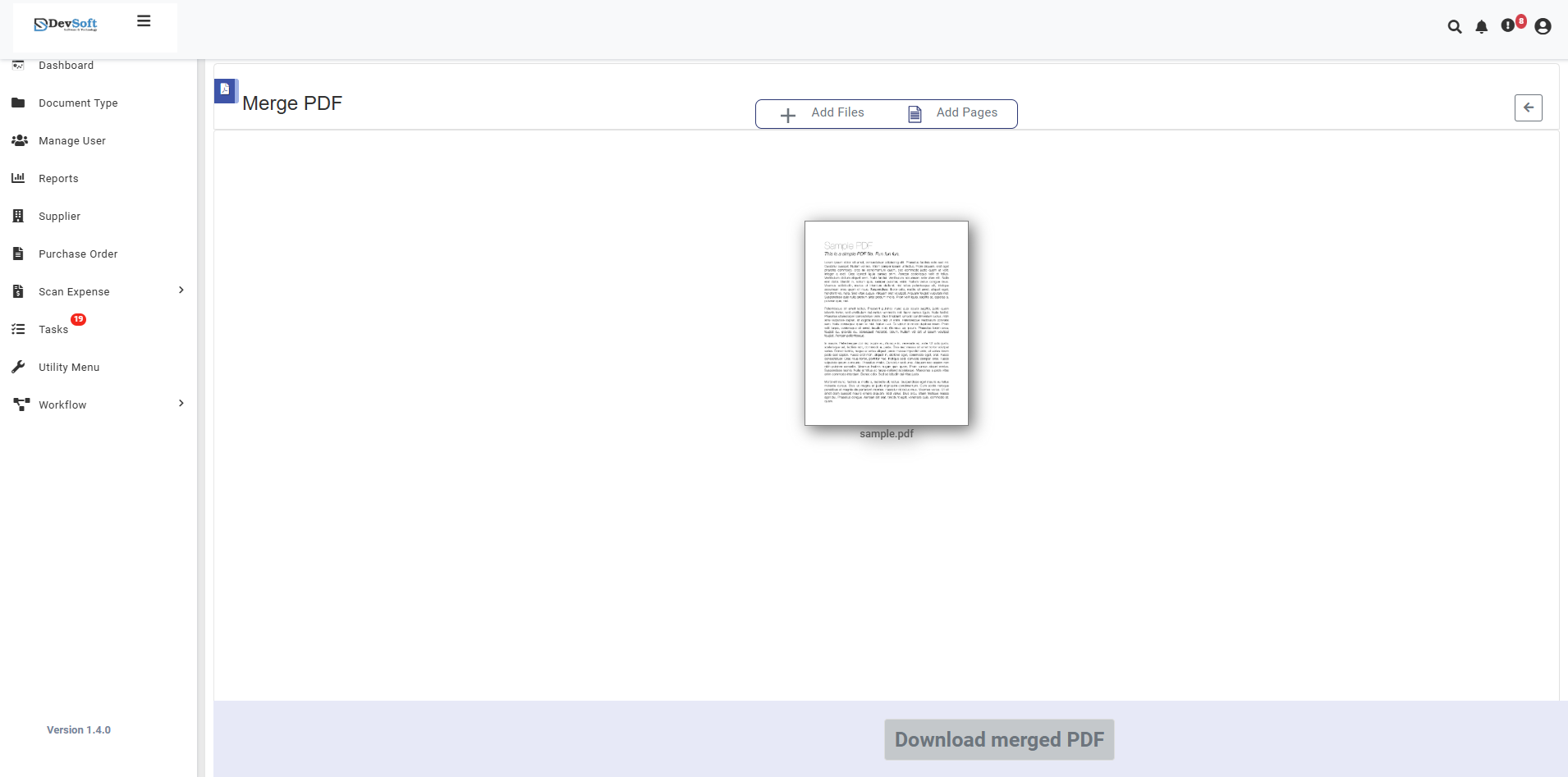
After uploading, the screen is divided into distinct sections to help users review, manage, and merge their files efficiently.
- Toolbar Actions Located at the top of the interface:
- ➕ Add Files – Allows users to upload additional PDF files to the list.
- 📄 Add Pages – Lets users include specific pages from other PDFs for merging.
- ⬅ Back Button – Returns to the previous screen or utility dashboard.
These options ensure users can flexibly manage files before performing the merge operation.
- Document Preview Section
- Displays a thumbnail preview of each uploaded PDF file.
- Each file shows its name (e.g., sample.pdf) below the preview.
- Users can visually verify uploaded documents and their order.
- If multiple files are uploaded, users can drag and rearrange their order before merging.
This section helps confirm the correct sequence and inclusion of all desired documents.
- Action Area (Bottom Bar) At the bottom of the screen:
- Download Merged PDF button becomes active after merging.
- Once clicked, it allows users to download the combined file containing all uploaded PDFs in the selected order.
- The merged file retains original quality and structure.
- Key Highlights
- Visual Confirmation – Instantly view uploaded documents.
- Flexible Management – Add or remove PDFs anytime before merging.
- Simple Workflow – Upload → Arrange → Merge → Download.
- Preserves Original Files – Source files remain unchanged after merging.
Features
- Simple Drag-and-Drop Interface - Intuitive file management
- Real-time File Preview - Visual confirmation of document order
- Batch Processing - Combine multiple PDFs simultaneously
- Quality Preservation - Maintains original PDF quality
- Secure Processing - Files processed securely with automatic cleanup
- No Size Limitations - Handle documents of various sizes (within system limits)
Supported Formats
- Primary Format: PDF (Portable Document Format)
- Input Requirements: PDF files only
- Output: Single merged PDF document
Common Use Cases
- Business Reports - Combine multiple financial reports
- Legal Documents - Merge contracts and agreements
- Academic Papers - Compile research papers and references
- Project Documentation - Unify project plans and specifications
- Personal Documents - Combine bills, statements, and records