Repair PDF
The Repair PDF utility in DocView Web allows you to upload a corrupt PDF and we will try to fix it. This tool uses advanced algorithms to diagnose and repair damaged PDF files, restoring accessibility and functionality to documents that have become corrupted, unreadable, or damaged during transfer, storage, or creation.
Navigation
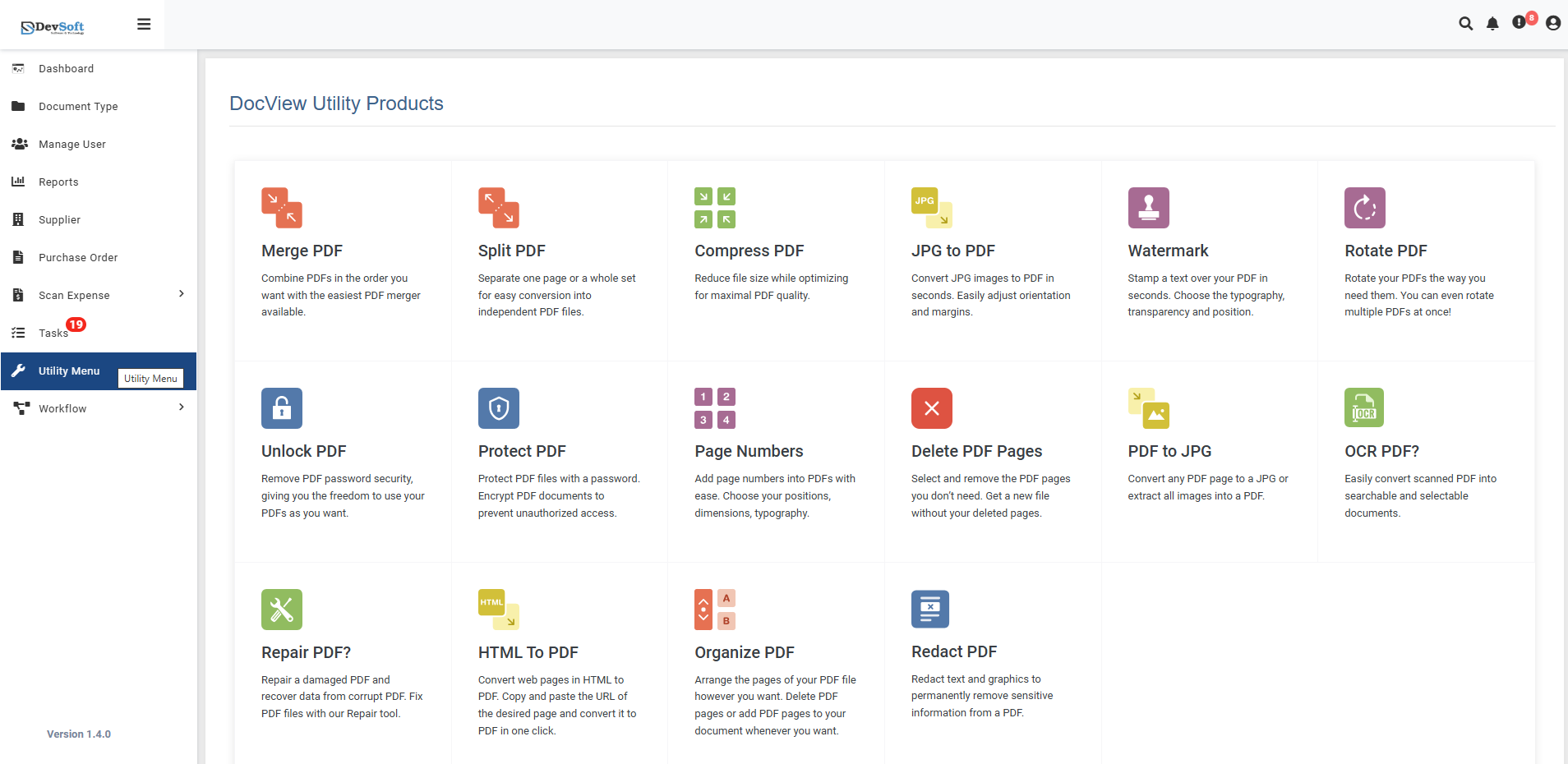
To access the Repair PDF utility:
Open the Sidebar Menu
Click on the ☰ Sidebar Icon at the top-left corner of the dashboard interface to expand the navigation panel.Select "Utility Menu"
From the sidebar, click on Utility Menu to view the complete list of document processing tools.Click on "Repair PDF"
Select the Repair PDF option from the utility products list to open the repair interface.
Repair PDF Overview
The Repair PDF screen provides a specialized interface for diagnosing and fixing corrupted PDF documents, with comprehensive repair options and real-time progress tracking.
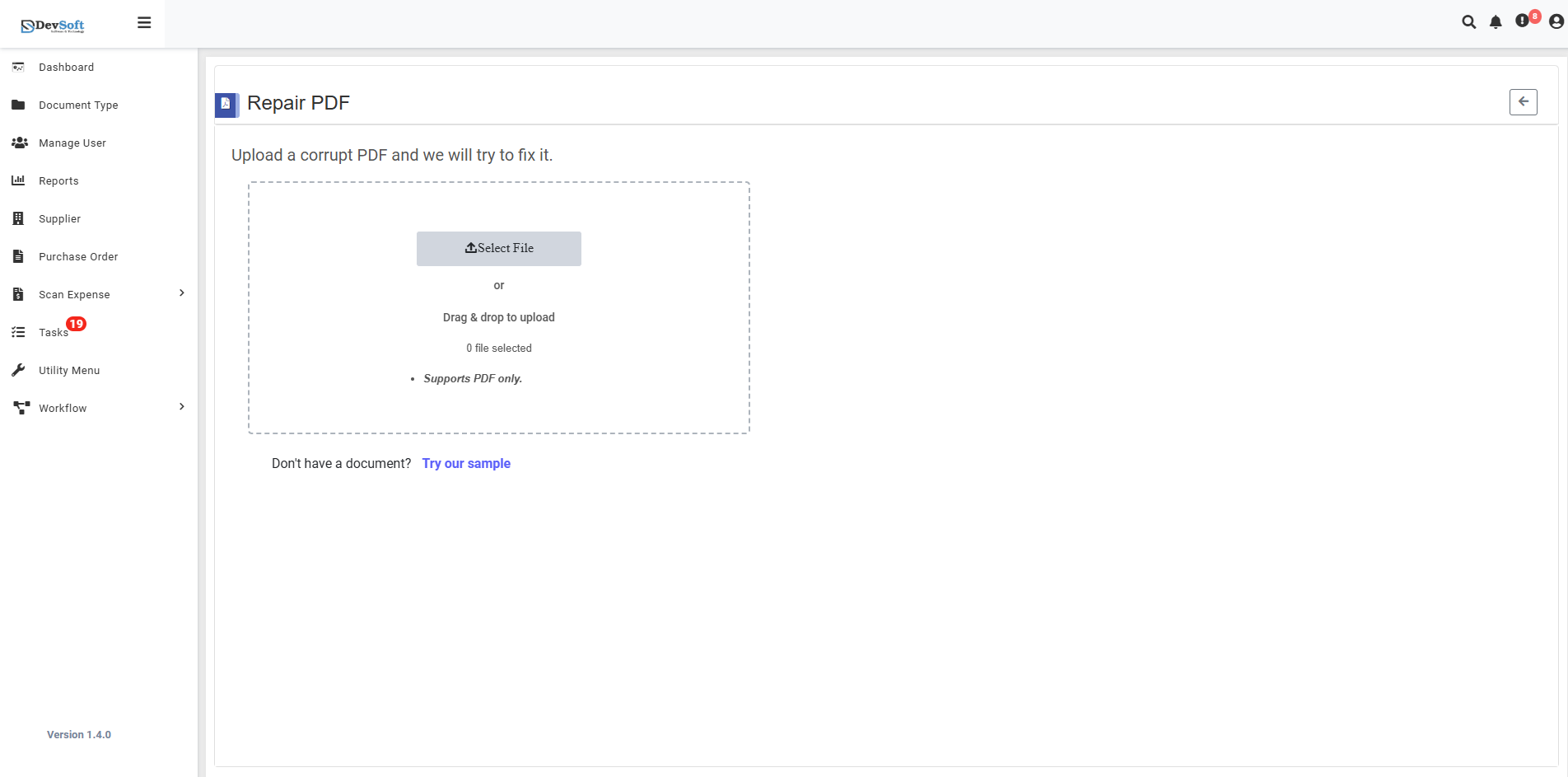
File Upload Section
- Backend File Upload Options
- Browse Option - Click to select corrupted PDF files from your device
- Drag & Drop - Alternative method for easy file upload
- File Selection Status - Shows currently selected files (O file selected)
- Format Restriction - Supports PDF only - Only PDF file formats are accepted
Sample Document Access
- "Don't have a document? Try our sample"
- Provides sample corrupted PDFs for testing repair functionality
- Allows users to experience the repair process without using personal documents
- Perfect for understanding the repair capabilities and success rates
Action Controls
- ← Back Icon (Top-right) - Returns to Utility Products page
Repair PDF – Uploaded View
Once a corrupted PDF file is uploaded in the Repair PDF Utility, the interface updates to display a streamlined repair and download interface. This view provides automatic diagnostics and immediate access to the repaired document once processing is complete.
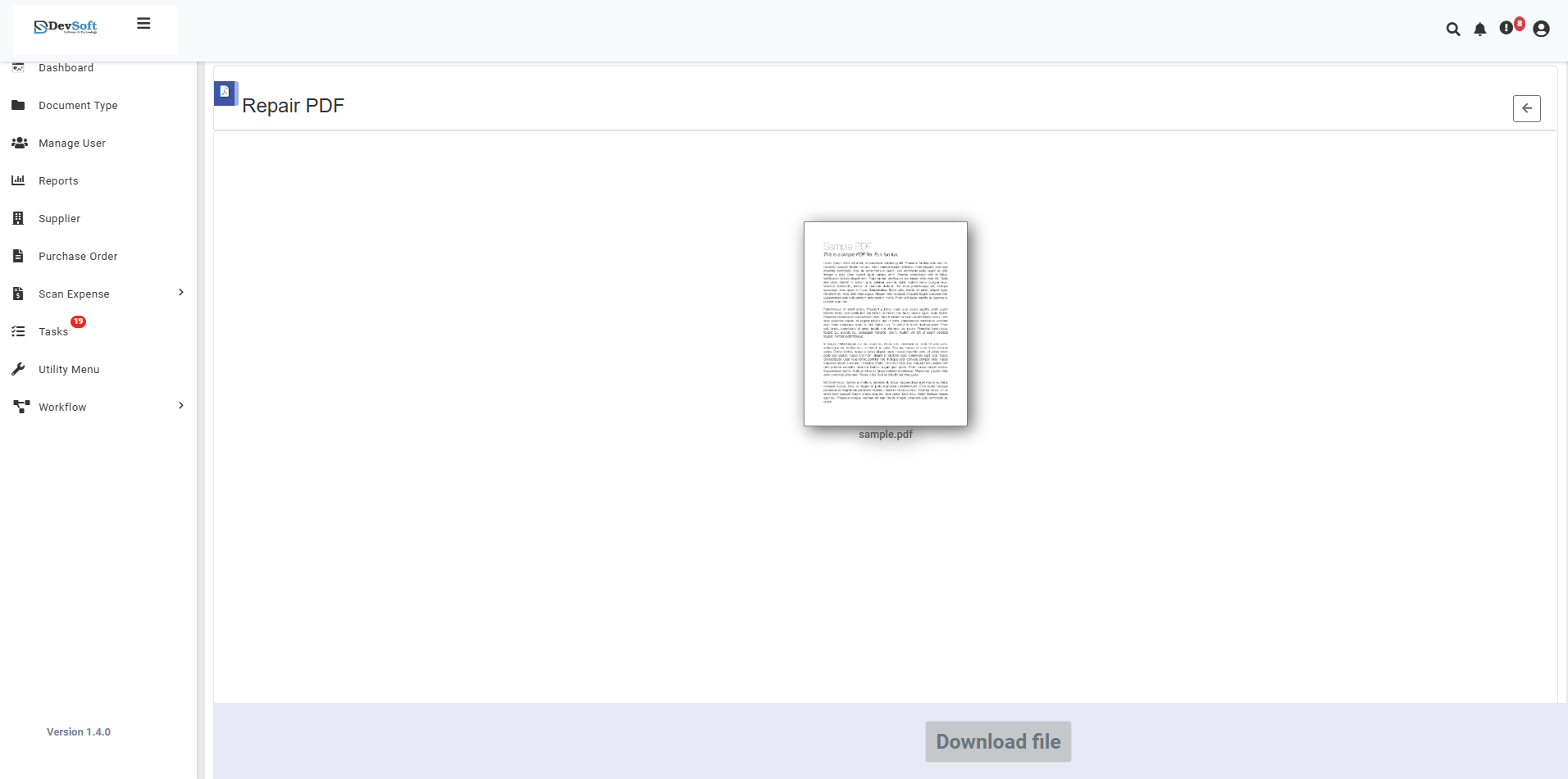
The uploaded view offers a clean, focused interface for PDF repair with automatic processing and straightforward download functionality.
- Automatic Repair Processing
Immediate Diagnostics
- Automatic Analysis - System immediately begins analyzing the uploaded PDF upon file selection
- Corruption Detection - Identifies specific issues:
- Structural corruption
- Header and cross-reference table problems
- Object stream damage
- Font and image corruption
Real-time Repair Progress
- Processing Status - Shows current repair stage
- Damage Assessment - Displays identified issues and severity
- Repair Actions - Lists specific fixes being applied
- Completion Estimate - Provides time remaining for repair
- Download Section
- Download file button - Primary action button for retrieving repaired document
- Button activates immediately once repair processing completes successfully
- Clear call-to-action for quick document retrieval
How to Repair PDF Files
Step 1: Upload Corrupted PDF File
- Click the Browse button to select damaged PDF files from your device
- Or use Drag & Drop functionality for quick upload
- System validates file format (PDF only) and performs initial diagnostics
Step 2: Download Repaired PDF
Download Options
- Download file - Primary download button for repaired document
- Instant Access - No additional configuration required
- Automatic Naming - Repaired file may include "_repaired" suffix for identification
Automatic Repair Features
Smart Repair Capabilities
- Structural Reconstruction - Rebuilds damaged PDF architecture
- Content Extraction - Recovers text, images, and embedded objects
- Font Recovery - Restores damaged or missing font information
- Metadata Preservation - Maintains document properties and information
- Cross-reference Repair - Fixes broken internal document references
Supported Corruption Types
- Header Corruption - Invalid or missing PDF headers
- Cross-reference Damage - Broken internal document references
- Object Stream Issues - Corrupted content streams
- Font Problems - Damaged or missing font data
- Image Corruption - Damaged embedded images
- File Truncation - Incomplete or cut-off files
Supported Formats
Input Format
- PDF only (Portable Document Format)
Output Format
- Repaired PDF with restored functionality
- Recovered Content - Maximum possible content restoration
- Valid Structure - Compliant with PDF standards
- Enhanced Stability - Improved document integrity
Unsupported Formats
- Severely encrypted files without passwords
- Physically damaged storage media
- Non-PDF file formats
- Password-protected files without authorization
Features
- Automatic Processing - No manual configuration required
- Advanced Diagnostics - Comprehensive analysis of PDF corruption
- Multiple Repair Methods - Different approaches for different damage types
- Content Preservation - Maximum effort to recover all original content
- High Success Rates - Proven technology for most common corruption types
- Non-Destructive - Original files remain completely unchanged
- Streamlined Interface - Simple one-click download process
- Real-time Progress Tracking - Clear status updates during repair
Common Use Cases
File Transfer Issues
- Email Corruption - Files damaged during email transfer
- Download Interruption - Incomplete downloads causing corruption
- Network Transfer Errors - Data corruption during file transfers
- Storage Media Issues - Files from damaged drives or media
Creation and Editing Problems
- Software Crashes - Files corrupted during creation or editing
- Conversion Errors - Issues from PDF conversion processes
- Print to PDF Problems - Corrupted output from virtual printers
- Merge/Split Issues - Problems from document manipulation
Storage and Archive Recovery
- Aging Archives - Historical documents with degradation
- Backup Corruption - Damaged backup files
- Storage Failure - Files from failing storage devices
- Format Migration - Issues from PDF version transitions
Business and Legal Documents
- Critical Contracts - Repair important legal documents
- Financial Records - Recover corrupted financial statements
- Archived Reports - Restore historical business documents
- Client Deliverables - Fix corrupted project files
Note: The uploaded view provides a completely automated PDF repair experience where users simply upload their corrupted document and download the repaired version. The system handles all diagnostics, repair strategies, and optimization automatically, making complex PDF recovery accessible for all users.