HTML to PDF
The HTML to PDF utility in DocView Web allows you to convert web pages to PDF documents with high accuracy. This tool enables you to capture online content, preserve web page formatting, and create professional PDF documents directly from website URLs for archiving, sharing, or printing purposes.
Navigation
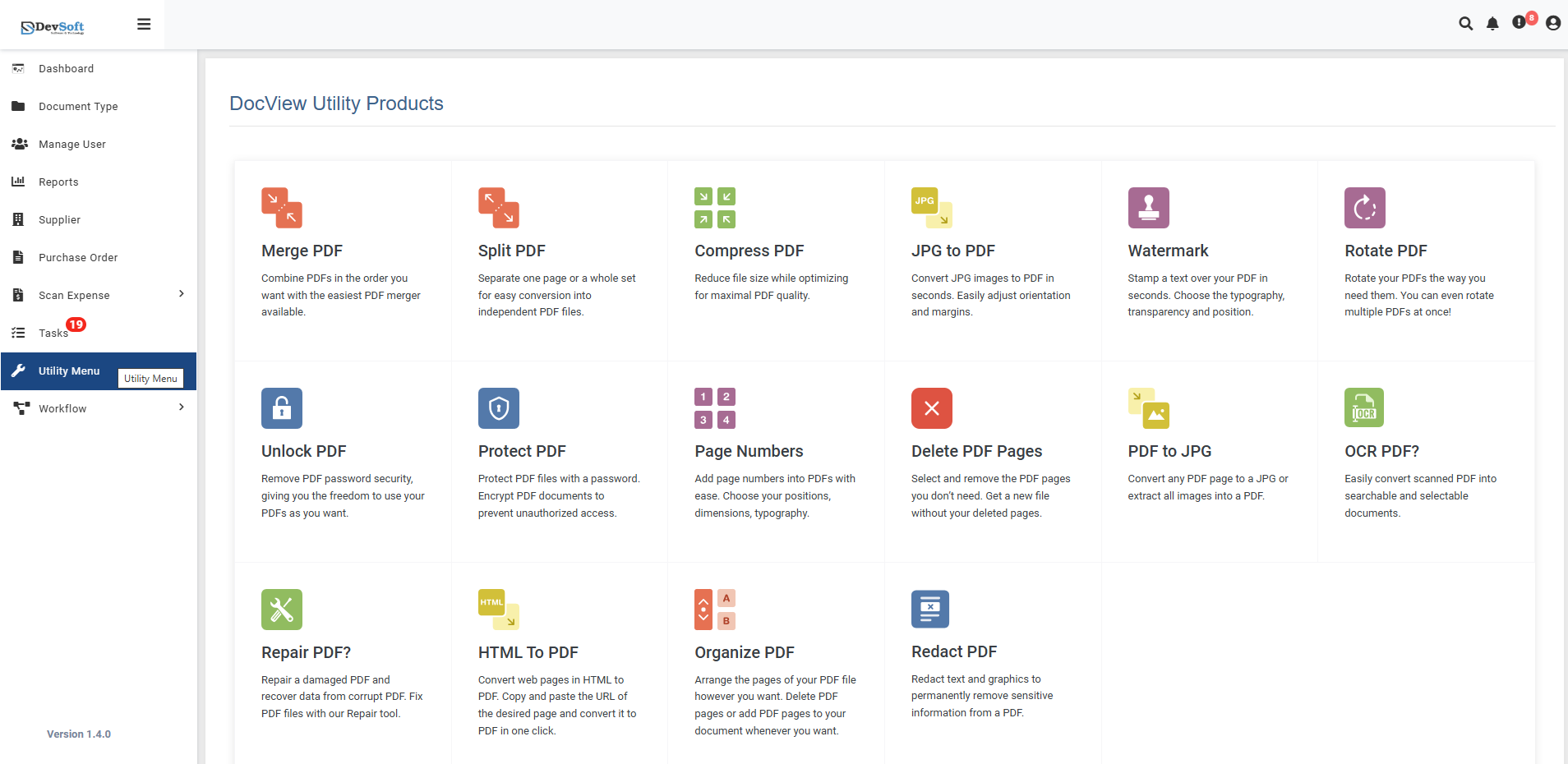
To access the HTML to PDF utility:
Open the Sidebar Menu
Click on the ☰ Sidebar Icon at the top-left corner of the dashboard interface to expand the navigation panel.Select "Utility Menu"
From the sidebar, click on Utility Menu to view the complete list of document processing tools.Click on "HTML to PDF"
Select the HTML to PDF option from the utility products list to open the conversion interface.
HTML to PDF Overview
The HTML to PDF screen provides a streamlined interface for converting web pages into high-quality PDF documents by simply entering website URLs and configuring conversion settings.
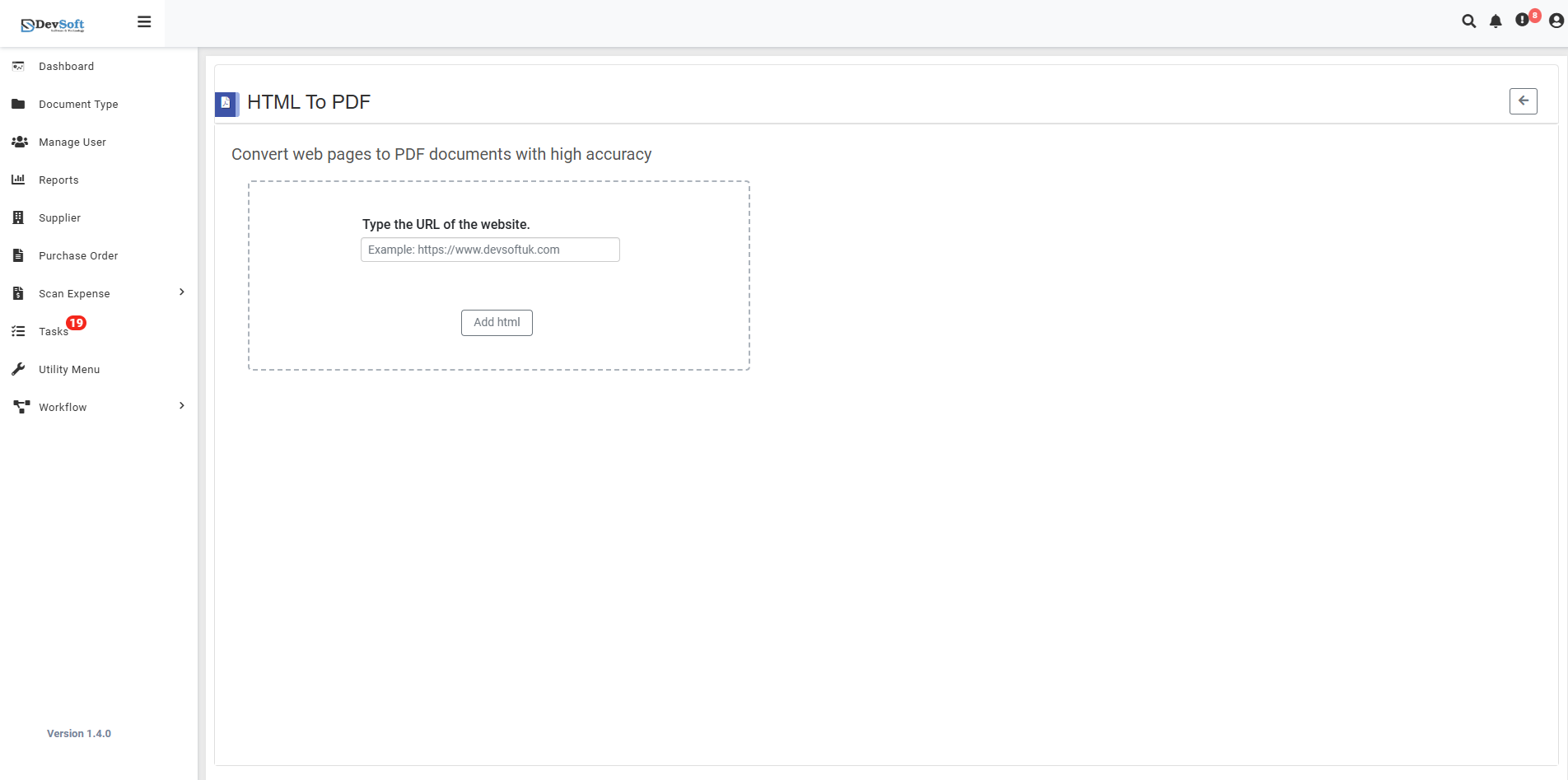
URL Input Section
- URL Entry Field - Type the complete website address for conversion
- Example Format - Shows proper URL format:
https://www.devsofuk.com - Validation - System checks URL format and accessibility
- Multiple URLs - Support for converting multiple web pages
Action Controls
- Add Item Button - Add additional URLs for batch conversion
- ← Back Icon (Top-right) - Returns to Utility Products page
- Convert Button - Executes the web-to-PDF conversion process
- Download Option - Access to generated PDF files
How to Convert HTML to PDF
Step 1: Enter Website URL
- Type the complete website address in the URL field
- Use proper format:
https://www.example.comorhttp://example.com - Include specific page paths if needed:
https://www.example.com/page.html - Click "Add Item" to queue multiple URLs for batch conversion
Step 2: Configure Conversion Settings
Page Capture Options
- Full Page - Capture entire webpage including scrollable content
- Visible Area Only - Convert only the initially visible portion
- Custom Height - Specify exact page height for conversion
- Multiple Pages - Handle multi-page articles or paginated content
Step 3: Advanced Conversion Options
Content Handling
- Images - Include or exclude images from conversion
- Background Graphics - Preserve or remove background elements
- JavaScript Execution - Allow JavaScript to run before capture
- CSS Styling - Preserve original website styling Navigation and Links
- Internal Links - Convert hyperlinks to PDF bookmarks
- External Links - Preserve external website references
- Table of Contents - Generate automatic table of contents
- Header/Footer - Add page headers and footers with URLs
Step 4: Download Results
- Download the generated PDF file
- Files are automatically named based on website titles
- Batch download available for multiple URL conversions
- Verify content accuracy and formatting
Step 5: Return to Utilities
- Click the ← Back Icon (top-right) to return to Utility Products page
- Start a new conversion process or choose another utility tool
Unsupported URLs
- Password-protected websites
- Private intranet sites
- Sites requiring complex authentication
- Blocked or restricted content
- Invalid or malformed URLs
Features
- High Accuracy Conversion - Faithful reproduction of web page layout
- Multiple URL Support - Convert several web pages in batch
- Flexible Formatting - Customizable page sizes and margins
- Content Preservation - Maintains images, styling, and formatting
- Fast Processing - Quick conversion even for complex pages
- Bookmark Generation - Automatic internal navigation
- Cross-platform Compatibility - Works with various website technologies
- Easy Navigation - Quick return to utility menu with back icon
Common Use Cases
Business and Professional
- Webpage Archiving - Preserve important online content
- Client Proposals - Convert web-based proposals to PDF
- Online Reports - Capture dynamic reports and dashboards
- Competitor Analysis - Document competitor websites
Academic and Research
- Research Sources - Convert online articles and papers
- Reference Materials - Capture web-based references
- Online Courses - Convert educational content
- Bibliography Sources - Document web sources for citations
Personal and Documentation
- Recipe Saving - Convert online recipes to printable format
- Travel Planning - Capture travel itineraries and information
- Product Research - Document product specifications and reviews
- Personal Archives - Save important personal web content
Legal and Compliance
- Evidence Collection - Document web content for legal purposes
- Regulatory Compliance - Capture compliance-related web content
- Contract Verification - Document online terms and conditions
- Historical Records - Preserve web content for records