Delete PDF Pages
The Delete PDF Pages utility in DocView Web allows you to select and remove the PDF pages you don't need. Get a new file without your deleted pages, enabling you to streamline documents, remove unnecessary content, and create focused PDF files tailored to your specific requirements.
Navigation
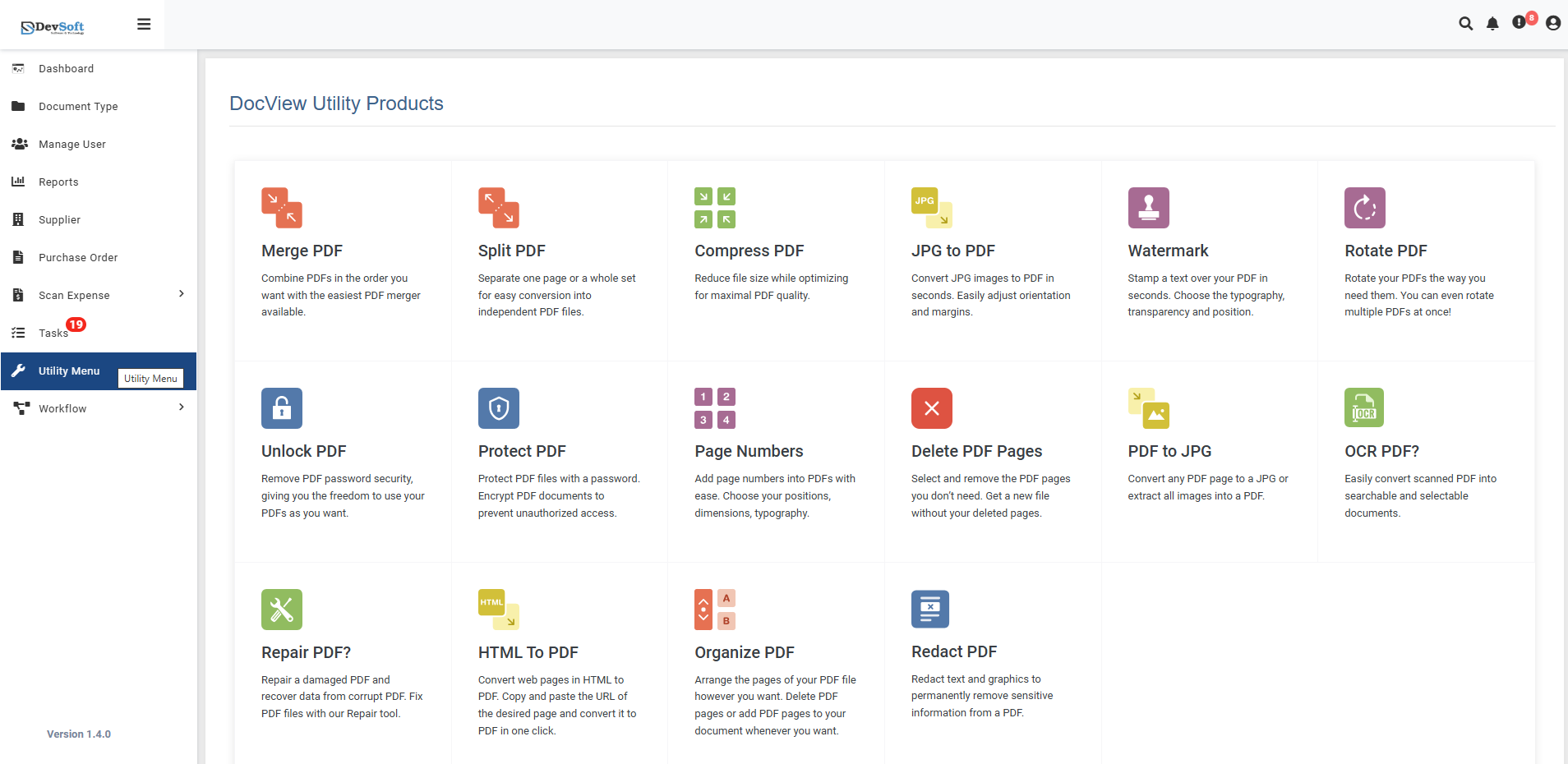
To access the Delete PDF Pages utility:
Open the Sidebar Menu
Click on the ☰ Sidebar Icon at the top-left corner of the dashboard interface to expand the navigation panel.Select "Utility Menu"
From the sidebar, click on Utility Menu to view the complete list of document processing tools.Click on "Delete PDF Pages"
Select the Delete PDF Pages option from the utility products list to open the page deletion interface.
Delete PDF Pages Overview
The Delete PDF Pages screen provides an intuitive interface for selecting and removing specific pages from your PDF documents with visual page previews and flexible selection options.
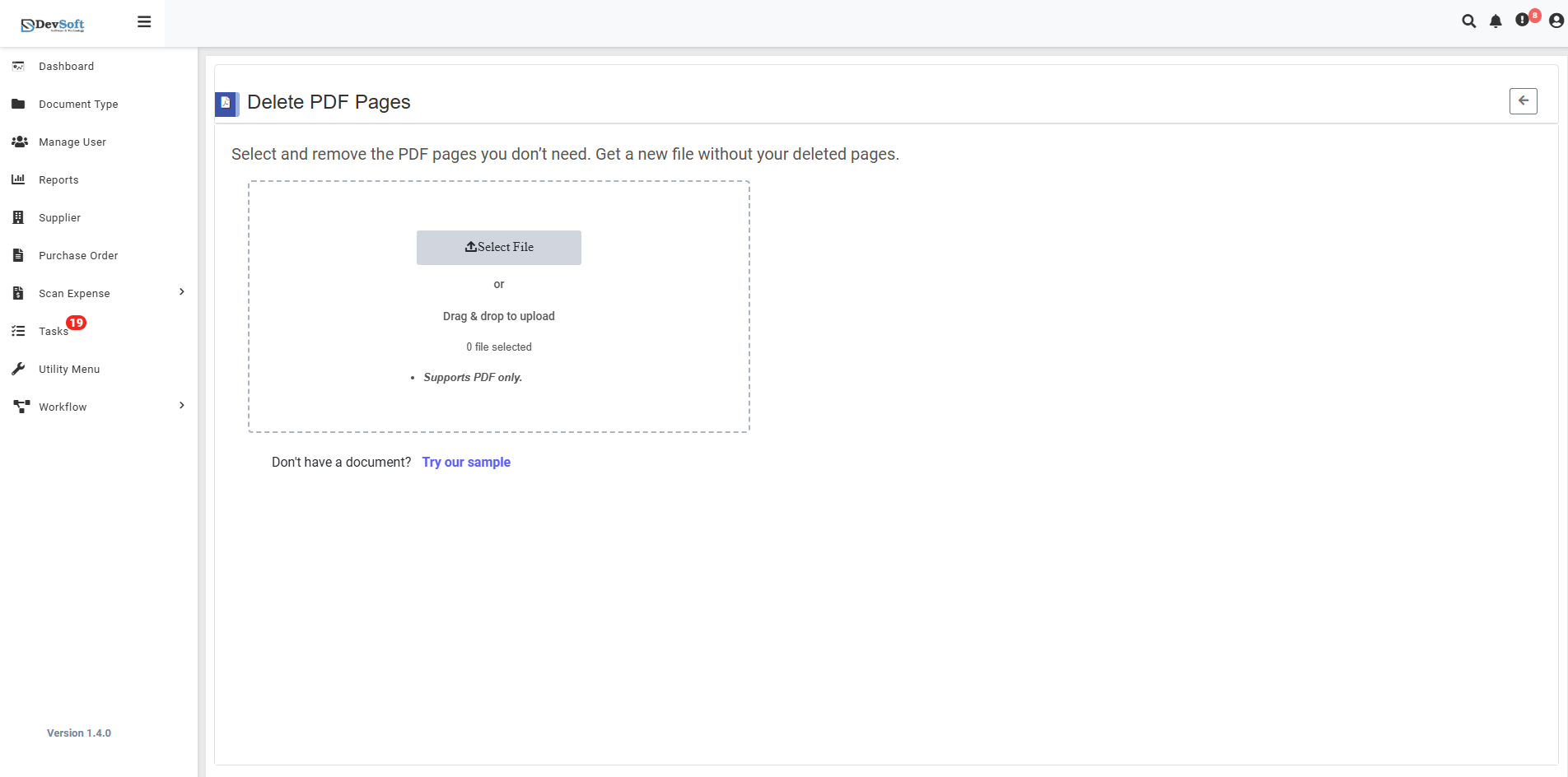
File Upload Section
- Backend File Upload Options
- Browse Option - Click to select PDF files from your device
- Drag & Drop - Alternative method for easy file upload
- File Selection Status - Shows currently selected files (0 file selected)
- Format Restriction - Supports PDF only - Only PDF file formats are accepted
Sample Document Access
- "Don't have a document? Try our sample"
- Provides sample PDFs for testing page deletion functionality
- Allows users to experience the deletion process without using personal documents
- Perfect for understanding the page selection workflow
Action Controls
- ← Back Icon (Top-right) - Returns to Utility Products page
- Page Selection Tools - Visual interface for choosing pages to delete
- Delete Button - Executes the page removal process
- Download Option - Access to modified PDF files
Delete PDF Pages – Uploaded View
Once a PDF file is uploaded in the Delete PDF Pages Utility, the interface updates to display page deletion controls and document information. This view allows users to specify exactly which pages to remove using simple page range notation.
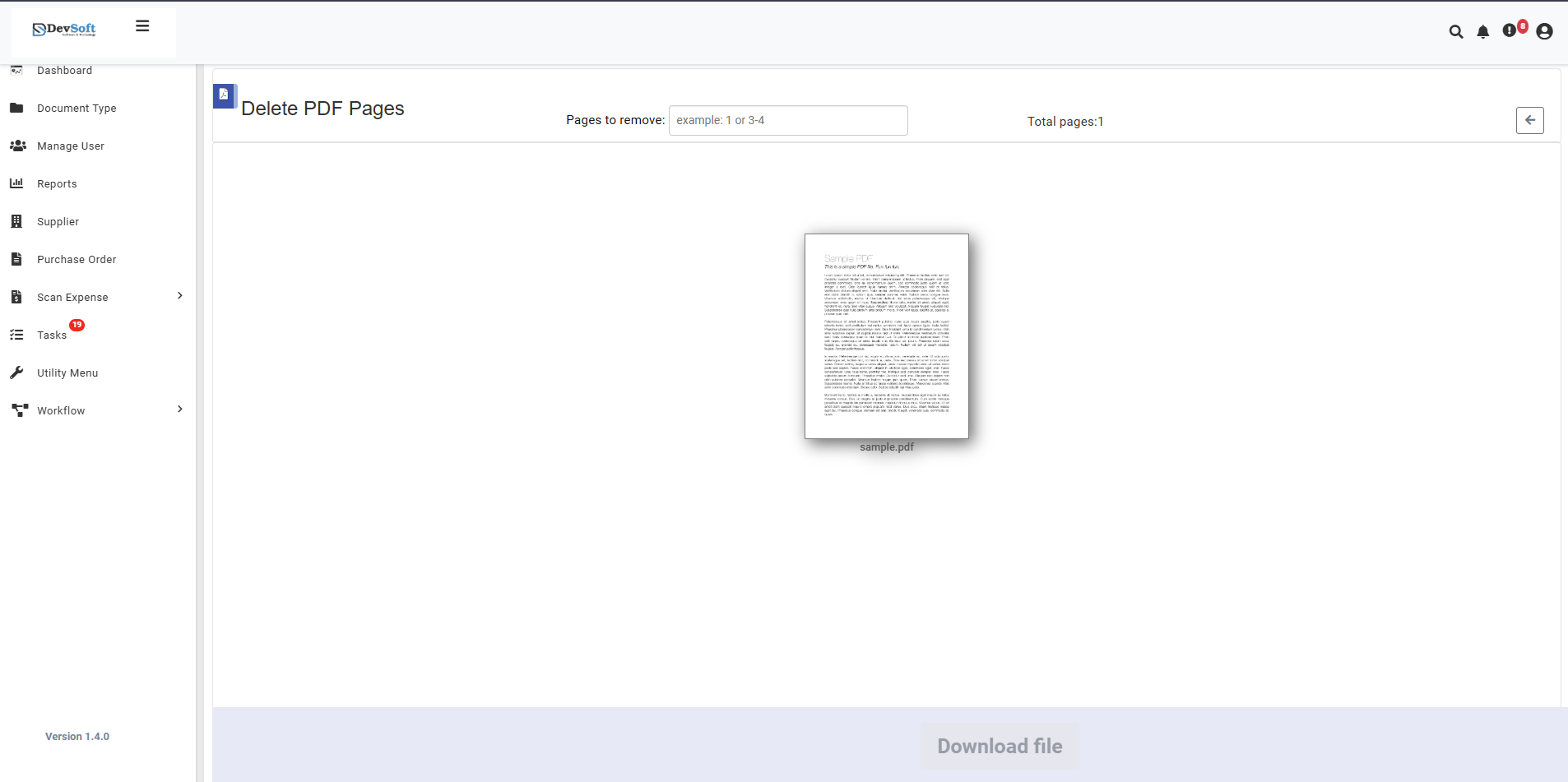
The uploaded view provides a straightforward interface for specifying pages to delete with clear instructions and real-time document information.
- Page Deletion Control Section
Pages to remove
- Input Field - Text box for entering page numbers to delete
- Example format: "1 or 5-4" (showing single page and range syntax)
- Flexible Syntax Support:
- Single pages:
1,3,5(deletes pages 1, 3, and 5) - Page ranges:
2-4(deletes pages 2 through 4) - Mixed selection:
1, 3, 5-7(deletes pages 1, 3, 5, 6, 7) - Complex patterns:
1-3, 5, 7-9(multiple ranges and singles)
- Single pages:
- Document Information Display
Total pages: 1
- Shows the total number of pages in the uploaded PDF
- Updates dynamically based on the document
- Helps users make informed deletion decisions
- Prevents invalid page number entries
- Download Section
- Download file button (activates after successful processing)
- Processing status indicator
- File size information for modified document
How to Delete PDF Pages
Step 1: Upload PDF File
- Click the Browse button to select PDF files from your device
- Or use Drag & Drop functionality for quick upload
- System validates file format (PDF only) and loads document for preview
Step 2: Specify Pages to Delete (Uploaded View)
Page Selection Syntax
- Single Pages: Enter comma-separated page numbers
- Example:
1, 3, 5deletes pages 1, 3, and 5
- Example:
- Page Ranges: Use hyphen for continuous ranges
- Example:
2-4deletes pages 2, 3, and 4
- Example:
- Combined Selection: Mix singles and ranges
- Example:
1, 3-5, 7deletes pages 1, 3, 4, 5, and 7
- Example:
Step 3: Download Modified PDF
- Download file button becomes active
- Download the PDF with selected pages removed
- Original file remains unchanged
- Verify the output meets requirements
Supported Formats
Input Format
- PDF only (Portable Document Format)
Output Format
- Modified PDF with selected pages permanently removed
- Maintains quality and formatting of remaining pages
- Compatible with all standard PDF readers and viewers
Unsupported Formats
- JPG/JPEG images
- PNG images
- Word documents
- Excel files
- PowerPoint files
- All other non-PDF formats
Features
- Simple Syntax - Easy page number entry system
- Flexible Selection - Support for singles, ranges, and combinations
- Real-time Validation - Immediate feedback on input errors
- Visual Preview - See pages marked for deletion
- Page Count Display - Know exactly how many pages you're working with
- Quality Preservation - Maintains original PDF quality of remaining pages
- Non-Destructive - Original files remain completely unchanged
- Quick Processing - Fast page removal even for large documents
Common Use Cases
Document Cleanup
- Remove Blank Pages - Delete empty or unnecessary pages
- Extract Specific Content - Keep only relevant sections
- Clean Scanned Documents - Remove cover pages and blank scans
- Archive Management - Create focused versions of historical documents
Business Documents
- Report Customization - Remove confidential or irrelevant sections
- Presentation Preparation - Extract key slides or pages
- Contract Management - Remove outdated clauses or appendices
- Proposal Tailoring - Customize proposals for different clients
Academic and Personal Use
- Thesis Editing - Remove draft pages and references
- Textbook Extraction - Create focused reading materials
- Personal Records - Extract relevant pages from multi-document files
- Photo Documents - Remove poor quality scans or duplicates
Note: The uploaded view provides a clean, text-based interface for precise page deletion control, making it easy to remove specific pages using simple number syntax while displaying essential document information like total page count for informed decision-making.