JPG to PDF
The JPG to PDF utility in DocView Web allows you to convert JPG images to PDF documents in seconds. This tool provides easy adjustment of orientation and margins, enabling you to create professional PDF documents from your image files with complete control over layout and formatting.
Navigation
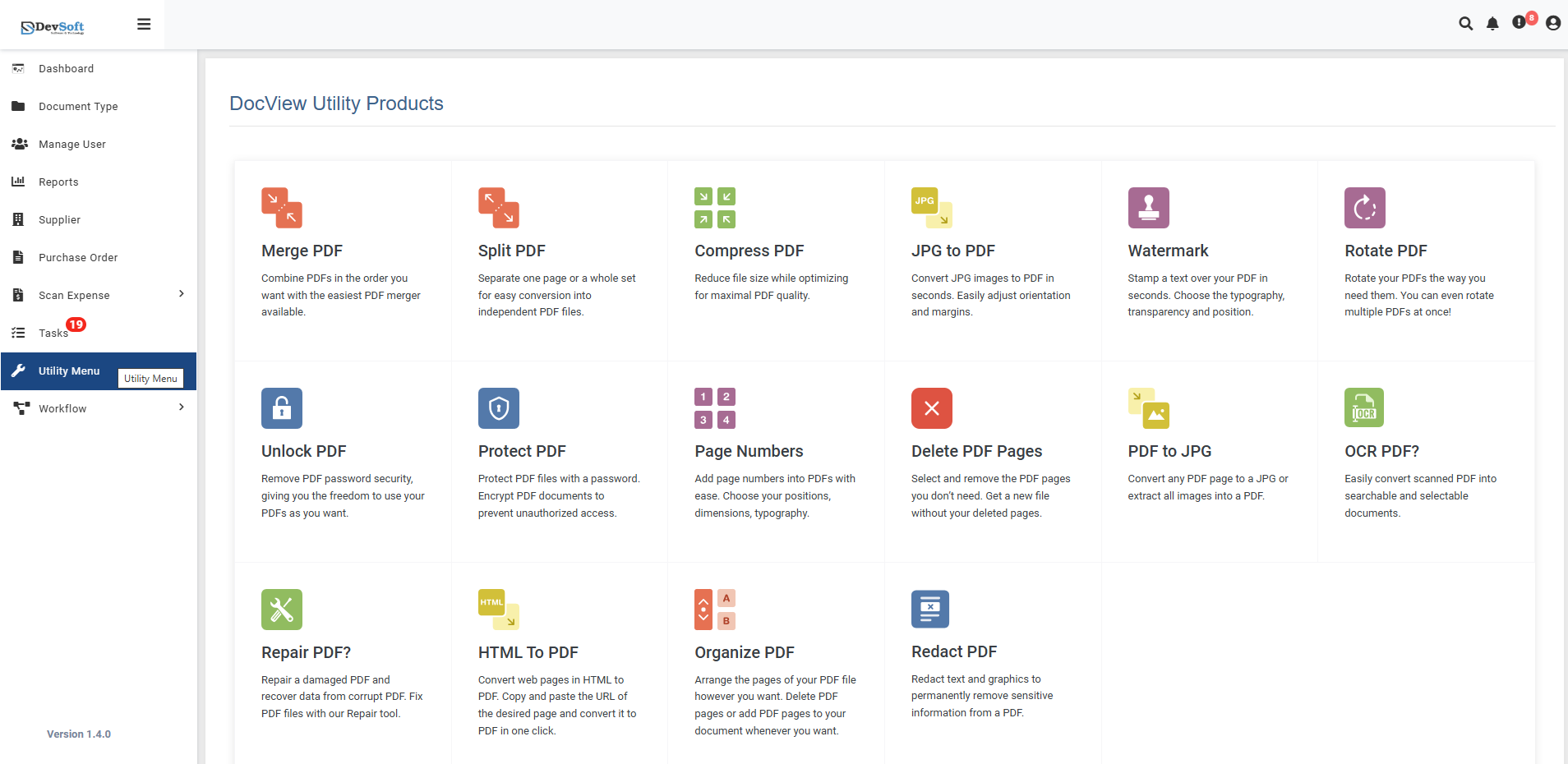
To access the JPG to PDF utility:
Open the Sidebar Menu
Click on the ☰ Sidebar Icon at the top-left corner of the dashboard interface to expand the navigation panel.Select "Utility Menu"
From the sidebar, click on Utility Menu to view the complete list of document processing tools.Click on "JPG to PDF"
Select the JPG to PDF option from the utility products list to open the conversion interface.
JPG to PDF Overview
The JPG to PDF screen provides a user-friendly interface for converting JPG images into PDF documents with customizable layout options and quality settings.
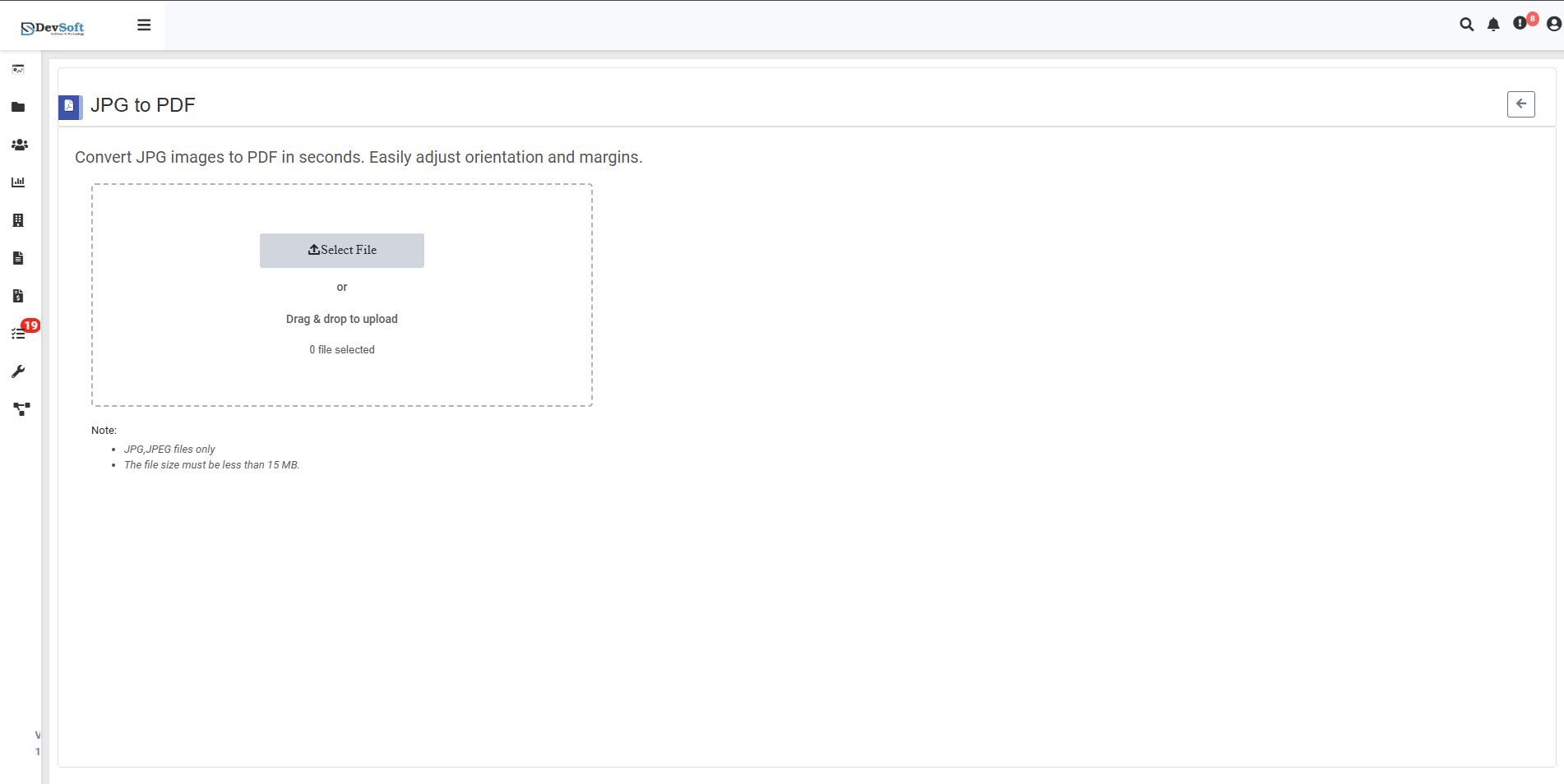
File Upload Section
- Designer File Upload Options
- Browse Option - Click to select JPG files from your device
- Drag & Drop - Alternative method for easy file upload
- File Selection Status - Shows currently selected files (0 file selected)
Important Notes
- Supported Format: JPG only - Only JPG file formats are accepted
- File Size Limit: The file size must be less than 15 MB per image
- Multiple Files: Support for batch conversion of multiple JPG files
JPG to PDF – Uploaded View
Once JPG files are uploaded in the JPG to PDF Utility, the interface updates to display conversion options and layout settings. This view allows users to customize page orientation before generating the final PDF document.
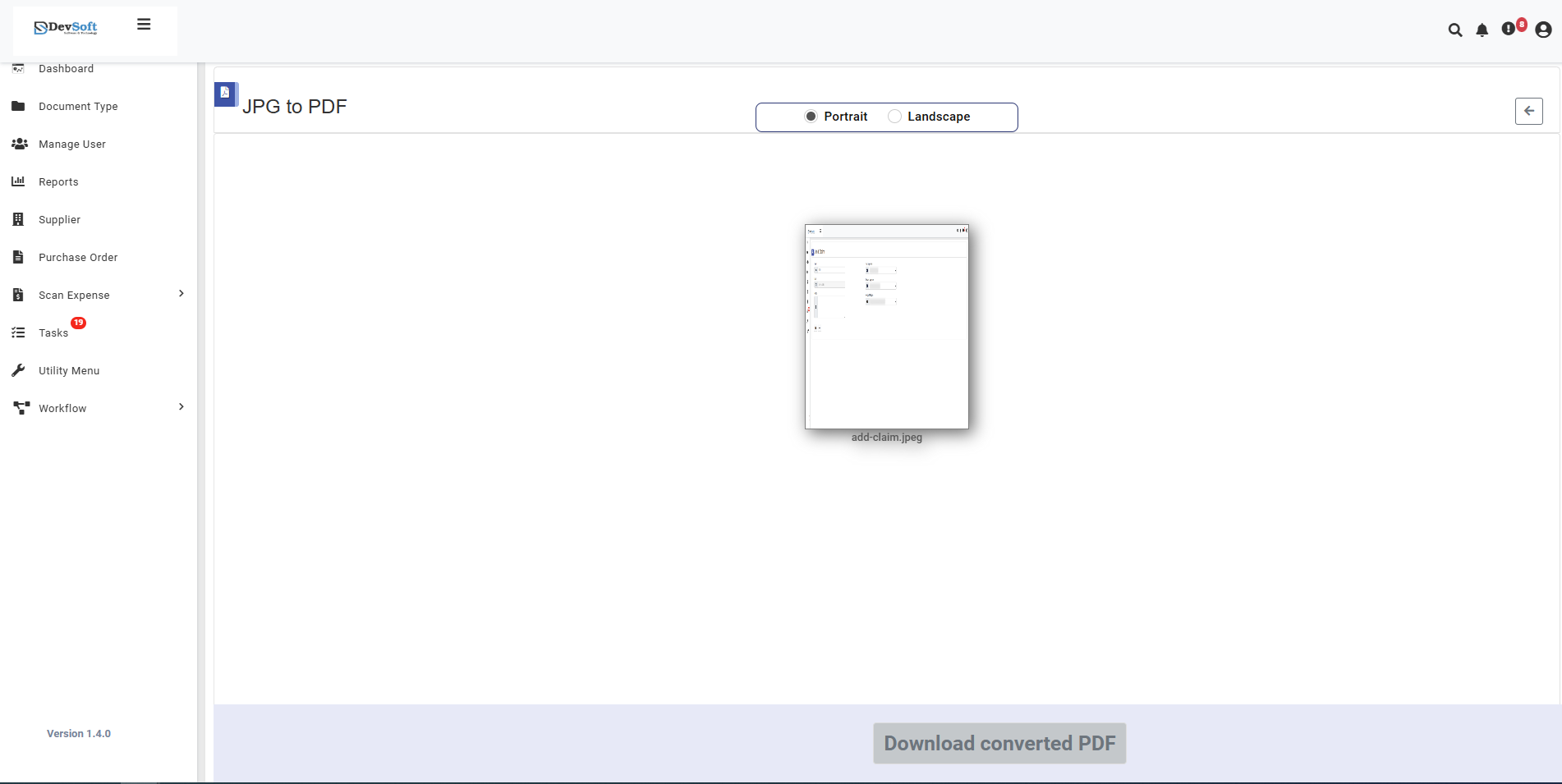
The uploaded view provides essential controls for customizing the PDF output with a clean and intuitive interface.
- Orientation Selection Section The main configuration area provides orientation options:
- [ ] Portrait - Checkbox for vertical page layout (ideal for most documents, portraits, and standard pages)
- [ ] Landscape - Checkbox for horizontal page layout (perfect for wide images, panoramas, screenshots, and landscape photos)
Note: Users can select either Portrait or Landscape orientation based on their image content and desired output format.
- Document Preview Area
- Displays uploaded JPG files as thumbnails
- Shows image sequence for multi-page PDFs
- Provides visual confirmation of selected files
- Action Controls
- Convert button to initiate the conversion process
- Clear/Reset options to modify selections
- Add More Images functionality for additional files
- Download Section Bottom section features:
- Download converted PDF button (activates after successful conversion)
- Processing status indicator
- File information display
Supported Formats
Input Format
- JPG only (JPEG Image Format)
- .jpg and .jpeg file extensions
- All standard JPG compression levels supported
Output Format
- PDF (Portable Document Format)
- Single or multi-page PDF documents
- Standard PDF compatibility
Unsupported Formats
- PNG images
- GIF images
- BMP images
- TIFF images
- PDF documents
- Word documents
- All other non-JPG formats
How to Convert JPG to PDF
Step 1: Upload JPG Files
- Click the Browse button to select JPG files from your device
- Or use Drag & Drop functionality for quick upload
- Multiple JPG files can be selected for batch conversion
- System validates file format (JPG only) and size (<15MB)
Step 2: Configure Orientation (Uploaded View)
Page Orientation Selection
- Portrait - Select for vertical layout (default for most documents)
- Ideal for: Portraits, documents, mobile photos, standard prints
- Landscape - Select for horizontal layout
- Ideal for: Panoramas, landscapes, screenshots, wide images
Step 3: Execute Conversion
- Click the Convert button to initiate processing
- Monitor real-time progress indicators
- Wait for completion notification
Step 4: Download Results
- Download converted PDF button becomes active
- Download the generated PDF file
- Single PDF containing all converted JPG images
- Verify layout and image quality
Features
- Fast Conversion - Convert JPG to PDF in seconds
- Batch Processing - Convert multiple JPG files simultaneously
- Orientation Control - Choose between Portrait and Landscape
- Quality Preservation - Maintains original image quality
- Secure Processing - Files processed securely with automatic cleanup
- User-Friendly Interface - Simple checkbox selection for orientation
- Multi-page Support - Create PDFs with multiple images
Common Use Cases
- Document Archiving - Convert scanned photos to searchable PDFs
- Photo Collections - Create PDF portfolios from image sets
- Receipt Management - Convert receipt photos to organized PDFs
- Presentation Materials - Transform images into presentation-ready PDFs
- Personal Documentation - Convert personal photos to document format
- Business Records - Create PDF records from product images or documents
- Mobile Photos - Convert smartphone images to shareable PDFs
Orientation Guidelines
Choose Portrait When:
- Converting portrait-oriented photos
- Creating standard documents
- Processing mobile photos in vertical orientation
- Need traditional document layout
Choose Landscape When:
- Converting landscape photos
- Processing screenshots and computer images
- Creating presentations or wide formats
- Need widescreen document layout
Note: The uploaded view provides a streamlined interface focusing on the most essential orientation setting, making it quick and easy to convert JPG images to properly formatted PDF documents.