Statements
The Statements Module in DocView Web provides users with a smart, organized interface to manage all statement-related documents — such as client statements, billing summaries, and financial reports.
This module enables users to view, analyze, and track statements efficiently while maintaining full visibility and control across all document actions.
Navigation
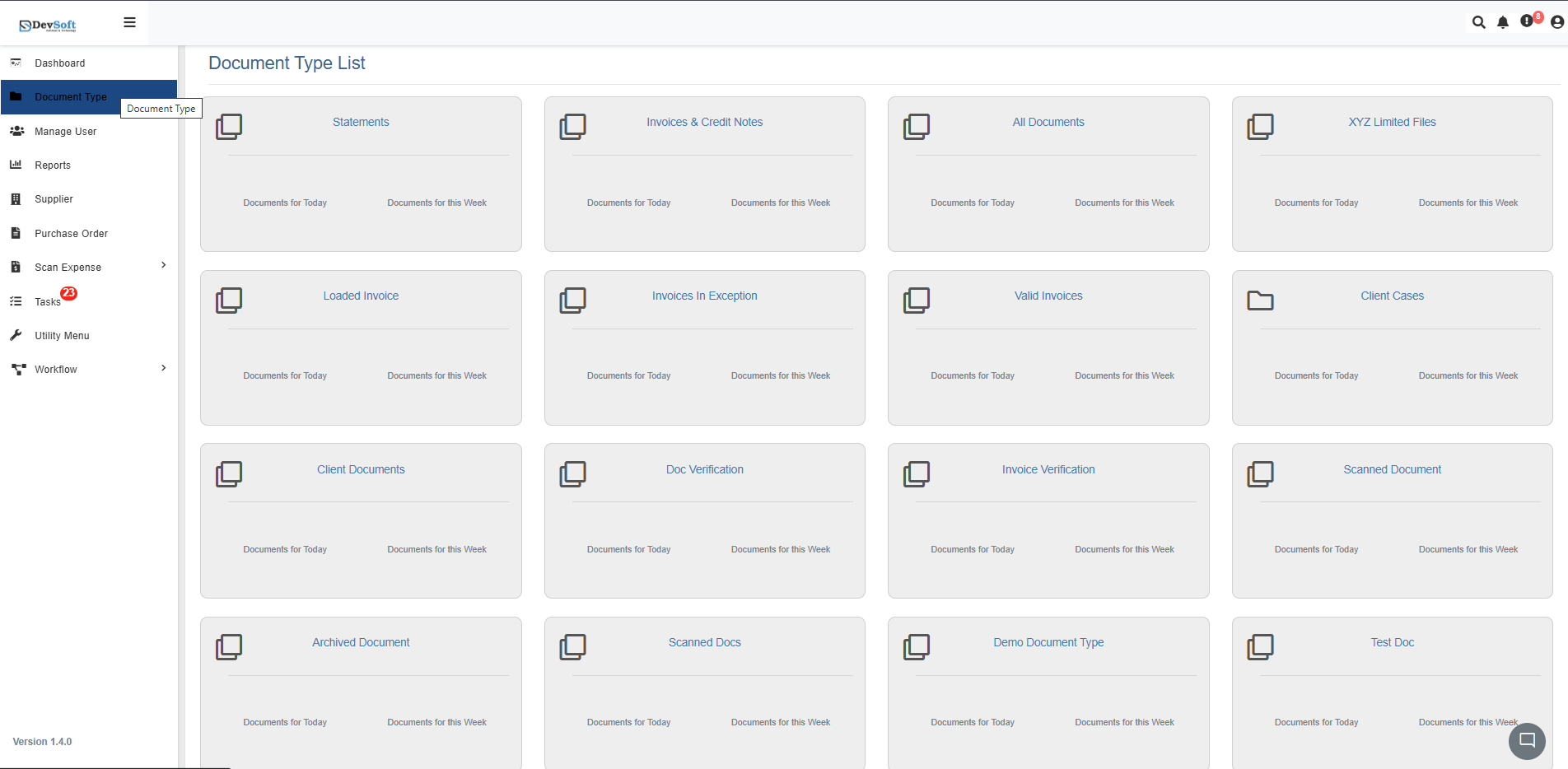
After logging in to DocView Web, users can access the Statements module through the following steps:
Open the Sidebar Menu
On the left-hand side of the DocView Web interface, click the Sidebar Icon (☰) to expand the navigation panel.Select “Document Type”
From the expanded sidebar, click on Document Type to open the complete list of available document categories.Choose “Statements”
In the Document Type List, click on the Statements card or title.
Once selected, the system automatically loads all statement records related to this category.
This navigation flow ensures that users can quickly move from the Dashboard to a focused list of statement documents in just a few clicks.
Statements Overview
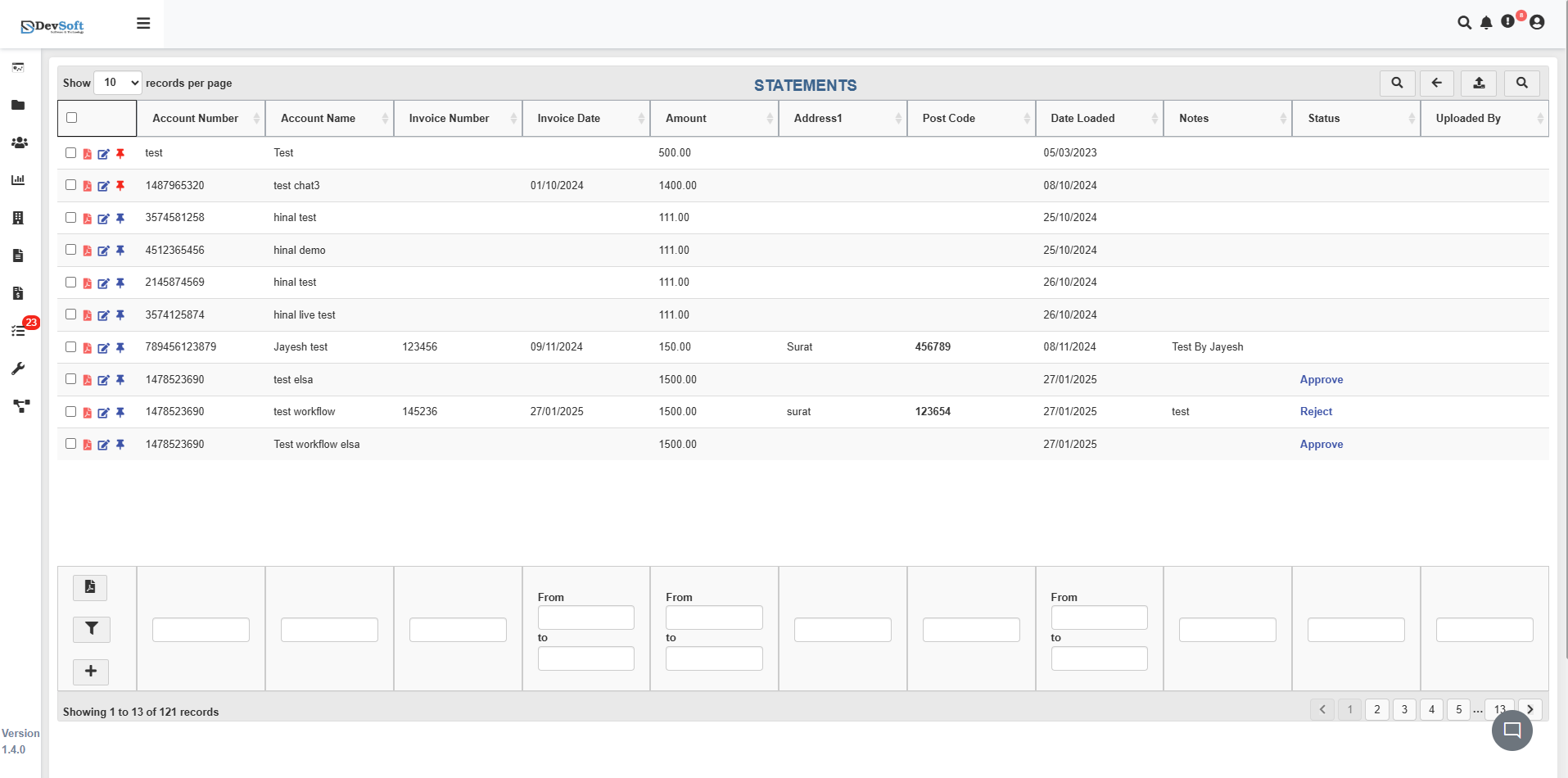
When the Statements section opens, users are presented with a clean and structured view of all statement documents.
The screen is divided into three main functional areas:
Top Toolbar
Provides quick-access actions such as refreshing the list, applying filters, or performing bulk actions on multiple records.Document Grid Area
The Grid Area is the central section displaying all statement records in a scrollable, table-like layout.
Each row represents a statement and shows key details at a glance:- Account Number – Unique identifier for the account.
- Account Name – Name of the client or account holder.
- Statement Date – Date when the statement was generated.
- Processing Status – Indicates whether the statement is pending, completed, or in review.
- Upload Date – Date when the document was uploaded to the system.
Action Controls in Grid
Each record has three primary action icons:- View – Opens the statement in the PDF viewer for detailed review.
- Edit – Allows modifying metadata, notes, or properties associated with the statement.
- Pin – Marks the statement as important or frequently accessed, keeping it at the top for quick reference.
This grid layout ensures users can quickly scan, filter, and act on statements without switching screens.
Right Panel / Details (Optional)
Selecting a statement may open a detailed panel with more metadata, workflow options, and activity history.
Top Bar Icons
The Top Bar in the Statements module provides quick access to key actions:
- 🔍 Search – Instantly find a specific statement using keywords or metadata.
- ⬅️ Back – Return to the previous screen or document list view.
- ⬆️ Upload Document – Quickly upload a new statement directly from your device.
- 🗂️ Search Panel – Opens a dedicated panel where users can refine searches using multiple fields such as account number, invoice number, date, amount, and more.
These icons keep navigation fast and workflow smooth.
Searching Statements
Clicking this opens a dedicated Search Panel that allows users to filter and locate statements based on multiple criteria.
Search Panel Layout
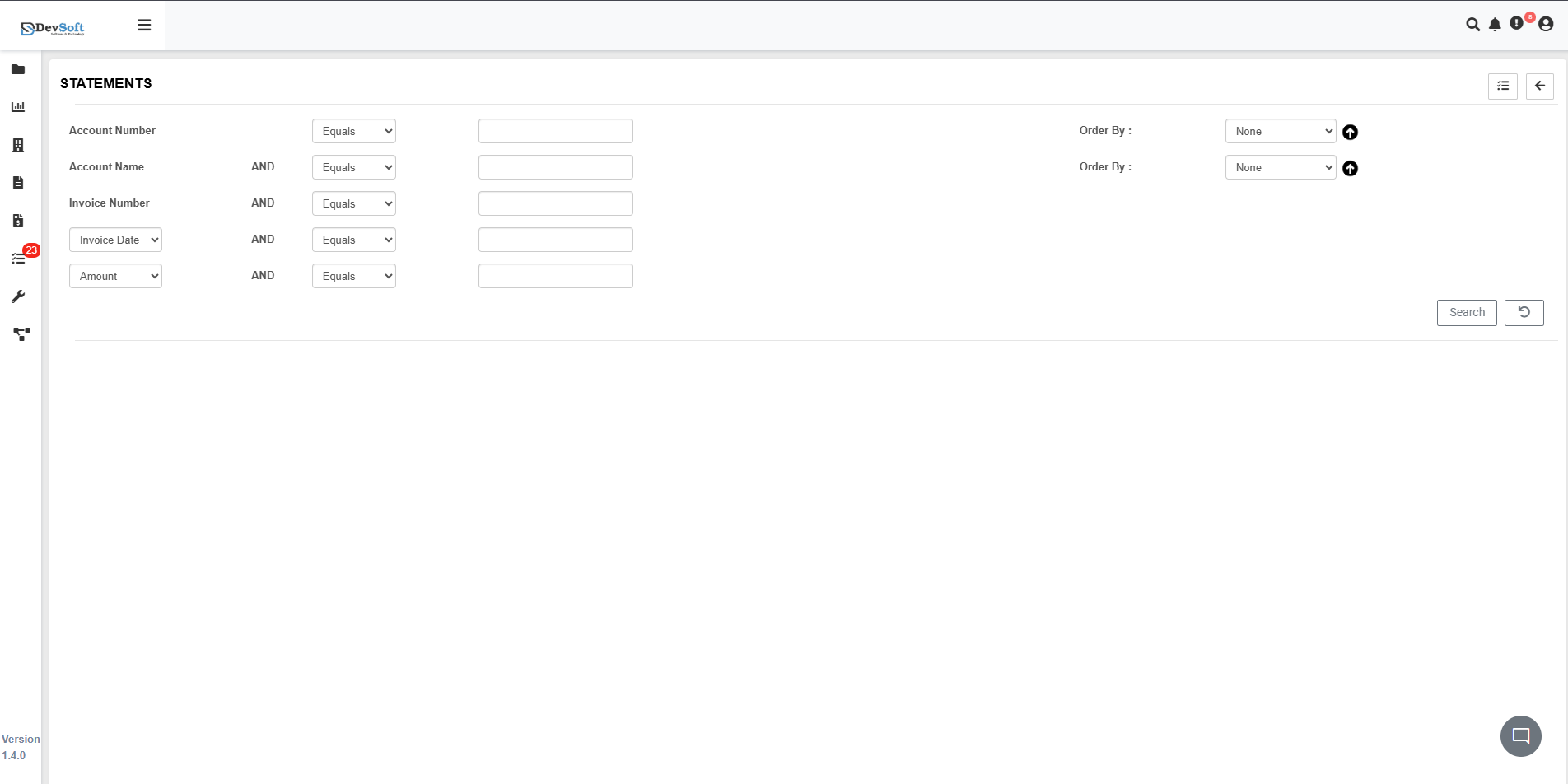
The Search Panel provides a structured form with several fields, enabling users to perform highly specific queries.
The main components include:
Account Number
Use the dropdown to select the filter type (Equals, Contains, Starts With, etc.).
Enter the account number to search for matching statements.Account Name
Filter by client or account holder name.
Combine with Account Number using the AND condition for precise results.Invoice Number
Filter statements by invoice reference number.
Useful for quickly locating statements tied to a specific invoice.Invoice Date
Select the filter type and enter the date.
Helps narrow down statements to a particular billing period.Amount
Filter statements based on monetary value.
Allows searching for statements above, below, or equal to a certain amount.
Order By Fields
Each search row provides an Order By dropdown to sort results by the selected column.
Supports ascending or descending sorting for easy prioritization of results.
Search Actions
- Search Button – Executes the query and displays matching statements in the main grid below.
- Reset / Clear Button – Clears all fields to start a new search.
This intuitive search panel ensures fast and accurate retrieval of statement records.
Viewing a Statement in PDF View
To open and review a specific statement:
- Locate the required document within the Statements list.
- On the right side of the record, click the View icon.
- The document opens in the integrated DocView PDF Viewer interface.
This allows users to view the document in a dual-pane viewer — providing a complete workspace for reviewing and managing statement details, while still allowing Edit and Pin actions directly from the grid.
PDF View
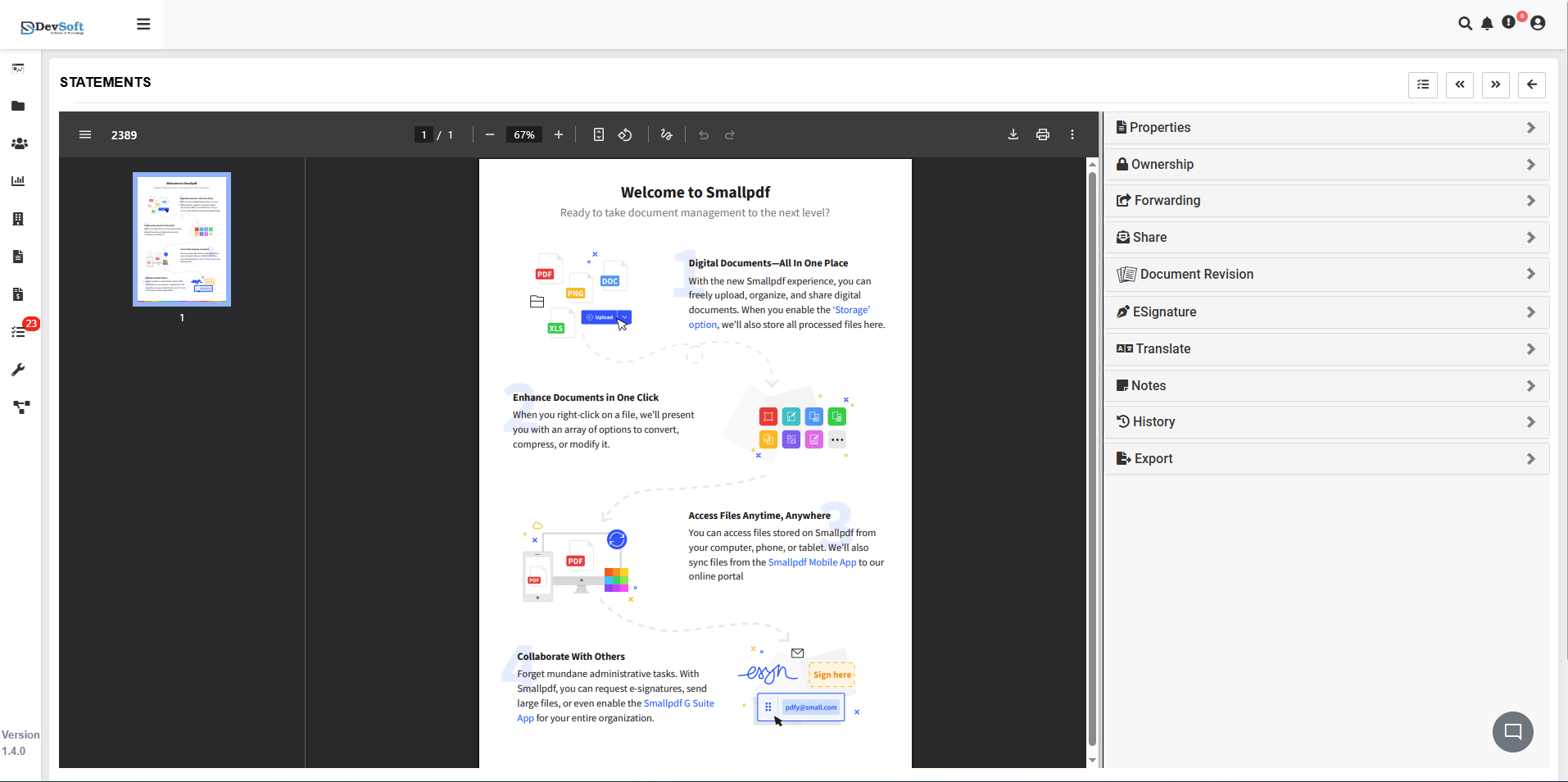
The PDF Viewer in DocView Web is designed for efficient document review and management.
It provides a two-pane layout that combines document viewing and metadata control in a single interface.
Left Panel – Document View
Displays the original PDF statement as uploaded.
Users can:
- Scroll through pages smoothly.
- Zoom in or out for detailed viewing.
- Navigate using page thumbnails.
Right Panel – Document Details and Actions
Provides contextual information and management tools. Users can:
- properties - such as title, owner, and tags.
- Ownership
- Forwarding - to another user, department, or workflow stage.
- Share - with team members or external users.
- Document revisions - and upload new versions.
- ESignatures
- Translate
- Notes - for collaboration.
- History
- Export - for offline reference.
All actions can be performed without leaving the viewer, ensuring a seamless workflow.