Loaded Invoices
The Loaded Invoices Module in DocView Web provides a dedicated workspace for managing and reviewing all invoice files that have been successfully uploaded into the system.
It offers specialized features for filtering, validating, and processing invoices — ensuring accurate financial data and seamless workflow for accounting teams.
Navigation
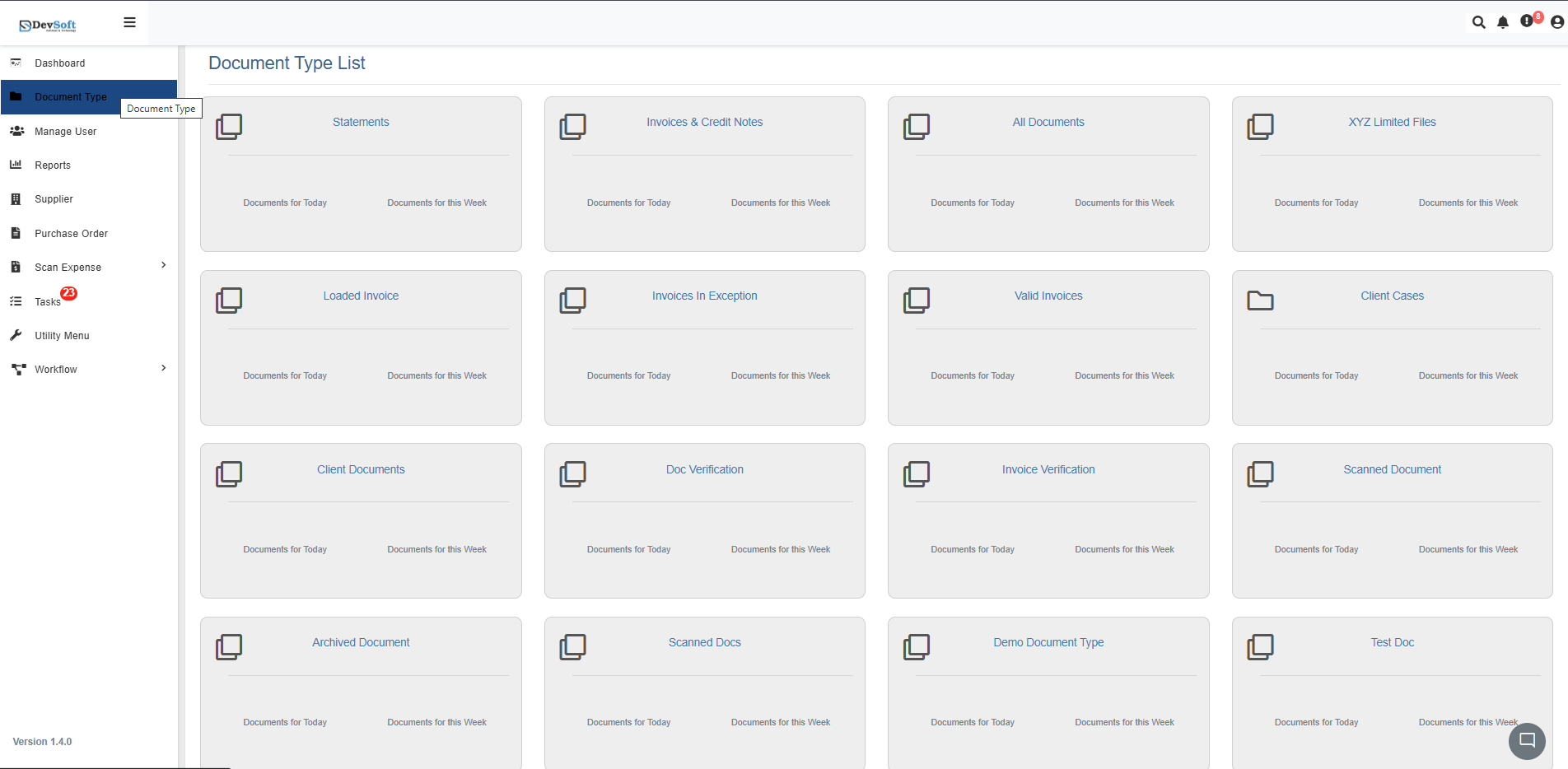
To access the Loaded Invoices module:
Open the Sidebar Menu
Click the ☰ Sidebar Icon at the top-left corner of the interface to expand the navigation panel.Select “Document Type”
From the sidebar, click on Document Type to view all available document categories.Choose “Loaded Invoices”
Select Loaded Invoices to open the detailed view and start managing uploaded invoice documents.
Loaded Invoices Overview
Once opened, the Loaded Invoices screen displays all uploaded invoice records in a structured and sortable grid layout.
This section allows users to monitor, validate, and process invoices directly without leaving the screen.
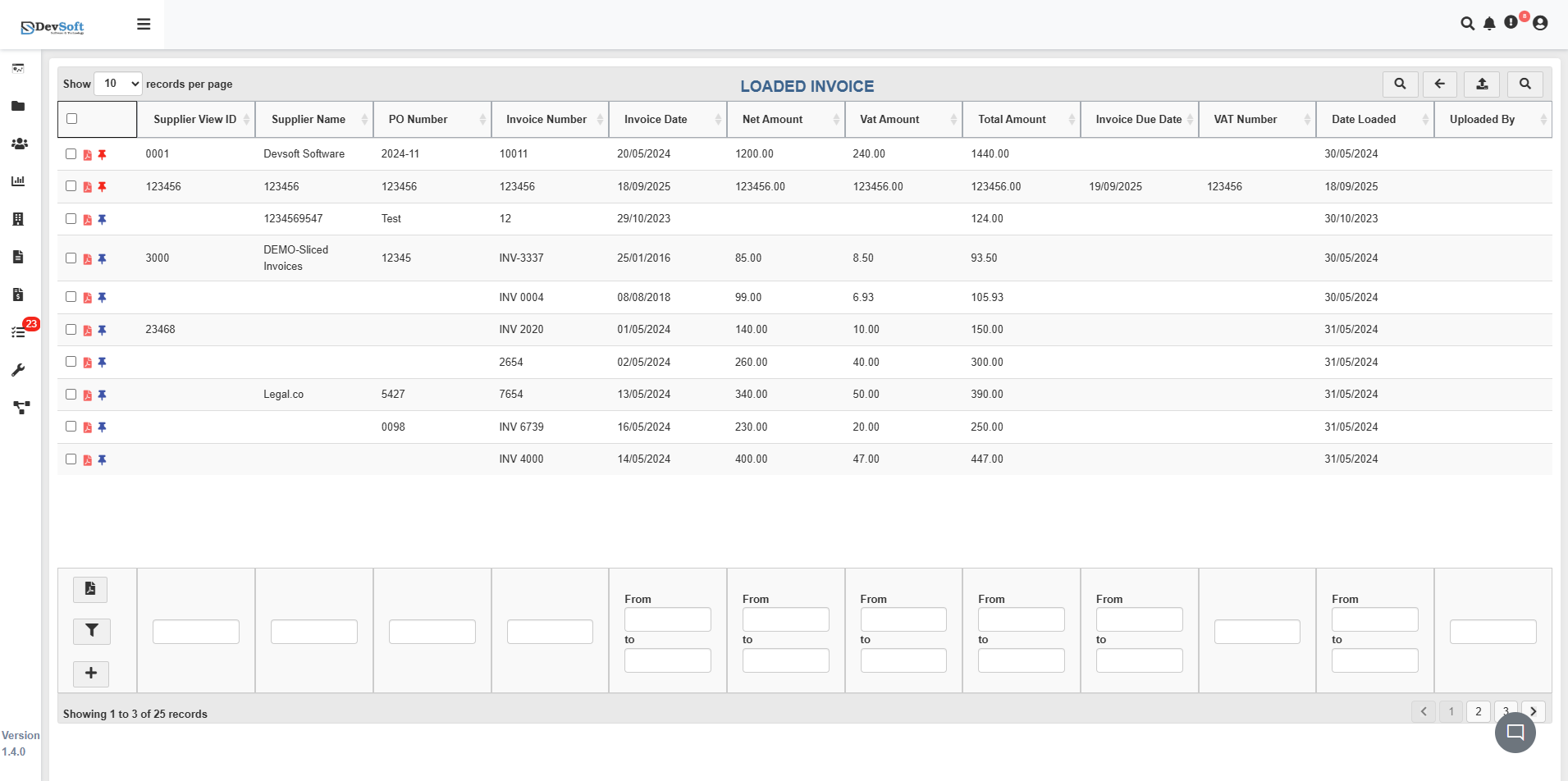
Document Grid Area
Each invoice record includes detailed fields to provide a complete financial snapshot:
- Supplier View ID – Unique identifier assigned to the supplier.
- Supplier Name – Name of the vendor or supplier organization.
- PO Number – Linked purchase order number for tracking.
- Invoice Number – Unique invoice reference code.
- Invoice Date – Issue date of the invoice.
- Net Amount / Tax / Total – Financial breakdown for quick verification.
- Invoice Due Date – Date when payment is expected.
- WI Number – Work instruction or job reference number.
- Date Loaded – Timestamp of when the invoice was uploaded.
- Uploaded By – Identifies the user who uploaded the file.
Action Controls
Every invoice record provides interactive icons for quick access and management:
- 📄 PDF View – Opens the invoice in the built-in PDF viewer, allowing zooming, page navigation, and printing.
- 📌 Pin – Marks the invoice as important for easy access later. Pinned invoices appear at the top of your list or in Favorites.
These tools simplify invoice management, allowing users to act directly from the main grid.
Filtering & Pagination
Users can apply inline filters under column headers to search by supplier, invoice number, amount, or date range.
Pagination controls at the bottom display total records and allow smooth navigation through large data sets.
Top Bar Icons
The Top Toolbar provides convenient access to frequently used options:
🔍 Search – Instantly locate invoices using text, keywords, or metadata.
⬅️ Back – Return to the previous document list or screen.
⬆️ Upload – Upload a new invoice directly from your device.
🔍 Search Panel – Instantly locate invoices using text, keywords, or metadata.
Clicking the Search icon opens an advanced Search Panel for targeted invoice retrieval.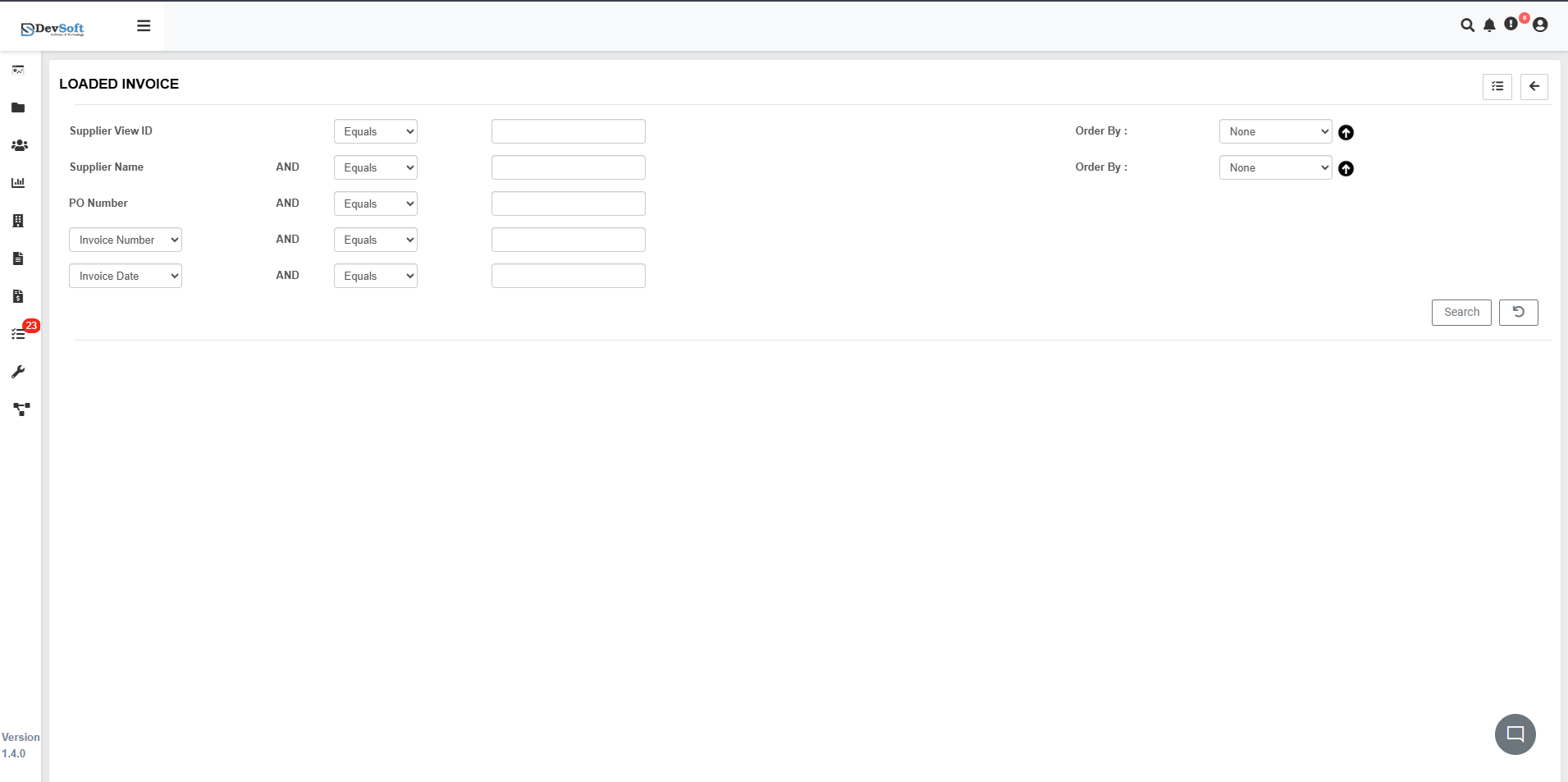
Search Panel Features
Users can filter invoices using multiple fields:
- Supplier View ID – Search by supplier ID code.
- Supplier Name – Filter by vendor or supplier name.
- PO Number – Locate invoices using purchase order references.
- Invoice Number – Search for a specific invoice record.
- Invoice Date Range – Filter results based on invoice issue dates.
- Amount Fields – Filter by net, tax, or total amount.
- Date Loaded – Search by upload date to find recently added invoices.
Search Actions
- Apply Search – Execute the query and display matching results.
- Clear Filters – Reset all criteria to start a new search.
- Save Search – Save custom filter configurations for frequent use.
This panel enables quick and precise retrieval of invoice records without reloading the main grid.
Loaded Invoices View
Selecting any invoice and clicking the 📄 PDF icon opens the detailed document view.
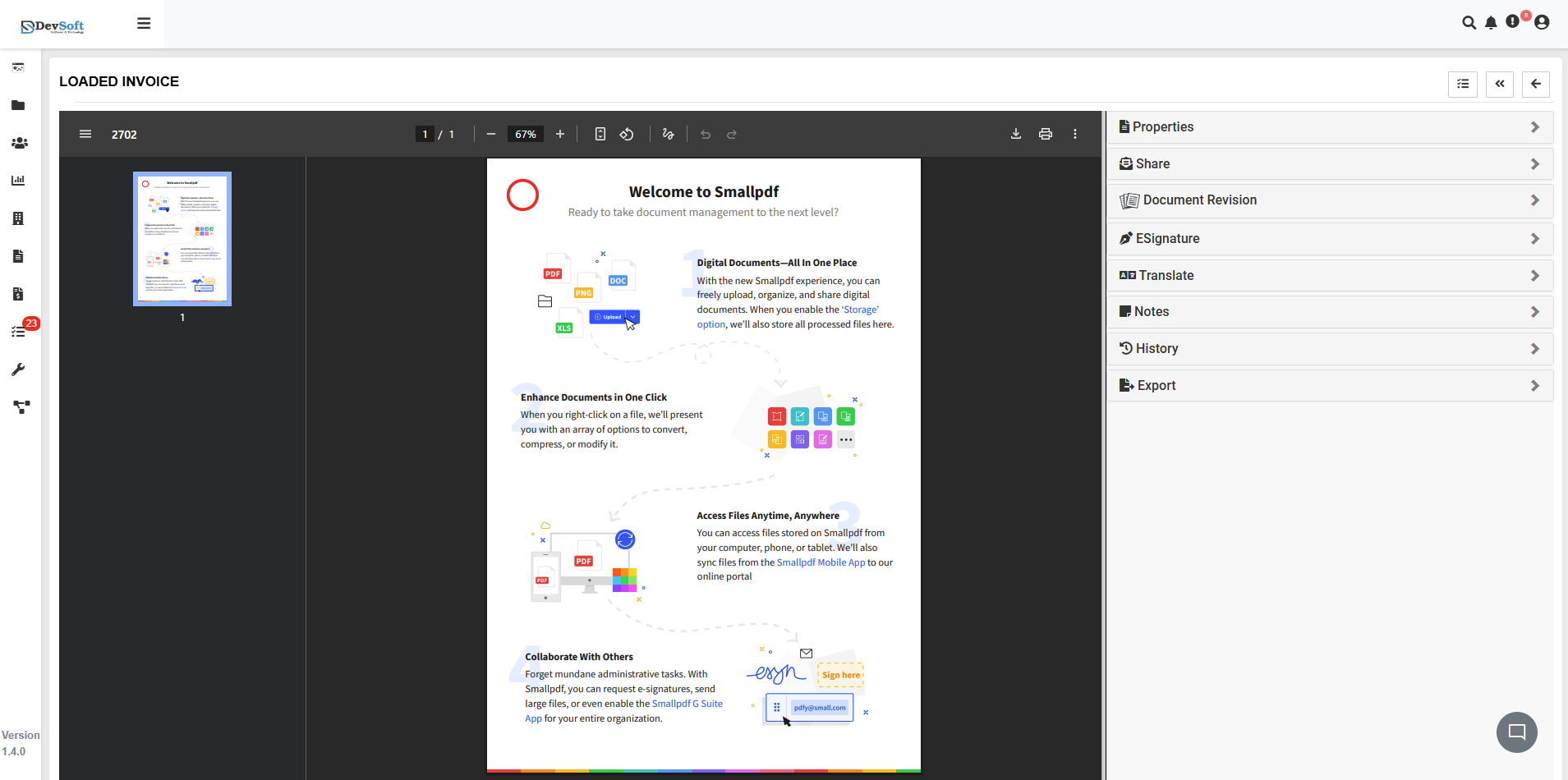
Invoice Tools Panel
The right-hand panel offers additional actions for managing invoices:
- Share – Share the document with specific users or groups.
- Document Revision – Manage or upload new document versions.
- Signature – Apply or verify digital signatures.
- Translate – Translate invoice text into supported languages.
- Notes – Add comments or annotations for collaboration.
- History – View the complete document activity log.
- Export – Download the invoice in various formats.
PDF View Features
- Zoom Controls – Adjust magnification levels.
- Page Navigation – Browse through multiple pages.
- Text Search – Find specific content inside the PDF.
- Print Options – Print or export the document.
Batch Operations
The Loaded Invoices module supports bulk actions for improved efficiency:
- Bulk Approval – Approve multiple invoices at once.
- Mass Export – Export selected invoices in one step.
- Batch Status Update – Change status for several records simultaneously.
- Group Sharing – Share multiple invoices with a specific group of users.
Bottom Controls and Pagination
The bottom toolbar displays record navigation and control options:
- Record Counter – Shows how many invoices are currently visible.
- Pagination Controls – Move between pages easily.
- Export Options – Download or export the displayed data.
Quick Access Panel
Located on the left side, the Quick Access Panel provides essential shortcuts:
- Filter Toggle – Expand or collapse advanced filters.
- Clear Filters – Reset all applied filters.
- Upload New Invoice – Add new invoices directly.
- Favorite Views – Access saved custom filter layouts.
- Generate Reports – Export or print invoice summaries.