Import Module
The Import Module in DocView Capture enables ingestion of pre-existing digital documents (PDFs, TIFFs, images) directly into the capture workflow without a scanner.
It converts these files into structured, workflow-ready batches while preserving document integrity and original metadata. This module is ideal for documents originating from email, file shares, or other digital sources.
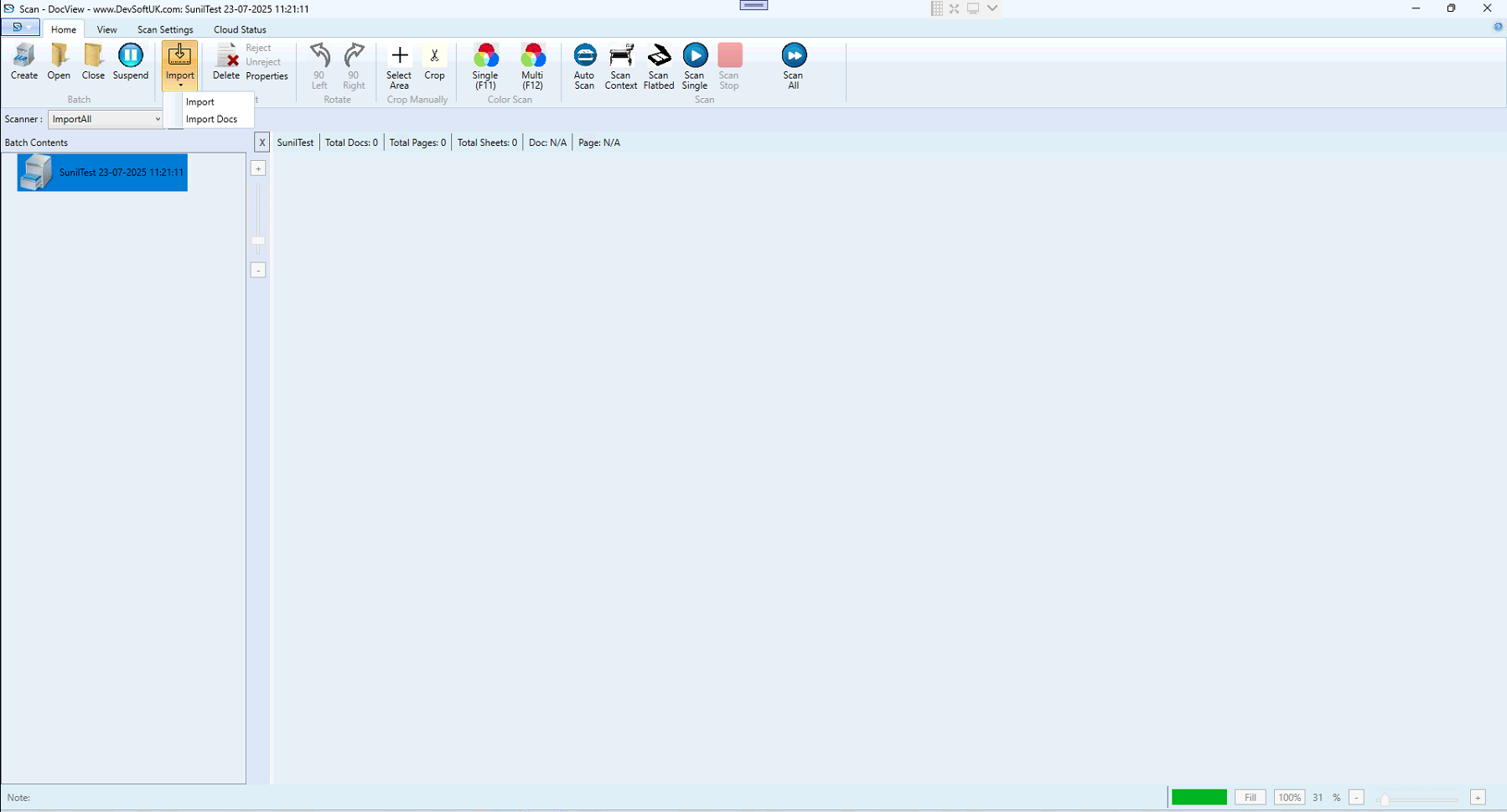
Batch Creation
Batch creation in the Import Module functions similarly to the Scan Module, but the source is a file selection process.
1. Initiating Import
Navigate to Home → Import or press the relevant hotkey. Select the source location (local folder, network share, or integrated cloud location).
2. Configure Batch Parameters
- Batch Setup – Choose a template with indexing fields, classification rules, and workflow routing.
- Priority – Determines processing queue order in multi-user environments.
- Name – Defaults to
[BatchSetupName] [YYYY-MM-DD HH:MM:SS]; rename for clarity (e.g.,Invoices_Q3_2025_Import). - Description – Notes the file source, import purpose, or special handling instructions.
- Batch Date – Must be accurate for proper routing and archival.
3. Commit Creation
Click Import to create the batch entry in the database. The batch is now ready to receive files.
Batch Workspace
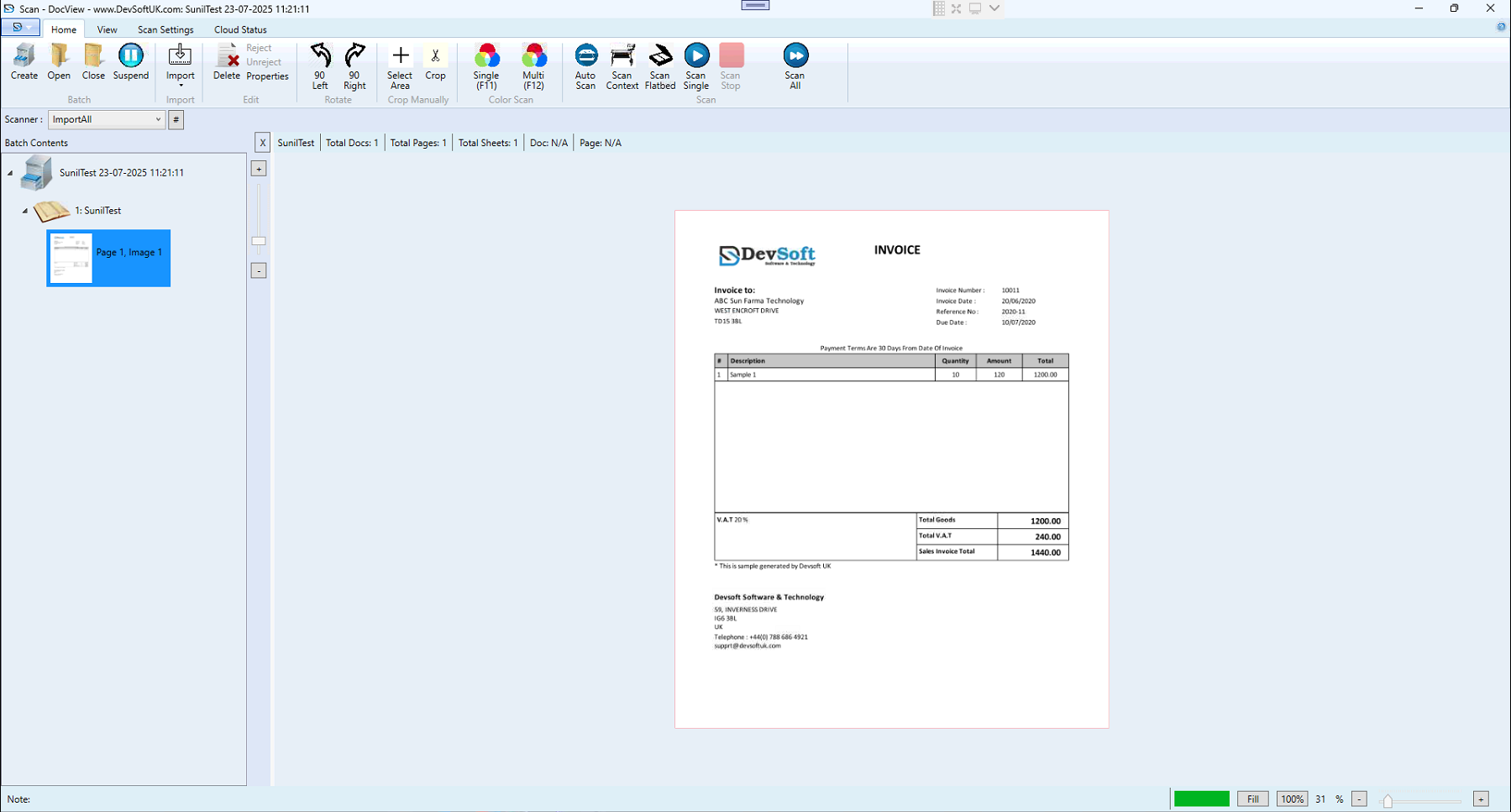
Batch Contents Panel
- Batch Node – Top-level container.
- Document Nodes – Each imported file becomes a separate document unless split rules apply.
- Page Thumbnails – Previews of each page for navigation.
Status Bar
- Total Docs – Number of documents in the batch.
- Total Pages – Cumulative page count.
- Total Sheets – Physical sheet count if applicable.
- Current Document & Page – Active selection indicator.
Import Operations
Available methods:
- Single Import – Add one file at a time.
- Multi Import – Bulk import multiple files.
- Drag & Drop – Drop supported files directly into the batch.
- Auto Import – Monitors a watch folder and automatically imports new files into a predefined batch setup.
File Handling & Conversion
Upon import, DocView can:
- Convert non-image PDFs to image-based formats for OCR.
- Merge multi-page documents into a single batch document.
- Preserve or replace original file metadata (timestamps, etc.).
Closing an Imported Batch
Click Close to finalise the batch:
- Status changes to Closed
- No further files can be imported
- Triggers downstream workflows (indexing, classification, OCR)
Suspending an Imported Batch
Suspend a batch to pause work while keeping it editable:
- Saves all imported files and metadata
- Can reload later using Open Batch
State Indicators
- Open – Active and ready for import
- Suspended – Temporarily paused but editable
- Closed – Finalized, read-only, in workflow processing
Toolbar Overview
Home Tab
- Import – Start a new import session
- Create Batch – Create a batch without importing immediately
- Open / Close / Suspend Batch – Manage batch lifecycle
- Delete – Permanently remove an unwanted batch
View Tab
- Thumbnail & Single Page view
- Zoom & Fit tools for document review
Cloud Status Tab
- Tracks cloud upload progress for imported batches
- Retry failed uploads without re-importing